Creating Your First SightLab Project
This guide covers the recommended workflow for creating a new experiment in SightLab, from creating a project and adding assets through configuring trials and running your study.
SightLab experiments can be created using the GUI, Python code, or a combination of both. For most new users, we recommend starting with the SightLab GUI and adding Python only when custom functionality is needed.
Overview
How SightLab, Inspector, and Vizard fit together
SightLab runs on top of Vizard, and uses Inspector to edit 3D scenes. You don't normally choose between these tools—they're designed to work together.
SightLab = build and run the experiment
Use SightLab to select environments or 360 media, configure hardware, create trials and conditions, tag objects for data collection, configure interactions, and collect experiment data.
Inspector = edit the 3D scene
Use Inspector when you need to modify a 3D model itself—for example, moving or scaling objects, adding Regions of Interest (ROIs), creating group nodes, setting starting positions, or adjusting lighting.
Vizard = add custom programming
Use the Vizard Python editor when you want to extend the experiment with custom logic or functionality beyond the options available in the SightLab GUI (note: SightLab has a large python API on top of the core Vizard modules see this page for more information).
Choose a workflow
There are three valid SightLab workflows:
- GUI only: Recommended for getting started and for experiments that can be configured using SightLab's built-in options.
- GUI + code: Recommended when most of the experiment can be configured in SightLab but you need additional custom behavior. This is often the most flexible workflow.
- Code only: Useful for highly customized studies or researchers who prefer to define the entire experiment programmatically. See the Non-GUI example (SightLab can be initialized with
gui=False).
Recommended Workflow
For most new projects, we recommend starting with the SightLab GUI:
-
Create a project from the SightLab Dashboard.
-
Add your assets, such as a 3D environment or 360 media.
-
Edit the 3D scene in Inspector, if needed.
-
Tag objects and ROIs in SightLab for gaze data and interactions.
-
Configure trials and conditions in the SightLab GUI.
-
Select your hardware and experiment options.
-
Run and test the experiment.
-
Add Vizard/Python code only if you need custom functionality.
-
Run the study and review the collected data/replay afterward.
Create a Project
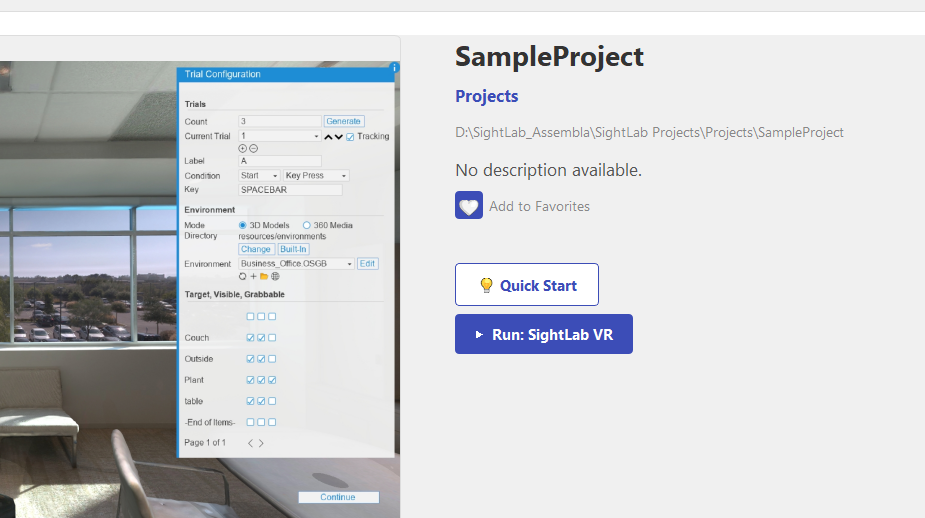
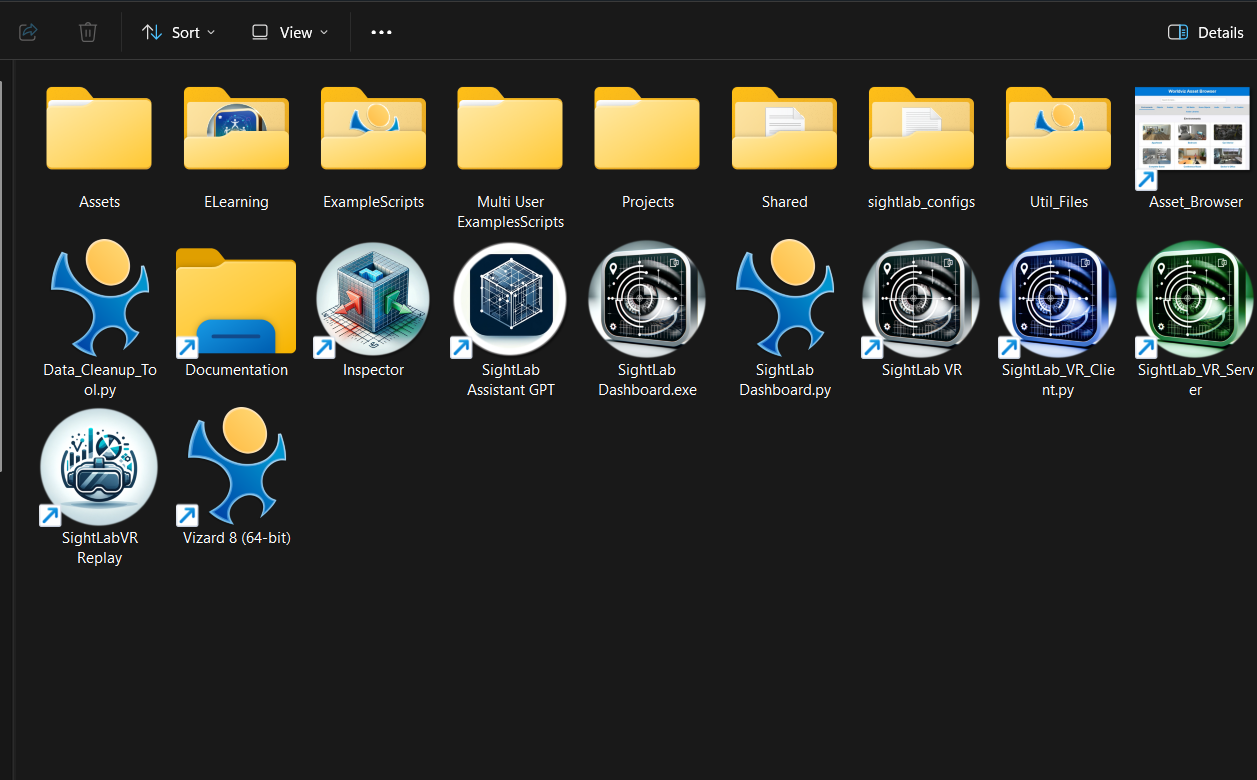
- Open the SightLab Dashboard from the desktop shortcut or by double-clicking SightLab Dashboard.
- Select the Projects tab.
- Click New Project.
- Enter a project name.
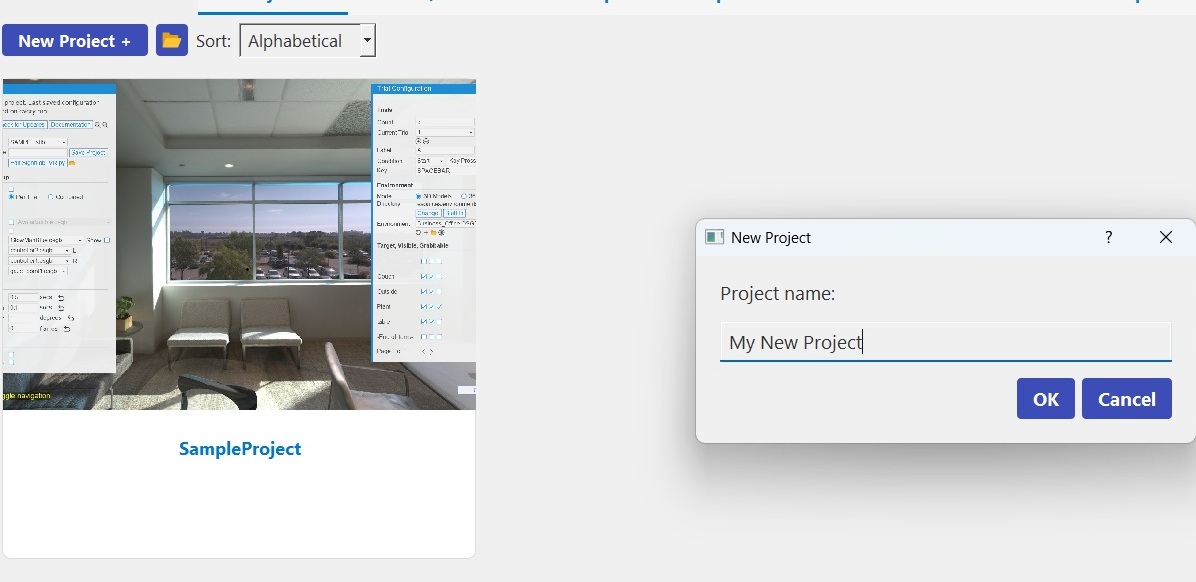
Expected result: The new project appears in the Projects tab of the Dashboard, and a corresponding project folder is created in the configured Projects directory. By default, the SightLab workspace is located at:
C:\Users\<UserName>\Documents\SightLab2
The Projects directory can be viewed or changed from Dashboard > Settings.
Note
If the new project does not appear in the Dashboard, see If a new project does not appear below.
Add Assets
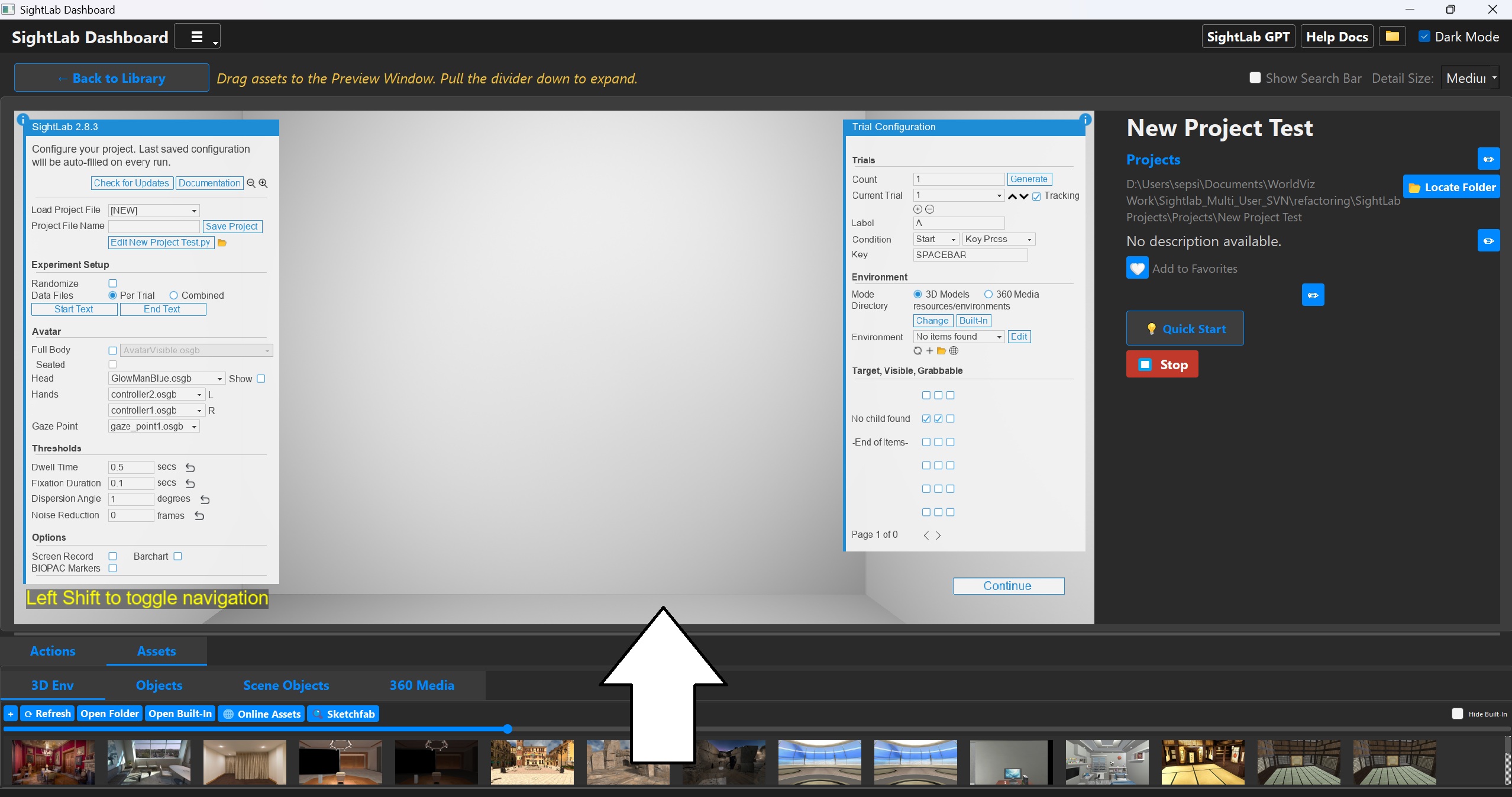
Drag and drop from the Assets library into the preview window to add 3D Models or 360 Media. See Getting 3D Models and Assets or the Asset Browser for places to gather assets. You can also add more assets by dragging them into the Assets browser or searching Sketchfab directly.
Note: If you don't see the editor window, click "Edit and Run" — it should launch by default.
Adding an asset vs. tagging an object
These are two different steps that are easy to confuse:
- Adding an asset means adding a 3D environment, model, image, or media file to your project.
- Tagging an object means telling SightLab that an object already in the scene should participate in data collection or interaction—for example gaze tracking, dwell metrics, visibility, or grabbing (see Configure Objects in SightLab).
Choose assets in the editor
Choose from the dropdown list (which shows the resources already added) or drag and drop into the editor. Click 360 Media if using 360 media. Press the Left Shift key to look around (WASD and XZ to move if in 3D model mode).
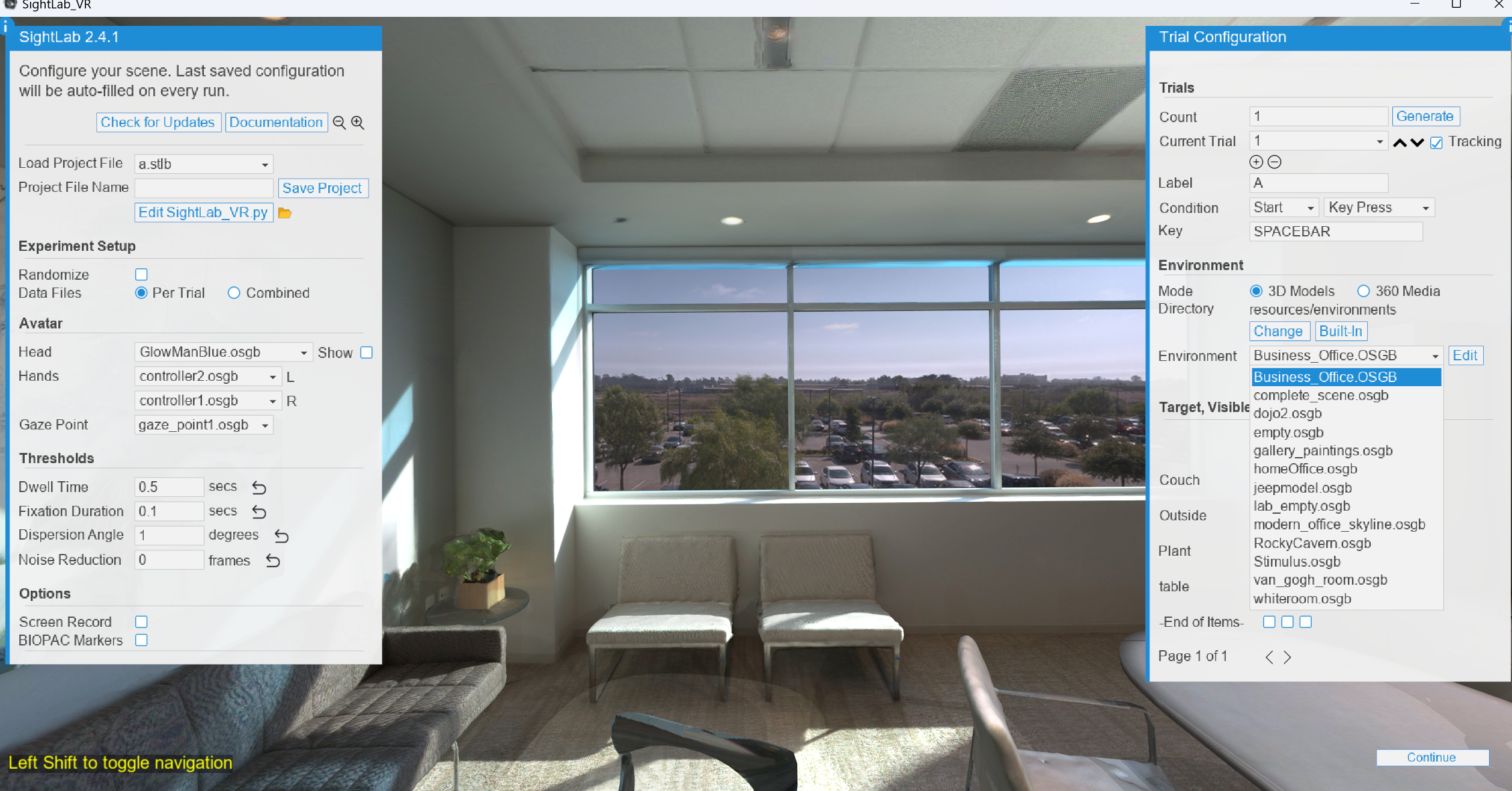
If You Are Using a 3D Scene
For 3D models, set up your scene, add ROIs, and add objects in the scene editor Inspector by clicking the Edit button next to your 3D environment.
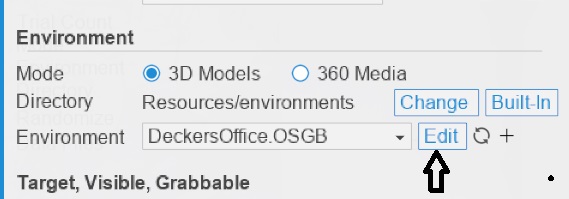
SightLab ↔ Inspector handoff
Inspector edits the contents of the 3D model. SightLab then reads the objects/nodes from that model so you can tag them for gaze data and interactions.
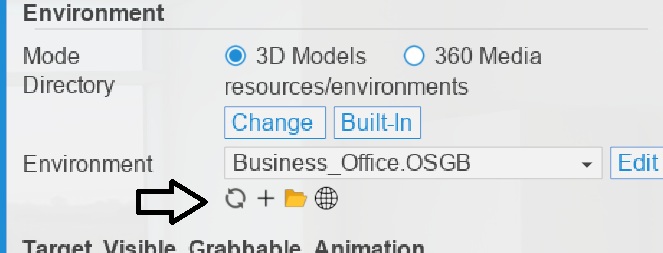
When creating an object that you want to tag in SightLab, give its group node a unique name in Inspector. After saving the model, return to SightLab. In SightLab 2.8.5 and later, model changes are refreshed automatically. In earlier versions, click Refresh.
Editing a 3D scene with Inspector
Open the model in Inspector, then use it for common tasks such as:
- Moving, rotating, or scaling objects
- Adding objects
- Creating Regions of Interest (ROIs)
- Adding a SightLab starting point (
SIGHTLAB_STARTING_POINT) - Creating uniquely named group nodes for objects that will be tagged in SightLab
- Adjusting lighting and materials
Save the model when finished (File > Save) and return to SightLab.
Tip
Use _env in an object's name to automatically exclude it from data collection.
For detailed Inspector instructions—navigation controls, node management, ROIs, starting points, lighting, and textures—see Scene Editor – Inspector.
You can also open Inspector directly from the Inspector shortcut in the main SightLab projects folder, or from the Tools menu in the Vizard IDE.
If You Are Using 360 Media
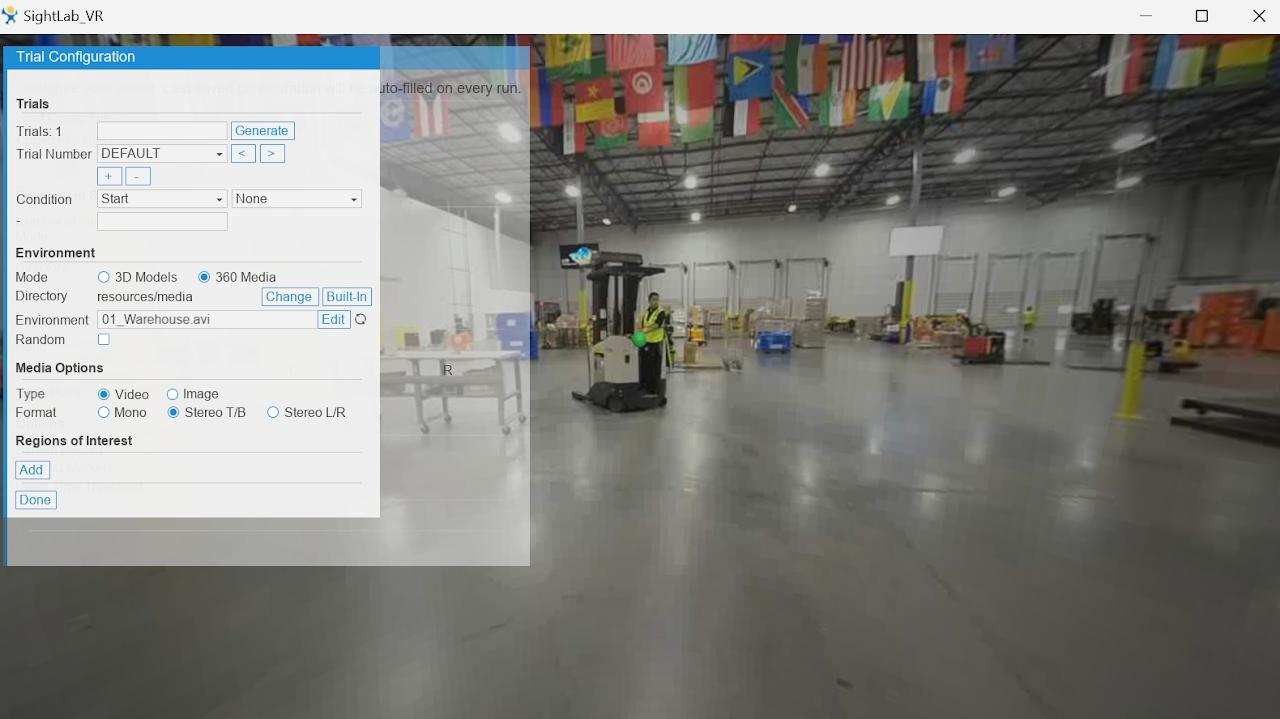
Switching to 360 Media mode
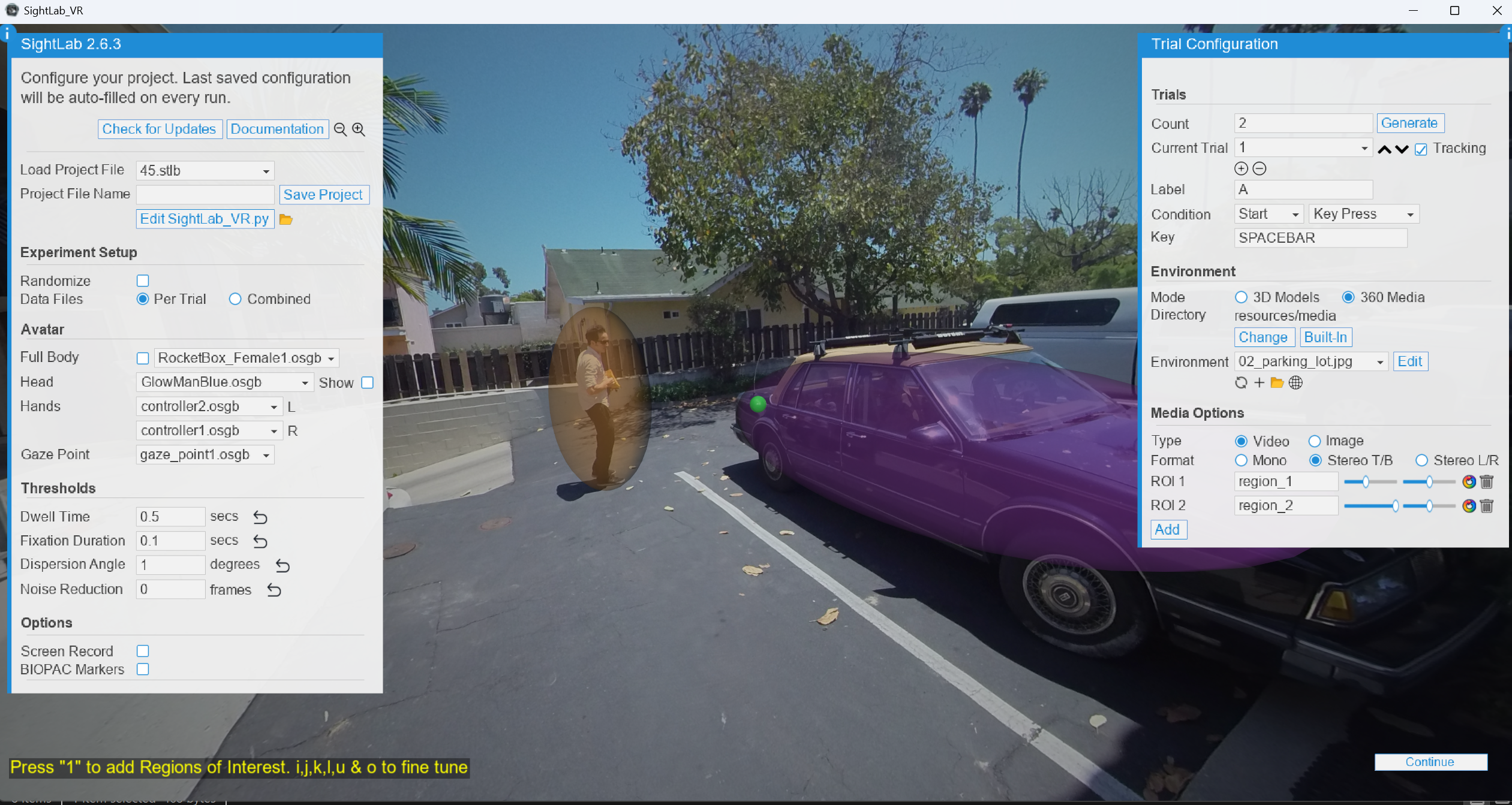
- Select 360 Media in the Experiment Options editor.
Selecting media
- View media in the
resources/mediafolder. - Use Change to switch directories.
- Use Built-In for default 360 media.
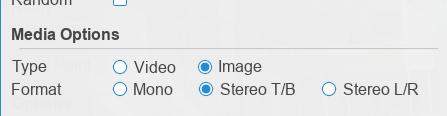
- Choose media type (video/image) and select stereo or mono format.
Adding ROIs to 360 media
- Press Add or Left Shift to enter ROI mode.
- Move the virtual gaze point and press 1 to set ROIs.
- Customize region name, scale, opacity, and color.
- Use the
i, j, k, l, u & okeys to move the region, orf g handShift F G Hto scale in x, y, or z.
Tip: Press ; to lock the mouse cursor. Lower an ROI's opacity to hide it during the experiment.
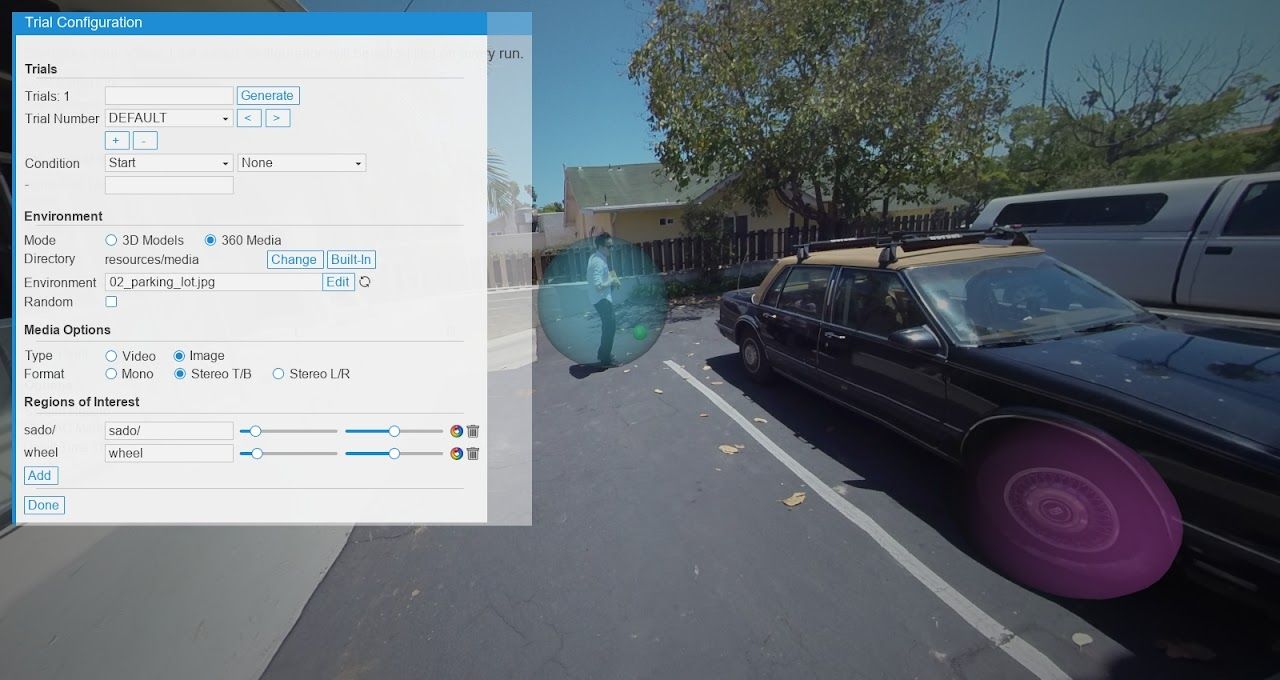
Refer to this YouTube tutorial for more information.
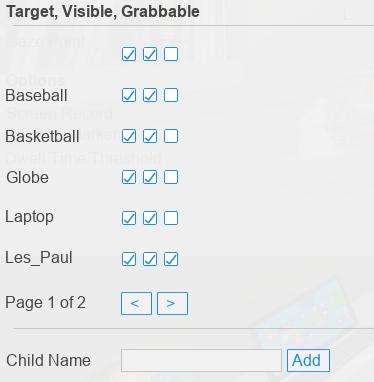
Configure Objects in SightLab
Back in SightLab, objects can be tagged for extra data collection, visibility, and interactions such as grabbing.
For SightLab 2.8.4 or earlier, click the Refresh button if you changed a 3D model or added a new one (as of SightLab 2.8.5 this happens automatically).
Configure Trials
- Generate trials: Enter a count and click Generate.
- Current trial: Use the dropdown to edit individual trials.
Trial parameters
- Label: Enter trial-specific labels.
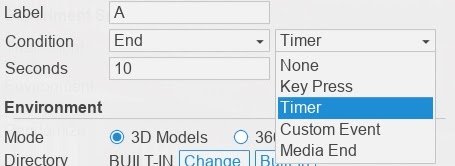
- Start/End Conditions:
- Key/button press
- Timer
- Custom Event
- Media end
- Gaze Event (specify object name)
- None (specified in code)
Finalizing your project
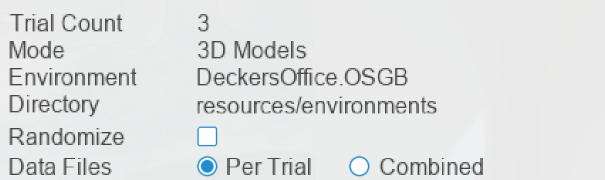
- Name your project.
- Click Save Config.
- Use Randomize to randomize the trial order.
- Choose combined or per-trial data file saving.
Note: For advanced randomization, use the code.
Thresholds and options
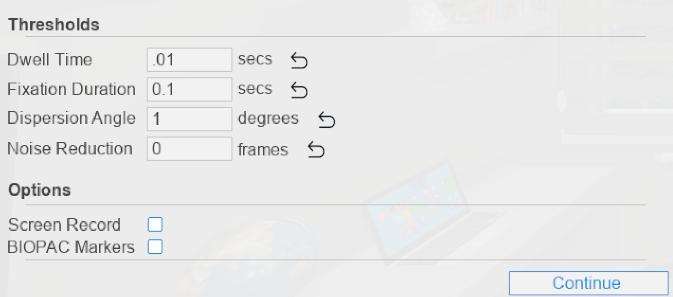
- Dwell Time Threshold: Default 500ms (modifiable).
- Fixation Duration: Default 100ms.
- Dispersion Angle: Default 1 degree.
- Noise Reduction: Adjust frame averaging.
- Screen Record: Records session videos.
- BIOPAC Markers: Synchronize with Biopac's AcqKnowledge.
Choose Hardware and Run
When your experiment configuration is ready, click Continue. SightLab moves from the experiment editor into the hardware/session setup and then launches the experiment—this is the point where you move from authoring to running.
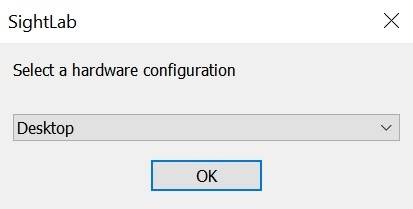
For details on running, see Running a Session Single User or Running a Session Multi-User.
When to Use Python
Any script can also be modified with code. Add Python when your experiment needs functionality that isn't available in the GUI—for example custom logic, interactions, integrations, or advanced trial randomization.
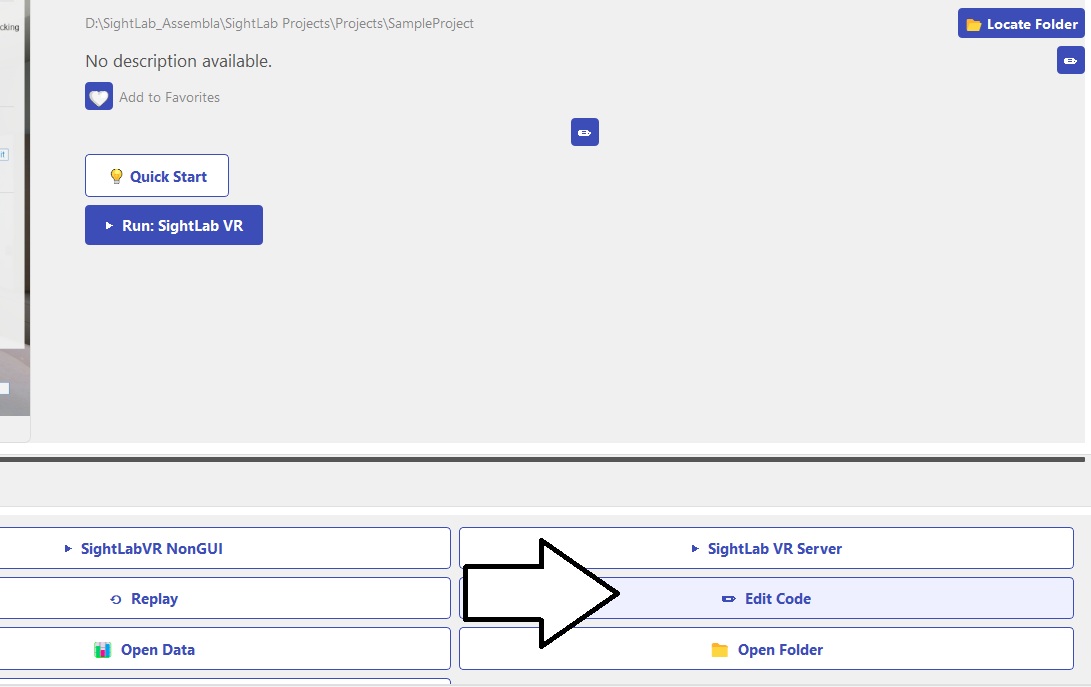
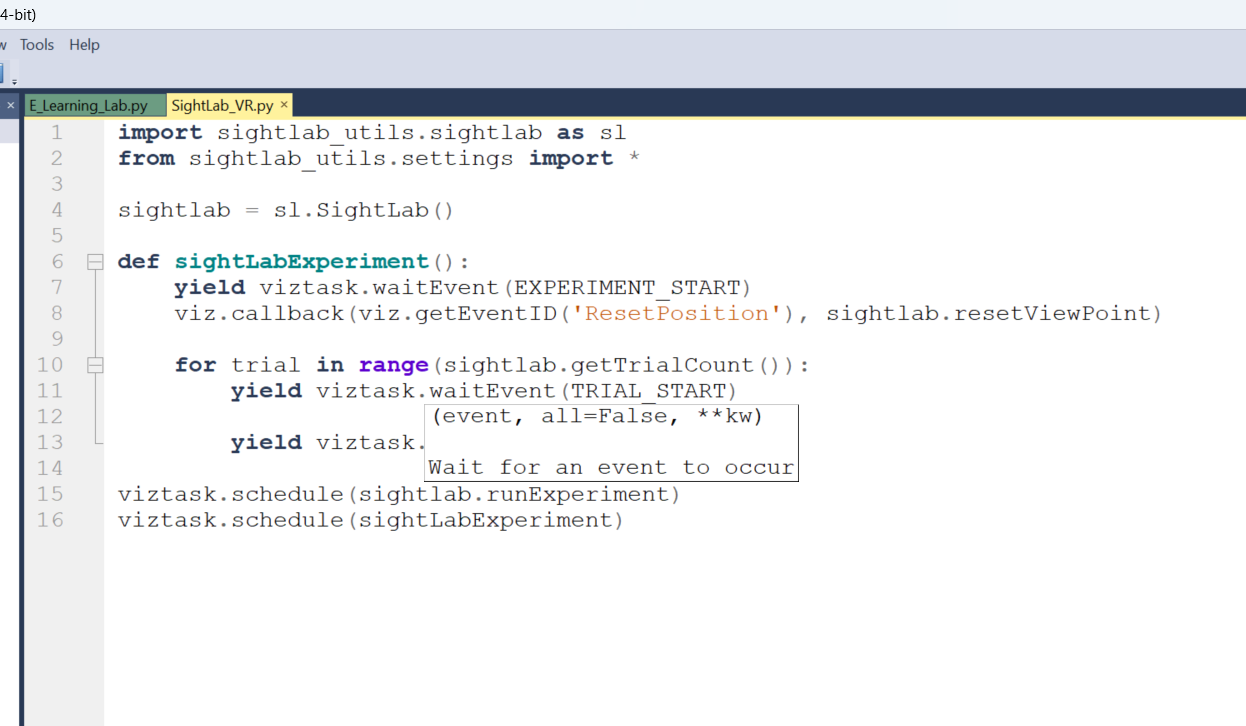
- Edit your Python script by clicking Edit [filename], or Edit Script on the Actions button. This opens the script in the Python editor.
See the Non-GUI example for more information. For help with coding, see the custom-trained SightLab GPT Assistant.
Editor keyboard shortcuts
SightLab editor controls (click to expand)
- Left Shift: Toggle scene lock/ROI selection mode (360 media).
- . (Period)/F1: Hide/show the menu.
- Mouse: Look around.
- WASD/Arrow Keys: Move (left/right/forward/backward).
- Z/X: Move down/up (or PageUp/PageDown).
- Q/E: Rotate left/right.
- R: Reset viewpoint.
- /: Take screenshot.
- ;: Toggle mouse lock.
- ,: Toggle scene display.
- F2: Toggle fullscreen.
- F3: Toggle rendering/wireframe modes.
- F4: Show frame rate/performance metrics.
- Escape: Exit.
- Ctrl + F6: Dock/undock with code.
- Spacebar: Toggle media playback (360 media).
- 1: Select ROIs (360 media).
- IJKL: Move virtual gaze point (or use mouse).
- Alt + I: Float window and activate Vizard IDE interactive input.
The essentials to remember: Shift = scene/ROI editing, WASD = move, Mouse = look, R = reset.
Troubleshooting
If a new project does not appear
Check the following:
- Verify your SightLab version under Dashboard > About.
- Open Dashboard > Settings and verify the configured Projects folder.
- Verify the configured Vizard installation.
- Click the folder icon in the Dashboard and check whether the project folder was created.
- Click Refresh in the Dashboard.
- Confirm that Windows has permission to write to the configured Projects directory.
Then distinguish the two cases:
- Project folder exists but does not appear in the Dashboard → likely a Dashboard/project-path/scanning issue.
- Project folder was never created → likely a project-creation, write-permission, or configuration issue.
If Inspector changes aren't appearing
- Make sure you saved the model in Inspector (File > Save).
- In SightLab 2.8.4 or earlier, click Refresh in SightLab (automatic in 2.8.5 and later).
- Confirm the group node you tagged has a unique name in the scene.
If the script opens in the wrong Python editor
If other Python editors are installed on your system, ensure the file opens in the Vizard Python environment. Right-click the script and choose Open With → Vizard 7 or Vizard 8 (found at C:\Program Files\WorldViz\Vizard\<versionNumber>\bin\winviz.exe).
Using SightLab versions earlier than 2.8.0
Warning
The following instructions apply only to SightLab versions before 2.8.0. If you are using a current version, you can ignore this section.
The SightLab projects folder is by default in Documents/SightLab2.
Create your project folder (use one of these options):
- Make a copy of the "BlankProject" folder (recommended).
- Use the SightLab SampleProject.
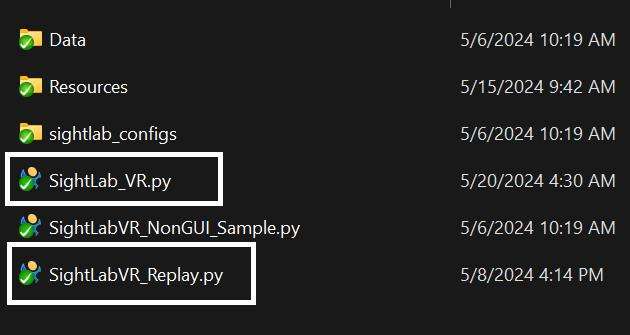
- Create a new folder and copy over essential files:
- SightLab_VR.py
- SightLabVR_Replay.py
- A folder called
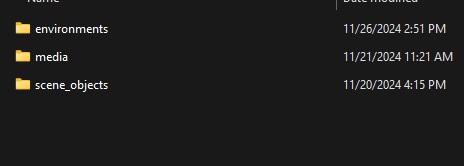
Resourceswith sub-folders forenvironmentsandmedia
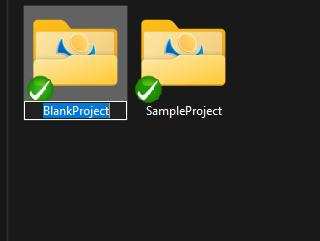
While you can place your project folder anywhere on your computer, the recommended location is within the SightLab projects folder.
Key files
- SightLab_VR.py: Use this for creating and running your project and leveraging the GUI (SightLab can also be attached to any existing Vizard or SightLab script).
- SightLabVR_Replay.py: Use this for replaying your project.
- SightLabVR_NonGUI.py: A template for creating a scene using only code.
Add resources
- Add your 3D models to the
resources/environmentsfolder. - Add media files to the
resources/mediafolder.
- A good place to get started if you don't have any assets is the Worldviz Asset Browser.
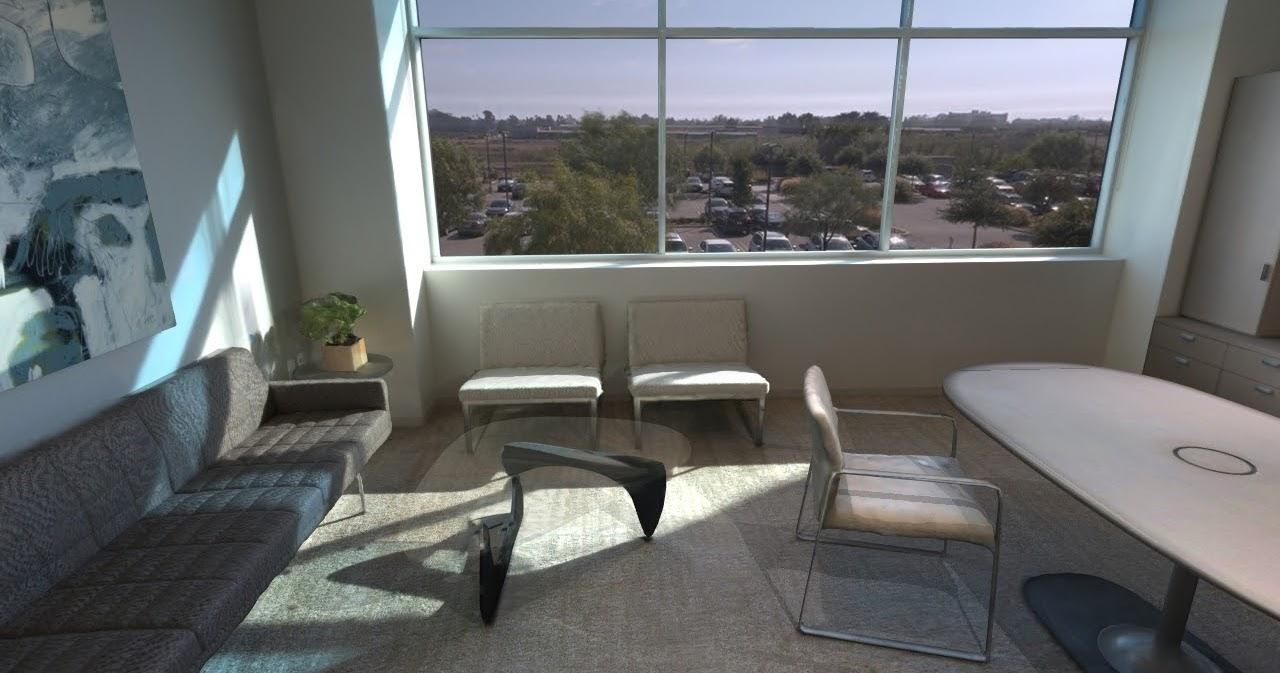
- You can also use included assets in the Sample Project or click "Built In" to use the built-in resources (note: "Built In" resources must be taken out of the
sightlab_resourcesfolder before they can be modified).
Open the SightLab VR script
- Click "Run SightLab VR" (or the name of your script) or double-click
SightLab_VR.pyin your project folder to launch the GUI editor.