Playing Animations
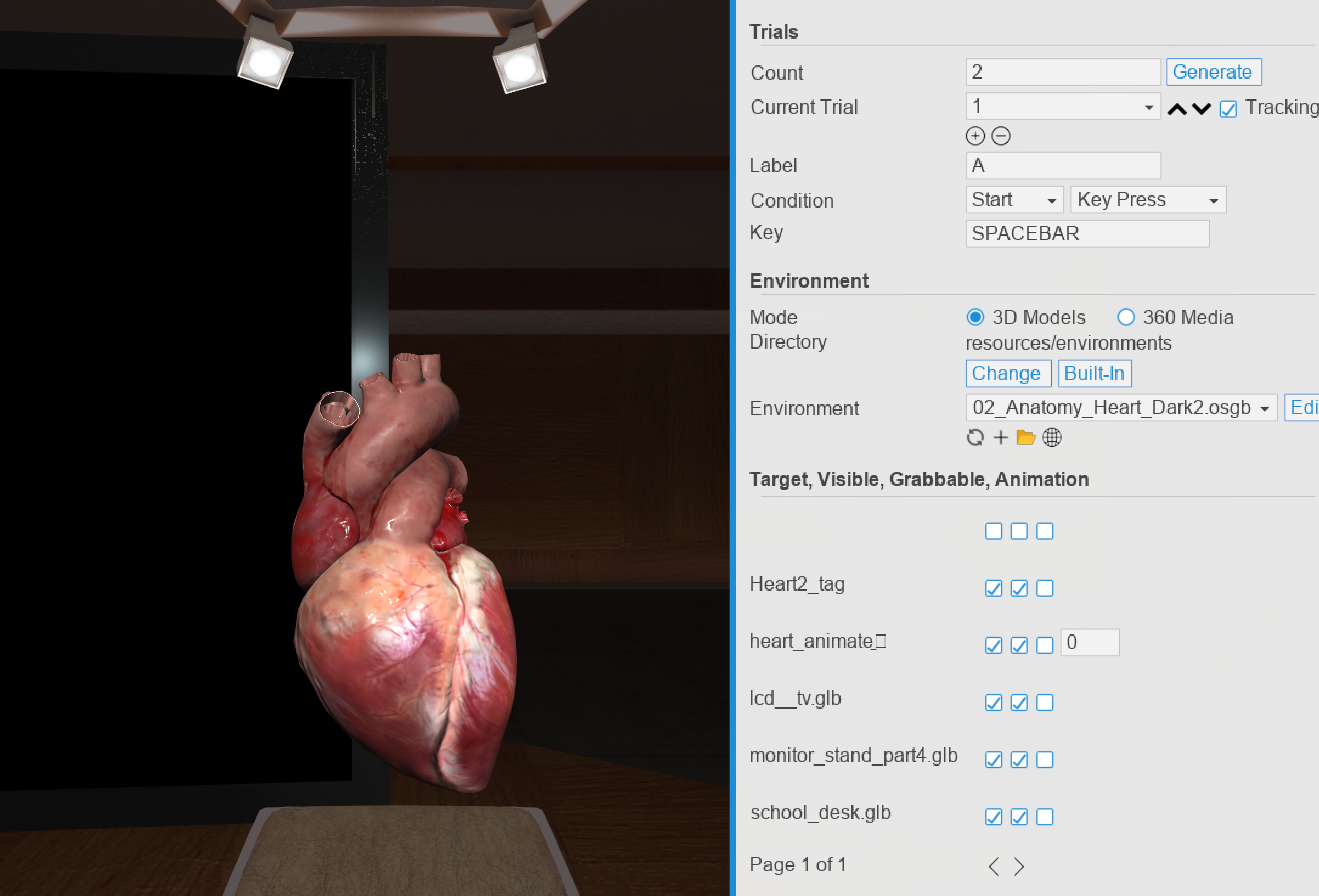
SightlLab supports keyframe animations on 3D objects (FBX, OSGB, GLB, etc.) through a set of animation control methods. This page covers how to trigger those animations both through the SightLab GUI and through code.
Avatar and skeleton-based objects use a different workflow — see Avatar Animations for details on
.cfgfiles and objects withSkeletonchild nodes, which use.state()instead.
Using the SightLab GUI
SightLab can automatically detect animated objects in your environment and expose an Animation state control in the trial setup panel.
Naming convention
Add a suffix to the group node name in your 3D model:
| Node name suffix | Behaviour |
|---|---|
_animate |
Detected as animated, loops continuously |
_animate_1 |
Detected as animated, plays once (no loop) |
For example, name the root group node of your animated object DoorAnimated_animate or AnimatedHeart_animate.
Objects can also be auto-detected without the suffix if
getNumFrames() > 0returns true on the node — the suffix method is more reliable.
In the trial setup panel
Once the environment is loaded, animated nodes appear in the Target, Visible, Grabbable, Animation list with a 🎬 prefix. The Animation column shows a state textbox.
The state number is a 0-based animation clip index — 0 selects the first clip, 1 the second, and so on. There is no "stopped" state; entering any valid index will play that clip. To prevent playback you would need to control speed in code instead (see below).
Set the state per trial. SightLab applies setAnimationState(), setAnimationLoopMode(), and setAnimationSpeed(1.0) (full speed) automatically when the trial loads.
Using code
The core Vizard methods for keyframe animation:
node.setAnimationState(0)         # select animation clip by index (0-based)
node.setAnimationFrame(100)       # jump to a specific frame within the clip
node.setAnimationSpeed(1.0)       # playback speed (1.0 = normal, 0.0 = paused)
node.setAnimationLoopMode(viz.ON) # viz.ON = loop, viz.OFF = play once
node.getAnimationTime()           # current playback time in seconds
node.getAnimationNames()          # list of animation clip names on the node
Simple playback
Start an animation from a specific frame at half speed, play once:
import viz
import vizfx

viz.go()

door = vizfx.addChild('DoorAnimated.osgb')
door.setPosition(0, 0, 5)
door.setAnimationSpeed(0.5)
door.setAnimationState(0)
door.setAnimationFrame(100)
door.setAnimationLoopMode(viz.OFF)
Playback with a timed stop
Use onupdate to monitor getAnimationTime() and stop or trigger events at a specific moment:
import viz
import vizfx
import vizact
import viztask

viz.go()

stop_time = 2
audioFile = viz.addAudio('bells.wav')

door = vizfx.addChild('DoorAnimated.osgb')
door.setPosition(0, 0, 5)

def doorSequence():

    def startAnimationAndSound():
        door.setAnimationSpeed(0.5)
        door.setAnimationState(0)
        door.setAnimationFrame(100)
        door.setAnimationLoopMode(viz.OFF)
        audioFile.play()

    yield startAnimationAndSound()

    animation_complete = False

    def printAnimationTime():
        nonlocal animation_complete
        animationTime = door.getAnimationTime()
        if animationTime >= stop_time:
            door.setAnimationSpeed(0.0)
            print('Animation reached stop time')
            animation_complete = True

    vizact.onupdate(0, printAnimationTime)

    while not animation_complete:
        yield viztask.waitTime(0.01)

viztask.schedule(doorSequence)
Triggered by proximity
Combine SightLab's trial system with vizproximity to trigger an animation when the participant approaches an object:
import sightlab_utils.sightlab as sl
from sightlab_utils.settings import *
import vizproximity

sightlab = sl.SightLab(gui=False)

env = vizfx.addChild('utils/resources/environment/Door_Scene.osgb')
sightlab.setEnvironment(env)

manager = vizproximity.Manager()
target = vizproximity.Target(viz.MainView)
manager.addTarget(target)

shape = vizproximity.Sensor(
    vizproximity.RectangleArea([1, 1], center=[0.15, 2.5]), None
)
manager.addSensor(shape)

def sightLabExperiment():
    yield viztask.waitEvent(EXPERIMENT_START)
    for i in range(sightlab.getTrialCount()):
        yield viztask.waitKeyDown(' ')
        yield sightlab.startTrial()

    def EnterProximity(e):
        viz.playSound('utils/resources/audio/beep.wav')
        env.setAnimationSpeed(0.5)
        env.setAnimationState(0)
        env.setAnimationFrame(100)
        env.setAnimationLoopMode(viz.OFF)

    manager.onEnter(None, EnterProximity)
    yield viztask.waitKeyDown(' ')
    yield sightlab.endTrial()

viztask.schedule(sightlab.runExperiment)
viztask.schedule(sightLabExperiment)
viz.callback(viz.getEventID('ResetPosition'), sightlab.resetViewPoint)
Avatars and skeleton-based objects
Objects loaded from .cfg files or models containing a Skeleton child node use the avatar workflow — they are animated with .state(int) rather than setAnimationState(). SightLab detects these automatically and handles them separately. See Avatar Animations for details.