Sharing Multi User Resources
SightLab 2.9.3 and higher
SightLab Sync is included in SightLab 2.9.3 and higher. With an older version, see Without SightLab Sync.
Overview
In a multi-user session, every PC (the instructor's and each client) needs the same projects. SightLab Sync, built into SightLab, copies them for you:
- Anything in E-Learning Lab's Shared tab (the
sharedfolder next to E-Learning Lab) - Anything in SightLab's Shared projects folder
It copies these from one primary PC, usually the instructor's, to every other SightLab PC on the same network. Nothing needs to be typed on the client PCs.
Set Up (once)
- On every PC: open SightLab (the Dashboard) or E-Learning Lab once. SightLab Sync starts in the background and starts again every time Windows starts. It finds the shared folders next to wherever SightLab is installed.
-
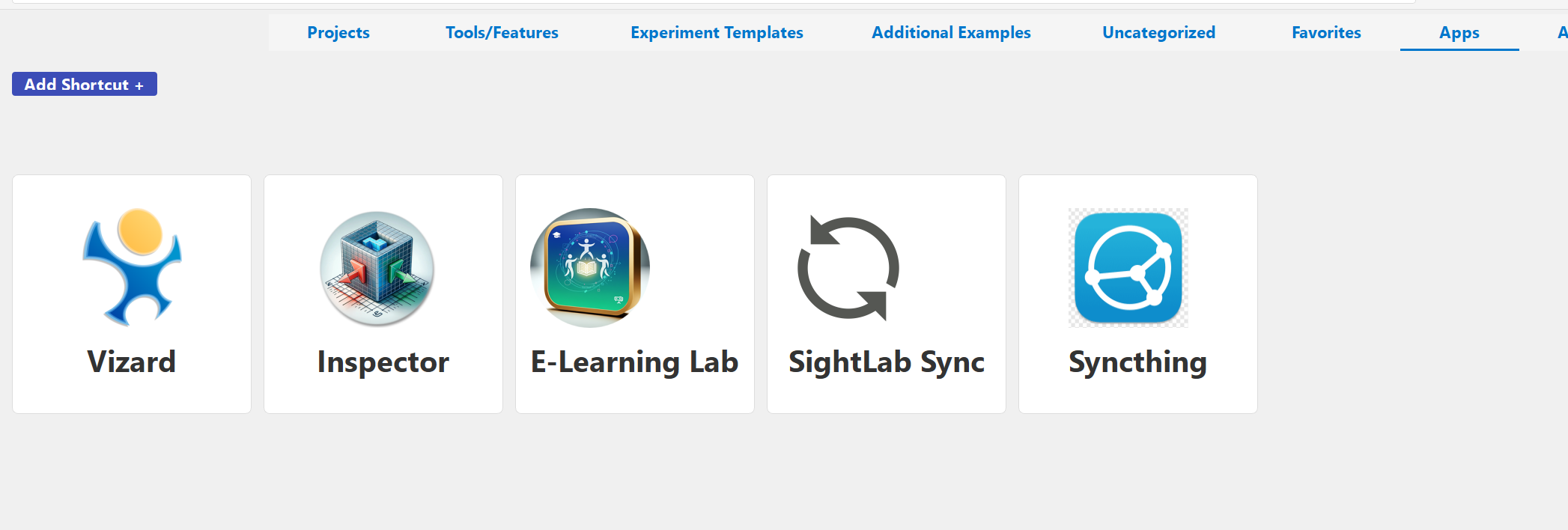
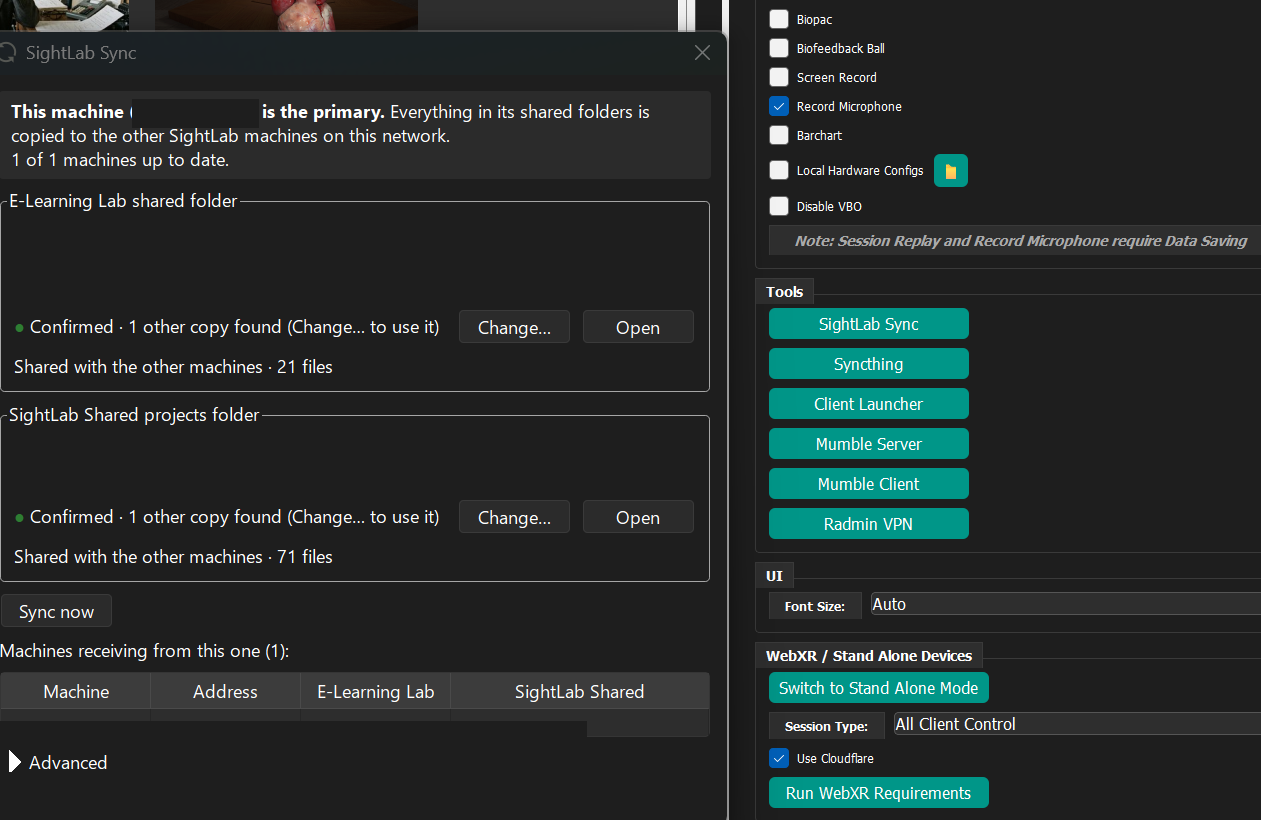
On the instructor's PC: in E-Learning Lab go to Advanced → Tools → SightLab Sync, or in the Dashboard click the SightLab Sync app tile. The SightLab Sync window opens.
Dashboard: the Apps tab has a SightLab Sync tile.
E-Learning Lab: the Tools group on the Advanced tab has a SightLab Sync button.
Before any PC is the primary, the SightLab Sync window looks like this:
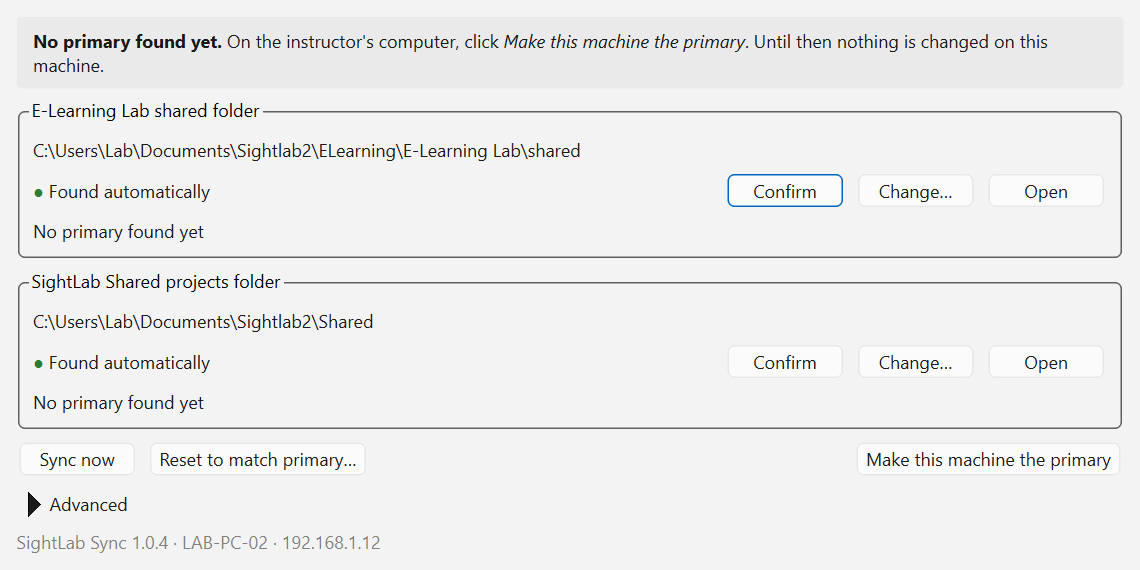
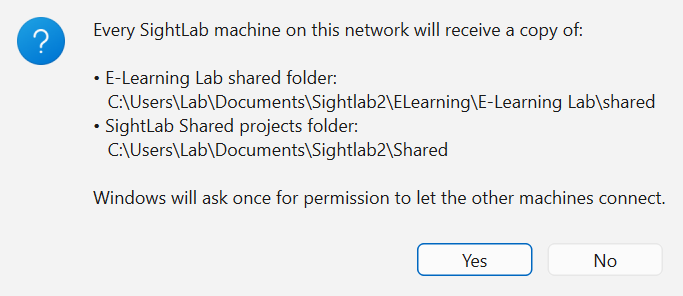
Click Make this machine the primary, check the folder paths it shows, and click Yes. Then click Yes again when Windows asks for permission.
-
Within a few seconds, the other PCs show Receiving from followed by the instructor PC's name.
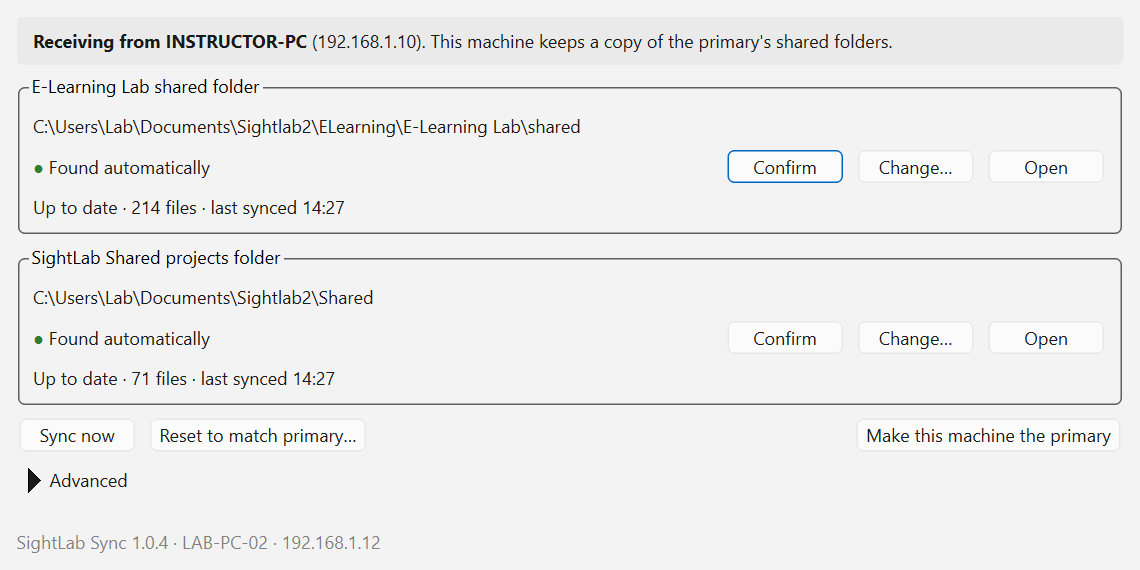
Until a PC is made the primary, SightLab Sync changes nothing on any PC.
Everyday Use
E-Learning Lab
-
On the instructor's PC, right-click a project and choose Add to Shared. After you edit a project that is already in Shared, right-click it and choose Update Shared Copy.
-
The project appears in the Shared tab on every PC. A greyed-out project is still being copied.
-
Start the session. When the instructor starts a multi-user session, client PCs load that lesson from their Shared folder automatically, so there's nothing to import first. To open, edit or run a shared lesson on its own on a PC, use Import to Projects first.
If you start an Instructor session with a project whose shared copy is out of date, E-Learning Lab offers Update shared copy and start. It then shows how many client PCs are up to date.
SightLab projects: save or copy the project into the Shared projects folder on the primary PC. It appears on every PC and runs from there.
Changes and deletes made on the primary PC are copied to the other PCs automatically. There's no need to click Sync now; it only skips the few seconds SightLab Sync waits to make sure a project has finished copying in.
Things SightLab Sync never copies:
- Participant
datafolders sightlab_configs- Logs and caches
Good to Know
-
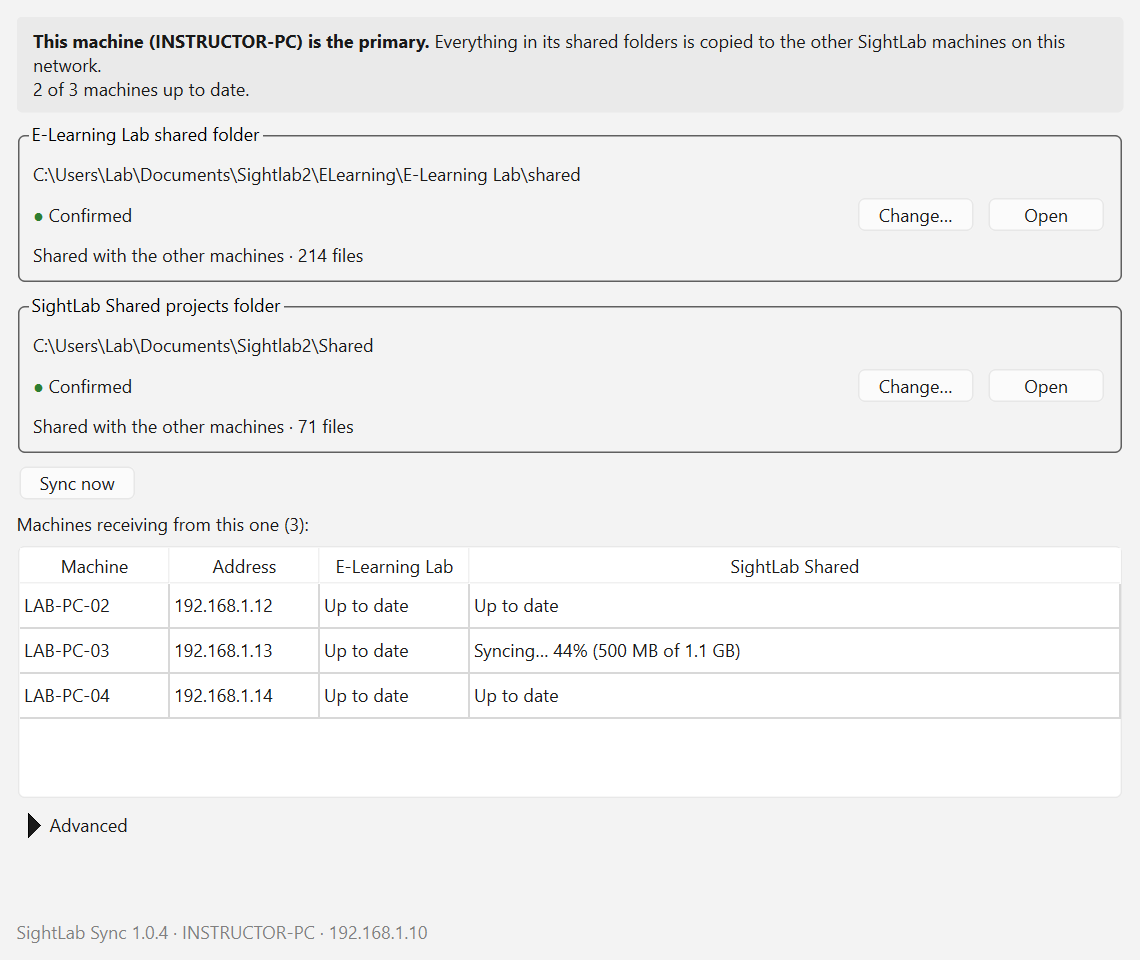
Watching progress: on the primary, the SightLab Sync window lists each receiving PC with its progress, for example "Syncing… 44% (500 MB of 1.1 GB)". Large environments can take a few minutes the first time; after that, only changed files are copied.
-
Changing the primary: click Make this machine the primary on another PC. The old primary switches to receiving by itself. Projects that only the old primary had stay on the other PCs. Use Reset to match primary… on a PC to remove them.
- Changing the primary's folder: if the primary switches to a different shared folder (Change…), every PC follows it exactly. Projects that aren't in the new folder move to each PC's SightLab Sync trash, and come back without copying if you switch back.
- Server name for SightLab multi-user clients: a client's Server list automatically includes the primary PC. This includes clients running on the primary PC itself, which use their own computer name. If no server is chosen yet (for example, a client that has never run a session), the primary PC is chosen. It uses the primary's computer name, or its IP address when that name can't be looked up from the client. You can still pick or type a different server. To turn this off, set
AUTO_SERVER_FROM_SIGHTLAB_SYNC = Falseinsightlab_utils\settings.py. See Running a Session with Multi User. - Seeing new projects: a project appears on the other PCs only once it is completely copied. The E-Learning Lab Shared tab and the Dashboard's Shared folder update on their own.
- Lessons only in Projects: multi-user sessions still work with lessons copied into each PC's Projects (
collections) folder, as before. When a lesson is in both, a client receiving from the primary uses the Shared copy. - Updates during a session: a lesson that is open in a running session isn't changed until the session ends.
- Files in use: if another program has a file open (for example a video player), SightLab Sync retries until the file is closed.
- Deletes: a project deleted on the primary is removed from the other PCs within about 15 seconds. It goes to a hidden
.sightlab-sync\trashfolder inside each PC's shared folder and is kept for 7 days. Participant data recorded on a client is never deleted. -
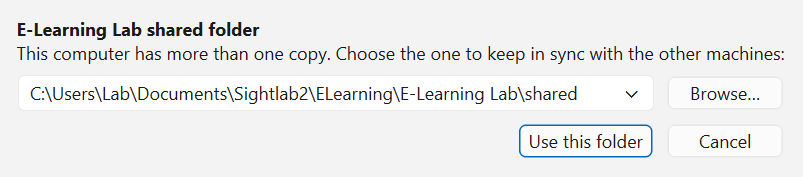
Choosing a folder: if a PC has more than one SightLab or E-Learning Lab install, SightLab Sync uses the shared folder of the copy you open first, and it keeps using that folder. The SightLab Sync window shows "other copy found"; click Change… to switch to another copy at any time.

-
Reset to match primary: makes a client's folder an exact copy of the primary's. Files that exist only on that client move to the trash.
Options (SightLab Sync → Advanced)
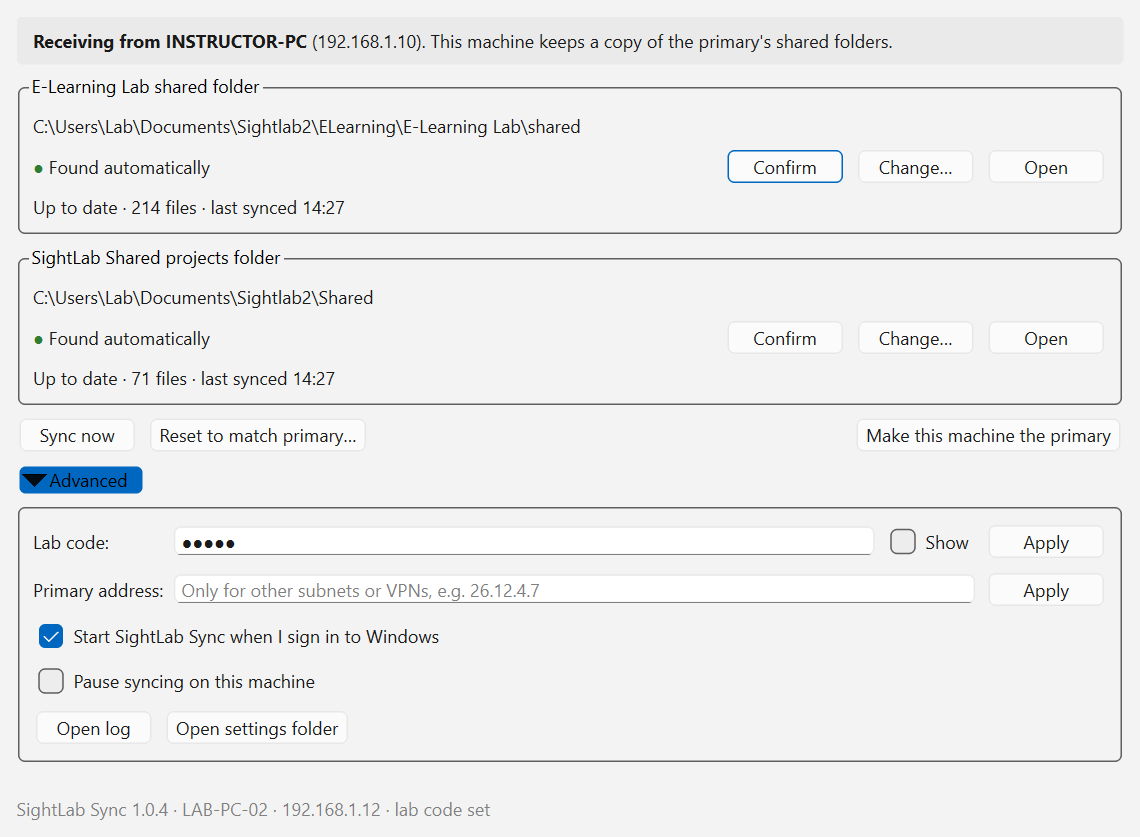
- Lab code: set the same code on every PC in the lab. Use this when other labs share the network, or on a campus network, so that only your PCs exchange files.
- Primary address: only needed when client PCs are on a different network or subnet from the primary, such as with Radmin VPN. Enter the primary PC's IP address.
- Start SightLab Sync when I sign in to Windows: on by default.
- Pause syncing on this machine.
For IT and Lab Images
SightLab_Sync_Setup.bat is in the sightlab_utils folder (Vizard8\bin\Lib\site-packages\sightlab_utils).
SightLab_Sync_Setup.bat                 start now and at every sign-in
SightLab_Sync_Setup.bat primary         ...and make this PC the primary
SightLab_Sync_Setup.bat status          show what this PC is doing
SightLab_Sync_Setup.bat uninstall       stop it and remove it from sign-in
Options: --lab-code CODE  --elearning-shared PATH  --projects-shared PATH  --primary-host 10.0.0.5
Run it as the Windows user who uses the PC. It asks for administrator rights only to open the primary's firewall ports.
Ports: the primary accepts UDP 14952 and TCP 14953 from Vizard's pythonw.exe. Client PCs need no inbound firewall rules.
Troubleshooting
| What you see | What to do |
|---|---|
| "No primary found yet" on a client | Make sure the primary PC is on, SightLab Sync is running on it (open the SightLab Sync window there), and both PCs have the same lab code (or none). On another subnet or VPN, enter the primary's IP under Primary address. |
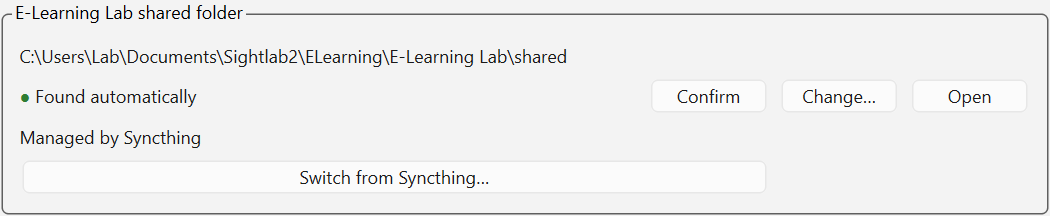
| "Managed by Syncthing" | Syncthing already syncs this folder, so SightLab Sync leaves it alone. Click Switch from Syncthing… to hand the folder over. Syncthing pauses the folder and its files stay where they are. On a client PC, the folder then becomes an exact copy of the primary's, and files only on that PC move to the trash. |
| "Choose which folder to use" | This PC has more than one copy of the folder, and SightLab Sync could not tell which install you use. Click Change… and pick the one next to the SightLab or E-Learning Lab install you run. |
| Projects you add don't reach the other PCs | Check that the folder shown in the SightLab Sync window is the one you are adding projects to. If it says "other copy found", click Change… and pick the right copy. |
| "Windows did not allow the other machines to connect" | Click Make this machine the primary again and choose Yes in the Windows prompt. Otherwise, ask IT to run SightLab_Sync_Setup.bat primary, or to allow the ports above. Domain firewall policies can block local rules. |
| A client shows "Syncing…" for a long time | It's still copying. The primary's SightLab Sync window shows how far each PC has got. |
| Errors or anything else | Open Advanced → Open log in the SightLab Sync window. |
A folder that Syncthing still manages looks like this:
Without SightLab Sync
Copying projects by hand
Copy each project folder into the same place on every PC:
- E-Learning Lab:
collectionsorshared, next toE_Learning_Lab.py - SightLab: the
Sharedprojects folder
You can move the folders with:
- a USB drive
- a shared link: zip the folder, then unzip it on each PC (dropping a zip onto E-Learning Lab unpacks it)
- a Windows network share
Keep the folder names identical on every PC.
Syncthing (older SightLab installs)
PCs that already use Syncthing keep working as before. To set up Syncthing without typing device IDs, use syncthing_autoconfig.bat. It's in the syncthing_fallback folder of sightlab_utils in SightLab 2.9.3 and higher, and it also runs on older installs: copy that folder to each PC (or ask support@worldviz.com for it).
- On the instructor's PC:
syncthing_autoconfig.bat primary. It shares both folders as Send Only and waits 30 minutes for clients. - On every other PC:
syncthing_autoconfig.bat client. If broadcasts are blocked, add the primary's IP, for examplesyncthing_autoconfig.bat client 10.0.0.5.
Each PC shows the folder paths it found and asks before changing anything. Use --lab-code CODE on every PC to keep labs apart.
For setting up Syncthing by hand, see the Syncthing steps in E-Learning Lab: Sharing Multi User Resources. For SightLab projects, add a second folder for C:\Users\<username>\Documents\Sightlab2\Shared with the Folder ID shared-projects.