Changing Language
Changing the Default Language
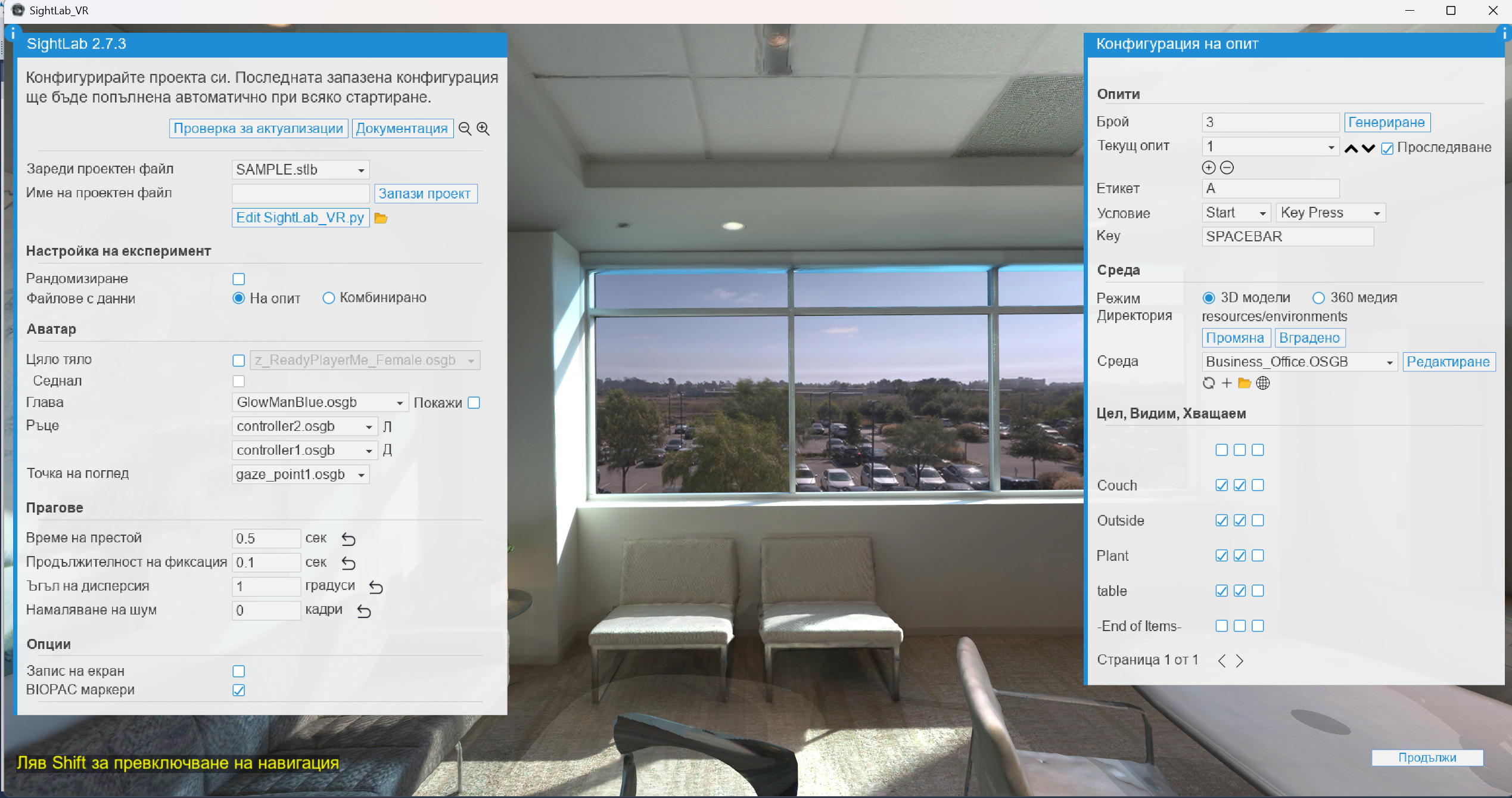
As of SightLab 2.7.3, multilingual support is available for text displayed in both the GUI interface and the experiment console text, as well as the Dashboard (as of version 2.8.12)
Supported Languages
The following languages are currently supported (note there are also 41 languages supported for the AI Agents in both SightLab and E-Learning Lab):
- English (default)
- Spanish
- Arabic
- Bulgarian
- Chinese
- Greek
- Polish
- Hindi
- German
- French
Additional languages can be added with minimal effort. If you would like support for another language, please contact support@worldviz.com.
Changing the Language
To change the interface language:
The simplest way as of 2.8.12 is to open the SightLab Dashboard, go to Settings and from there change the dropdown for the default language (note: this will not change every line of text in the Dashboard, but will for the more common items and the GUI)
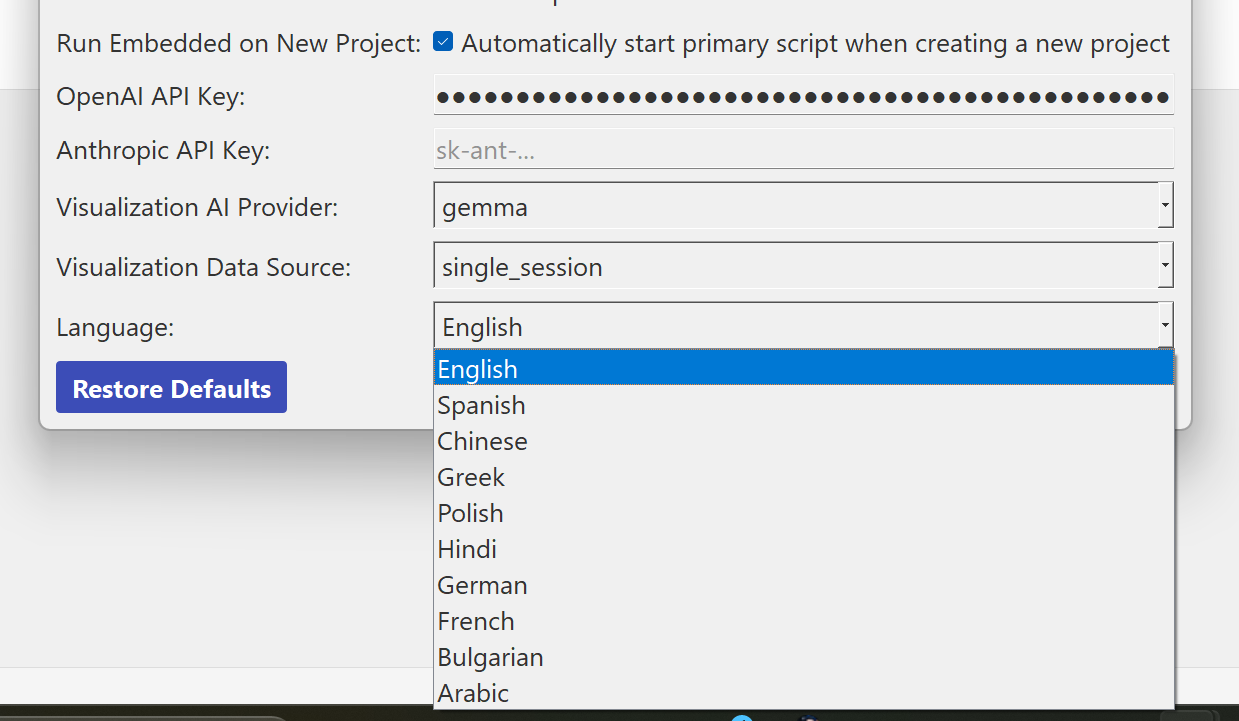
Here also is the manual way to change the language:
-
Navigate to your SightLab2 folder in your Documents directory.
-
Open the following folder:
Documents\SightLab2\Util_Files\sightlab_utils -
Locate the file and set write permissions:
settings.py -
Right-click the file and select:
Show More Options → Edit in Vizard -
Find the line:
LANGUAGE = "English" -
Replace
"English"with the language you want to use. For example:LANGUAGE = "Spanish" -
Save the file and restart SightLab.
Adding a New Language
To add support for a new language:
-
In the same
sightlab_utilsfolder, open (and set write permissions):translations.py -
Add a new dictionary entry for the language and provide the translated strings.
Example structure:
```python
"NewLanguage": {
"start_experiment": "Translation here",
"end_experiment": "Translation here"
}
Fallback Behavior
If a string does not yet have a translation, SightLab will automatically fall back to the English version.
This means partial translations are safe, and untranslated text will still display correctly.