Full Body Tracked Avatars
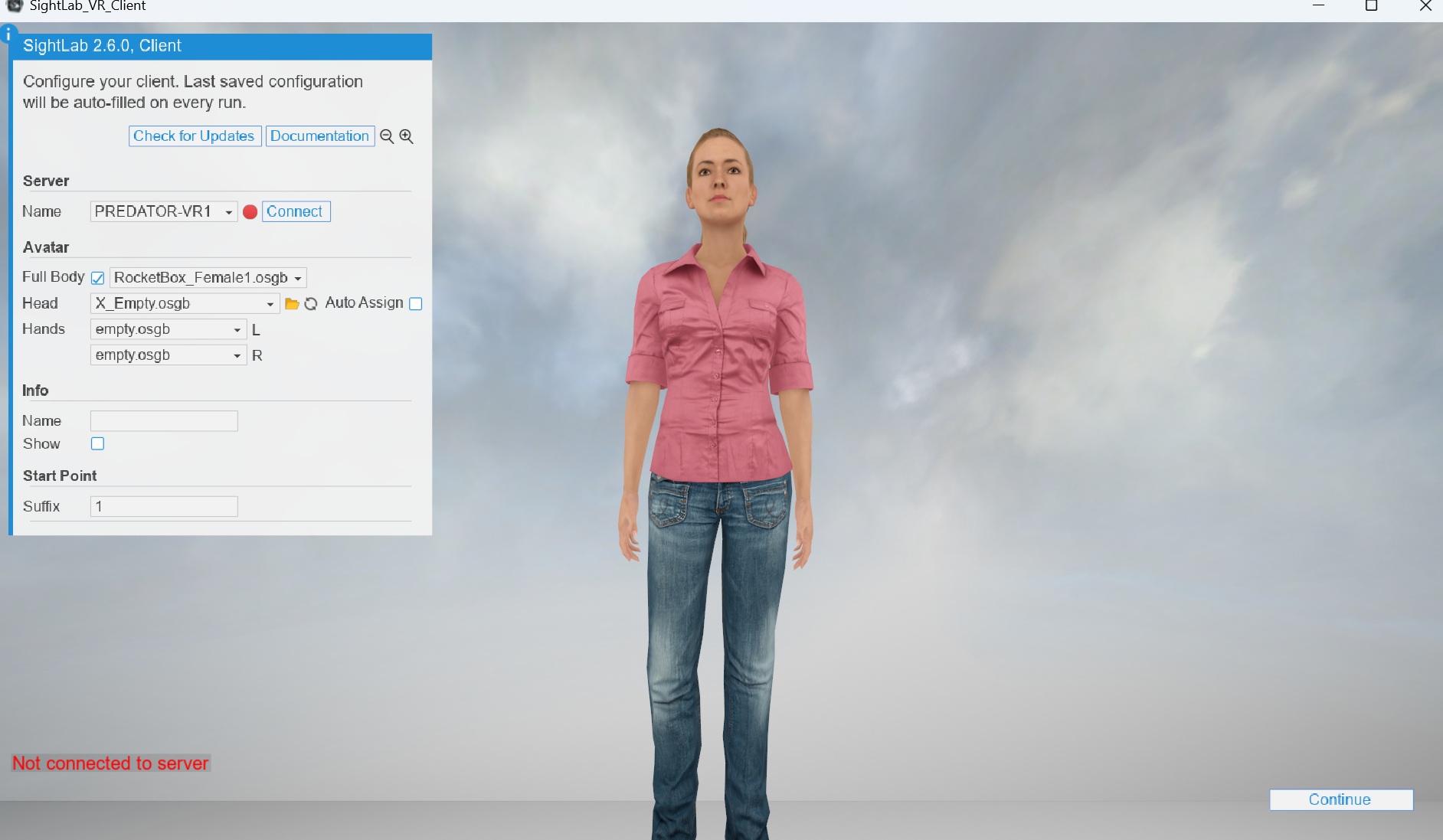
(Single-User, Multi-User, OpenXR, Vive Trackers, Mocopi & More)
SightLab 2.6 and later include built-in support for Full and Upper Body Tracked Avatars using an enhanced version of Vizard’s Inverse Kinematics (IK) system. This allows experiments to use:
- Full body avatars for single-user or multi-user sessions
- A wide range of tracking inputs (OpenXR passthrough body tracking, Vive Trackers, VR Headset and Controller sensors, Desktop keyboard and mouse, OptiTrack/Xsens full rigs, and more. Note there may be limitations on the Multi-User functionality with some systems).
- Lip movement animations when speech is detected
- Finger tracking through OpenXR, Manus gloves, Meta Quest Pro/3 controllers, or external systems (finger tracking for multi-user only available using OpenXR with controllers for finger curls, while single user allows full finger movement)
- Optional mirror views for self-observation
- Automatic integration with SightLab’s data logging, IK, avatar selection, and multi-user networking
1. Enabling Full Body Avatars
1.1. From the GUI (Single or Multi-User)
In both the SightLab GUI and Multi-User Client, simply:
- Open the project
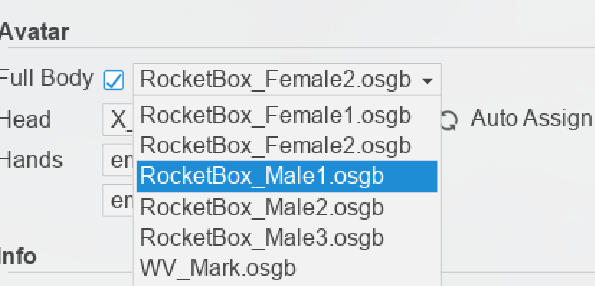
- Go to Avatar Settings
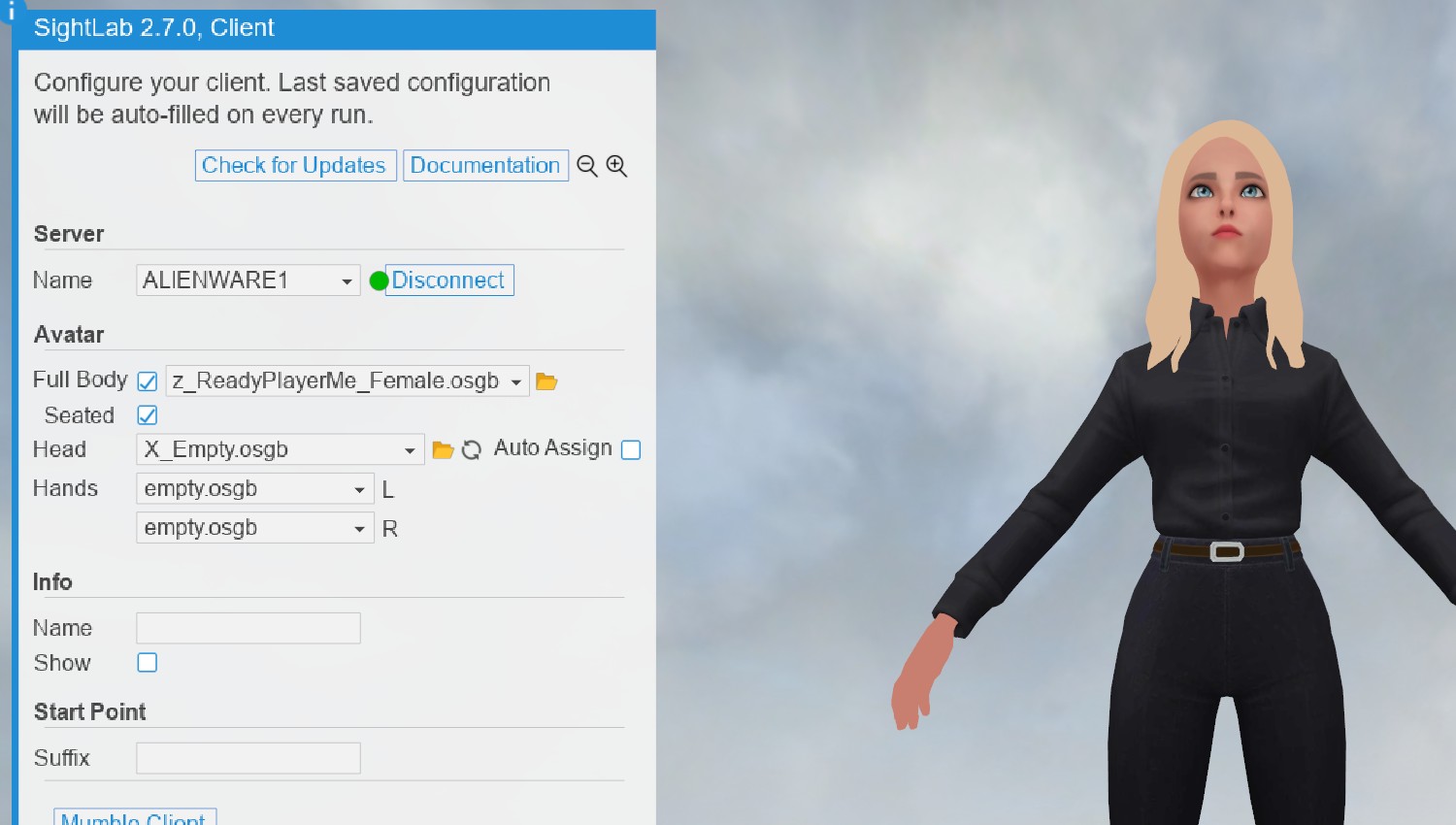
- Enable ✔ Full Body
This unlocks the list of compatible avatars stored in:
C:\Program Files\WorldViz\Sightlab2\sightlab_resources\avatar\TrackedAvatars
Avatar Preview
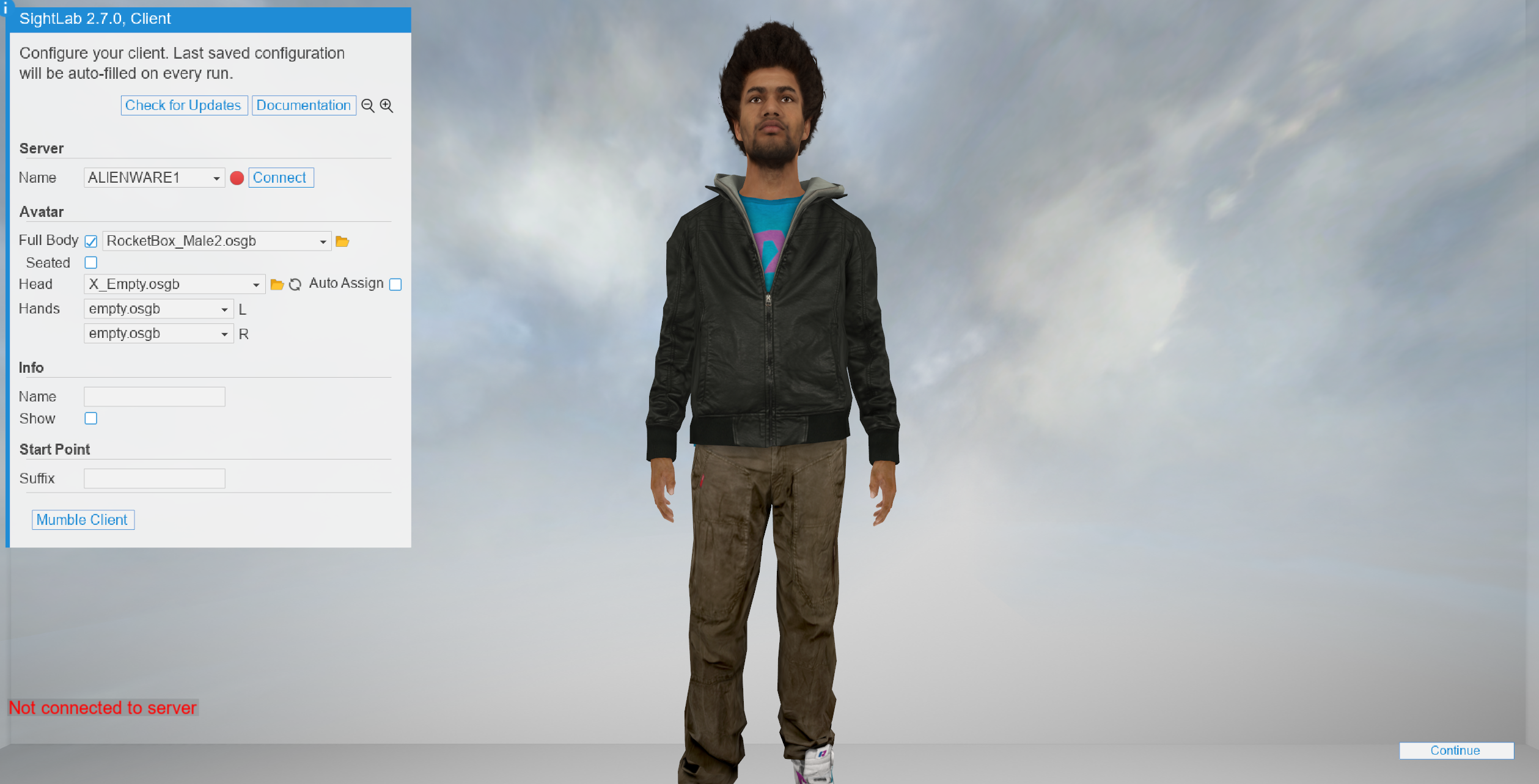
- Multi-User Client shows the preview automatically.
- Single-user GUI → click Show to display the avatar in the scene.
1.2. From Code (Non-GUI Scripts)
For scripts that run without the GUI (for example, gui=False setups or custom experiment launchers), full body avatars can be enabled directly through the SightLab (and SightLabClient) constructor. This is the code equivalent of checking ✔ Full Body in the GUI and selecting an avatar from the dropdown.
Enable full body and choose an avatar:
import sightlab_utils.sightlab as sightlab

avatarPath = r'C:\Program Files\WorldViz\Sightlab2\sightlab_resources\avatar\TrackedAvatars\RocketBox_Female1.osgb'

sl = sightlab.SightLab(fullbodyavatar=avatarPath)
Providing fullbodyavatar automatically enables full body, so there is no need to also set fullbody=True. Internally this switches to the full body vizconnect configurations and loads the specified avatar through SightLab's IK system — exactly as the GUI checkbox and avatar dropdown do.
Constructor parameters
| Parameter | Type | Default | Description |
|---|---|---|---|
fullbody |
bool |
False |
Enables full body avatars (equivalent to the GUI's Full Body checkbox). Uses the default tracked avatar. |
fullbodyavatar |
str (path) |
None |
Path to the full body avatar .osgb file (equivalent to the GUI's avatar dropdown). Implies fullbody=True. |
Other ways to use it:
# Enable full body with the default tracked avatar (no specific path):
sl = sightlab.SightLab(fullbody=True)

# Multi-User client, full body with a chosen avatar:
sl = sightlab.SightLabClient(fullbodyavatar=avatarPath)
Custom vizconnect overrides take precedence. If you pass an explicit hardware or vizconnect configuration (
hardwareconfig,vizconnectconfig, orvizconnectconfiglist), that configuration is used as-is and the automatic full body vizconnect switch is skipped, while the selectedfullbodyavataris still applied to the avatar.
Avatars available for use are stored in:
C:\Program Files\WorldViz\Sightlab2\sightlab_resources\avatar\TrackedAvatars
2. Avatar Compatibility
3.1 Recommended Avatar Library (Current Limitations) - Note: Limited ReadyPlayerMe and Mixamo support for SightLab 2.7 and higher
| Tracking Method | Fully Supported Avatars | Notes |
|---|---|---|
| OpenXR (single-user) | Complete Characters, ReadyPlayerMe, Mixamo, Reallusion, Avaturn, Metaperson | Most flexible; full finger tracking |
| OpenXR (multi-user) | Complete Characters, ReadyPlayerMe, Mixamo | Finger tracking only from Quest controllers |
| Vive Trackers / Mocopi / OptiTrack / Xsens | Complete Characters (Mixamo and ReadyPlayerMe not yet full tested/integrated for lower body trackers) | Other avatar types pending full retargeting support |
| Replay Mode | Not yet supported, but will show gaze position with stand-in Head and Hands | Full body playback not yet available |
For more avatars than the ones included contact support@worldviz.com or sales@worldviz.com for optional avatar packages.
Click here to see list of Complete Characters avatars available
For additional avatar libraries see the SightLab Asset Browser and the "Avatar Libraries" section
3. Tracking Systems
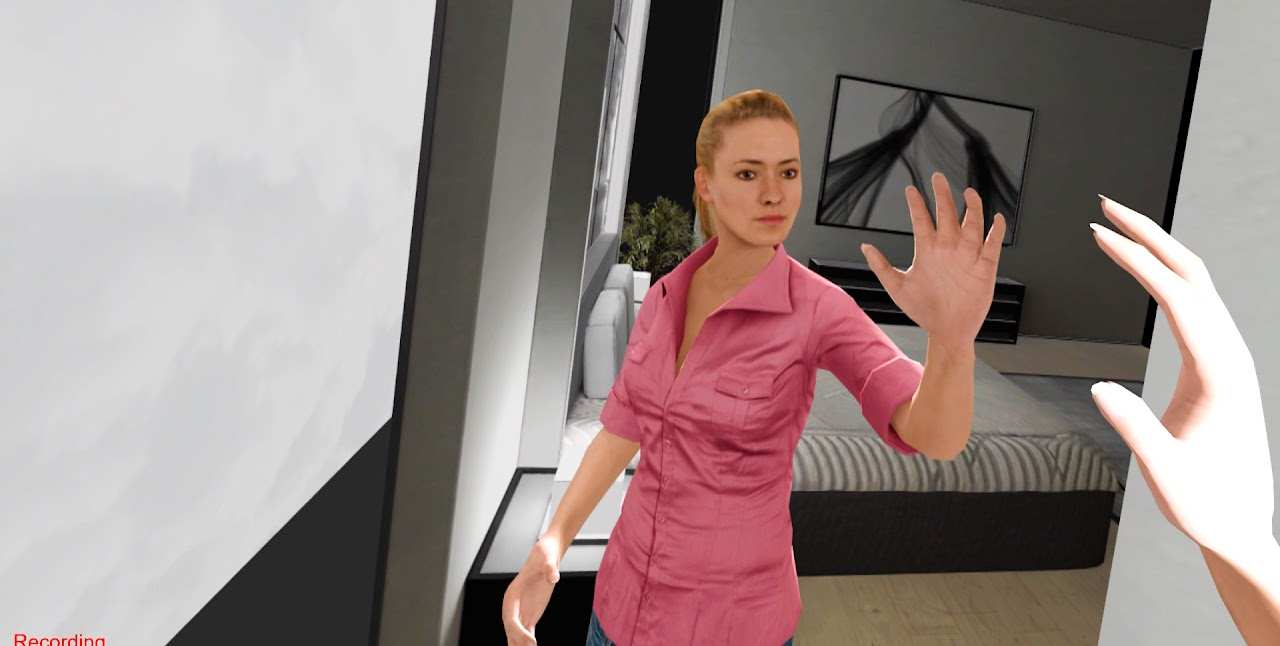
SightLab supports multiple tracking workflows, ranging from simple controller-based setups to full-body motion capture. This section details the behavior and limitations of each tracking method.
3.1 Standard VR Headset + Controllers (Head/Hands Only)
(Vive Focus Vision, Quest 2, Vive Pro, Vive Pro Eye, HP Omnicept, Varjo, etc.)
This is the most common setup and the default when no body tracking hardware is present.
Avatar Behavior
- Head follows the headset
- Hands follow the controllers
- Upper-body IK only
- Torso, shoulders, elbows move via IK
- Legs remain in a static standing or seated pose (no lower-body IK)
Notes
- Works in Single-User and Multi-User
- Not full body tracking — upper body only
3.2 Desktop Mode (No VR Hardware)
Desktop mode simulates movement without VR equipment.
Controls:
- WASD – Move the avatar
- Mouse – Look / rotate head
- Scroll wheel – Raise/lower main hand
- Left click – Trigger interactions
Useful for development or desktop-based studies.
3.3 OpenXR (Upper Body + Finger Curls)
(Quest 3, Quest Pro — device dependent)
This is the only method that supports controller-based finger curls from Quest Pro/Quest 3 for Multi-User.
Avatar Behavior
- Head follows HMD
- Hands follow controllers
- Upper-body IK
- Legs remain in static standing or seated pose (no lower-body IK)
- Finger curl tracking works only for Quest Pro / Quest 3 controllers
Finger Tracking Details
- Single-User: full finger control
- Multi-User: finger motion synced only via controller-based finger curls (not full hand joints)
Limitations
- Lower-body motion is not recorded or replayed
- No hip/knee/leg tracking from OpenXR at this time
🔗 OpenXR Setup Guide (Quest Pro / Quest 3 / Focus Vision / Varjo)
3.4 Vive Trackers / Vive Ultimate Trackers (Full Body)
(True full-body tracking)
Vive Trackers provide genuine full-body tracking including:
- Hips
- Feet
- Chest
- Elbows (optional)
Setup
- Connect via SteamVR or Vive Business Streaming
- Assign body roles in SteamVR/VBS
- SightLab automatically applies the transforms through IK
Notes
- Works in both single and multi-user projects
3.5 Sony Mocopi (Full Body Orientation Tracking)
Mocopi is a 6-point IMU tracker system for portable full-body tracking.
Setup
- Use the Mocopi SteamVR Application
- SteamVR sends Mocopi joint data into SightLab
- IK applies Mocopi data to the avatar
Notes
- Full-body motion supported
- IMU-based tracking
- Supported in single and multi-user
3.6 OptiTrack, Xsens, Vicon, AR51, and Other Motion Capture Systems (Full Body)
These systems provide high-accuracy full-body tracking for research labs.
Setup
- Stream data via Device Specific Software (MVN, etc.), Motion Builder, or system-specific exporters
- OptiTrack works via vizconnect, Motionbuilder, hardware specific protocol, or custom Vizard plugins
- Xsens MVN supported via MVN → MotionBuilder or custom Vizard integrations
- See links below for setup procedures
Notes
- Highest accuracy full-body solution
- Ideal for lab-scale, high accuracy capturing
- Finger tracking requires gloves or additional hardware
- Requires custom per-system setup
🔗 OptiTrack Setup Guide
🔗 Xsens Setup Guide
🔗 Additional Supported Devices
3.7 Hand/Finger Tracking Inputs
SightLab supports finger tracking from multiple sources:
- Meta Quest Pro / Quest 3/ Vive Focus Vision – controller-based finger curls
- Manus gloves – via Manus plug-ins
- OpenXR hand tracking – depending on headset
- Cyberglove
Data is automatically forwarded to the IK avatar.
3.8 Face Tracking
SightLab supports face tracking for facial expression and eye movement capture via OpenXR:
- Meta Quest Pro / Quest 3 – built-in face and eye tracking
- Vive Focus Vision – with Face Tracker add-on accessory
4. Data Logging Behavior
SightLab automatically records core gaze, head, and interaction data for every session. For full-body setups you can also add the body_tracking_metrics module to log tracker/hand poses and derived movement metrics with just a few lines of code.
4.1 Data Logged by Default
SightLab automatically saves the following metrics regardless of hardware:
Head & Hands
- Head pose (position + rotation)
- Hand pose (position + rotation)
- Controller button states
Gaze & Fixations
- Combined and per-eye gaze intersection points
- Fixations, saccades, and dwell metrics
- Gaze timestamps and event markers
4.2 Optional: Body Tracking & Movement Metrics Module
For full-body projects, the body_tracking_metrics module adds tracker and hand logging plus movement analytics without writing per-frame logging code yourself. It is included with SightLab and can be imported from anywhere:
import sightlab_utils.body_tracking_metrics as btm

bodyTracking = btm.BodyTracking(sightlab)
With three lifecycle calls per trial it will:
- Save 6DOF (position + orientation) for every body tracker (Vive, Mocopi, etc.) and both avatar hands into the standard
trial_datafile. - Log derived movement metrics to a separate
body_metricsCSV — for each body (trackers, head, hands) it records linear speed and acceleration, angular speed and angular acceleration, cumulative path length, and an Idle/Active state.
The module adapts automatically to the hardware (e.g. desktop or no-tracker configs are detected, and missing hands are skipped), and respects SightLab's PER_TRIAL or COMBINED data-saving mode.
🔗 For full setup, configuration options, and output details, see Body Tracking & Movement Metrics.
Working examples are in
ExampleScripts\ViveTrackers(ViveTrackers_FullBody.pyandViveTrackers_FullBody_GUI.py).
Finger Curls (Separate Logging)
The module does not record finger joints. Finger curl logging (Quest Pro / Quest 3) can be added using the example in ExampleScripts\Hand_Tracking_Grabbing_Physics, which demonstrates reading finger curl data and saving pinch, grip, and joint values.
4.3 Replay Mode Limitations
Replay mode currently supports:
- Head pose
- Gaze and fixations
- Interaction events
Replay does not yet support:
- Full-body playback
- Finger tracking playback
4.4 Full List of Saved Metrics
For a complete list of all default metrics (fixations, saccades, dwell time, object interactions, etc.), see:
🔗 Common Metrics in SightLab
https://help.worldviz.com/sightlab/common-metrics/
5. Motion Capture for Avatar Animations
Recorded motion capture animations can be used for avatar playback in SightLab. There are many options for creating animations, from AI-based video conversion to high-end motion capture systems. Animations can be exported via MotionBuilder or other tools and applied to avatars.
AI-Based Animation from Video
These tools convert standard video (captured with a phone or camera) into animations using AI algorithms:
- DeepMotion – AI-based animation creation (Tutorial)
- Kinetix – Animation and motion capture
- Rokoko – Motion capture suits and software
High-End Motion Capture Systems
For research-grade accuracy:
- Xsens – Inertial motion capture
- OptiTrack – Optical motion capture
- Vicon – Optical motion capture
- AR51 – Markerless motion capture
Refer to the Supported Devices page for more supported devices for motion capture.
6. Showing Avatars in the Replay
The full body avatars do not show in the replay and will show a stand-in head and hands. If you don't see the stand-in head and hands (pre SightLab 2.6.4) you can add this code:
import viz
import vizfx
from sightlab_utils import replay as Replay
from sightlab_utils.replay_settings import *

replay = Replay.SightLabReplay()

#where '1' is the first client, '2', second, etc.
avatarHead = replay.sceneObjects[AVATAR_HEAD_OBJECT]['1']
glowbot = vizfx.addChild(r'C:\Program Files\WorldViz\Vizard8\bin\lib\site-packages\sightlab_utils\resources\avatar\head\GlowManBlue.osgb')
def replaceAvatarHead():
    viz.link(avatarHead,glowbot)

import vizact
vizact.onupdate(0,replaceAvatarHead)
7. Seated Mode
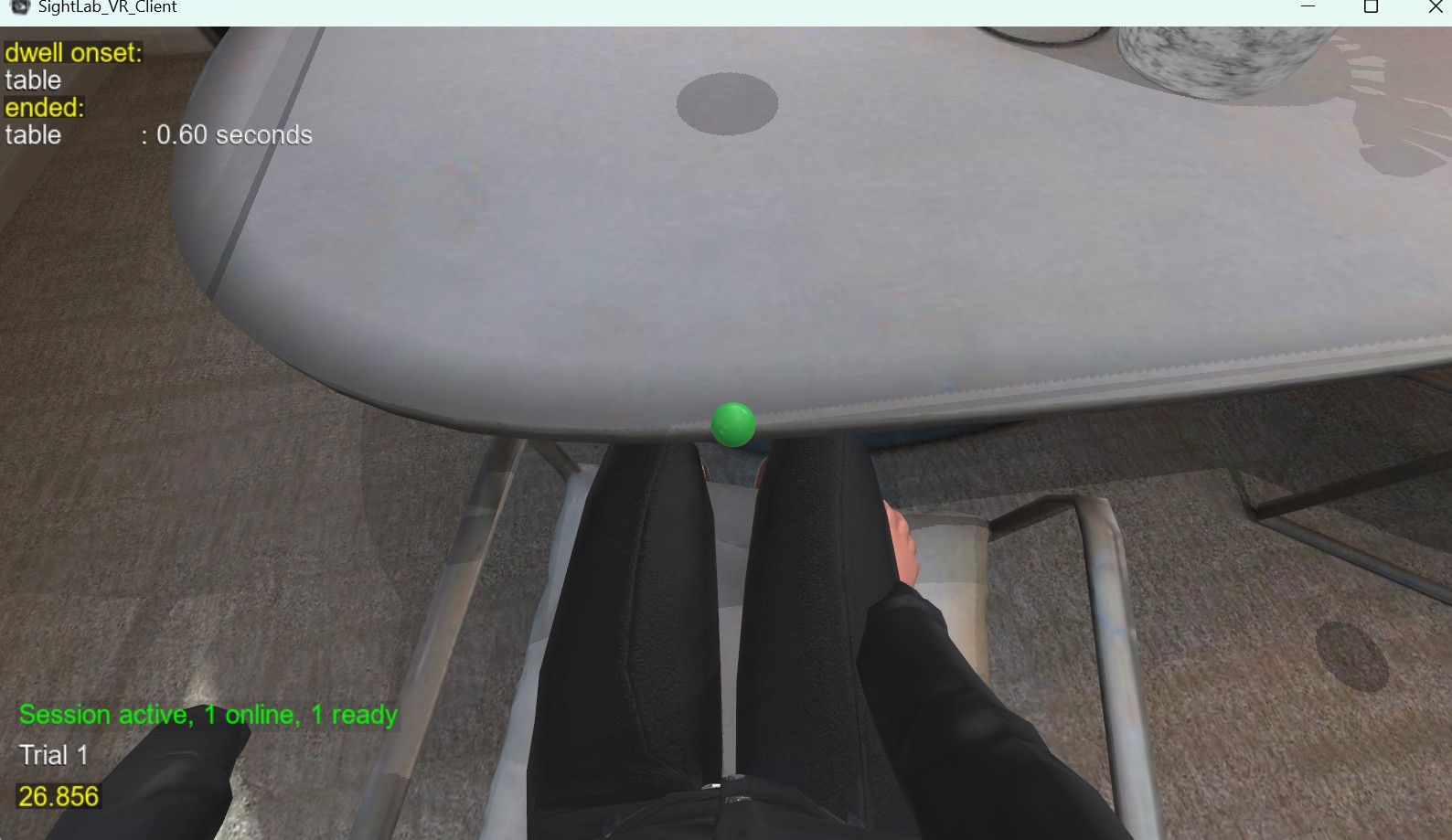
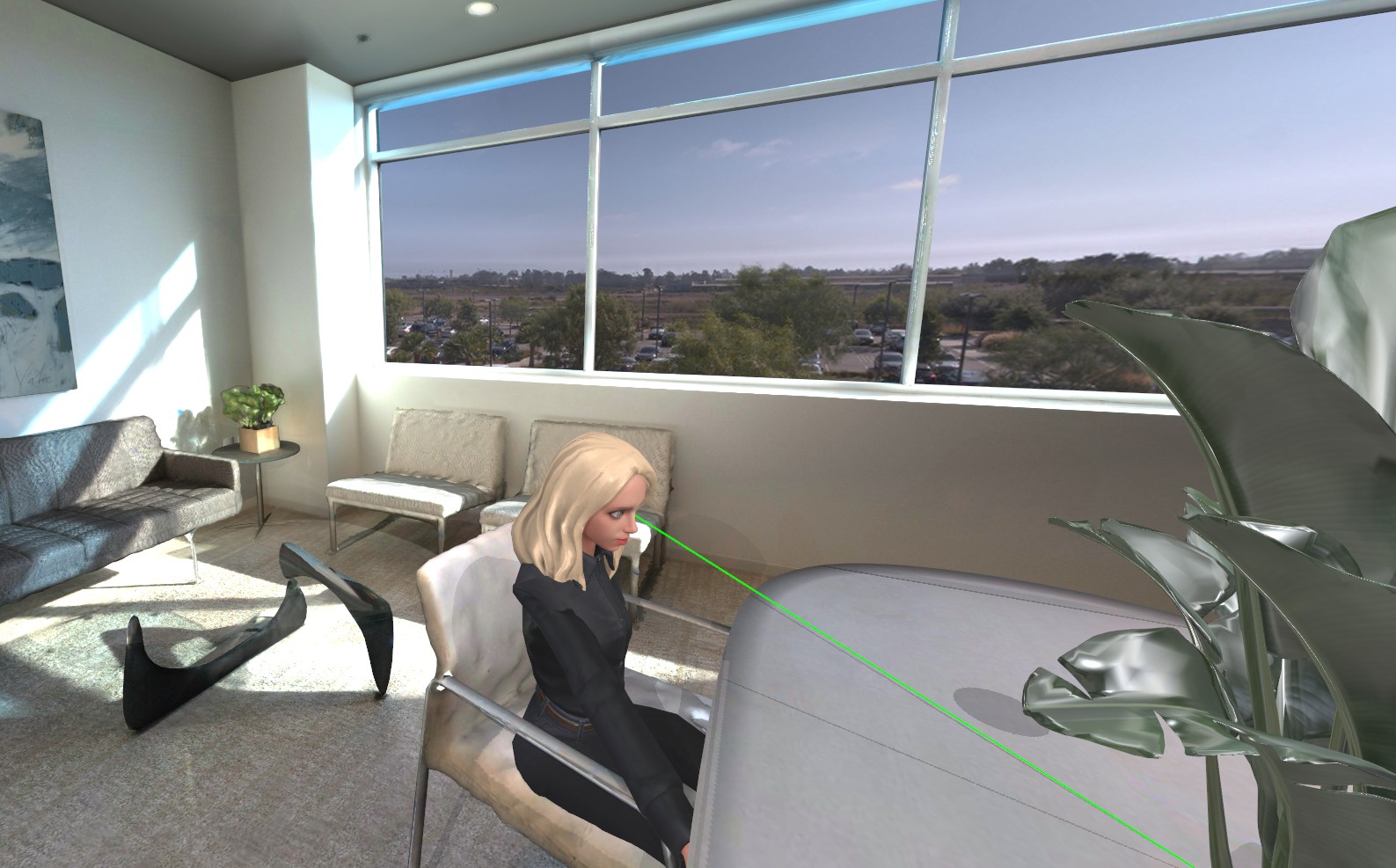
As of SightLab 2.7 you can now enable "Seated Mode" on any Full body avatar to lock the avatar in a seated position while still maintaining the ability to move the head and hands using inverse kinematics. To enable this just check "Seated" on the GUI, or in code can use sightlab.setSeatedMode(True)
8. Related Pages
Example Scripts
(From ExampleScripts folder)
- Full Body – Seated/Standing IK (see how to lock certain bones, such as a seated position to only move the upper body)
- Full Body – Multi-User Conversation (Pre-canned speaking animations and saving audio transcripts)
- Mirror demo (Viewing your own full-body avatar)
- E-Learning Lab (Interactive VR Presentations with full body multi-user support using SightLab)
- Foot Tracking (options for tracking just feet)
- Additional Option for Upper Body Tracking with OpenXR (older method for tracking upper body using OpenXR)
- Adding Standard Avatars to a Scene
Multi-User Docs
Inspector / Avatar Editing
See this page for how to use Inspector, where you can view avatar textures, scale and morph values