Publishing an Executable
See this page in the Vizard Documentation on how to publish your SightLab script as an executable if you wish to distribute it to users who are not running Vizard.
Note this is currently only supported for scripts that don't use the GUI. Either non-GUI, or if created with the GUI need to run with gui=False, configpath = 'sightlab_configs/recent_config.stlb'
For publishing executables with the interactive replay you may need to also share your Resources/environments (or Resources/media for 360 media) folder, or whatever folder has the assets you are using.
You will also need to make a separate executable of the SightLabVR_Replay file and copy that to the folder with your exe to use the replay.
To choose which vizconnects (hardware configurations) to show for the hardware configuration dropdown add this code. To see the available options see the settings.py file
#Add before importing sightlab

from sightlab_utils import settings

settings.VIZCONNECT_CONFIG_LIST = ['Desktop', 'Meta Quest 3']
-
See ExampleScripts\PublishExe in the SightLab ExampleScripts Directory for publish exe examples
-
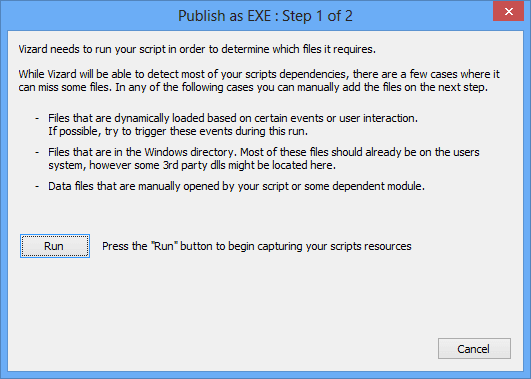
Make sure to run from the Vizard IDE with File- Publish as Exe
-
Note it may take longer than normal for the script to start
-
Data files will be saved to the folder you run the exe from
-
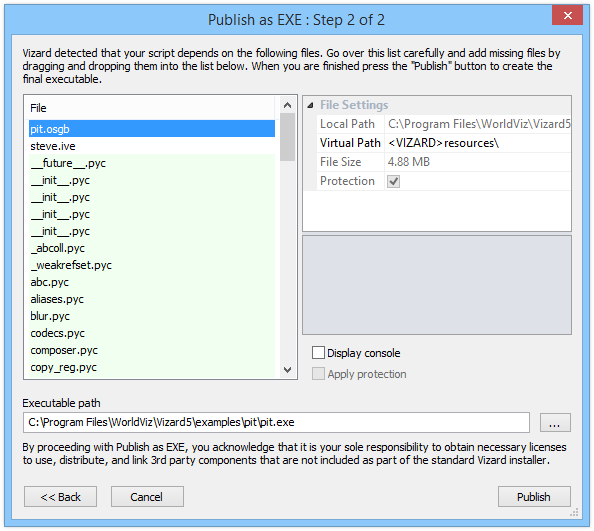
Drag "data" folder into the screen where it prompts for any missing files
Example
The Publish Wizard bundles the files, Python modules and Vizard plug-ins that your script loads while it runs for publishing. Anything the script loads only in some runs is left out, such as the hardware configuration for a headset you didn't use while publishing. Add those with viz.res.addPublishDirectory().
Add the published directories
# =============================================================================
# PUBLISH CONFIGURATION - Must be BEFORE any sightlab imports!
# =============================================================================
import os
import viz

# Filter out problematic packages that cause issues in published EXE
viz.res.addPublishFilter('*google_generativeai*')
viz.res.addPublishFilter('*-nspkg.pth')
viz.res.addPublishFilter('*.pth')

# Add publish directories - ensures correct package versions are bundled
publish_directories = [
    'data',
    viz.res.getVizardPath() + 'bin/lib/site-packages/sightlab_utils/',
    viz.res.getVizardPath() + 'bin/lib/site-packages/deepdiff',
    viz.res.getVizardPath() + 'bin/lib/site-packages/numpy',
    viz.res.getVizardPath() + 'bin/lib/site-packages/pandas',
]

for directory in publish_directories:
    if os.path.isdir(directory):  # addPublishDirectory raises an error on a missing folder
        viz.res.addPublishDirectory(directory)
Headset Plug-ins (SteamVR and OpenXR)
Each headset's hardware configuration uses a Vizard plug-in: steamvr (SteamVR, Vive, Vive Pro Eye, Vive Trackers, ...) or openxr (Meta Quest 3, Meta Quest Pro, Vive Focus Vision, Varjo, OpenXR EyeTR, ...). A plug-in is only bundled if the script loaded it while you published. An EXE published while running on Desktop therefore can't use those headsets. For example, choosing SteamVR in that EXE stops partway through loading the hardware configuration, and the console repeats KeyError: 'eye_tracker'.
Either publish while running the hardware configuration the EXE will use, or add the plug-in folders to publish_directories:
publish_directories = [
    # ... the entries above ...
    viz.res.getVizardPath() + 'plug-ins/steamvr',   # SteamVR headsets
    viz.res.getVizardPath() + 'plug-ins/openxr',    # OpenXR headsets
    viz.res.getVizardPath() + 'resources/openxr',   # OpenXR hand models, for the hand tracking configurations
]
Add the folders for every headset the EXE should support. For a multi-user client, that means every headset you might set in client_settings.txt (see Set the Server and Hardware from a Text File). Eye trackers, gloves and other trackers can use further plug-ins from the same plug-ins folder. If you aren't sure which ones, publish while running that hardware.
Session Replay EXE
(Note: Any environments or assets that may be used with the Session Replay will need to be included in the exe)
Use this for published directories, where the Resources/environments is the name of where your assets for 3D models are or Resources/media for 360 media
publish_directories = [
    'data',
    'Resources/environments/',
    viz.res.getVizardPath() + 'bin/lib/site-packages/sightlab_utils/'
]

for directory in publish_directories:
    if os.path.isdir(directory):
        viz.res.addPublishDirectory(directory)
Multi-User
For multi-user scripts you can use the same example code, but need to add this additional code to the client and server:
Server:
(When calling the SightLab class):
sightlab = sl.SightLabServer(gui=False,configpath='sightlab_configs/recent_config_server.stlb')
Client:
Add the additional resources below:
publish_directories = [
    'data',
    'sightlab_configs',
    'Resources',
    viz.res.getVizardPath() + 'bin/lib/site-packages/sightlab_utils/',
    viz.res.getVizardPath() + 'bin/lib/site-packages/deepdiff',
    viz.res.getVizardPath() + 'bin/lib/site-packages/numpy',
    viz.res.getVizardPath() + 'bin/lib/site-packages/pandas',
]
Next, add this code when calling the SightLab Class (where after hardwareconfig put the name of the hardware file you are using and after server, need to hardcode the name of the server machine) :
sightlab = sl.SightLabClient(configpath = 'sightlab_configs/recent_config_client.stlb', hardwareconfig = "Desktop", server = "PREDATOR-VR1")
To change the server or hardware later without republishing, see Set the Server and Hardware from a Text File below.
Lastly, you may need to manually copy the 'Data' folder to this location:
C:\Users\UserName\AppData\Local\SightLab\Application\Script
Set the Server and Hardware from a Text File
Hardcoding server and hardwareconfig locks a published client EXE to one server machine and one hardware setup, so any change means republishing. Instead, the client can read both values from a text file in the same folder as the EXE. Each client PC can then edit that file to point to its own server and headset.
1. Create the settings file
Create client_settings.txt in the same folder as your client script:
# Client settings - read each time the client EXE starts.
# Keep this file in the same folder as the .exe. Edit, save, then relaunch the .exe.

# server: computer name or IP address of the machine running the server
server = PREDATOR-VR1

# hardwareconfig: SightLab hardware name, spelled exactly (case-sensitive), e.g.
#   Desktop, Meta Quest 3, Meta Quest Pro, Vive Focus Vision, OpenXR EyeTR, SteamVR
hardwareconfig = Desktop
2. Read it in the client script
Replace the sl.SightLabClient(...) line with the code below. The values in client_settings are the defaults, used if the file or a line is missing.
import os

# Read server / hardwareconfig from client_settings.txt in the same folder as the
# published EXE (or this script's folder when run from Vizard).
CLIENT_SETTINGS_FILE = viz.res.getPublishedPath('client_settings.txt')
client_settings = {'server': 'PREDATOR-VR1', 'hardwareconfig': 'Desktop'}

if os.path.isfile(CLIENT_SETTINGS_FILE):
    with open(CLIENT_SETTINGS_FILE, 'r', encoding='utf-8-sig') as f:  # -sig: tolerate Notepad's BOM
        for line in f:
            line = line.strip()
            if not line or line.startswith('#') or '=' not in line:
                continue
            key, value = line.split('=', 1)
            key = key.strip().lower()
            if key in client_settings:
                client_settings[key] = value.strip().strip('"\'')
            else:
                print(f"Ignoring unknown setting '{key}' in {CLIENT_SETTINGS_FILE}")
    print(f"Loaded {CLIENT_SETTINGS_FILE}: {client_settings}")
else:
    print(f"{CLIENT_SETTINGS_FILE} not found, using defaults: {client_settings}")

sightlab = sl.SightLabClient(configpath = 'sightlab_configs/recent_config_client.stlb', hardwareconfig = client_settings['hardwareconfig'], server = client_settings['server'])
3. Publish, then place the file next to the EXE
Publish the client as usual. Do not add client_settings.txt to publish_directories, because files bundled into the EXE are unpacked to the AppData folder, where users won't find them. Instead, copy client_settings.txt into the same folder as the client .exe when you distribute it. To change the server or hardware, edit the file, save it, and relaunch the EXE.
Note
viz.res.getPublishedPath()returns the path in the folder that contains the published EXE. When the script is run from Vizard instead, it returns the file name unchanged, so the copy in your script's folder is used.hardwareconfigmust exactly match one of the hardware names in settings.py. Otherwise SightLab shows "Hardware config not found" and quits.servercan be the server's computer name or its IP address.- To make other values editable, add them to the
client_settingsdictionary and the text file. The same approach also works for the server script.
Testing on One Computer
Every published SightLab EXE unpacks to the same folder, C:\Users\UserName\AppData\Local\SightLab\Application, so the server EXE and a client EXE can't run on the same computer at once. To test on one computer, run one side from Vizard and the other as an EXE, for example the server script and the client EXE. In the client's client_settings.txt, set server to localhost or this computer's name, and set it back to the server's name before distributing.
Troubleshooting
KeyError: 'eye_tracker' after choosing a headset
The headset's plug-in wasn't bundled. See Headset Plug-ins (SteamVR and OpenXR).
Client EXE: AttributeError: 'NoneType' object has no attribute 'sendAll'
The client couldn't reach the server named by server in client_settings.txt or in the SightLabClient call. Check that the name or IP address is right and that the server computer is on the network. When testing on one computer, see Testing on One Computer.
Additional Information
See this page in the Vizard Documentation for more information
Additional built in options related to publishing can be modified in the sightlab_config.py file in sightlab_utils (C:\Program Files\WorldViz\Vizard\<version>\bin\lib\site-packages\sightlab_utils)
For video recording as an option add
viz.setOption('viz.publish.allow_capture_video',1)
To bundle another Python library whole, add its folder to publish_directories. This is why the example bundles numpy and pandas: the automatic scan leaves out parts of them, and pandas then fails in the EXE with module 'numpy.random' has no attribute 'Generator'.
viz.res.getVizardPath() + 'bin/lib/site-packages/<library name>',