SightLab VR Assistant
The SightLab VR Assistant is now available as a public plugin for supported ChatGPT and Codex experiences. It helps you plan VR studies, understand SightLab workflows, write Python examples, and troubleshoot code using bundled SightLab documentation and reference materials.
💬 Get the SightLab VR Assistant plugin
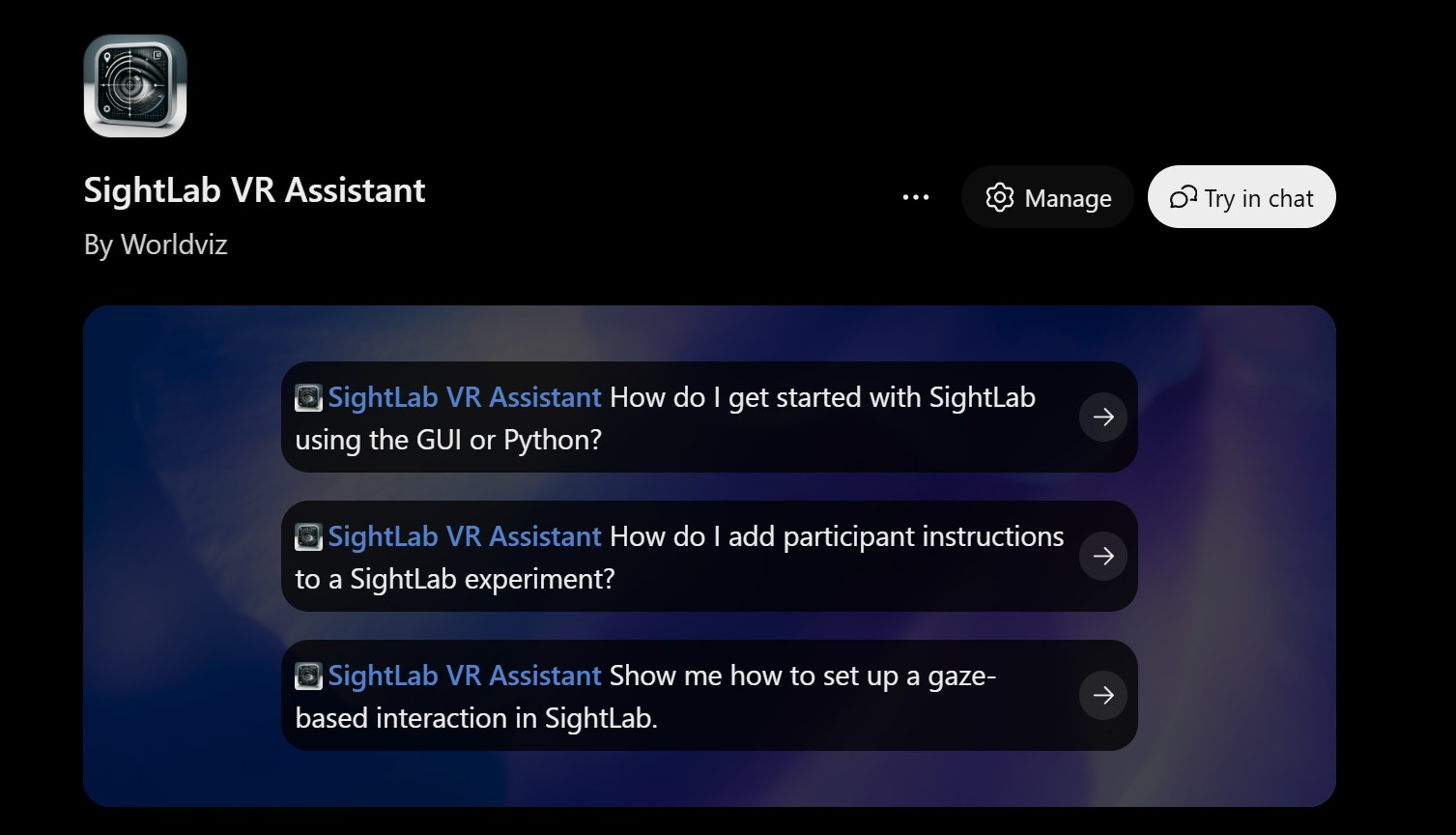
Get started
- Open the plugin link above and sign in to your OpenAI account.
- Add or install SightLab VR Assistant from its listing.
- Start a chat in a supported ChatGPT or Codex experience. Where available, type @ and select SightLab VR Assistant from the plugin menu. In ChatGPT, use the Work experience if that is where plugins are available for your account.
- Describe your task. Include your SightLab/Vizard version, headset, and whether you are using the GUI, Python, or both.
Available controls depend on your OpenAI account, workspace settings, and app version. If a suggested question is already in the message box, you can replace it with your own before sending.
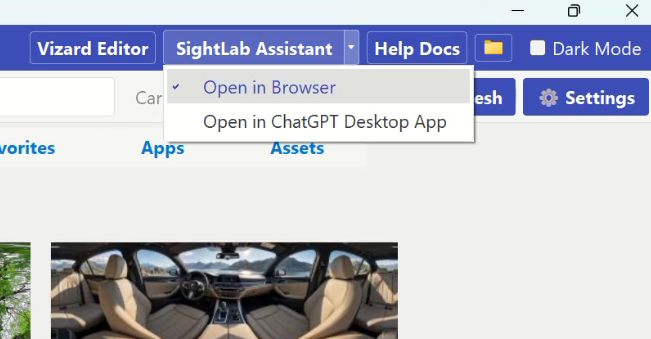
Access from the SightLab Dashboard
The SightLab Dashboard includes an Assistant shortcut in the upper right. If your installed version opens the older custom GPT page, use the public plugin link above instead.
What you can do
| Task | Example request |
|---|---|
| Plan a study | “Help me plan a three-condition visual-search study in SightLab. Outline the scenes, trial flow, gaze measures, and a pilot checklist.” |
| Learn the GUI | “Walk me through setting up two trials in the GUI, with participant instructions and gaze tracking on selected objects.” |
| Extend an experiment | “Draft a Python example that adds a grabbable object and a rating scale after each trial. Explain where it fits into my existing script.” |
| Troubleshoot code | “Here is my script and error traceback. Identify the likely cause and suggest the smallest change for my SightLab version.” |
| Understand collected data | “Using these synthetic CSV rows, explain the columns and draft a script to summarize dwell time by trial and object.” |
| Prepare study materials | “Draft participant instructions, an experimenter checklist, and a short explanation of this experiment for a new lab member.” |
Work with your own project
Where your ChatGPT or Codex environment supports file access, you can provide the relevant script, configuration file, error log, or screenshot and ask for help in context. In Codex, you can work alongside a local project and request proposed edits to files you have made available. File access and editing depend on the host application's tools and your permissions; installing this plugin does not automatically expose your project files.
For example:
Review the trial loop in this project. Propose a change that adds a rating scale after each trial, preserve the existing data collection, and explain the changes. Do not run the experiment.
You can also use the assistant's SightLab guidance alongside other tools or plugins available in your environment—for example, to draft a study handout or create a plot from synthetic data. Those additional capabilities come from the tools you choose, rather than from a direct connection between this plugin and SightLab.
Advanced desktop workflows
In the ChatGPT desktop app, you can combine the SightLab assistant's reference knowledge with separately enabled tools. GPT-6 Astra is an option where available; OpenAI recommends it for demanding visual tasks. Choosing a model alone does not enable access to your applications. See OpenAI's Computer Use guide for availability and setup.
Create 3D assets
With Blender installed and a compatible Blender MCP integration configured in your host app, you can ask the AI to create or modify models, arrange scenes, and save or export assets. The integration operates Blender; exported files can be used in other applications when their formats and materials are compatible. Check the export against your installed Vizard/SightLab version.
Example request:
Use the connected Blender tools to create a simple room with a table and three differently colored target objects. Save the Blender project and help me export the assets in a format supported by my Vizard version for a SightLab pilot study.
Blender MCP is a separate community integration with its own setup and terms; it is not included in the SightLab plugin.
Help test a local SightLab project
With Computer Use enabled and access to your installed Vizard/SightLab applications allowed, you can ask the AI to help launch a demo, inspect visible errors, or check a trial sequence. File and terminal tools, where available and authorized, can also help edit scripts and inspect logs. These are potential workflows to try with your setup, rather than a tested automatic SightLab integration.
Example request:
Using a copy of my demo project and synthetic data, run a short test in my installed Vizard/SightLab environment. Check whether the instructions appear and the rating scale opens after the trial. Report what you observed, any errors, and anything you could not verify.
On Windows, Computer Use operates the active desktop. Desktop checks do not replace testing headset behavior, tracking accuracy, timing, or participant experience on the actual study hardware.
Requirements and limitations
The SightLab plugin itself supplies instructions and reference materials. It does not include tools to install software, run SightLab experiments, or directly control VR hardware. The optional desktop workflows above depend on separately enabled tools and your permissions. Running generated experiment scripts requires a compatible SightLab/Vizard installation, the applicable product license, and any hardware needed for your study.
Answers and generated code can contain errors. Bundled references may differ from your installed version and do not automatically update whenever the documentation website changes. Review and test code in your own development environment before using it in a study.
Use synthetic or appropriately de-identified examples. Do not share participant-identifiable data, credentials, or confidential research without the necessary authorization and compliance with the service's rules.