Driving Example
Overview
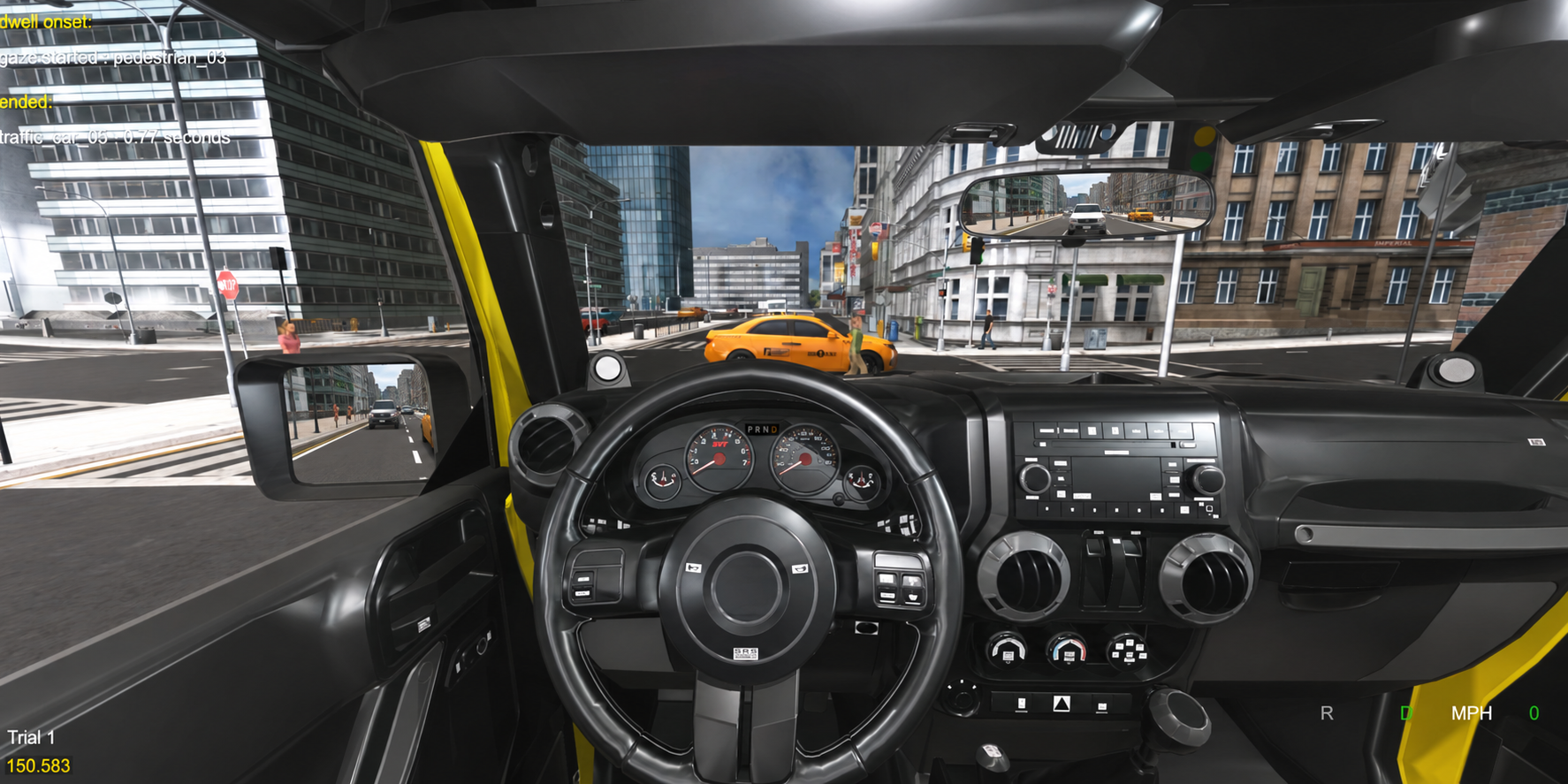
The SightLab Driving Simulation is a flexible platform for building driving studies. It is located in the ExampleScripts-Driving folder and supports desktop, VR headsets, game controllers, and steering wheels. Participants drive through city streets or along a highway, with traffic and pedestrians, while SightLab records their gaze, the car's movement, and any collisions.
Click below to Download the latest version
Quick Start
- Run
Driving_GUI_Main.py. - In the SightLab GUI, choose your hardware (see Hardware Options). To drive somewhere else, see Changing the Environment.
- Press Spacebar to start the experiment, and press it again to go on to the next trial. In a headset, have the driver sit back and look straight ahead as the trial starts, because that is when the view is centered on them (see Headset Seat Position).
- Drive using the controls. Press
rat any time to put the car back where the trial started. - After the session, the data is in the
datafolder. RunSightLabVR_Replay.pyto replay the session.
Traffic and pedestrians are on by default. Turn them off with ADD_TRAFFIC and ADD_PEDESTRIANS in Driving_Config.py, and set how many vehicles and pedestrians each trial has in the STIM file.
Features
Driving
- Modifiable car models and environments
- Realistic gas, brake, and steering controls, with Drive and Reverse gears
- Acceleration, braking, and coasting set in real-world units (see Driving Feel)
- Steering that pivots around the rear axle and eases into and out of turns
- Solid-world collision: the car can't drive through buildings, props, or other vehicles. It uses lightweight raycasts, so no physics engine is needed (see Collision System)
- Elevation, hill, and ramp support
- Interactive headlights and engine audio whose pitch follows the car's speed
- Automatic brake lights on the included jeep and traffic vehicles (see Brake Lights)
- Animated MPH and RPM gauges, steering wheel, and tires
- Rear-view and side mirrors that reflect the scene behind the car (see Mirrors)
- Controller vibration on impacts and when pulling away (see Controller Vibration)
- HUD showing speed, gear, fixations, and timestamp
- In a headset, the driver's view is placed in the driver's seat wherever they sit in the room, and can be re-centered from the controller (see Headset Seat Position)
- Multi-user driving: several drivers in the same city, each seeing the others' cars (see Multi-User)
Research and Analysis
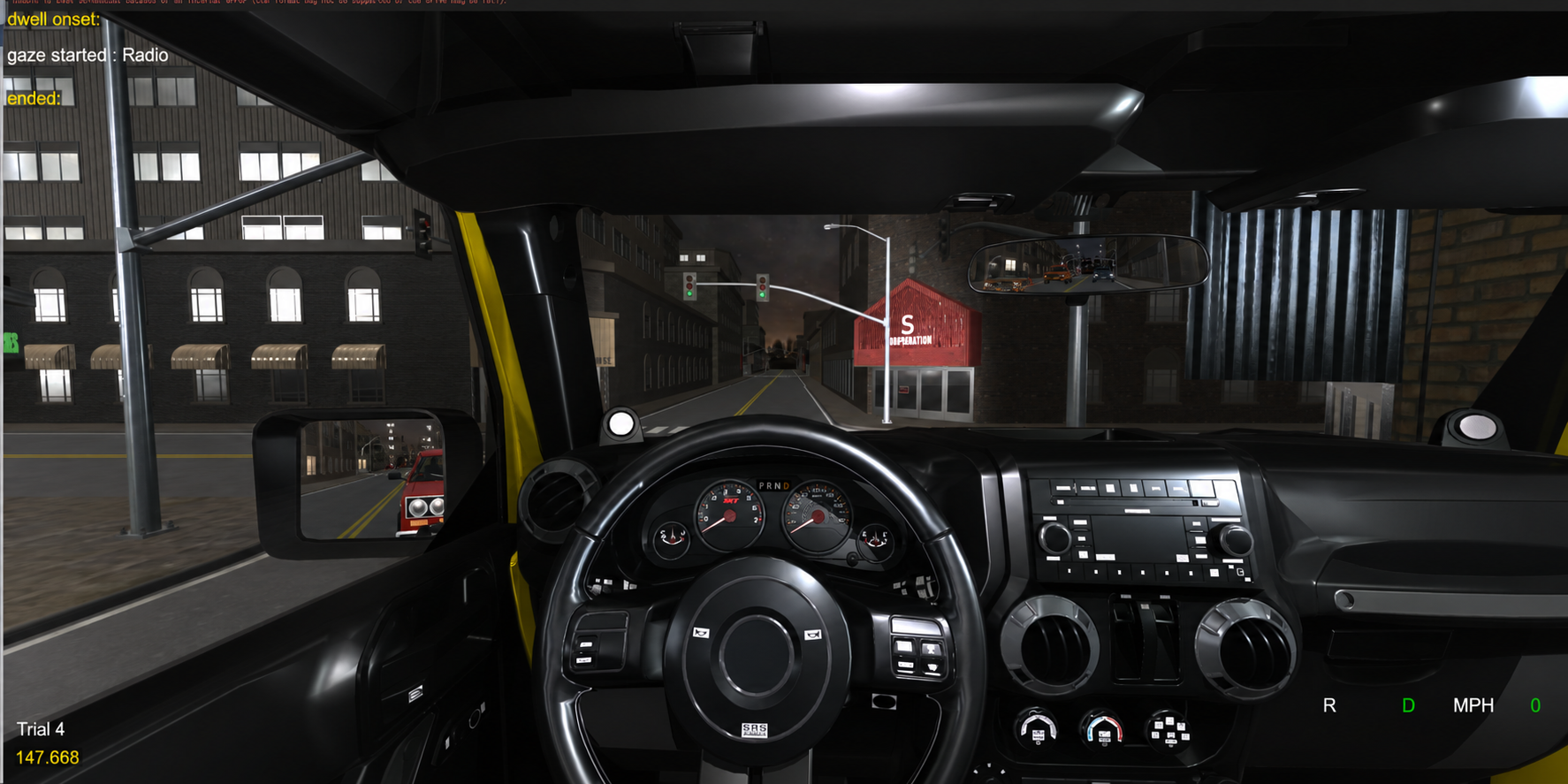
- Eye tracking, with fixations and dwell time on the dashboard, mirrors, traffic vehicles, and pedestrians (and optionally on each traffic light)
- What the driver is looking at every frame, sorted into vehicles, pedestrians, traffic lights, mirrors, and dashboard, with each trial's total gaze time per category (see Driver Inputs and Gaze Categories)
- Gas and brake pedal positions every frame, from any controller, keyboard, or steering wheel
- Car position, rotation, velocity, and average speed saved for each trial, plus any custom data you add (see Data Collected)
- Hit counts, collision flags, and nearest-vehicle distance for traffic and pedestrians
- Physiological data integration, including Biopac markers on collisions
- Session replay with gaze paths and heatmaps
- Instructor view with real-time control and monitoring
Environment
- Day, night, and fog conditions with variable lighting
- Traffic that follows the road, keeps its distance, obeys traffic lights, and yields to your car (see Traffic System)
- Road networks: traffic that turns at junctions and drives every street of the included towns (see Road Networks)
- Routes recorded in-app, so traffic can be added to any environment without a 3D tool
- Animated pedestrians that walk the sidewalks, wait at signals and for a gap in the traffic, and pause when your car approaches their path. Traffic stops for pedestrians who are crossing (see Pedestrian System)
- Traffic vehicle wheels that spin with speed (see Traffic Wheel Animation)
- 360° media integration
- Customizable obstacles
Included Scripts
| Script | What it's for |
|---|---|
Driving_GUI_Main.py |
Start here. The main example. Hardware and environment are chosen in the SightLab GUI, and per-trial traffic and pedestrian settings come from Resources/stim_file.csv. |
Driving_Main_noGUI.py |
The same experiment without the GUI. Each row of Resources/stim_file-nonGUI.csv is one trial and sets that trial's environment. See Setting Up Trials. |
Driving_GUI_Traffic.py |
Same as Driving_GUI_Main.py, but traffic is always on, whatever ADD_TRAFFIC is set to. Kept from earlier versions, where this was the only script with traffic. |
Driving_Server.py, Driving_Client.py |
The same experiment as a multi-user session: one server, plus a client for each driver. See Multi-User. |
Driving_Config.py |
Car, viewpoint, collision, driving feel, vibration, and hardware settings, plus the traffic and pedestrian switches. See Driving Configuration Settings. |
traffic_config.py |
Traffic and pedestrian settings. See Traffic Settings and Pedestrian Settings. |
generate_pedestrian_routes.py |
Builds sidewalk routes for pedestrians from an environment's geometry. See Sidewalk Routes. |
probe_environment.py, generate_traffic_network.py, test_traffic_network.py |
Measure an environment, build a road network of turning traffic for it, and test the result. See Road Networks. |
SightLabVR_Replay.py |
Plays back recorded sessions. See Session Replay. |
modules/wheel_inspector.py |
Shows the axis and button IDs of a steering wheel. See Adding a Steering Wheel. |
modules/driver_data.py |
Records the pedal positions and what the driver is looking at. See Driver Inputs and Gaze Categories. |
modules/seat_recenter.py |
In a headset, places the driver's eyes at the car's eye point at the start of each trial, shows the start screen instructions, and re-centers on request. See Headset Seat Position. |
modules/trial_gc.py, modules/frame_profiler.py |
Keep Python's garbage collector from freezing frames, and report where each frame's time goes. See Performance. |
Traffic (ADD_TRAFFIC) and pedestrians (ADD_PEDESTRIANS) work in every script, together or separately.
Controls
For keys shared by all SightLab experiments, see Controls.
Keyboard Shortcuts
These keys work with any hardware:
| Key | Action |
|---|---|
| Spacebar | Start the experiment, or go on to the next trial |
b |
Cycle the viewpoint: in the car, third person, closer in, and over the hood. On an Xbox controller, press Select. |
r |
Reset: return the car to the position and heading it started the trial at, put the seat position back, and bring the car to a stop. A traffic vehicle queued where the car lands is moved back along its lane. |
0 |
In a headset, re-center the seat on the driver after a 2-second countdown (see Headset Seat Position) |
i |
Re-center the view rotation on desktop (Driving_GUI_Main.py, Driving_Server.py, and Driving_Client.py) |
v |
Print the current seat position and where the eyes are in the car, so either can be saved as the default (see Changing the View Position) |
| T, F, G, H, Z, X | Adjust the seat position on desktop |
| W, A, S, D, Z, X | Adjust the seat position in a VR headset |
Driving Controls
| Action | Keyboard | Xbox controller | VR controllers | SteamVR / Vive wands | Steering wheel |
|---|---|---|---|---|---|
| Steer | W, A, S, D | Left stick | Left stick | Right trackpad (left/right) | Wheel |
| Gas | = |
Right trigger | Right trigger (some headsets also need the right-hand B button held) | Right system button | Gas pedal |
| Brake | - |
Left trigger | Left trigger | Right grip button | Brake pedal |
| Toggle Drive / Reverse | Y | X | Y | Controller button | Wheel button |
| Look around | Mouse | Right stick or mouse | Headset | Headset | |
| Re-center the seat (headset) | 0 |
Right grip + A (OpenXR options) |
Come to a stop before toggling between Drive and Reverse. To see or change which button does what for your hardware, see Customizing Controls.
Hardware Options
Choose one of these in the SightLab GUI. Each name maps to a vizconnect file through HARDWARE_CONFIGS in Driving_Config.py.
| Type | Options |
|---|---|
| Desktop | Driving Desktop (keyboard and mouse), Desktop Driving Controller (Xbox controller) |
| Steering wheel | Driving G923 Wheel, Driving Thrustmaster Wheel, Driving Wheel, Driving Vive Focus Vision G923 Wheel |
| Meta | Driving Meta, Driving Meta Game Controller |
| OpenXR | Driving OpenXR, Driving OpenXR No EyeTR, Driving Quest Pro, Driving Varjo, Driving Vive Focus Vision, Driving Pimax Controller |
| SteamVR and HP | Driving SteamVR, Driving SteamVR Controller, Driving Vive, Driving Omnicept |
Session Replay
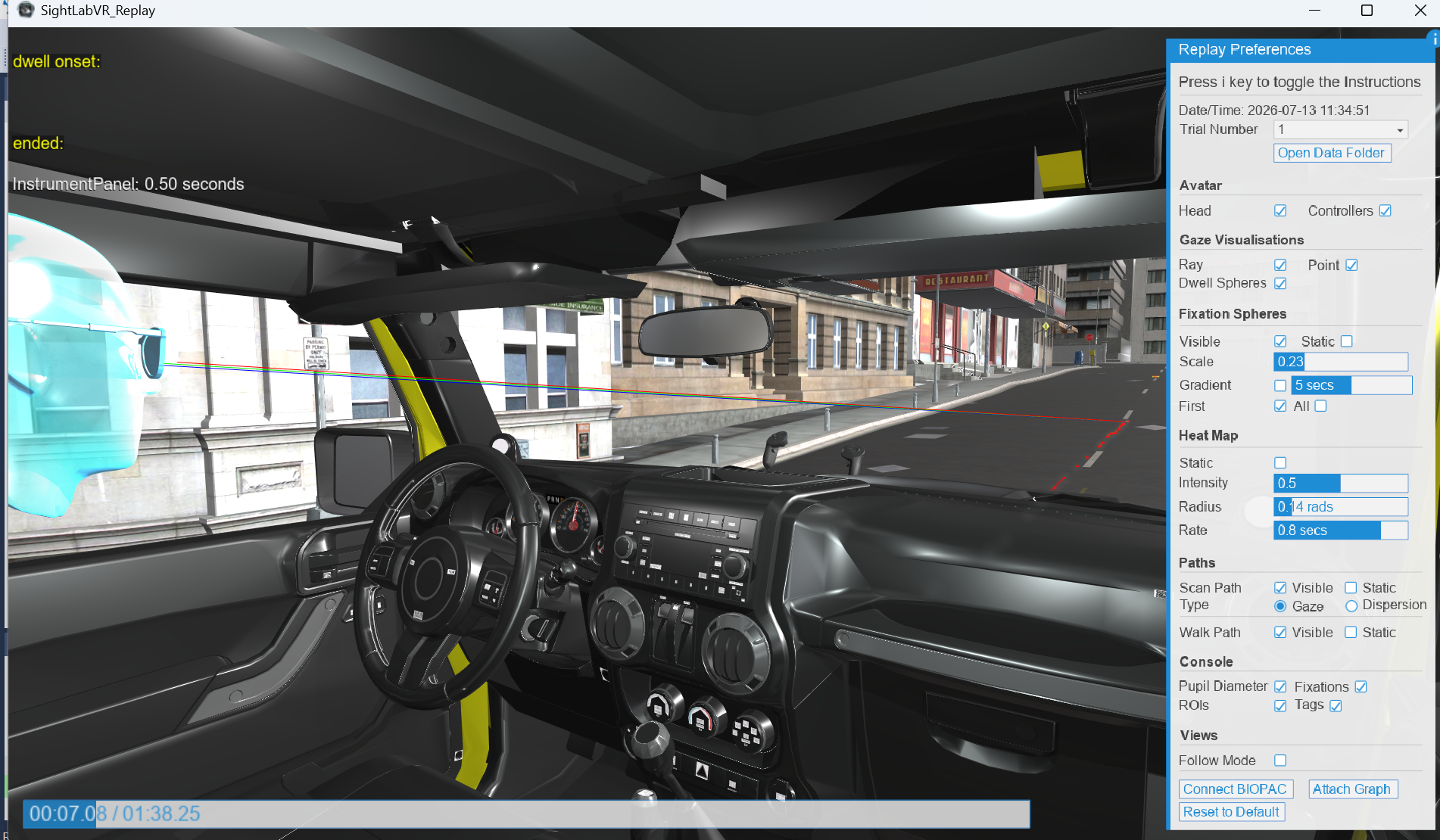
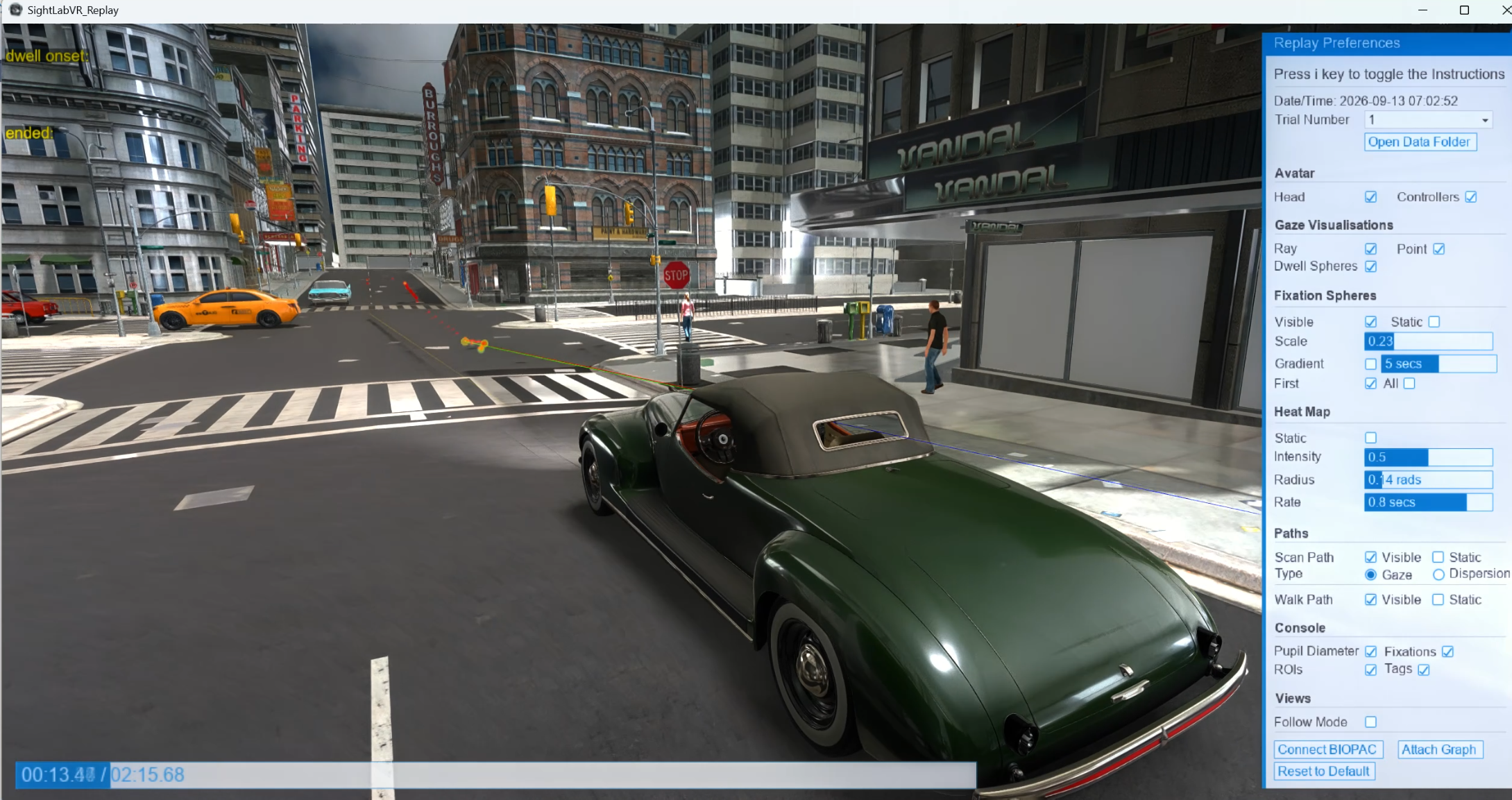
After running a session, use SightLabVR_Replay.py to play it back, including the car's movement. Check Follow Mode to see the drive in first person from the car; otherwise the replay uses the default third-person view. Walk Path also shows the direction and speed of the car. Traffic vehicles and pedestrians appear in the replay as well.
For more information, see Session Replay. For multi-user sessions, see Multi-User Data and Replay.
Data Collected
Data is saved in the data folder. Multi-user sessions save it on the server (see Multi-User Data and Replay).
Car and Driver Data
- Raw trial data (every frame):
Car Velocity X,Car Velocity Y, andCar Velocity Z, plus tracking columns for the car's position and rotation (my_car). The pedal positions and the gaze object are recorded every frame too (see Driver Inputs and Gaze Categories). - Average speed:
Average Speed MPH, the trial's average speed so far, in the trial data every frame (the last row holds the trial's average) and in the experiment summary. - Gaze data: dwell time, view counts, and fixations on the included jeep's
InstrumentPanel,Radio,RearViewMirror, andLeftMirror, plus any other gaze objects in the scene. - Eye tracking and physiological data: recorded as in any SightLab session, depending on your hardware (see Biopac Integration).
- Replay: the car is recorded as the
my_carscene object, so its movement appears in Session Replay. - Custom data: add your own columns with
sightlab.setCustomTrialData(value, 'Column Name'), the way the scripts save velocity.
Write custom data while the trial runs
SightLab saves a trial's files just before it sends TRIAL_END, so a value set after yield viztask.waitEvent(TRIAL_END) never reaches that trial's data. Keep running values up to date during the trial instead, the way Average Speed MPH is written every frame. Experiment summary values also carry over to the next trial until they are written again, so reset any you set at the start of each trial.
Driver Inputs and Gaze Categories
modules/driver_data.py adds these columns to the trial data every frame:
| Column | What it records |
|---|---|
Throttle Pedal, Brake Pedal |
Pedal travel from 0 to 1, from any hardware: controller triggers, steering wheel pedals, or the = and - keys (which give 0 or 1). Brake reaction times can be read from these. |
Gaze Target |
The SightLab name of the gaze object the driver is looking at, such as traffic_car_03 or RearViewMirror, or the name of a traffic light, such as traffic_light_main_B_2. Traffic lights are named here even though they are not SightLab gaze objects by default. - for anything else. |
Gaze Category |
What kind of object that is: vehicle, pedestrian, traffic light, mirror, or dashboard. other is any other gaze object, environment is the scene itself, and none means the gaze ray hit nothing. |
The experiment summary gets each trial's total gaze time per category: Gaze Vehicles (s), Gaze Pedestrians (s), Gaze Traffic Lights (s), Gaze Mirrors (s), and Gaze Dashboard (s).
The gaze object is the one SightLab's own gaze ray hits, so these columns agree with SightLab's dwell data. The categories come from the start of each object's name, set in Driving_Config.py:
GAZE_CATEGORIES = [('traffic_car_', 'vehicle'), ('car_', 'vehicle'), ('pedestrian_', 'pedestrian'),
                   ('traffic_light_', 'traffic light'),
                   ('RearViewMirror', 'mirror'), ('LeftMirror', 'mirror'), ('RightMirror', 'mirror'),
                   ('InstrumentPanel', 'dashboard'), ('Radio', 'dashboard')]
To sort a gaze object of your own, add its name and a category, and add the category to GAZE_SUMMARY_COLUMNS to get its total in the summary. The columns are recorded by Driving_GUI_Main.py, Driving_GUI_Traffic.py, and Driving_Main_noGUI.py; turn them off with LOG_PEDALS and LOG_GAZE_CATEGORIES (see Driving Configuration Settings). To add them to your own script:
from modules.driver_data import DriverData
driver_data = DriverData(sightlab, Driving_Config)   # once, after the gaze objects are registered

# in the trial loop
yield viztask.waitEvent(TRIAL_START)
driver_data.start()
...
yield viztask.waitEvent(TRIAL_END)
driver_data.stop()
Traffic Data
- Raw trial data:
Nearest Vehicle Distance, the gap in meters between your car's outline and the closest traffic vehicle, every frame, and ahit by traffic_car_XXflag when a moving vehicle comes withinHIT_RADIUS(0.25 m) of your car. - Experiment summary:
Traffic Count,Min Vehicle Distance, andVehicle Hits.Min Vehicle Distanceis cleared at the start of each trial, so it is blank for a trial in which no vehicle came near the car. - Gaze data: dwell time, view counts, and fixations for each vehicle (
traffic_car_00…), like any other gaze object. - Gaze on traffic lights: recorded in the driver data columns.
Gaze Targetnames the signal head the driver looks at, astraffic_light_<intersection>_<group>_<number>(for exampletraffic_light_main_B_2),Gaze Categoryistraffic light, and the experiment summary has the trial's total inGaze Traffic Lights (s). For dwell time and fixations on each light as well, setLIGHTS_AS_GAZE_OBJECTS = Trueintraffic_config.py. Every light in any route file is then registered as a gaze object when the experiment loads, so each one has a row in every trial's summary, with zero dwell in trials whose environment doesn't use it. This is off by default because SightLab records every registered object every frame: the lights made up about a third of each frame's replay data, which makes the replay files larger and adds to the work SightLab does each frame.
Pedestrian Data
- Raw trial data: a
hit pedestrian <name>flag on the frame your car strikes an avatar. - Experiment summary:
Pedestrian Hits, reset to 0 at the start of each trial and updated as hits happen. - Gaze data: dwell time, view counts, and fixations for each pedestrian, when
PEDESTRIAN_GAZE_OBJECTSis on.
Collision Events and Biopac Markers
- Events:
TRAFFIC_HIT_EVENT(viz.getEventID('TRAFFIC_HIT')) is sent with the vehicle's name, andPEDESTRIAN_HIT_EVENT(viz.getEventID('PEDESTRIAN_HIT')) with the pedestrian's name, so a collision can end a trial or trigger a rating scale. - Biopac: when a Biopac is connected, each hit also inserts a
vehicle hit: <name>orpedestrian hit: <name>stim marker, so collisions line up with the physiological recording. The scripts do this inmarkHit(), next to the vibration handlers; edit the marker text there. See Sending Events to Biopac. - Vibration: the controller vibrates on each hit (see Controller Vibration).
Register collision handlers once, outside the trial loop. viz.callback adds a new handler each time it is called, so registering inside the loop would run the handler once for every trial so far:
def onTrafficHit(name):
    print('Hit by', name)
viz.callback(TRAFFIC_HIT_EVENT, onTrafficHit)
Setting Up Trials
Each trial's traffic and pedestrian settings come from a STIM file in Resources, with one row per trial. Row 1 is trial 1.
- GUI scripts read
stim_file.csv. The environment, number of trials, and start and end conditions are set in the GUI. Driving_Main_noGUI.pyreadsstim_file-nonGUI.csv, which also sets each trial's scene and the number of trials:- The
environmentcolumn sets the scene for each trial.ENVIRONMENT_MODELinDriving_Config.pyis only used when a row has noenvironment. - The number of rows sets the number of trials.
- Traffic and pedestrian routes follow each row's environment, so
street_day.osgbloadsResources/traffic/street_day.jsonandstreet_day_pedestrians.json.
- The
| Column | Meaning | When missing or blank |
|---|---|---|
environment |
Environment file for the trial (stim_file-nonGUI.csv only) |
ENVIRONMENT_MODEL |
number of vehicles |
How many vehicles from the pool are active (0 to MAX_VEHICLES) |
DEFAULT_VEHICLES (6) |
traffic speed |
Target speed in m/s for every lane | Each lane's own speed |
traffic lights |
on / off. With lights off, crossing lanes yield to each other at the intersection instead. |
LIGHTS_ENABLED (on) |
yield to user car |
on / off. Whether traffic brakes early for your car. |
YIELD_TO_USER_CAR (on) |
traffic seed |
A whole number that sets the trial's random traffic: where vehicles start, their speeds, and their turns. Give each condition its own seed to vary the traffic between conditions while keeping it the same within one. See Traffic in Experiments. | RANDOM_SEED (42) |
number of pedestrians |
Active pedestrians, limited by the pool (MAX_PEDESTRIANS). 0 means no pedestrians. |
DEFAULT_PEDESTRIANS (4) |
pedestrian speed |
Walking speed in m/s, varied per pedestrian by PEDESTRIAN_SPEED_JITTER |
PEDESTRIAN_SPEED_MPS (1.2) |
The included stim_file-nonGUI.csv:
environment,number of vehicles,traffic speed,traffic lights,yield to user car,number of pedestrians
Resources/environments/city_rtx2.osgb,15,13,on,on,5
Resources/environments/ENV_Highway.osgb,12,20,on,on,0
Resources/environments/street_day.osgb,8,10,on,on,5
Resources/environments/street__night.osgb,10,12,on,off,5
This makes traffic density and speed per-trial conditions, for example a light and a heavy trial on the same road, saved alongside the driver's gaze and velocity data. The same settings can be applied in code with traffic.configure({'number of vehicles': 4, 'traffic lights': 'off'}) before traffic.start().
Conditions can also be changed in code. For example, Driving_GUI_Main.py turns the headlights on for trials 2 and 4 (see Scripting the Car).
Customization
Changing the Environment
- Place the new environment file in the
Resources/environmentsfolder. -
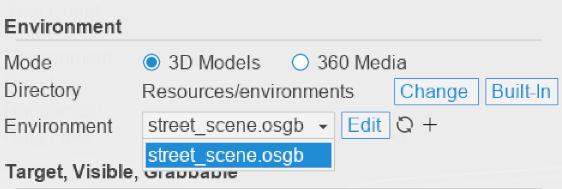
Select it:
-
GUI scripts: click Modify on the GUI screen and choose the new environment.
-
Driving_Main_noGUI.py: set the file in theenvironmentcolumn ofResources/stim_file-nonGUI.csv. - Set where the car starts by adding the environment's file name to
CAR_STARTING_POSITIONSinDriving_Config.py. Environments not listed there useCAR_STARTING_POSITION. - Optionally, record traffic routes and generate sidewalk routes for the new environment.
-
Changing the Vehicle
Change the path to your vehicle in Driving_Config.py, along with the names of the parts that can be animated (headlights, wheels, steering wheel, and MPH and RPM gauges). You can find the part names in Inspector.
CAR_MODEL = 'Resources/jeepmodel.osgb'
When swapping vehicles, also update REAR_AXLE_OFFSET in Driving_Config.py. The car rotates around this point (its rear axle) when steering, and most models do not have their origin centered on the body. To measure it, open the model in Inspector and read the rear wheel centers, or average the bounding-box centers of the two rear wheel nodes.
For headsets, also add the new model to DRIVER_EYE_POINTS in Driving_Config.py, so the driver's eyes are placed in its driver's seat (see Headset Seat Position).
Traffic, pedestrians, and the crash check measure your car's outline from the model itself, so they need no changes. The bumper rays do: set COLLISION_LOOKAHEAD and CAR_HALF_WIDTH for the new car (see Collision System).
You can also add the default steering wheel model to your car, which can be found in Resrouces/Steering.osgb
In multi-user sessions, each driver's car is painted in their assigned color. See CAR_PAINT_NAME_MATCH under Multi-User Settings.
Regions of interest inside the vehicle
The car is non-intersectable (see Collision System), so regions of interest on items inside it are set up differently. Add a region in Inspector, right-click it in the scene graph on the left, and choose Save. Then add the saved model, parent it to the car, and register it as a gaze object. The included jeep does this for its instrument panel, radio, and mirrors:
instrumentPanel = vizfx.addChild('Resources/InstrumentPanel.osgb')
instrumentPanel.setParent(car)
sightlab.addSceneObject("InstrumentPanel", instrumentPanel, gaze=True)
Changing the View Position
Desktop
- Run the script from the Vizard editor, and move the viewpoint with T F G H and Z X.
- When the position looks right, press
v. The seat position is printed in the Vizard interactive window. - Paste the position into
Driving_Config.py:PASSENGER_POSITION_TRUCK: the included jeepPASSENGER_POSITION: other car models
Headset
In a headset, the seat is placed around the driver at the start of each trial, so what you set is where the driver's eyes go: the car model's entry in DRIVER_EYE_POINTS (see Headset Seat Position).
- Run the script in the headset, and once the trial has started, move the viewpoint with W A S D and Z X.
- When the view looks right, press
v. The second line printed,eyes in the car (DRIVER_EYE_POINTS), is where your eyes are in the car. -
Paste it into the car model's entry in
DRIVER_EYE_POINTSinDriving_Config.py:DRIVER_EYE_POINTS = {'Resources/jeepmodel.osgb': [0.083, 1.85, 0.1], 'sightlab_resources/objects/car.osgb': [-0.203, 1.249, -0.156]}
The eye point can be measured the same way on desktop, which is a quick place to start for a new car model.
transportNode2 is the seat inside the car, and transportNode moves the car itself. THIRD_PERSON_VIEW, CLOSER_IN_VIEW, and HOOD_VIEW set the other viewpoints that b cycles through. They are seat positions measured on desktop against PASSENGER_POSITION_TRUCK, so each view moves the trial's starting seat by the same amount. In a headset, they follow the driver's re-centered seat.
Headset Seat Position
A headset reports the driver's head relative to the center of its play area (the boundary drawn when the headset was set up), not relative to the chair. A fixed seat position would only put the driver's eyes in the driver's seat for someone sitting in the spot it was set up for, and in a different room or with a redrawn boundary the view can start well outside the car. Instead, at the start of each trial the seat is moved so the driver's eyes are at the car's eye point (DRIVER_EYE_POINTS), facing the windshield, wherever they are sitting. This is similar to re-centering the view in a flight simulator. Only the heading is turned: looking up, down, and tilting still come from the headset, so the horizon stays level. Desktop options are not affected.
- Start screen: before the first trial, the headset tells the driver to sit back and look straight ahead, how to re-center later, and shows SightLab's start line, such as "Press SPACEBAR to Start" (or whatever start condition is set in the GUI). It disappears when the trial starts.
- Re-centering during a trial: on the OpenXR options, the driver holds the right grip and presses A, which re-centers at once. The
0key re-centers after a 2-second countdown ("Re-centering in 2"), so someone who reached over to the keyboard can sit back first. The headset shows "Seat re-centered" when it's done. - Reminder: at the start of the first trial, the OpenXR options show the right grip + A reminder for 5 seconds, in case the view was centered while the driver was leaning over to press the spacebar.
- Viewpoints and reset: the
bviewpoints follow the re-centered seat, andrputs the driver back in it.
Settings in Driving_Config.py:
| Setting | Default | What it does |
|---|---|---|
SEAT_RECENTER |
True |
Turns headset seat re-centering on. When off, a headset driver sits at the fixed desktop seat position. |
DRIVER_EYE_POINTS |
Jeep and classic car | Where the driver's eyes go for each car model, in meters in the car's frame: x right, y up from the ground, z forward. Set it with v (see Changing the View Position). |
SEAT_RECENTER_KEY |
'0' |
Key that re-centers the seat |
SEAT_RECENTER_COUNTDOWN |
2 |
Seconds the key counts down before re-centering. 0 re-centers at once. Right grip + A always re-centers at once. |
SEAT_RECENTER_REMINDER_SECONDS |
5 |
How long the first-trial reminder stays up. 0 turns it off. |
A car model without an eye point
A car model with no DRIVER_EYE_POINTS entry is not re-centered. The console prints [seat recenter] no eye point ..., and a headset driver sits at the fixed seat position. Add an entry when you change CAR_MODEL (see Changing the Vehicle).
To add re-centering to your own script, see Scripting the Car.
Mirrors
The rear-view and side mirrors reflect the scene behind the car as seen from the driver's head, and move with the car. A mirror renders the scene once more for each new picture, and only while it is on screen. Each render costs about as much as drawing the main view again, so by default the rear-view mirror renders every frame and the two door mirrors take turns, each updating every other frame. In between, a door mirror keeps showing its last picture.
| Setting | Default | What it does |
|---|---|---|
USE_MIRRORS |
True |
Turns the mirrors on |
MIRROR_NODE_NAMES |
['RearViewMirror', 'LeftMirror', 'RightMirror'] |
Car model nodes that each hold one mirror's glass, and only the glass |
MIRROR_AIM |
{'RearViewMirror': [-10, -10]} |
Degrees to turn a mirror's view [right, up], like adjusting a real mirror. Negative turns it left or down. Set for the desktop seat; adjust it if you move PASSENGER_POSITION_TRUCK |
MIRROR_RESOLUTION |
1024 |
Pixels along the longer side of each mirror's image. Lowering it saves little, because a mirror's cost is mostly drawing the scene, whatever the image size |
MIRRORS_EVERY_FRAME |
['RearViewMirror'] |
Mirrors that render every frame. The others take turns, one per frame. None renders every mirror every frame; [] makes all three take turns, so only one mirror renders per frame |
The scripts add mirrors to the jeep only. For another car model, set MIRROR_NODE_NAMES to its mirror glass nodes (find them in Inspector), set MIRROR_AIM to {}, and add this after car = my_car.car:
mirrors = CarMirrors(car, MIRROR_NODE_NAMES, resolution=MIRROR_RESOLUTION, aim=MIRROR_AIM, every_frame=MIRRORS_EVERY_FRAME)
In a headset, reflections shift as you move your head but have no stereo depth.
Adding a Steering Wheel
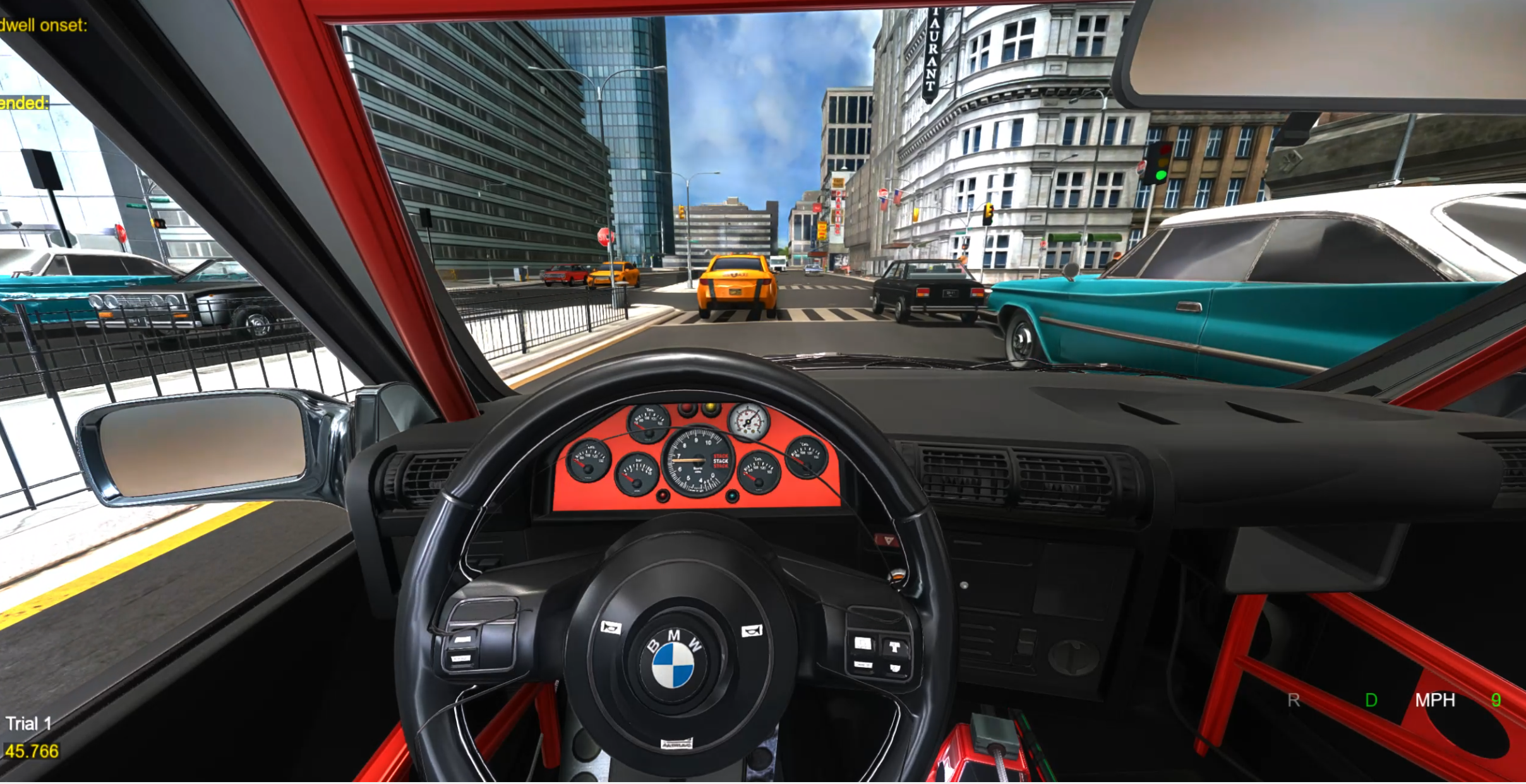
Configurations are included for the Logitech G923 Wheel (Driving G923 Wheel and Driving Vive Focus Vision G923 Wheel) and Thrustmaster wheels (Driving Thrustmaster Wheel). The wheel turns the car, the pedals are gas and brake, and buttons on the wheel toggle Drive/Reverse and the viewpoint.
To add another wheel:
- Run
modules/wheel_inspector.py. Turn the wheel, press each pedal, and press each button to see which axis or button ID it uses. The Windows Set up USB game controllers panel shows the same information. -
Make a copy of an included input module, such as
modules/g923_input.py, and change the axis IDs to match your wheel:# Top of the file THROTTLE_PEDAL = 1 # Throttle pedal: 1.0 when not pressed, -1.0 when fully pressed BRAKE_PEDAL = 2 # Brake pedal: 1.0 when not pressed, -1.0 when fully pressed CLUTCH_PEDAL = 3 # Clutch pedal: 1.0 when not pressed, varies when pressed # In __init__ self.wheel_axis = 0 # Steering wheel: -1 to +1 -
Make a copy of one of the wheel vizconnect files in
vizconnect_configs, such asvizconnect_config_desktop_driving_g923.py. Change its import to your new input module, and set the button IDs for events such asSHIFT_GEAR(Drive/Reverse) andtoggleViewsunder its mappings. - Add the new configuration to
HARDWARE_CONFIGSinDriving_Config.pyso it appears in the GUI.
Contact support@worldviz.com for more information.
Customizing Controls
- Open the vizconnect file for your hardware from the example's
vizconnect_configsfolder.HARDWARE_CONFIGSinDriving_Config.pylists which file each hardware option uses. - Go to Advanced > Transports > Driving > Mappings, and to Acceleration/Deceleration under Events.
- Modify the mappings as needed.
How quickly the car speeds up and slows down is set in Driving_Config.py (see Driving Feel).
Traffic System
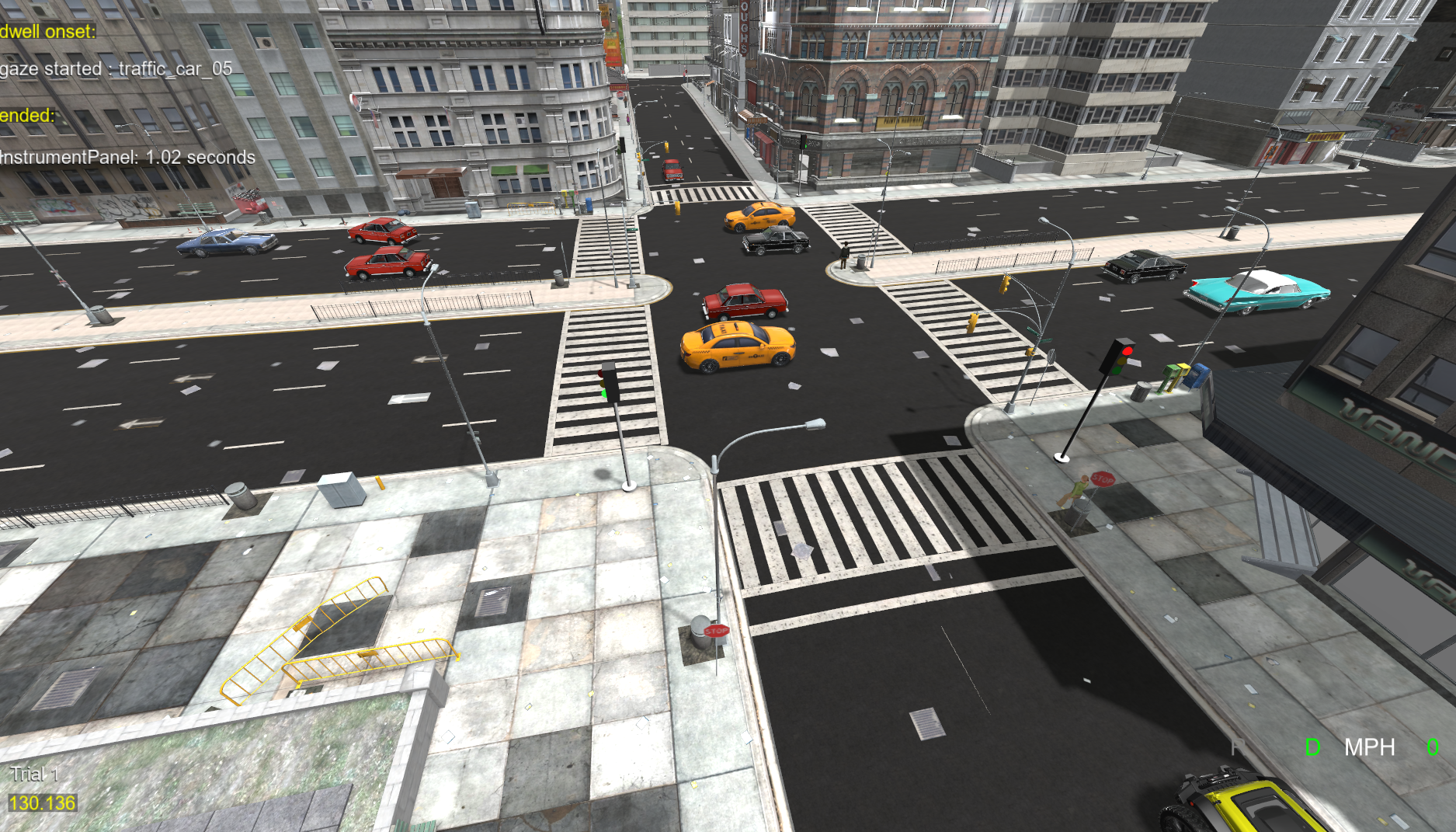
Traffic comes from a reusable, self-contained package (modules/traffic/, configured in traffic_config.py). Vehicles follow the road, keep their distance from each other, obey traffic lights, react to your car, and can't drive through walls, each other, or you. It works in any environment without a 3D modeling tool, because routes are recorded from the driver's seat while the demo runs.
Traffic is turned on with ADD_TRAFFIC = True in Driving_Config.py and works in all of the scripts. Everything else is set in traffic_config.py, and the number and speed of vehicles for each trial are set in the STIM file. Recorded traffic data is listed under Traffic Data.
How It Works
The system is kinematic (no physics engine), so it stays fast even with a dozen vehicles in a large city model:
- Routes, not physics — each lane is a line recorded along the road and saved as
Resources/traffic/<environment>.json. When a trial starts, the lane is smoothed, resampled every meter, and each sample is snapped to the ground with a single downward ray. Vehicles then follow that path, so they stay on the road surface across grades, curves, and overpasses without casting ground rays every frame. - Car following — vehicles in the same lane keep a speed-dependent gap (Intelligent Driver Model) and can never overlap. Vehicles crossing or merging from another lane ahead are treated as obstacles too.
- Traffic lights — a stop line on a lane belongs to a signal group of an intersection, and each intersection cycles its groups through green, yellow, and all-red while vehicles queue behind the line on red. Lights are built procedurally (no model needed), and looks at a signal are recorded (see Traffic Data). Highway lanes have no signals: they are open roads, and vehicles respawn at the start.
- Turning at junctions — in a road network, each lane hands its vehicles on to short connector lanes at the next junction, so they turn left, turn right, or go straight on instead of respawning (see Road Networks).
- Bumper rays — the same slope-aware sweep used for your own car (see Collision System) runs ahead of every traffic vehicle along its lane. If a wall or prop is in the way, for example because a route was recorded slightly off the road, the vehicle brakes instead of passing through it, and a console warning names whatever blocked it. Road network files turn the sweep off (
"bumper_raycast": false), because the generator has already checked every path against the model. - Your car — traffic treats it as a solid obstacle with its real outline, measured from the car model when it loads, so it stays correct if you change
CAR_MODEL. A vehicle treats your car as in its way only when it would pass closer thanYIELD_CLEARANCE, so oncoming traffic passes a car that keeps to its lane, even on the narrowstreet_dayroads. Withyield to user caron, vehicles brake early and queue behind you at an intersection. With it off, they keep their speed but are still stopped on contact, so traffic never drives through you. Your own bumper collision already stops you from driving into them, so the block works in both directions. - Pedestrians — vehicles stop for pedestrians who are on the road, the same way they stop for your car, and pedestrians wait at the curb for a gap before stepping out (see Walking and Yielding). Turn this off with
TRAFFIC_YIELDS_TO_PEDESTRIANS = False.
Included Routes
| Environment | Traffic |
|---|---|
street_day.osgb, street__night.osgb |
Road network over the whole street grid (both scenes use the same street model): four north–south and five east–west streets, one lane each way, with 20 junctions. The four-way intersection in front of the car's start is signalized (east–west lanes in signal group A, north–south lanes in group B); the others are give-way, with the north–south streets as the major roads. |
city_rtx2.osgb |
Road network over every street of the model: a ring road, the boulevard (two lanes each way either side of a median), the hill street the car starts on, and a one-way alley. Four junctions are signalized, including main in front of the car's start; the rest are give-way. |
ENV_Highway.osgb |
Three lanes in your direction along 533 m of the main carriageway, following its curve and grade, plus two lanes of oncoming traffic on the carriageway across the median |
chicago2.osgb (expanded download) |
The avenue the car starts on, one lane each way, crossed by two cross streets at signalized intersections. The car starts at a red light while cross traffic goes first. |
A route is tied to real coordinates, so the car's starting position is set per environment in Driving_Config.py. That puts the car on the road the route was drawn for, in its lane, and behind the stop line where there is one:
CAR_STARTING_POSITIONS = {'street_day.osgb': [0.25, 0, -3.5], 'street__night.osgb': [0.25, 0, -3.5],
                          'city_rtx2.osgb': [2.5, 0, -30.0],
                          'ENV_Highway.osgb': [-41.5, 0, -120.0],
                          'chicago2.osgb': [0.33, 0, 97.0]}
Any environment without a route file runs with no traffic and prints a message saying so.
Road Networks (Turning Traffic)
A recorded lane is either a loop, which vehicles drive round and round, or an open road, where they drive to the end and reappear at the start. Either way, vehicles never turn. A road network connects the lanes at junctions instead. Every street lane ends at a junction, where short connector lanes lead straight on, left, and right onto the next streets. Each vehicle picks a way out at random (straight on is twice as likely as each turn), so traffic spreads over every street, turns at corners, goes round blocks, and never respawns. Whether each vehicle makes the same turns in every run is set with REPEATABLE_TURNS (see Traffic in Experiments). At junctions without signals the minor road gives way, and a turn across or into oncoming traffic waits for a gap.
street_day, street__night, and city_rtx2 ship with networks (see Included Routes). With traffic lights off in the STIM file, their signalized junctions run first come, first served. A network covers a lot of street, so 20 to 30 vehicles keep it busy. MAX_VEHICLES (30) must be at least the largest number of vehicles in the STIM file.
Networks are generated by a script rather than recorded. You describe the streets in a small layout file in traffic_layouts/, and the generator builds the turns, give-way rules, stop lines, and traffic lights, then checks every path against the model before it writes the route file:
| Script | What it does |
|---|---|
probe_environment.py |
Measures a model: a top-down picture, a map of the road surface, and cross-sections for finding the curb lines |
generate_traffic_network.py <layout> |
Builds Resources/traffic/<environment>.json from traffic_layouts/<layout>.py, and writes it only if every lane and turn stays on the road |
test_traffic_network.py <environment> |
Runs 20 simulated minutes of traffic in under a minute, and reports overlapping or stuck vehicles, red-light running, and unused lanes |
The generator handles straight streets along the X or Z axis that meet at right angles, with one or more lanes each way, medians, one-way streets, and right-hand traffic. For curved or angled roads and roundabouts, use the route recorder instead. Re-run the generator after changing the model or the layout. Don't edit a generated route file by hand or with the recorder, because the generator overwrites it.
The full step-by-step workflow, the layout format, and a ready-made prompt for an AI coding assistant (such as Claude Code) that can build a network for you are in Resources/traffic/ROAD_NETWORKS.md. The route file keys that link lanes into a network (next, next_weights, spawn, max_speed, and yield_to) are listed in Resources/traffic/README.txt.
Recording Routes for a New Environment
Routes are created in-app with the route recorder, by driving the road you want traffic on. Recorded lanes are loops or open roads; for traffic that turns at junctions, see Road Networks.
Note: You can also just give your environment model path and this project path to something like Claude Code and GPT Codex and tell it to generate the traffic routes and lights for you, which it can do very effectively and requires no manual work of having to set the routes.
- Set
RECORD_ROUTES = Trueintraffic_config.pyand run the demo. - Start a trial in the environment, then press F5 to open the recorder. Traffic pauses and the key list appears on screen.
- Drive along a lane in the direction cars should travel with F4 (auto-drop) on, which drops a ground-snapped waypoint every few meters. F6 drops one by hand at a bend.
- Press F9 to finish the lane as an open road (vehicles respawn at its start), or F8 to close it as a loop. Repeat for each lane, including the oncoming ones.
- Where cars should stop, press F10. A stop line is added to the last lane, and a traffic light is placed at the curb facing the approaching traffic. PAGE DOWN cycles the signal group (A, B, C, D) so crossing streets get different groups, and INSERT starts a new intersection centered on your position.
- Press F12 to save. The file is written, and traffic restarts on the new routes immediately.
| Key | Action |
|---|---|
| F5 | Show / hide the recorder |
| F6 | Drop a waypoint at your position |
| F4 | Toggle automatic waypoint dropping while driving |
| F7 | Undo the last waypoint |
| PAGE UP | Delete the waypoint nearest to you |
| F8 / F9 | Finish the lane as a loop / as an open road |
| F10 | Add a stop line and traffic light to the last lane |
| INSERT | Start a new intersection at your position |
| PAGE DOWN | Cycle the signal group for the next stop line |
| END / HOME | Raise / lower the last lane's speed by 1 m/s |
| DELETE | Delete the last lane |
| F11 (twice within 3 s) | Clear everything and start over |
| F12 | Save and reload |
All keys can be changed in RECORDER_KEYS in traffic_config.py. The on-screen key list can be resized or moved with RECORDER_TEXT_SCALE, RECORDER_TEXT_POSITION, and RECORDER_TEXT_ALIGN; it defaults to the top-right corner, clear of SightLab's dwell readout and trial timer. Auto-drop uses F4 here rather than the t key used in the Street Walking Example, because t is already a viewpoint key while driving.
Route files are plain JSON and can be edited by hand. Waypoint heights are snapped to the ground again every time a file loads, so routes survive small changes to the environment. Set DEBUG_DRAW_ROUTES = True to draw the loaded lanes, stop lines, and intersections during a normal run.
Vehicle Models
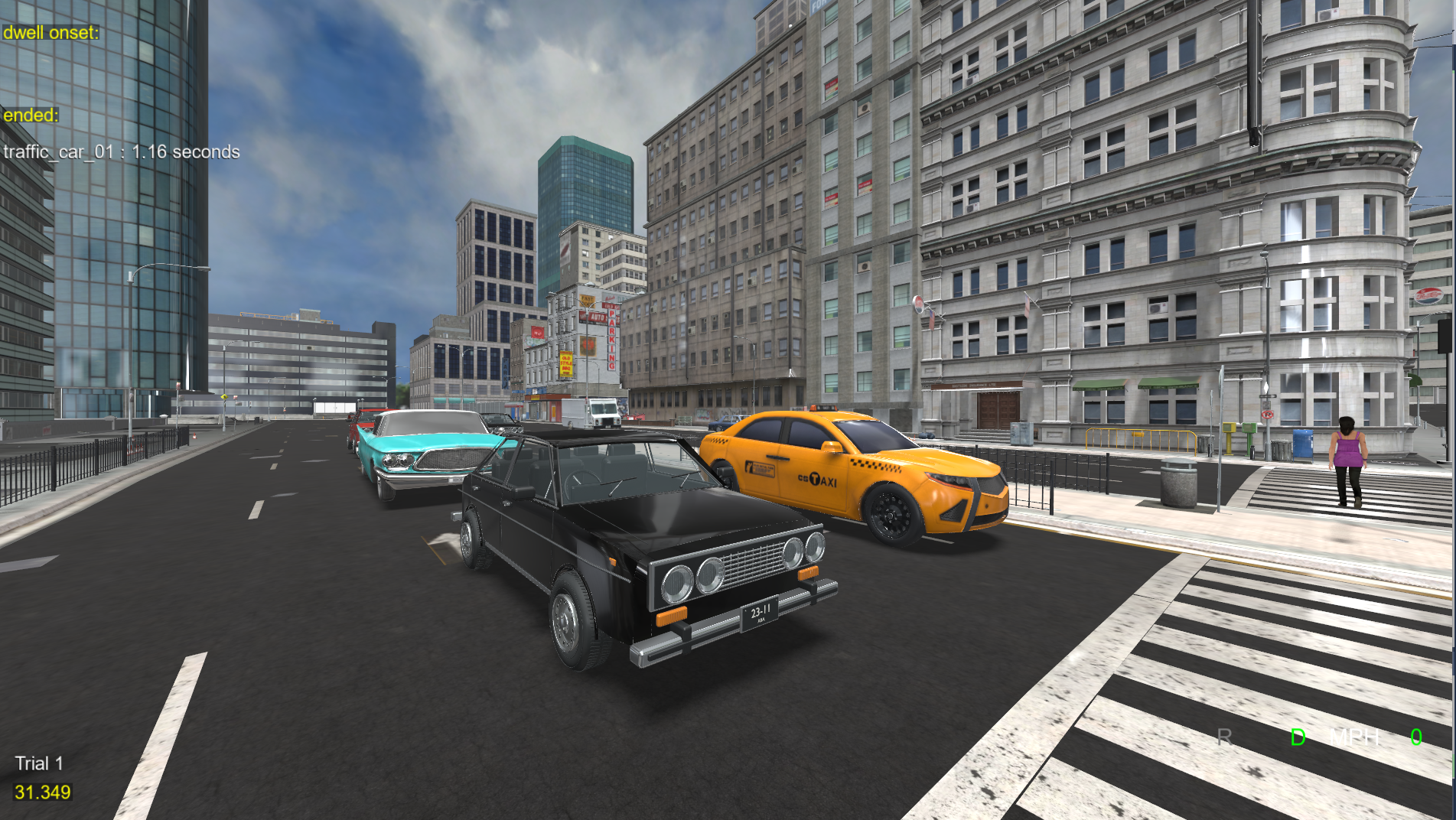
Every .osgb, .osg, or .ive model in Resources/vehicles/ is used as a traffic vehicle. The pool (MAX_VEHICLES, 30 by default) cycles through the files in alphabetical order, so adding a model is a matter of dropping it in the folder. The included models are Black-Sedan.osgb, car2.osgb, car3.osgb, and Taxi.osgb.
Vehicles can come from any source of 3D models. Some good places to start:
- Sketchfab: a large online library that includes many free Creative Commons models. You can also search and download Sketchfab models from the SightLab Dashboard's Asset Browser.
- WorldViz Asset Browser: an online catalog of ready-to-use objects, environments, and avatars, with links to other model libraries.
- AI generation: Meshy and Tripo create models from a text prompt or a photo. Both are built into the SightLab Dashboard.
- Blender: build your own vehicle. Desktop AI apps such as Claude and ChatGPT can now create models directly in Blender through a connector such as BlenderMCP. Some of the included cars were made this way.
Models downloaded or generated through the Dashboard are converted to .osgb automatically. For models from other sources (for example .glb or .fbx), open the file in Inspector and save it as .osgb before copying it into Resources/vehicles/. See Getting 3D Models and Assets for more sources and supported formats. To make a new model's wheels spin, give each wheel its own named node and add the names to VEHICLE_WHEEL_NODES (see Traffic Wheel Animation).
Models are re-centered and turned to face the road automatically. If one drives backwards or is the wrong size, add an override with yaw and/or scale:
VEHICLE_MODEL_OVERRIDES = {'car3.osgb': {'yaw': 180}, 'Taxi.osgb': {'yaw': 180}}
Set TINT_VEHICLES = True to tint each vehicle a random color from VEHICLE_TINTS.
Vehicles are registered as gaze objects (traffic_car_00 … traffic_car_29), so dwell time and fixations are recorded per vehicle, and they appear in Session Replay.
Traffic Wheel Animation
Traffic wheels spin according to each vehicle's current speed and stop when it is stationary. Configure the wheel node names for each model in traffic_config.py. The included mappings are:
VEHICLE_WHEEL_NODES = {
    'car2.osgb': {'nodes': ['Steer_FL', 'Steer_FR', 'Steer_RL', 'Steer_RR'], 'sign': -1},
    'car3.osgb': {'nodes': ['Steer_FL', 'Steer_FR', 'Steer_RL', 'Steer_RR'], 'axis': 'roll'},
    'Taxi.osgb': {'nodes': ['enhanced_wheel_FL_steer', 'enhanced_wheel_FR_steer',
                            'enhanced_wheel_RL_steer', 'enhanced_wheel_RR_steer'],
                  'axis': 'roll'},
    'car2_pbr.osgb': {'nodes': ['Steer_FL', 'Steer_FR', 'Steer_RL', 'Steer_RR'], 'sign': -1},
    'Black-Sedan.osgb': {'nodes': ['Steer_FL', 'Steer_FR', 'Steer_RL', 'Steer_RR'], 'sign': -1}
}
VEHICLE_WHEEL_RADIUS = 0.33     # wheel radius in meters
VEHICLE_WHEEL_SPIN_SIGN = 1.0   # default rotation direction
To animate another traffic model, look up its wheel node names and add an entry keyed by its file name. An entry can be a list of node names (using the defaults), or a dictionary with nodes, radius, sign, and axis. The default axis is pitch; use roll or yaw to match the model's local rotation axis. Set sign to -1 if the wheels spin backward, and adjust radius if the rotation rate does not match the road speed. Keep the existing entries when adding models.
Models without a mapping still drive normally, but their wheels do not spin. Missing node names are skipped; if none of the configured nodes are found, the console reports it. These settings apply to the traffic vehicles; your own car's wheel names are set in Driving_Config.py.
Traffic Settings
The most useful options in traffic_config.py:
RECORD_ROUTES,DEBUG_DRAW_ROUTES— route recorder and route drawing. The master switchADD_TRAFFICis inDriving_Config.py.MAX_VEHICLES(30),DEFAULT_VEHICLES(6),DEFAULT_SPEED_MPS(13),SPEED_JITTER— pool size, and speeds when the STIM file does not specify them.MIN_GAP,TIME_HEADWAY,MAX_ACCEL,COMFORT_DECEL,EMERGENCY_DECEL,CROSS_TRAFFIC_RANGE— car-following behavior.GREEN_TIME(12 s),YELLOW_TIME(3 s),ALL_RED_TIME(1.5 s),STOP_LINE_MARGIN— signal timing. A route file can override the timing per intersection.CONFLICT_ZONE_RADIUS— with lights off, how close another lane's car must be to the intersection before a vehicle yields.PEDESTRIAN_LOOKAHEAD,YIELD_CLEARANCE(0.5 m) — how far ahead traffic looks for your car, and how close a vehicle may pass it before treating it as in the way.HIT_RADIUS(0.25 m),HIT_COOLDOWN,HIT_SOUND— what counts as a hit: a moving vehicle within this distance of your car's outline.BLOCK_AT_CONTACT,CONTACT_MARGIN— the hard block that stops a non-yielding vehicle when it reaches your car. It is on here, because the car is solid, and off in the walking example, where a non-yielding vehicle is meant to register a hit on the pedestrian.SPAWN_CLEAR_RADIUS— how much room is left around your car when vehicles are placed at the start of a trial.BUMPER_RAYCAST,BUMPER_HEIGHT,BUMPER_RANGE,SLOPE_LIMIT,RAYCAST_EVERY_N_FRAMES,BUMPER_EXCLUDE_NODE_NAMES— the traffic vehicles' own bumper rays. Invisible gaze-catcher and occluder geometry is excluded by name so it never blocks traffic. A route file can turn the rays off for its environment with"bumper_raycast": false, as the road network files do.LIGHTS_AS_GAZE_OBJECTS(False) — register each traffic light as a SightLab gaze object, for dwell time and fixations on each light. Looks at lights are recorded by category either way (see Traffic Data).LOG_NEAREST_VEHICLE— the per-frame nearest-vehicle distance.TRAFFIC_YIELDS_TO_PEDESTRIANS(True),PEDESTRIAN_BODY_RADIUS(0.5 m),CORRIDOR_HALF_WIDTH(2 m) — vehicles stop for pedestrians on the road, keeping this much room around each.CORRIDOR_HALF_WIDTHis how far either side of a lane's center a pedestrian makes its vehicles stop.RANDOM_SEED(42) — the seed for where vehicles start, their speeds, and their turns. It is fixed, so every run, and every computer in a multi-user session, gets the same vehicle layout. A STIMtraffic seedcolumn overrides it for one trial.REPEATABLE_TURNS(False) — whether each vehicle makes the same turns in every run, whatever the participant does (see Traffic in Experiments).
Traffic in Experiments
Traffic reacts to the participant: vehicles yield to their car, queue behind it, and stop for pedestrians. So no two participants see exactly the same traffic. This is what stays the same from run to run, and what doesn't:
| Aspect | From run to run |
|---|---|
| Number of vehicles, speeds, lights, yielding | Set for each trial in the STIM file |
| Where vehicles start, and each vehicle's speed | The same in every run that uses the same seed (RANDOM_SEED, or the STIM traffic seed column) |
| Traffic lights | Cycle on a fixed timer from the start of each trial (GREEN_TIME, YELLOW_TIME, ALL_RED_TIME, and any timing or offsets in the route file) |
| Which way each vehicle turns at a junction (road networks) | With REPEATABLE_TURNS = False (the default), the turns are the same at first, but once the participant changes any vehicle's timing (it waits for them, or queues behind them) they differ from then on. With REPEATABLE_TURNS = True, each vehicle makes the same turns in every run, junction after junction, whatever the participant does |
| Where a vehicle is at a given moment | Differs between participants even with repeatable turns, because vehicles wait for and queue behind their car. Each vehicle takes the same route, not at the same time |
| Rerouting | A vehicle whose way out of a junction stays blocked (by a queue, or by the participant's car standing in the road) takes another exit after a while. That depends on the moment, so its later turns can differ, even with repeatable turns |
REPEATABLE_TURNS works by giving each vehicle its own random sequence for its turns, seeded by the trial's seed and the vehicle's number. Without it, all vehicles draw from one shared sequence, so whichever vehicle reaches a junction first takes the next number, and anything that changes the order changes everyone's turns.
For a study, REPEATABLE_TURNS = True gives every participant the same background traffic in terms of routes: each vehicle takes the same route, though not at the same time. To vary the traffic on purpose between conditions, give each condition its own traffic seed in the STIM file. The console shows each trial's seed and turn mode when the trial is configured ([traffic] configured: ... seed=42, repeatable turns=True). Pedestrians are also placed the same way in every run, and then react to the participant.
Controlling more yourself. Besides the STIM columns and the settings in traffic_config.py, a script can call traffic.configure() with a STIM-style dictionary before traffic.start(), traffic.pause() and traffic.resume() to freeze and continue all traffic, and traffic.add_obstacle_source(function) to make vehicles stop for anything the function returns each frame, as a list of (position, radius) pairs. That is how pedestrians on the road are added. Scripting individual vehicles takes some customization of the traffic system (modules/traffic/system.py), for example placing a car at a set spot or having it turn across the participant's path when they reach a junction. Every part of the traffic system can be customized for a study. Contact support@worldviz.com to discuss what you need, including custom development.
Pedestrian System
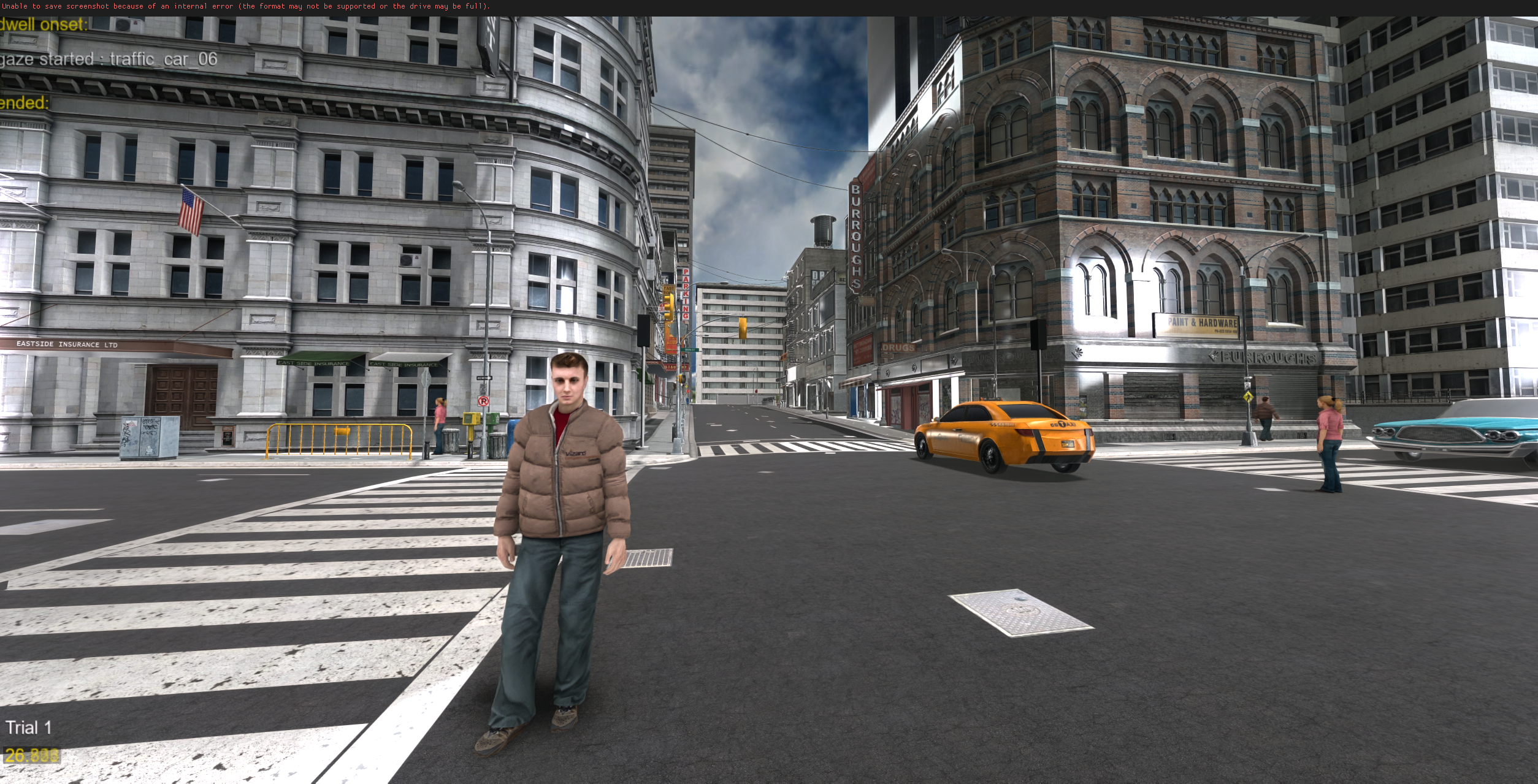
Pedestrians are turned on with ADD_PEDESTRIANS = True in Driving_Config.py and work in all of the scripts, with or without vehicle traffic (ADD_TRAFFIC). The pedestrian system (modules/traffic/pedestrians.py) loads animated avatars from Resources/pedestrians/, places them along sidewalk routes at the start of each trial, and stops and hides them at the end. Recorded pedestrian data is listed under Pedestrian Data.
Walking and Yielding
Pedestrians walk between ground-snapped waypoints using vizact.walkTo. They follow closed loops continuously, or turn around at the ends of open paths. When your car is close to a pedestrian and their walking path, they pause and play their idle animation, then continue once the path has stayed clear for PEDESTRIAN_RESUME_DELAY (1 second by default). Pedestrians already in the roadway keep walking to clear it. If a pedestrian gets stuck while walking, they turn around.
When traffic is on, pedestrians also wait at the roadside before crossing a lane whose vehicle light is green or yellow (PEDESTRIAN_OBEY_SIGNALS). Before stepping onto the road they also wait for a gap in the traffic (PEDESTRIAN_WAIT_FOR_TRAFFIC). They don't wait for a clear road across every lane: a vehicle far enough away to stop is expected to stop, because traffic stops for pedestrians who are on the road (TRAFFIC_YIELDS_TO_PEDESTRIANS). They only wait for one that is too close to stop. With the traffic lights off, this is what keeps pedestrians and traffic from walking or driving through each other.
The STIM column yield to user car controls whether traffic vehicles brake early for your car, not pedestrian behavior. Whether pedestrians stop for your car is set with the PEDESTRIAN_YIELD_* settings below.
Sidewalk Routes
The system looks for sidewalk routes in this order:
- A dedicated route file,
Resources/traffic/<environment>_pedestrians.json. It uses the same lane format as the vehicle route files; only the lane waypoints andloopflag are used. Files are included forstreet_day,street__night, andcity_rtx2. - Sidewalks derived from the vehicle routes while the experiment runs. The system offsets points to the right of each lane's direction of travel, searches outward for curbs, snaps points to the ground, and checks clearance from walls and the roadway. This works with
ADD_TRAFFIC = Falsetoo, as long as the vehicle route file exists. SetPEDESTRIAN_LANE_OFFSET = 0to turn this off.
Without usable routes, no pedestrians walk in that environment.
Generating a route file. Derived sidewalks are only a fallback and can leave few usable paths on narrow streets. To create a dedicated route file, add the environment's name to the ENVIRONMENTS list at the top of generate_pedestrian_routes.py and run the script with Vizard. The environment needs a vehicle route file in Resources/traffic and its model in Resources/environments. The script scans the ground on either side of each road for walkable sidewalk, runs a path down the middle of it, and cuts the path wherever something blocks it. Run it again whenever the environment model changes.
Pedestrian Avatars
Place animated avatar models, such as .cfg or .osgb files, in Resources/pedestrians/. Five RocketBox avatars plus vcc_female.cfg and vcc_male.cfg are included. The pool (MAX_PEDESTRIANS) cycles through the folder, so a count above the number of files reuses avatars.
Set each model's idle and walk animation IDs in PEDESTRIAN_ANIMATIONS in traffic_config.py. Models that aren't listed use PEDESTRIAN_DEFAULT_ANIMATIONS (idle: 1, walk: 2); the included RocketBox avatars use idle 1 and walk 5. PEDESTRIAN_MODEL_OVERRIDES supports per-model scale adjustments.
Pedestrians are registered as avatar scene objects (pedestrian_00, and so on) for recording and replay. PEDESTRIAN_GAZE_OBJECTS = True records pedestrian dwell and fixation data in single-user sessions; this is automatically turned off in multi-user sessions.
Pedestrian Settings
Useful settings in traffic_config.py:
MAX_PEDESTRIANS(5),DEFAULT_PEDESTRIANS(4),PEDESTRIAN_SPEED_MPS(1.2),PEDESTRIAN_SPEED_JITTER,PEDESTRIAN_TURN_SPEED— pool size, walking speed, and turning. KeepMAX_PEDESTRIANSat the largestnumber of pedestriansin the STIM file (5 in the included files): SightLab records and gaze-checks every avatar in the pool every frame, whether a trial uses it or not.PEDESTRIAN_YIELD_DISTANCE(12 m),PEDESTRIAN_YIELD_CLEARANCE(2.5 m),PEDESTRIAN_RESUME_DELAY— when avatars stop for your car and when they continue.PEDESTRIAN_OBEY_SIGNALS(True),PEDESTRIAN_SIGNAL_MARGIN,PEDESTRIAN_SIGNAL_RANGE— waiting at signalized crossings.PEDESTRIAN_WAIT_FOR_TRAFFIC(True),PEDESTRIAN_GAP_TIME(2.5 s),PEDESTRIAN_GAP_LOOKAHEAD(15 m),PEDESTRIAN_GAP_DECISION_DISTANCE(1.5 m) — waiting at the curb for a gap in the traffic: how many seconds a vehicle must still be from the crossing when the pedestrian reaches it, how much of the crossing ahead is checked, and how far from the road edge the pedestrian decides and waits.PEDESTRIAN_LANE_OFFSET,PEDESTRIAN_CURB_SEARCH,PEDESTRIAN_SIDEWALK_MARGIN,PEDESTRIAN_WALL_CLEARANCE,PEDESTRIAN_ROAD_HALF_WIDTH,PEDESTRIAN_MIN_ROUTE_LENGTH— placement of derived sidewalk paths.PEDESTRIAN_SPAWN_CLEAR_RADIUS,PEDESTRIAN_SPAWN_NEAR_CAR,PEDESTRIAN_SPAWN_SEPARATION— initial clearance from the car and spacing between avatars.PEDESTRIAN_STUCK_TIME,PEDESTRIAN_STUCK_SPEED— recovery when an avatar cannot make progress.PEDESTRIAN_HIT_RADIUS(1 m),PEDESTRIAN_HIT_COOLDOWN(2 s),PEDESTRIAN_HIT_SOUND(none) — what counts as striking a pedestrian, how long before the same avatar can register another hit, and an optional impact sound. The radius is measured from the avatar to the nearest point of your car, after subtracting the car's half width, so lower it if near misses are being counted.PEDESTRIAN_DISABLE_LIGHTING— on by default, to keep avatars from rendering too dark.
Driving Behavior
Driving Feel
Speed and braking
These settings in Driving_Config.py use real-world units, and the HUD shows the car's true speed:
MAX_SPEED(27.5) — top speed in m/s. 27.5 m/s is about 61.5 mph.ACCELERATION_MPS2(6.0) — full-throttle acceleration in m/s². 6.0 is 0–60 mph in about 4.5 s; 3.4 (about 7.9 s) matches a real Jeep Wrangler.BRAKING_MPS2(8.3) — full-brake deceleration in m/s². 8.3 (0.85 g) is about the limit of a real vehicle on dry asphalt, 60–0 mph in about 43 m.COAST_RATE(1.2) — deceleration in m/s² when the throttle is released. 1.2 matches a real car's drag and engine braking; higher stops sooner.
Steering
Steering rotates the car around its rear axle (REAR_AXLE_OFFSET in Driving_Config.py) rather than the transport origin, and the turn rate is smoothed so the car swings into and out of turns instead of snapping. Turning follows the car's actual velocity, so the car keeps turning while coasting, and steering reverses when backing up. Turn rate also depends on speed: full steering below about 15% of top speed, tapering to 40% above about 75%.
Tuning (in modules/dynamic_driving.py):
_steer_engage_tau(0.20) — seconds to swing into a turn; lower is snappier_steer_release_tau(0.35) — seconds to straighten out after releasing; lower means less carry_low_speed_yaw_ref(0.25) — how quickly full turn authority builds with speed- Speed thresholds and reduction are set in
_calculateSpeedAdjustedTurnMag
Collision System
The demo uses three complementary, raycast-based collision systems. There's no physics engine, so frame rate stays high even in large city models.
- Elevation / ground clamping (
USE_COLLISION,modules/collision.py) — casts a downward ray to keep the car on the ground, letting it drive up ramps, hills, and curbs, and fall with gravity off edges. - Bumper collision (
USE_BUILDING_COLLISION,modules/vehicle_collision.py) — sweeps the car's movement each frame with three horizontal rays (center plus both bumper corners) in the direction of travel. If a wall, prop, or another vehicle is hit, the car is stopped flush against it and a crash sound plays. Reversing away always works, since the rays follow the actual direction of movement. This blocks the car from driving through any intersectable geometry without needing collision shapes on the environment. - Traffic vehicles — the moving traffic is fed to the bumper system, so you are stopped when you drive into a traffic car, plus a contact check between the two cars' outlines, so a moving car reaching a stationary player still registers as a crash. The traffic system applies the same block in reverse, so no vehicle can drive through you. See Traffic System.
Settings in Driving_Config.py:
BUMPER_HEIGHT(0.8) — height of the bumper rays. Anything lower than this (curbs, low guard rails, medians) can be driven over; anything taller blocks. Keep it matched to the elevation system's step height (0.8) and below traffic-car hood height (about 1.0).SLOPE_LIMIT(60) — surfaces inclined less than this many degrees are treated as drivable (hills, ramps) and ignored by the bumper rays; steeper surfaces block (walls are 90°). Raise it (for example to 75) if steep drivable hills are being treated as walls.COLLISION_LOOKAHEAD(2.4) — distance from the transport pivot to the bumper, which is how far ahead of the pivot the car stops. Increase it if the car's nose clips into walls, and decrease it if the car stops too early.CAR_HALF_WIDTH(0.85) — sideways offset of the corner rays; match it to half your car model's width.COLLISION_EXCLUDE_NODE_NAMES(['crate.osgb']) — environment nodes the bumper rays ignore, such as invisible geometry used only for eye tracking.CRASH_SOUND/CRASH_COOLDOWN(1.0) — impact sound and the minimum seconds between plays.TRAFFIC_HIT_DISTANCE(0.25) — gap between your car's outline and another car's at which a car closing on you counts as a crash.COLLISION__UPDATE_TYPE("update") /COLLISION_UPDATE_INTERVAL(0.07) — how the elevation system updates."update"is smoothest; use"timer", with the interval in seconds, if the frame rate drops.
Settings can also be changed per trial while the experiment runs, for example to allow steeper hills on only one trial:
if sightlab.getTrialNumber() == 2:
    building_collision.setSlopeLimit(75)   # allow extra-steep hills
else:
    building_collision.setSlopeLimit(SLOPE_LIMIT)
setBumperHeight(), setLookahead(), and setEnabled() are available as well.
Teleporting the car
The bumper system is created or reset immediately after the car is moved to its starting position each trial. If you add code that moves the transport during a trial, call building_collision.reset() right afterwards so the jump isn't treated as movement to collision-test. The r reset key already does this.
The car ignores its own geometry
The car is kept non-intersectable (viz.INTERSECTION disabled) so the elevation and bumper rays never hit the car's own geometry. If you attach new geometry that should ride along with the car, parent it to the car so it is automatically excluded from collision rays.
Brake Lights
The included jeep's brake lights brighten when the driver presses the brake. Traffic brake lights come on automatically as vehicles slow down, stay lit while they hold at a stop, and turn off when they pull away. Turning on the jeep's headlights also enables dim tail lights.
The lamps use emissive materials on the existing models, without adding dynamic lights or extra geometry. Support is included for the jeep, Black-Sedan, Taxi, car2, and car3; custom vehicle models need a lamp profile in modules/brake_lights.py.
Controller Vibration
The controller vibrates on impacts and when the car changes speed. It is handled by modules/haptics.py and configured in Driving_Config.py. Devices that can't vibrate are ignored, so the feature is safe to leave on with any hardware.
- Impacts use full strength: hitting a wall, building, or parked vehicle; being hit by moving traffic; or striking a pedestrian.
- Speed changes give a lighter rumble when you pull away from a stop, move off in reverse, or brake hard. A steady cruise is silent.
Which controller vibrates is decided by the hardware option you select, not by what is plugged into the computer. The devices are the ones the chosen vizconnect uses: the Xbox controller on Desktop Driving Controller, the Touch controllers on the Meta options, and the hand controllers on the OpenXR ones. A controller left connected during a VR session stays quiet, and a keyboard-only option such as Driving Desktop produces no vibration at all. Set HAPTIC_BOUND_DEVICES_ONLY = False to vibrate any connected Xbox controller regardless of the hardware option.
Settings in Driving_Config.py:
USE_HAPTICS(True) — turn the whole feature offHAPTIC_BOUND_DEVICES_ONLY(True) — only vibrate controllers the chosen vizconnect usesHAPTIC_ENGINE_SOURCE('accel') —'accel'rumbles when the speed changes;'speed'gives a constant rumble proportional to speedHAPTIC_ENGINE_MAX(0.05) — strength when pulling away or braking hard. Keep it well below the impact strengths so hits stand out.HAPTIC_ENGINE_FLOOR(0.0) — constant level while moving; 0 is silent between eventsHAPTIC_ACCEL_REFERENCE(6.0) — acceleration in m/s² that gives the full rumble. MatchingACCELERATION_MPS2makes a full-throttle launch peak the effect.HAPTIC_ACCEL_DEADBAND(0.12) — fraction ofHAPTIC_ACCEL_REFERENCEbelow which there is no rumble at allHAPTIC_ACCEL_SMOOTHING(0.15) — seconds of smoothing; higher is smoother but lags moreHAPTIC_ENGINE_MIN(0.02) — minimum rumble, used only whenHAPTIC_ENGINE_SOURCEis'speed'HAPTIC_ENGINE_MOTOR('high') —'low'is the heavy rumble motor,'high'the finer buzz, or'both'. Xbox controller only; impacts always use both motors.HAPTIC_CRASH_STRENGTH/HAPTIC_CRASH_DURATION(1.0 / 0.4 s) — walls, buildings, and parked vehiclesHAPTIC_TRAFFIC_HIT_STRENGTH/HAPTIC_TRAFFIC_HIT_DURATION(0.8 / 0.3 s) — being hit by traffic, and striking a pedestrianHAPTIC_DEBUG(False) — print why a device was skipped or a call failed
If the vibration feels too heavy
A controller motor has a minimum spin-up, so very small values are not a lighter buzz; they are the same buzz at a lower duty cycle. Reduce HAPTIC_ENGINE_MAX or raise HAPTIC_ACCEL_DEADBAND rather than lowering HAPTIC_ENGINE_FLOOR toward a trickle.
How the vibration works
Vibration follows acceleration rather than speed, which is how driving games normally do it. A constant speed-proportional rumble is quickly tuned out by the driver and masks the impacts, which are the events worth feeling.
Hitting a wall, building, or parked vehicle uses the bumper collision's crash callback. Being hit by moving traffic uses TRAFFIC_HIT_EVENT, and striking a pedestrian uses PEDESTRIAN_HIT_EVENT.
The two device families behave differently, and the module adapts to each. The Xbox controller takes setVibration([left, right]) and holds it until changed, so it has two motors and HAPTIC_ENGINE_MOTOR applies. VR controllers take setVibration(duration, frequency, amplitude), stop on their own when the duration expires, and have a single amplitude, so they are refreshed while a rumble lasts and HAPTIC_ENGINE_MOTOR has no effect on them.
The haptics module never imports a VR plug-in of its own. Importing openxr opens an OpenXR session, which takes ownership of the headset and prevents configurations that open it another way (the Meta ones use oculus.dle) from connecting at all.
Multi-User
Several people can drive the same city at once, each on their own computer. Every driver sees the other drivers' cars, and the server sees all of them. Each car, including the one you drive, is shown in the color SightLab assigns that client, the same one used for its gaze point.
Running a Multi-User Session
- Run
Driving_Server.pyon the computer hosting the session, and set up the environment, trials, and start/end conditions in its GUI. - Run
Driving_Client.pyon each driver's computer, connect to the server, and choose the driving hardware (for example Driving Desktop or Driving Meta). - Once every client shows as ready on the server, click Continue and start the trials from the server.
Connecting clients works the same as in any SightLab multi-user session; see Running a Session with Multi User. The server doesn't drive: it runs a desktop configuration with its own car hidden, and watches the drivers. Run one client per computer, because SightLab tells clients apart by computer name. A client can run on the same computer as the server.
Driving Together
- Starting positions: drivers line up instead of starting on top of each other. The first client to connect starts at the environment's usual start position, and each later client starts
CLIENT_CAR_SPACINGmeters further back, facing the same way. A client that reconnects gets its place back if it is still free, and therreset returns each driver to their own place in line. - Collisions: you can't drive through another driver's car. You stop and hear the crash sound, the same as with traffic. If two cars do end up overlapping, for example after a reset onto a spot someone is parked on, either car can drive out.
- Different cars: each client can drive its own car by setting
CAR_MODELin its ownDriving_Config.py, and the other computers load that model for its car. As with any multi-user resource, the model needs to exist at the same path on the server and every client; a computer that doesn't have it shows its own car model instead.
Multi-User Data and Replay
- Each client's trial data and experiment summary are saved on the server with a
_client_<number>suffix. - Every driver's car is recorded as a separate object named
car_<computer name>. The single-usermy_carobject is not recorded in multi-user sessions. - Other drivers' cars are not gaze objects on the clients, so looks at another driver's car are not recorded.
- The pedal and gaze-category columns (see Driver Inputs and Gaze Categories) are recorded by the single-user scripts only.
SightLabVR_Replay.pyshows every driver's car and avatar. Traffic and pedestrians differ between clients, so they are shown for one client: the lowest-numbered client when Client ID is set to All, or the client you select. Cars keep their colors in replay: each client records them as a replay flag, and the replay script applies them.
Multi-User Settings
In Driving_Config.py:
ADD_CLIENT_CARS(True) — adds the other drivers' cars. Keep it on for any session with more than one driver: it also stops clients overwriting each other's traffic and cockpit objects, which would otherwise show in both the view and the recorded data.CLIENT_CAR_COLORS(True) — paints each driver's car in their assigned color, on every computer and in replay. Turn it off to keep every car in its model's own colors, for example when each client drives a different car.CLIENT_CAR_SPACING(8.0) — meters between drivers at the start. Lower it if later drivers start off the end of the road. The start position itself is set per environment inCAR_STARTING_POSITIONS.CAR_PAINT_NAME_MATCH('paint') — on each client, only nodes of your own car whose names contain this text take your color, so the dashboard, glass, and mirrors keep theirs. The included jeep's outside paint nodes are named..._paint_.... If another car model has no matching names, the whole car is tinted and the console says so.
The multi-user car code is in modules/multiuser_cars.py.
Performance
These settings in Driving_Config.py keep the frame rate high and steady:
| Setting | Default | What it does |
|---|---|---|
FREEZE_GC_DURING_TRIALS |
True |
Stops Python's garbage collector from freezing the picture during a trial (see below) |
GC_FREEZE_INTERVAL |
1.0 |
Seconds between updates of what the garbage collector skips |
MIRRORS_EVERY_FRAME |
['RearViewMirror'] |
Mirrors that render every frame; the others take turns (see Mirrors) |
PROFILE_FRAMES |
False |
Writes a report on where each frame's time goes (see below) |
PROFILE_DELAY, PROFILE_SECONDS |
5.0, 15.0 |
When the profiler starts in each trial, and how many seconds it profiles |
Troubleshooting
Driving and Collisions
- The car is stuck or off the road: press
rto return to the trial's starting position. - The car's nose clips into walls, or it stops too early: adjust
COLLISION_LOOKAHEAD. - A steep drivable hill blocks the car like a wall: raise
SLOPE_LIMIT, for every trial or for one trial. - Something invisible blocks the car: add the node's name to
COLLISION_EXCLUDE_NODE_NAMES. - The controller doesn't vibrate: set
HAPTIC_DEBUG = Trueto print why a device was skipped. WithHAPTIC_BOUND_DEVICES_ONLY = True, only controllers used by the chosen hardware option vibrate. - Gaze isn't recorded on parts inside the car: the car is non-intersectable, so add those parts as separate models parented to the car (see Changing the Vehicle).
- A gaze object of your own shows up as
otherinGaze Category: add its name toGAZE_CATEGORIESinDriving_Config.py. - A value you save is missing from a trial's data: it was written after the trial ended. Write it while the trial runs (see Car and Driver Data).
Headset View
- The driver's eyes aren't where they should be in the car: have the driver sit back and look straight ahead, then re-center with right grip + A, or press
0(see Headset Seat Position). If every driver ends up too far forward, back, or high, change the car's entry inDRIVER_EYE_POINTS. - The view was centered while the driver was leaning over to the keyboard: re-center from the seat with right grip + A, or press
0and sit back during the countdown. - The view isn't re-centered at all: check that
SEAT_RECENTERis on, and look in the console for[seat recenter] no eye point, which means the car model has noDRIVER_EYE_POINTSentry.
Frame Rate
- The picture freezes briefly, for longer as the trial goes on: check that
FREEZE_GC_DURING_TRIALSis on (see Performance). - The headset runs at a steady half rate, such as 36 fps on a 72 Hz headset: frames are taking longer than the headset's refresh interval, so the Meta runtime's spacewarp is holding the app at half rate. See Performance for how to measure the real frame time.
- You want to know what is slowing frames down: turn on
PROFILE_FRAMESfor one session (see Performance). - The mirrors cost too much: set
MIRRORS_EVERY_FRAME = []so only one mirror renders per frame, orUSE_MIRRORS = False(see Mirrors). - The frame rate drops in a large environment: set
COLLISION__UPDATE_TYPE = "timer"and tuneCOLLISION_UPDATE_INTERVAL.
Traffic
- "no route file … set RECORD_ROUTES = True" — that environment has no
Resources/traffic/<name>.jsonyet, so traffic is disabled for the trial. Record one as described in Recording Routes for a New Environment. - "… has been blocked for 5 s by …" — a vehicle's bumper rays are hitting scene geometry. Move the route away from the object, or add the node name to
BUMPER_EXCLUDE_NODE_NAMESif it is invisible helper geometry. Parked vehicles and other props are easy to miss when recording, because they sit alongside a road that looks clear from above. - A vehicle drives backwards or floats: add a
yaworscaleentry inVEHICLE_MODEL_OVERRIDES. - Vehicles tilt the wrong way on slopes: flip
PITCH_SIGN. - Traffic queues up behind you and never passes: that is the block working while the car is stopped in a live lane. Drive on, or move the start position out of the lane.
- Oncoming traffic stops in front of you: your car is within
YIELD_CLEARANCEof its path, usually from driving near the center line on a narrow street. Keep to your lane, or lowerYIELD_CLEARANCE.
Pedestrians
- No pedestrians appear: check
ADD_PEDESTRIANS, thenumber of pedestrianscolumn in the STIM file (0 means none), and theResources/pedestriansfolder. Confirm that the environment has a pedestrian route file, or a vehicle route file that sidewalks can be derived from. - Pedestrians walk in the street or near walls: tune the sidewalk and clearance settings, or generate a dedicated route file.
walkTodoes not provide general obstacle avoidance. - An avatar slides or plays the wrong animation: check its idle and walk IDs in
PEDESTRIAN_ANIMATIONS. - Pedestrians stand at the curb while traffic passes: they are waiting for a gap. Lower
PEDESTRIAN_GAP_TIME, or setPEDESTRIAN_WAIT_FOR_TRAFFIC = False.
Scripting the Car
Tip
The quickest way to build a custom driving experiment is to copy Driving_GUI_Main.py and edit it. The steps below show the minimum needed to add the car to your own script. Copy the rest of the trial loop from Driving_GUI_Main.py for collision, traffic, and the r reset.
-
Import the car class.
car_module.pyis in the example'smodulesfolder, so keep that folder next to your script:from Driving_Config import * from modules.car_module import Car -
After creating the SightLab instance, create the car using the part names from
Driving_Config.py. The steering wheel and individual wheel names are only needed if you want a steering wheel that turns and tires that spin.my_car = Car(model_path=CAR_MODEL, use_headlights=True, steering_wheel_name=STEERING_WHEEL_NAME, engine_audio=ENGINE_AUDIO, front_left_wheel=FRONT_LEFT_WHEEL, front_right_wheel=FRONT_RIGHT_WHEEL, back_left_wheel=BACK_LEFT_WHEEL, back_right_wheel=BACK_RIGHT_WHEEL, mph_gauge=MPH_GAUGE, rpm_gauge=RPM_GAUGE, sightlab_instance=sightlab) car = my_car.car # the underlying Vizard node -
Register the car so it is recorded in the trial data and shown in Session Replay:
sightlab.addSceneObject("my_car", car) sightlab.addTrackingTrialDataColumn("my_car", car) -
In the experiment function, set per-trial conditions such as headlights, and start the engine sound once the trial starts:
def sightLabExperiment(): yield viztask.waitEvent(EXPERIMENT_START) my_car.create_hud(sightlab.overlayWindow) for i in range(sightlab.getTrialCount()): if sightlab.getTrialNumber() == 2: my_car.toggle_headlights(True) # night trial yield viztask.waitEvent(TRIAL_START) my_car.start_engine_sound(volume=ENGINE_VOLUME) # link the car to the transport here (step 5) yield viztask.waitEvent(TRIAL_END) viztask.schedule(sightlab.runExperiment) viztask.schedule(sightLabExperiment) -
After the trial starts, link the car to the
drivingtransport and place it. Themain_transportis the seat position inside the car:transportNode = vizconnect.getTransport('driving').getNode3d() # moves the car my_car.link_to_transport(transportNode) transportNode.setPosition(CAR_STARTING_POSITION) transportNode2 = vizconnect.getTransport('main_transport').getNode3d() # seat position in the car transportNode2.setPosition(PASSENGER_POSITION) -
For headsets, re-center the seat on the driver (see Headset Seat Position). Create the re-centering once, start it each trial once the car and seat are placed, and schedule the start screen once:
import Driving_Config
from modules.seat_recenter import SeatRecenter
seat_recenter = SeatRecenter(Driving_Config)                # once, at startup

seat_recenter.start(transportNode2)                         # each trial, after step 5

viztask.schedule(seat_recenter.start_screen(sightlab))      # once, next to the other schedules
On desktop these calls do nothing, so the same script works with any hardware option.
Driving Configuration Settings
Driving_Config.py settings, with their default values. Headset seat, driving feel, collision, vibration, mirror, multi-user, and performance settings are listed in their own sections: Headset Seat Position, Driving Feel, Collision System, Controller Vibration, Mirrors, Multi-User Settings, and Performance. Traffic and pedestrian settings are in traffic_config.py (see Traffic Settings and Pedestrian Settings).
Car model and parts
| Setting | Default | What it does |
|---|---|---|
CAR_MODEL |
'Resources/jeepmodel.osgb' |
The car model. Resources/bmw.osgb and sightlab_resources/objects/car.osgb are included as commented-out alternatives. |
CAR_TYPE |
'Car' |
'Car' or 'Truck'; chooses which seat positions are used. The scripts switch to 'Truck' automatically for the jeep. |
STEERING_WHEEL_NAME |
'Steering_Real Car 22_Body_0' |
Steering wheel node that turns with steering |
FRONT_LEFT_WHEEL, FRONT_RIGHT_WHEEL, BACK_LEFT_WHEEL, BACK_RIGHT_WHEEL |
'FL_Real Car 22_Body_0', etc. |
Tire nodes that spin |
MPH_GAUGE, RPM_GAUGE |
'mph_gauge', 'Dok 1_Real Car 22_Body_0' |
Gauge needle nodes |
REAR_AXLE_OFFSET |
[0.46, 0, -0.78] |
Steering pivot, measured from the rear wheel centers. Measure it again when changing CAR_MODEL. |
ENGINE_AUDIO, ENGINE_VOLUME |
'Resources/engine_sound8.wav', 0.2 |
Engine sound and its volume |
Viewpoints and starting positions
| Setting | Default | What it does |
|---|---|---|
PASSENGER_POSITION_TRUCK |
[0.263, 0.556, 0.318] |
Seat position for 'Truck' (the jeep) on desktop. Headsets are re-centered instead (see Headset Seat Position). The b viewpoints are measured against it. |
PASSENGER_POSITION |
[-0.084, -0.233, 0.142] |
Seat position for 'Car' on desktop |
THIRD_PERSON_VIEW |
[0.683, 1.527, -3.218] |
Third-person viewpoint in the b cycle |
CLOSER_IN_VIEW |
[0.264, 0.556, 0.528] |
Closer-in viewpoint in the b cycle |
HOOD_VIEW |
[0.282, 0.556, 0.883] |
Hood viewpoint in the b cycle |
CAR_STARTING_POSITION |
[0.25, 0, 0.35] |
Where the car starts in environments not listed in CAR_STARTING_POSITIONS |
CAR_STARTING_POSITIONS |
See Included Routes | Where the car starts, per environment file name |
ENVIRONMENT_MODEL |
'Resources/environments/street_day.osgb' |
Fallback environment for Driving_Main_noGUI.py when a STIM row has no environment |
Features and hardware
| Setting | Default | What it does |
|---|---|---|
ADD_TRAFFIC |
True |
Turns on the Traffic System |
ADD_PEDESTRIANS |
True |
Turns on the Pedestrian System |
HARDWARE_CONFIGS |
See Hardware Options | Maps each hardware option in the GUI to its vizconnect file |
Driver data (see Driver Inputs and Gaze Categories)
| Setting | Default | What it does |
|---|---|---|
LOG_PEDALS |
True |
Records Throttle Pedal and Brake Pedal every frame |
LOG_GAZE_CATEGORIES |
True |
Records Gaze Target and Gaze Category every frame, and the gaze time per category in the experiment summary |
GAZE_CATEGORIES |
Vehicles, pedestrians, traffic lights, mirrors, dashboard | Gaze object name prefix and its category. The first match wins. |
GAZE_SUMMARY_COLUMNS |
{'vehicle': 'Gaze Vehicles (s)', ...} |
Which categories get a total in the experiment summary, and the column names |
Additional Versions
Expanded Download
The download at the top of this page adds more city maps and features, including:
-
A
Longer_Roadfolder with an endlessly stretching highway.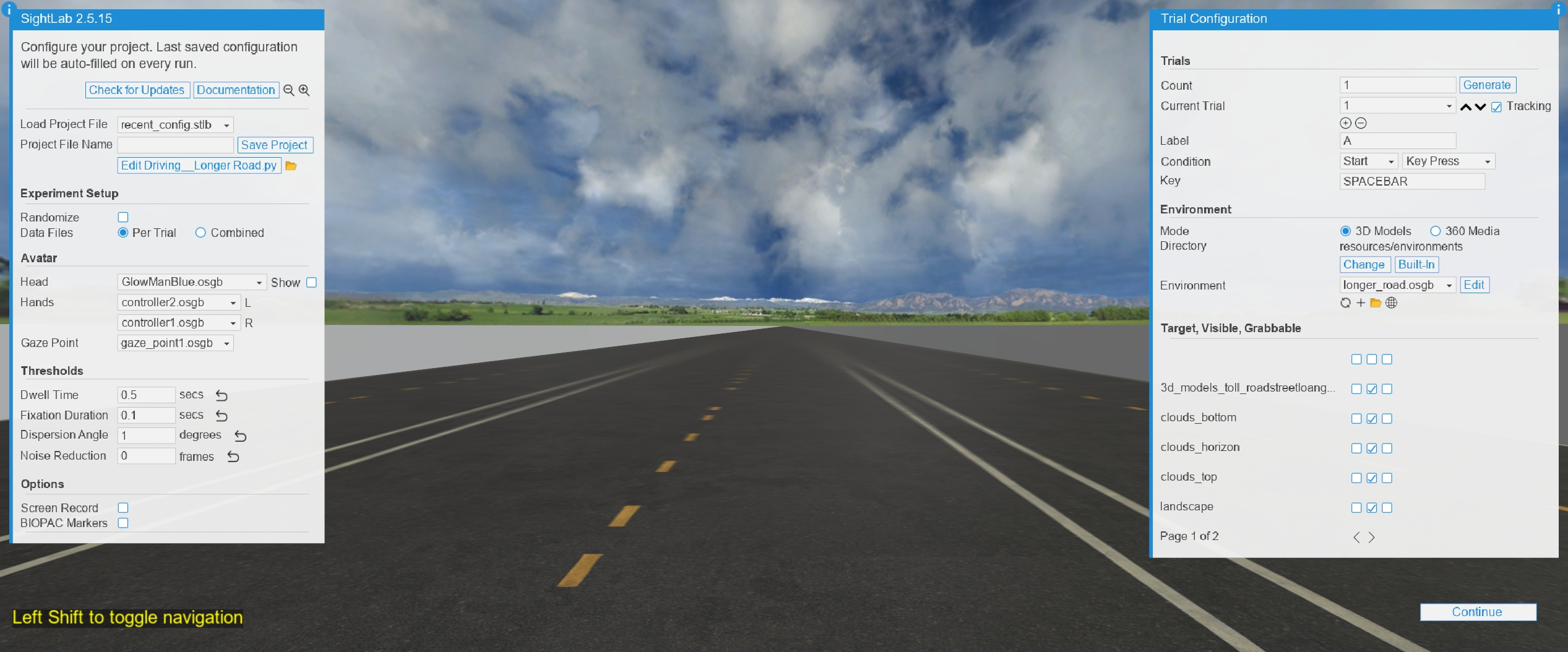
-
Driving_Simulator_360, which uses a 360 video to simulate driving in New York.
Available on Request
Contact sales@worldviz.com for information on these versions:
- 360 video driving simulator combining 3D models and 360 video (see 360 Driving Simulator)
- Flying simulator
360 Driving Simulator
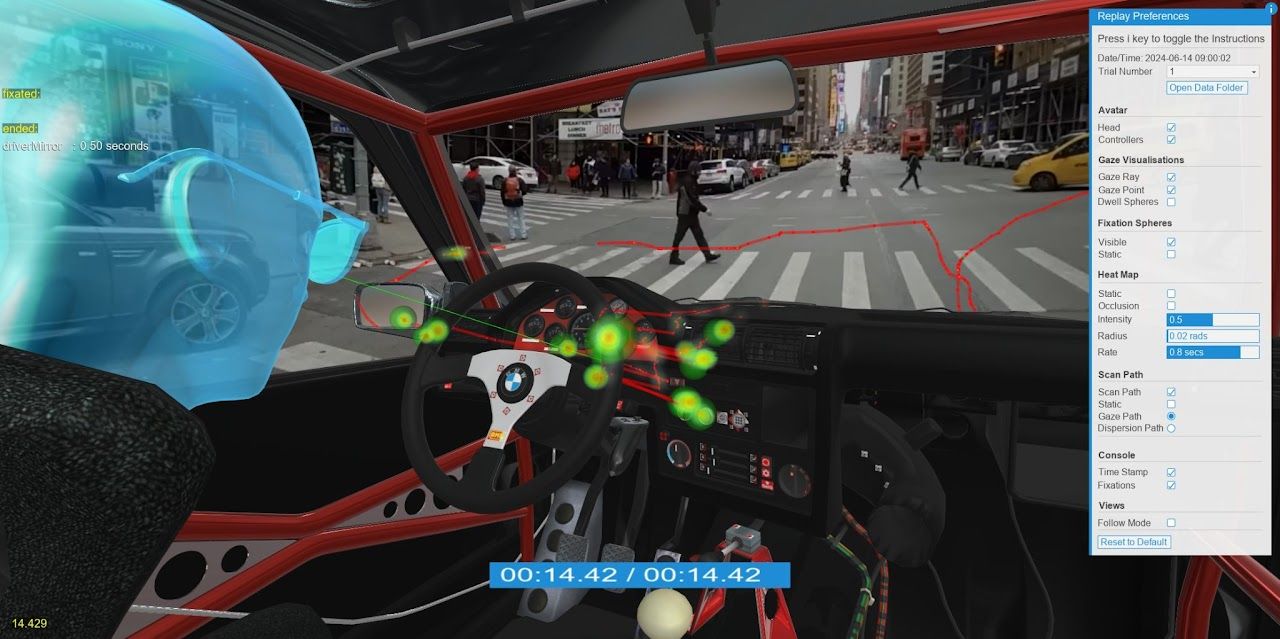
| Key | Action |
|---|---|
| R | Reset position. In a headset, re-centers the view on the driver after a 2-second countdown; on OpenXR headsets, right grip + A re-centers at once. |
| Spacebar | Start / stop the simulation |
| V | Pause the video |
| B | Reset the video |
| F | Fast forward |
| T | Print the current position and where the eyes are |
| H | Toggle overlays |
| P | Toggle the gaze point |
| / | Take a screenshot |
Note
The 360 simulator may require the K-Lite Codec Pack.
In a headset, the driver's eyes are placed at VR_EYE_POINT, in world coordinates, set near the top of each 360_Driving_Simulator script. The start screen and re-centering work as described in Headset Seat Position. To change where the eyes go, move the view until it looks right, press T, and copy the printed eye position into VR_EYE_POINT. On desktop, the viewpoint is set in each script's ResetCar().
Related Documentation
- Controls
- Session Replay
- Running a Session with Multi User
- Street Walking Example, which uses the same traffic and pedestrian systems
- Biopac Integration and Sending Events to Biopac
- Scene Editor – Inspector