Inspection Checklist VR Template
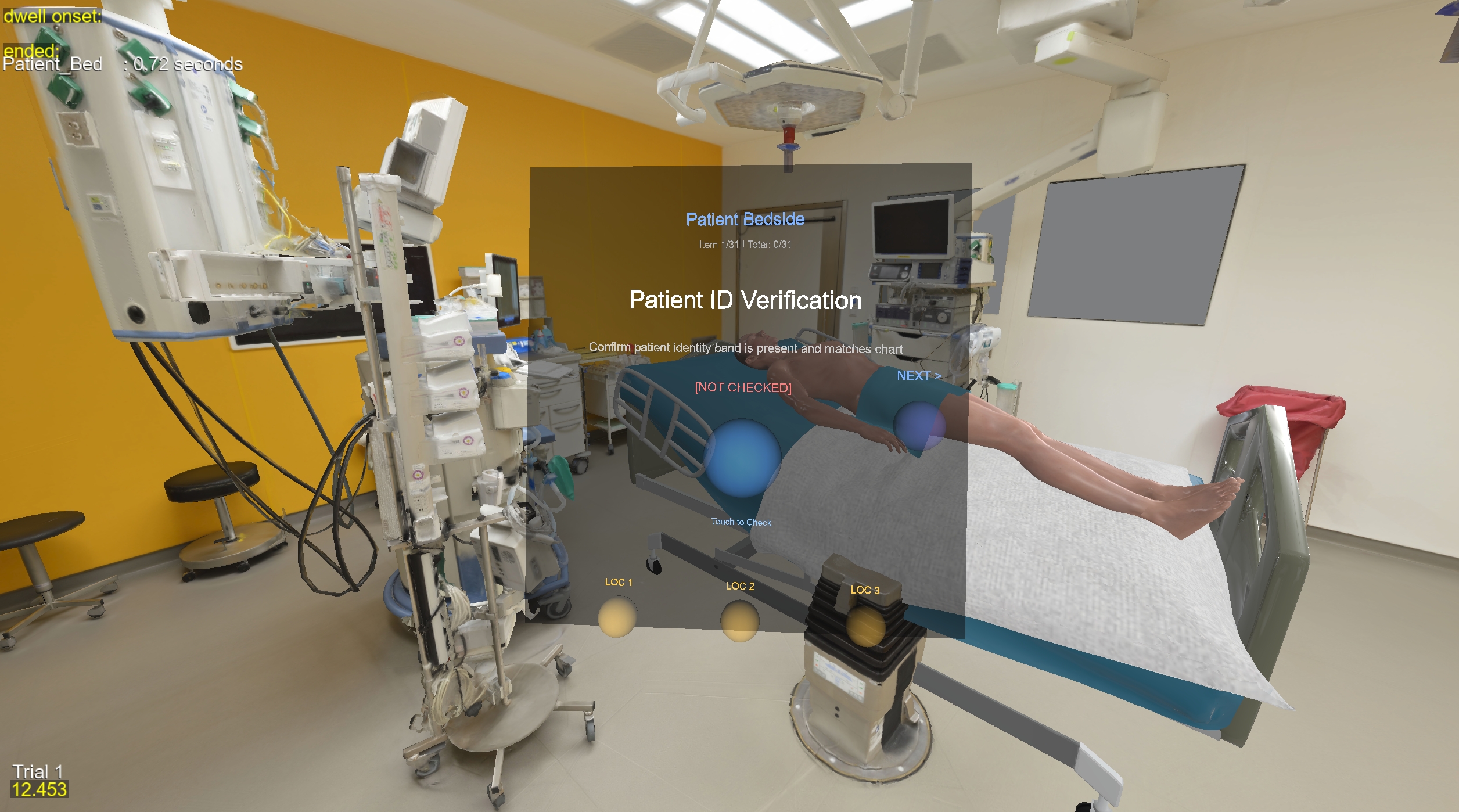
Overview
A customizable VR inspection checklist template that can be adapted for any training scenario — vehicle inspections, nursing procedures, fire safety walkthroughs, equipment audits, and more. Supports both single-user and multi-user modes with synchronized checklists and teleportation.
- Interactive 3D checklist panel with proximity-based navigation
- Touch-based inspection — touch spheres to check/uncheck items, confirm with YES/NO
- Customizable checklist — define your own categories, items, and descriptions via CSV
- Teleport navigation — jump between predefined locations in your environment
- Optional interactive objects — require physical interaction before marking items complete
- Shared checklist (multi-user) — all clients update a single server-managed checklist
- Progress tracking — saves to CSV and generates text reports per session
- SightLab integration — eye-tracking, gaze analytics, and session replay
File Structure
Inspection_Checklist/
├── Inspection.py                     # Single-user inspection script
├── Inspection_Server.py              # Multi-user server script
├── Inspection_Client.py              # Multi-user client script (locations set 1)
├── Inspection_Client2.py             # Multi-user client script (locations set 2)
├── _Inspection_Replay.py             # Session replay viewer
├── inspection_checklist_manager.py   # Checklist data management
├── proximity_inspection_system.py    # 3D touch-based inspection UI
├── data/
│   ├── inspection_checklist.csv           # Checklist template (edit this!)
│   └── <timestamp>__experiment_data/      # Session output folders (created per run)
│       ├── inspection_checklist.csv                    # Working checklist copy
│       ├── <timestamp>__inspection_checklist.csv       # Final checklist snapshot
│       ├── <timestamp>__inspection_report_trial_N.txt  # Text report
│       ├── <timestamp>__experiment_summary_client_N.csv # SightLab summary
│       ├── trial_data/                                 # Gaze/tracking CSVs
│       └── replay_data/                                # Session replay files
├── locations/
│   └── locations.txt                 # Teleport positions (Client 1 / single-user)
├── locations2/
│   └── locations.txt                 # Teleport positions (Client 2)
├── sightlab_configs/                 # SightLab configuration files
└── Resources/
    └── environments/
        └── inspection.osgb           # 3D environment model (replace with your own)
Quick Start: Customizing for Your Scenario
- Edit the checklist CSV — Open
data/inspection_checklist.csvand replace the example items with your own categories, items, and descriptions - Replace the environment — Place your 3D environment (
.osgb) inResources/environments/and update the path inInspection.py - Set up teleport locations — Run the app, walk to each inspection point, and press
/to save the position. Or manually editlocations/locations.txt - Link items to locations — Add
location1,location2, etc. to thelocationcolumn in the CSV so users auto-teleport when navigating to each item - (Optional) Add interactive objects — See the INTERACTIVE OBJECT SETUP comments in
Inspection.pyfor how to require physical interaction before marking items complete
Running the Application
Single-User Mode
- Run Inspection.py
- Press SPACE to start the inspection trial
- Complete the checklist using touch interactions
- Press SPACE to end the trial and save progress
Multi-User Mode
Multi-user mode uses a server–client architecture. The server is the source of truth for the checklist — all item checks, clears, and resets from any client are sent to the server, which updates the master checklist and broadcasts changes to all connected clients.
- Run Inspection_Server.py on the server machine
- Run Inspection_Client.py on the first client machine
- Run Inspection_Client2.py on the second client machine
- Client2 uses a separate set of teleport locations (
locations2/) so users don't overlap - Each client connects to the server via the SightLab GUI
- Start the experiment from the server GUI — all clients begin simultaneously
- Any client (or the server operator) can check items — all actions sync across all participants
Teleportation in multi-user mode:
- Number keys (1–9) — teleport only the individual user who pressed the key
- Panel teleport buttons (touching a location sphere on the menu) — teleport all clients and the server to the selected location
Other key behaviors in multi-user mode:
- The checklist CSV is saved only on the server, in the session's experiment_data folder
- Custom interaction events sync to all clients
- The template file in data/inspection_checklist.csv is never modified during sessions
Controls
Inspection Panel
| Key | Action |
|---|---|
T |
Reposition panel in front of you |
LEFT / RIGHT |
Navigate to previous / next item |
C / V |
Navigate to previous / next item (alternative) |
N |
Jump to next unchecked item |
B |
Clear (uncheck) current item |
G |
Clear all items (reset entire checklist) |
U |
Toggle debug visualization (show proximity sensors) |
VR Interactions
| Action | How |
|---|---|
| Check item | Touch the blue sphere, then touch YES (green) to confirm |
| Cancel check | Touch NO (red) to cancel |
| Teleport | Touch a location sphere on the panel |
Other Keys
| Key | Action |
|---|---|
SPACE |
Start / End trial |
/ |
Save current position as teleport location |
1–9 |
Quick teleport to numbered locations |
Session Replay
Use _Inspection_Replay.py to review completed sessions. You must run at least one experiment session before replay data is available.
Starting Replay
- Open _Inspection_Replay.py in Vizard and run it
- Select a session from the list
- Choose Desktop Mode or a headset configuration for viewing
Replay Controls
| Key | Action |
|---|---|
SPACE |
Start / Stop playback |
R |
Reset playback to beginning |
C / V |
Scrub backward / forward (or use the slider) |
B / N |
Step frame-by-frame |
W / A / S / D |
Move free camera |
Z / X |
Move camera down / up |
Q / E |
Rotate camera |
. or F1 |
Hide / show menu |
/ |
Take screenshot |
I |
Show instructions |
ESC |
Exit |
Replay Features
- Trial Selection — choose any trial to replay
- Client ID (multi-user) — view visualizations for a specific client
- Avatar Visualization — toggle head and hand display
- Gaze Visualizations — gaze ray, gaze point, dwell spheres (per eye or combined)
- Fixation Spheres — view fixation points statically or sequentially numbered
- Heat Map — dynamic (over time) or static (aggregated); supports occlusion and gradient modes
- Scan Path — gaze path and dispersion path visualization
- Walk Path — directional arrows showing movement with velocity indication
- First/Third Person View — toggle camera perspective
- Open Data Folder — quick access to session files
Defining Your Checklist
CSV Format
Inspection items are defined in data/inspection_checklist.csv. Categories are derived automatically from the CSV — you can use any category names you want.
| Column | Required | Example | Notes |
|---|---|---|---|
category |
Yes | Safety |
Any string — categories are created from CSV data |
item_id |
Yes | SAF001 |
Unique ID for each item |
item_name |
Yes | Fire Extinguisher |
Short name shown on the 3D panel |
description |
Yes | Check expiration date and pressure gauge |
Detailed description shown below the name |
inspection_type |
Yes | visual |
Descriptive label (e.g., visual, functional, auditory) |
checked |
Yes | 0 |
Always 0 in the template |
timestamp |
Yes | (empty) | Leave empty in the template |
location |
No | location2 |
Optional — auto-teleports user to this location |
Example Scenarios
Nursing Procedure Training:
category,item_id,item_name,description,inspection_type,checked,timestamp,location
Patient Prep,NUR001,Patient ID,Verify patient identity with two identifiers,visual,0,,location1
Patient Prep,NUR002,Allergies,Check allergy band and confirm with patient,visual,0,,location1
Medication,NUR003,Medication Check,Verify medication name and dosage,visual,0,,location2
Medication,NUR004,Expiration Date,Check medication has not expired,visual,0,,location2
Documentation,NUR005,Chart Update,Update patient chart with observations,visual,0,,location3
Fire Safety Inspection:
category,item_id,item_name,description,inspection_type,checked,timestamp,location
Extinguishers,FIR001,Hallway Extinguisher,Check pressure gauge is in green zone,visual,0,,location1
Extinguishers,FIR002,Kitchen Extinguisher,Verify pin is intact and nozzle clear,visual,0,,location2
Exits,FIR003,Main Exit,Confirm exit path is clear and sign illuminated,visual,0,,location3
Exits,FIR004,Emergency Exit,Check push bar functions and door opens fully,functional,0,,location3
Alarms,FIR005,Smoke Detector,Test smoke detector with test button,functional,0,,location1
Tips
- Items appear in the inspection panel in the same order as the CSV rows
- The
locationcolumn is optional — items without a location value work normally (no teleport) - Location values must match entries in
locations/locations.txt(e.g.,location1,location2) - To reorder items, rearrange the rows in the CSV
- Do not edit the working copy inside a session's
experiment_datafolder — always edit the template indata/
Adding Teleport Locations
Teleport locations are stored in locations/locations.txt (or locations2/locations.txt for Client 2). Each location consists of a position and orientation pair:
location1=1.333,0.0,-0.523
orientation1=0.0,0.0,0.0
location2=0.715,0.903,2.819
orientation2=-166.93,0.0,0.0
To add a new location at runtime:
- Start the application and begin a trial
- Navigate to the desired position in the scene
- Press
/— saves your current position and orientation as a new numbered location - The new location is immediately available via its number key
- Assign it to checklist items in the CSV
locationcolumn - Note: If you want to clear out all locations first, can delete the locations file or all the values in it and start over.
To edit locations manually, open locations/locations.txt. Each location needs two lines:
- locationN=x,y,z — the 3D position
- orientationN=yaw,pitch,roll — the facing direction
Adding Interactive Objects (Optional)
You can require users to physically interact with objects in the environment before certain checklist items can be marked complete. This is useful for training scenarios where actions must be performed (e.g., pressing a button, testing equipment).
See the INTERACTIVE OBJECT SETUP comments in Inspection.py for a step-by-step guide showing how to:
1. Create proximity sensors on 3D objects
2. Track hand interaction state
3. Handle trigger press events
4. Register item verifiers that block checking until the action is performed
Data Output
All session data is saved to a timestamped folder under data/, e.g.:
data/02-09-2026-15-14-18__experiment_data/
Inspection Checklist CSV
The working checklist tracks all inspection items with the same columns as the template, plus checked and timestamp values filled in during the session.
Inspection Report (Text)
A human-readable report saved as <timestamp>__inspection_report_trial_N.txt containing:
- Overall progress percentage
- Category-by-category breakdown
- Timestamp for each checked item
Eye Tracking & Movement Data (SightLab)
SightLab automatically generates several data files per session in the trial_data/ subfolder. These capture eye tracking, head movement, and gaze analytics.
Requirements
- WorldViz Vizard 8
- SightLab VR (sightlab_utils)
- A 3D environment model (
.osgb)