Stand Alone Mode — E-Learning Lab
Stand Alone Mode lets you build lessons in the E-Learning Lab and run them on standalone VR headsets (e.g. Meta Quest, Apple Vision Pro, Pico), phones, tablets, or any web browser — no tethered Vizard runtime needed. You author lessons in the same E-Learning Lab interface — placing and positioning most objects directly in the Preview window with an on-screen gizmo, or in Blender (which opens embedded in the E-Learning Lab, replacing Vizard Inspector) for more advanced editing — and run sessions over WebXR from a built-in web server.
All existing Vizard-based workflows are completely unchanged when the flag is False.
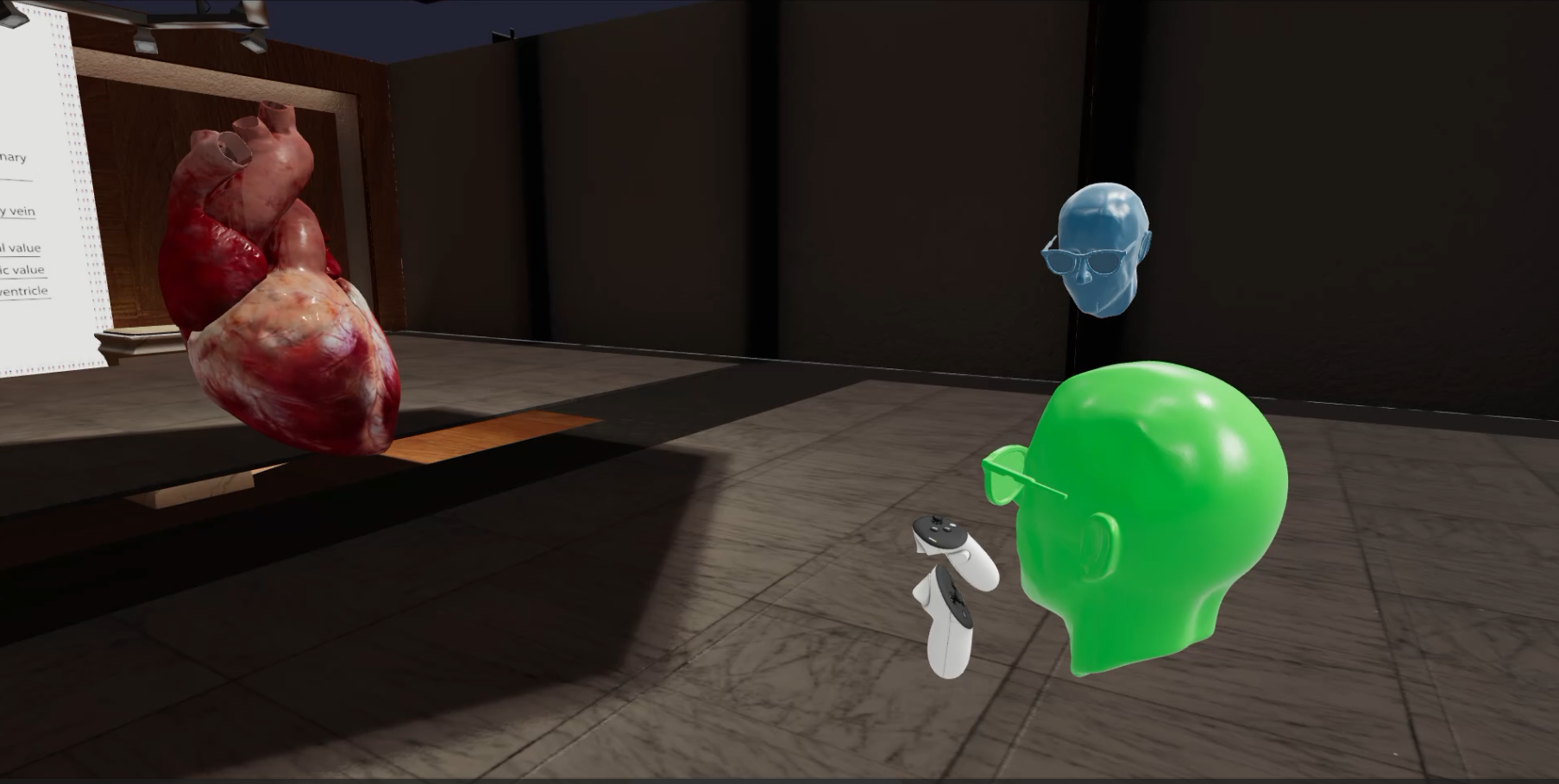
What you can do with it:
- Run lessons wirelessly in a VR headset or any browser — on the same PC, over Wi-Fi, or over the internet
- Host multi-user sessions with synchronized scenes, shared object grabbing, and avatars
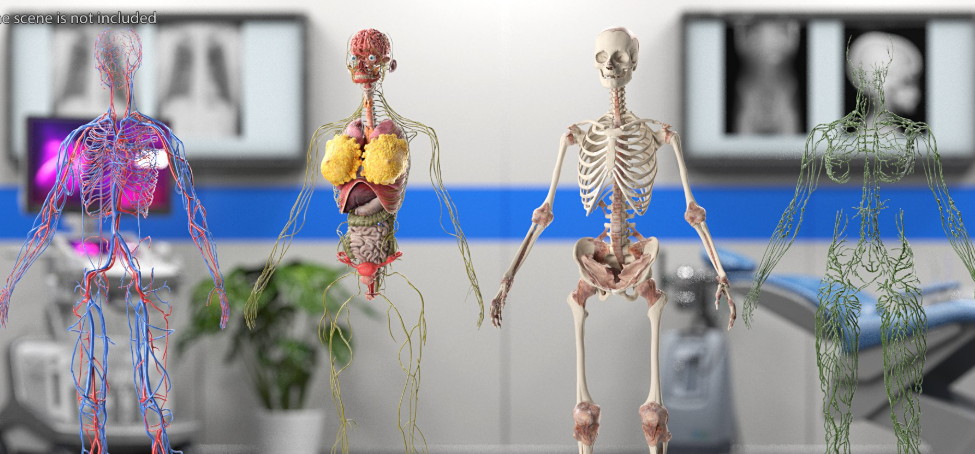
- Use 360 photos/videos, quizzes, AR/passthrough scenes, and generated presentations
- Record session data to CSV and synchronize with Biopac physiological recording
Getting started takes four steps:
- Install the requirements (one-time) — see How to Install
- Author your lesson — import
.glbmodels, place objects in the Preview (or Blender for advanced edits), arrange scenes — see Authoring Workflow - Run — click Run Session → WebXR
- Connect — open the printed URL on a headset, phone, or browser — see Running in WebXR
Note: This also runs using the same E-Learning Lab interface that builds interactive PCVR presentations as well. For more information see the standard E-Learning Lab documentation here: https://sites.google.com/worldviz.com/e-learninglab-docs
How to Install
Note: Before these options show you need to go to global_config/globalConfig.py and change ENABLE_STAND_ALONE = True (set this to True to enable the ability to test out WebXR/Stand Alone mode)
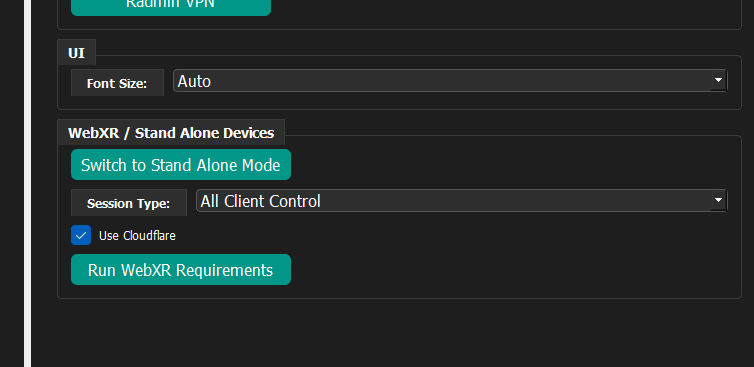
Step 1 — Run WebXR Requirements from E-Learning Lab - Advanced
The WebXR server runs on the system Python (whatever is on PATH / the py
launcher) — not Vizard's bundled interpreter. On a fresh machine, double-click
Run WebXR Requirements: it installs Python itself
(per-user, no admin rights needed) if one isn't found, then installs all the
required packages. This will also search if Blender is installed and if not found install Blender 5.2. It's safe to re-run at any time. See install_webxr_requirements.log
if it reports a failure.
What gets installed:
| Requirement | Notes |
|---|---|
| Python 3.x | Whichever Python is first on PATH is what both the installer and E_Learning_Lab.py use — the installer targets that one, and only falls back to installing a separate pinned Python if that interpreter can't satisfy a package (e.g. piper-tts's onnxruntime dependency needs a wheel for that Python version) |
websockets package |
pip install websockets |
cryptography package |
pip install cryptography — needed for HTTPS/WSS |
piper-tts, edge-tts, pyttsx3 |
TTS engines for scene narration fallback (tried in that order) |
cloudflared (optional) |
Only needed for access over the internet; not needed for LAN |
All five Python packages are listed in requirements-webxr.txt; the installer
runs pip install -r requirements-webxr.txt under the hood, so you can also
do it manually with an existing Python:
python -m pip install -r requirements-webxr.txt
Step 2 — Blender
Stand Alone Mode can leverage Blender as an advanced 3D scene editor — it opens embedded inside the E-Learning Lab, so you don't need any Blender experience to get started. This should be installed when clicking the "Install WebXR Requirements button"
Step 3 — Enable Stand Alone Mode
On the Advanced tab click "Switch to Stand Alone Mode". If in Stand Alone mode you can toggle back by clicking "Switch to PCVR Mode"
Opening and Running an Existing Project
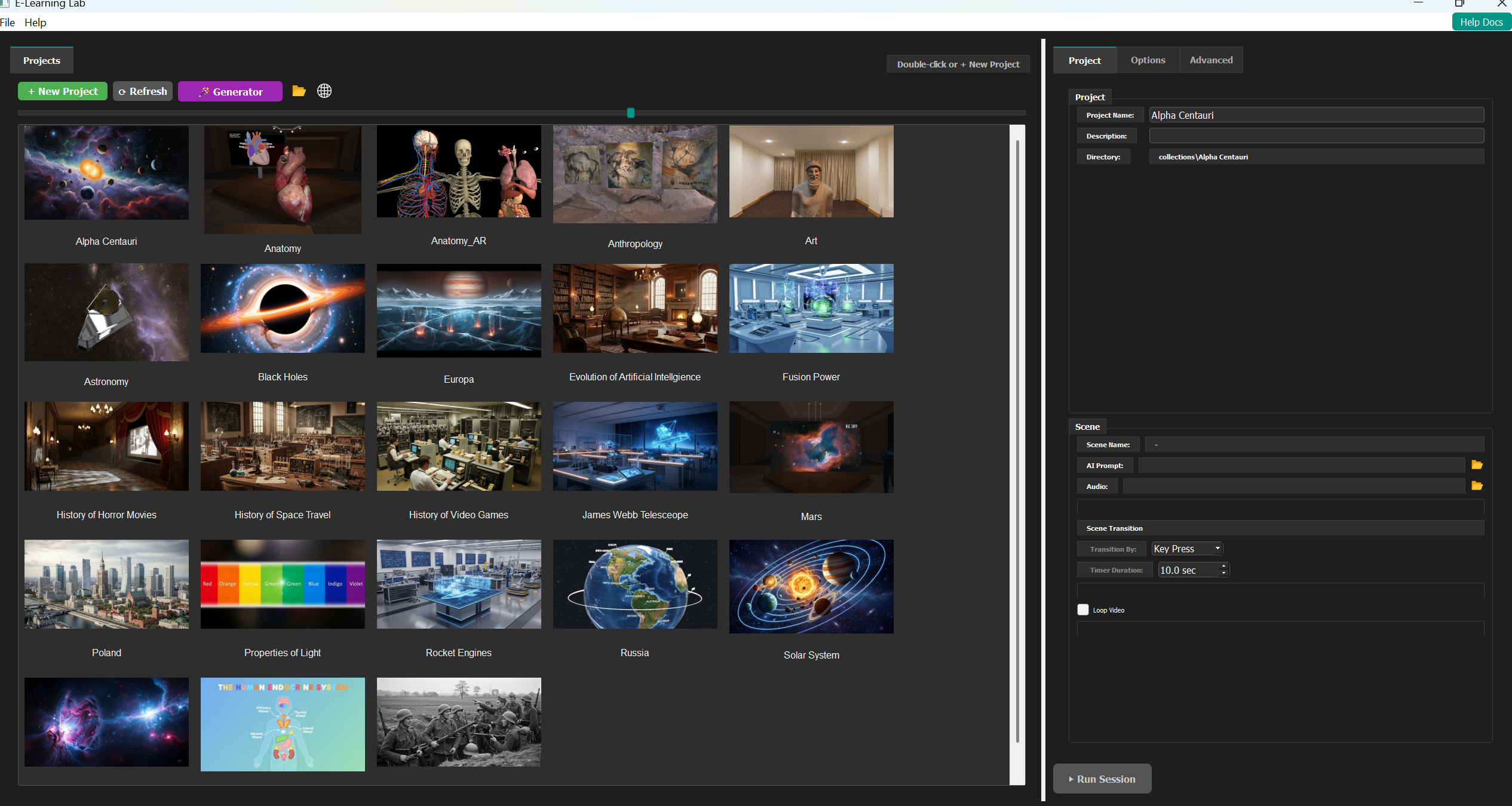
Open a webxr project on the projects window. Here you can also duplicate existing projects, convert older ones (see below) as well as use the presentation generator (see below)
Authoring Workflow
Step 1 — Import models into the E-Learning Lab
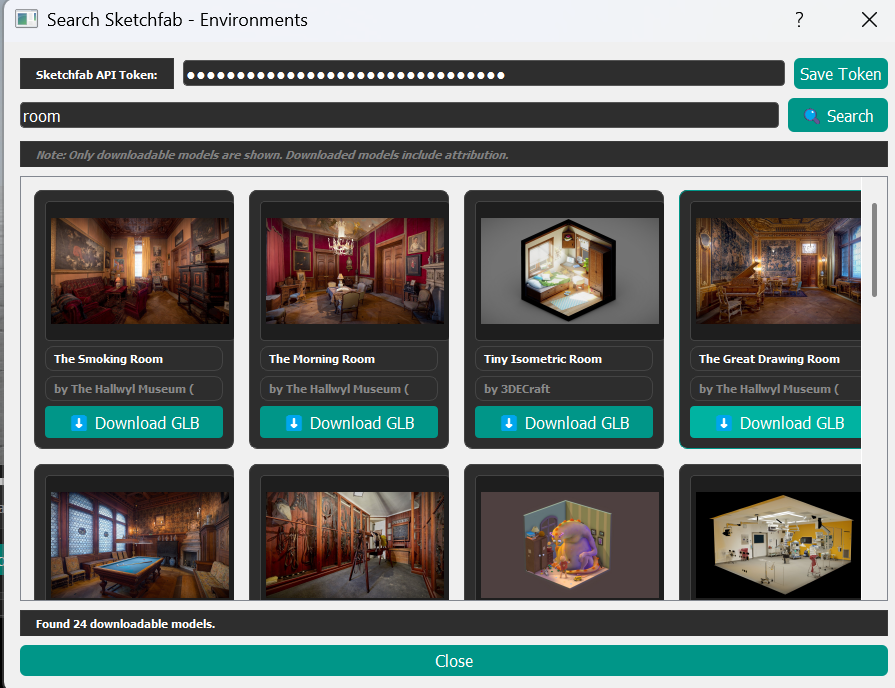
Drag .glb files from Windows Explorer onto the Environments or Objects asset bins or use the built in connections to Sketchfab or AI Generation.
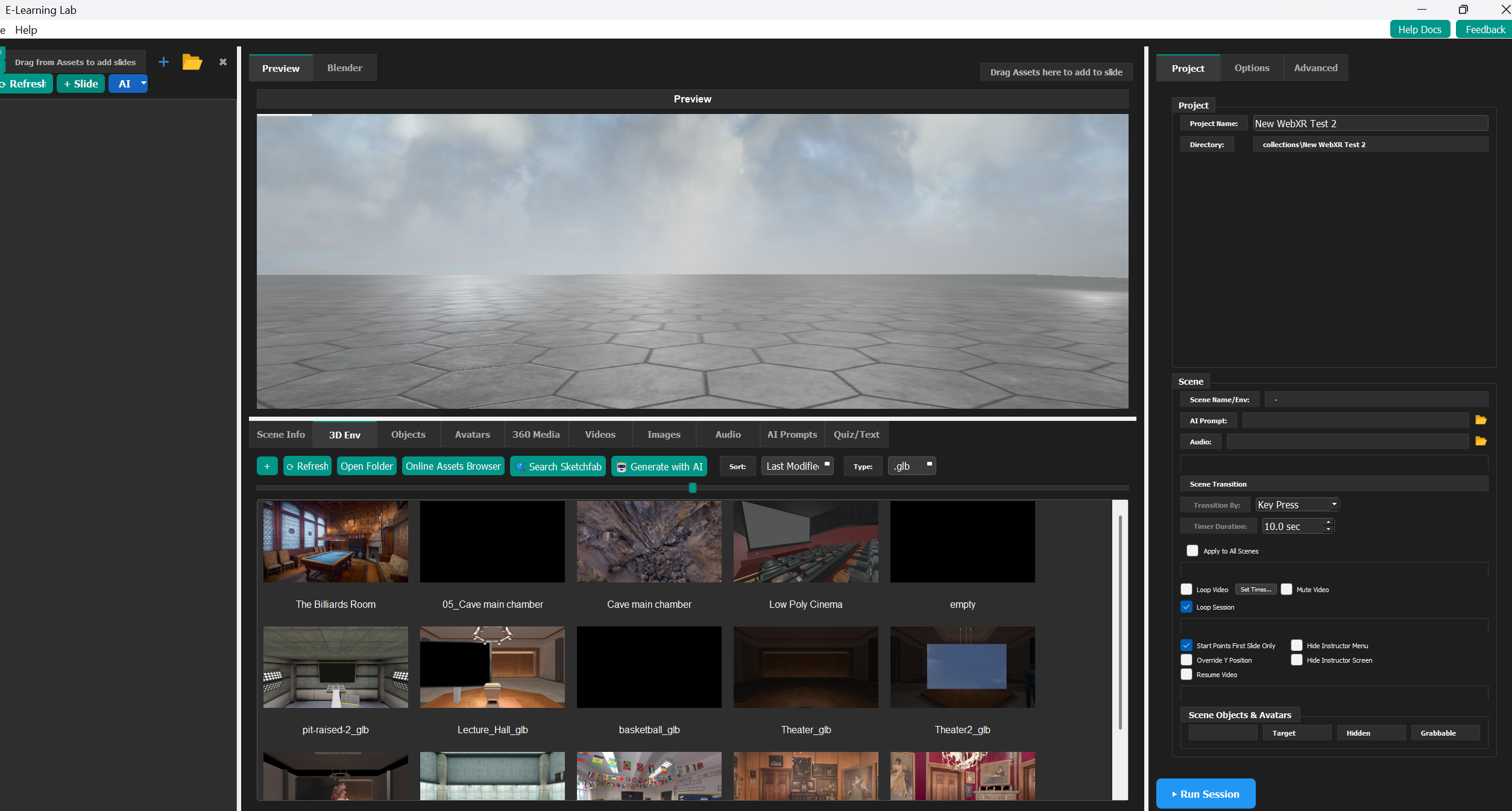
Click "Search Sketchfab" to search Sketchfab
Step 2 — Place objects in the Preview
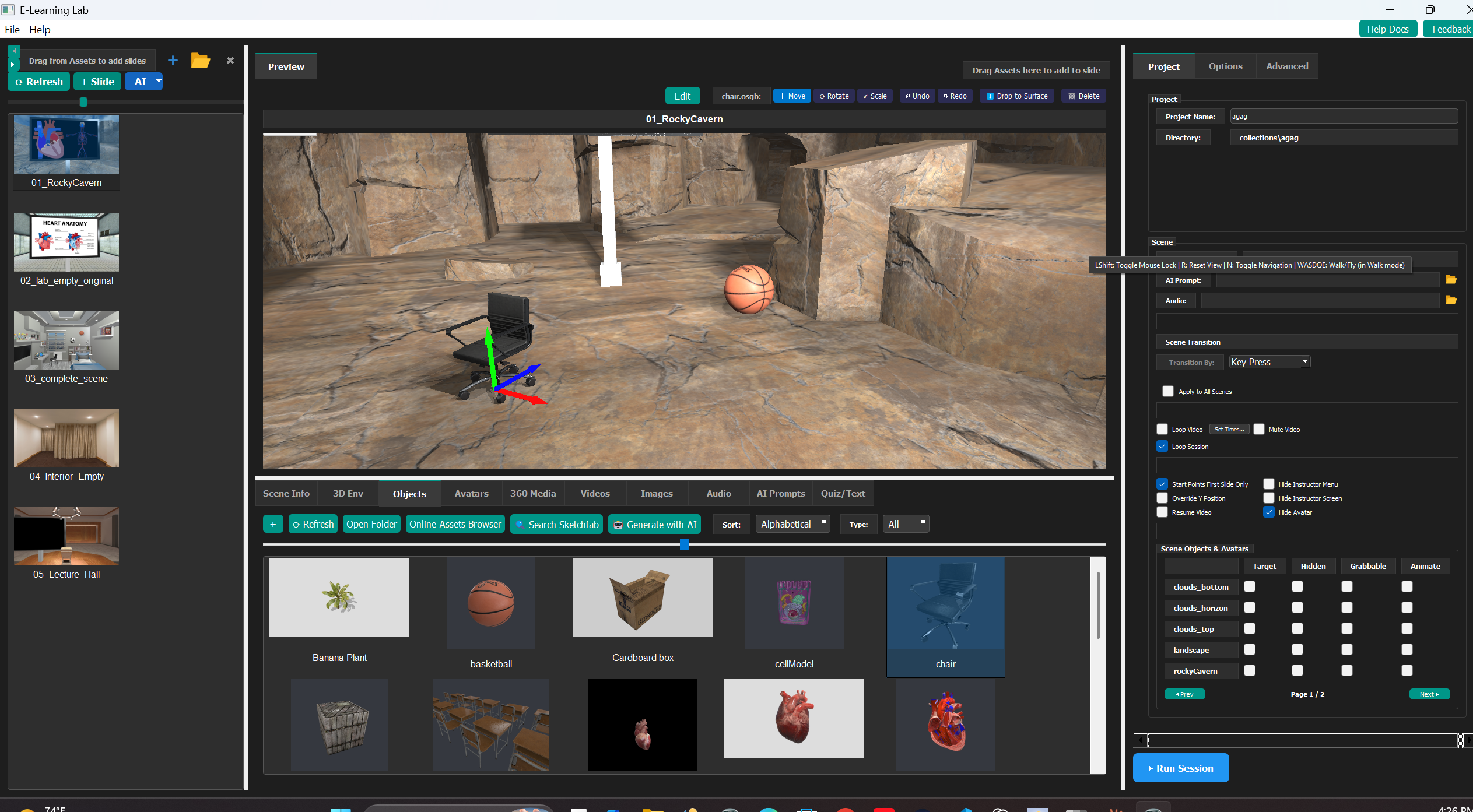
The simplest way to position objects, avatars, and start points is to drag them straight onto the Preview window and place them with an on-screen Move/Rotate/Scale gizmo — no Blender editing needed for straightforward placement. This works the same way in both Vizard-only and Stand Alone/WebXR sessions, and anything placed this way is saved with the project so every connected client sees it. Reach for Blender (Step 3 below) instead when you need material edits, mesh changes, custom rigging, or anything beyond simple placement.
- Drag a
.glbenvironment to the Preview window. - Add videos, images, audio, or AI prompts the same way as before.
- Drag a model from the Objects bin onto the Preview window — it appears immediately, already selected, with the Move gizmo active. Drag a red/green/blue arrow to position it.
The file is copied into the project's own Objects/ folder the first time it's dropped, so it travels with the project. Dropping the same file again replaces that one instance; a different file adds alongside whatever's already placed.
The gizmo toolbar:
| Button | What it does |
|---|---|
| ⬚ Select | No handles shown — click objects to switch between them without risk of dragging one by accident |
| ✛ Move | Drag a red/green/blue arrow to move along that axis (the default for a freshly-dropped object) |
| ⟳ Rotate | Drag a ring to rotate around that axis |
| ⤢ Scale | Drag a handle to scale one axis, or the white cube in the center for uniform scale |
| ↶ Undo / ↷ Redo | Also works with Ctrl+Z / Ctrl+Y |
| ⬇ Drop to Surface | Drops the object straight down onto whatever's below it, or the floor if nothing is |
| 🗑 Delete | Removes the object, after a confirmation prompt. Also works with the Delete key |
Objects placed this way appear in the Scene Objects panel the same as objects added in Blender (see the Reference section at the end of this page for details) — mark them Grabbable, Target, Hidden, or Animate the same way.
Avatars dropped this way are recognized automatically the same way a Vizard .cfg avatar is — no manual tagging needed for a .cfg file, or a model with a .cfg-based avatar embedded in it. For a plain rigged .glb/.fbx (no .cfg involved — the normal case for characters sourced outside Vizard), right-click the object → Properties → check Avatar, then use the same State spinbox described under Avatars below to choose which animation plays.
Start points: START_POINT_SINGLE_start in the Objects bin can be dropped and positioned with the gizmo the same way. This becomes that participant's spawn point and is automatically hidden once a session actually starts.
What carries over to Stand Alone / WebXR:
- Position, rotation, and scale carry over exactly as placed.
- Grabbable and Hidden both work the same as for a Blender-placed
_tagobject. Target (gaze) is saved but doesn't do anything in WebXR yet — see Limitations & Planned Next Steps. - Animate / Avatar State — an object's clip animations (and the avatar State spinbox, if flagged as an Avatar) play the same way as for a Blender-placed object.
- The dropped file needs to end up as
.glb/.gltfto appear in a WebXR session — Three.js (the browser's 3D engine) can't load.osgb/.fbxdirectly..glb/.gltffiles work as-is; anything else (an.fbxavatar is the common case) is automatically converted to a matching.glbin the background the moment it's dropped, using the same Blender install the embedded editor already relies on — no action needed, though it can take a few seconds for a large file, and it's skipped (with a console note in the E-Learning Lab window) if Blender isn't installed. It still works fine in a Vizard-only session either way regardless of conversion, since Vizard loads the original file directly. - Highlight, Spin, and MoveTo don't carry over to WebXR yet for any object — this is a general WebXR limitation, not specific to objects placed this way. See Limitations & Planned Next Steps.
Step 3 — Advanced editing in Blender (optional)
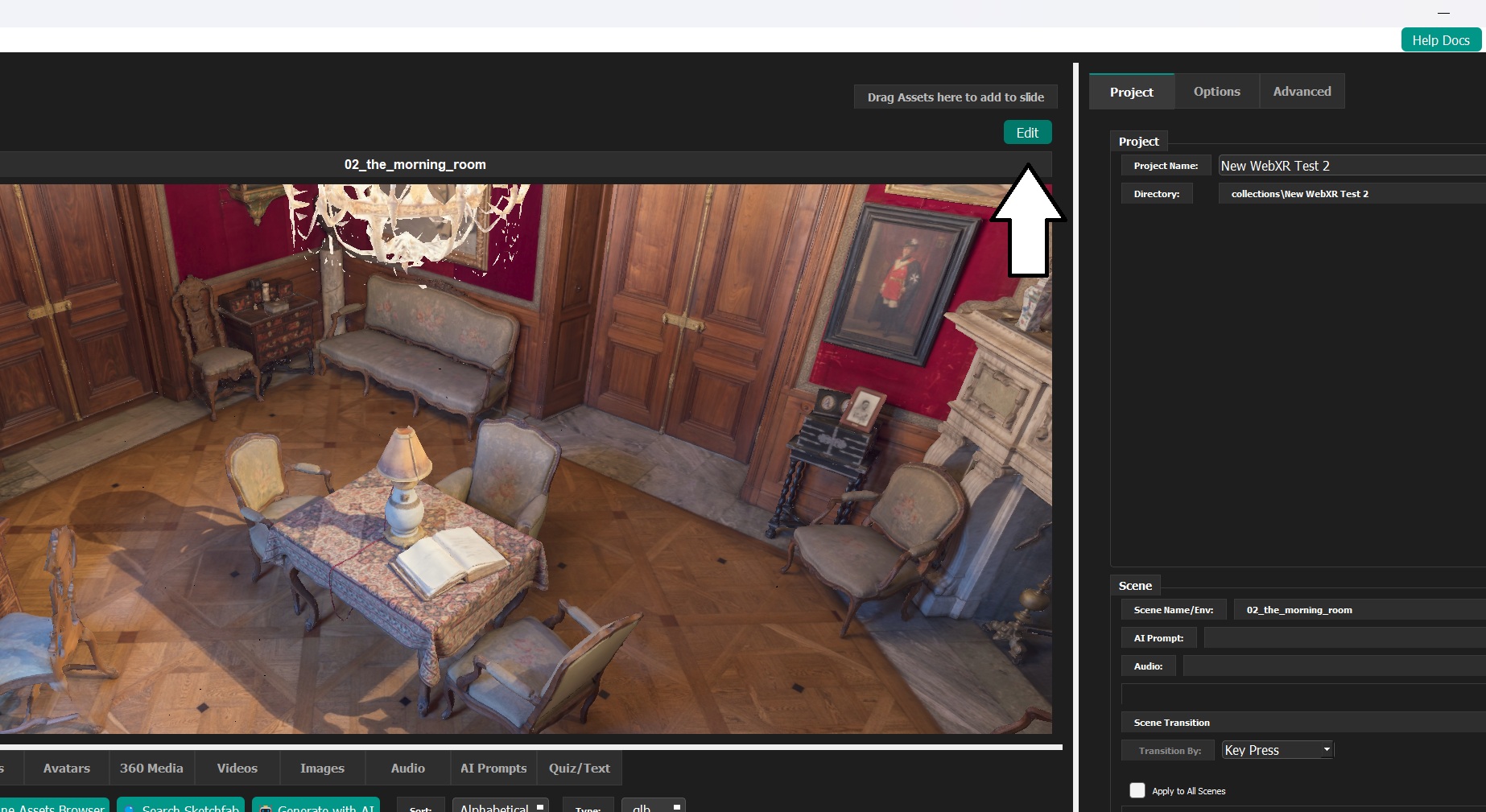
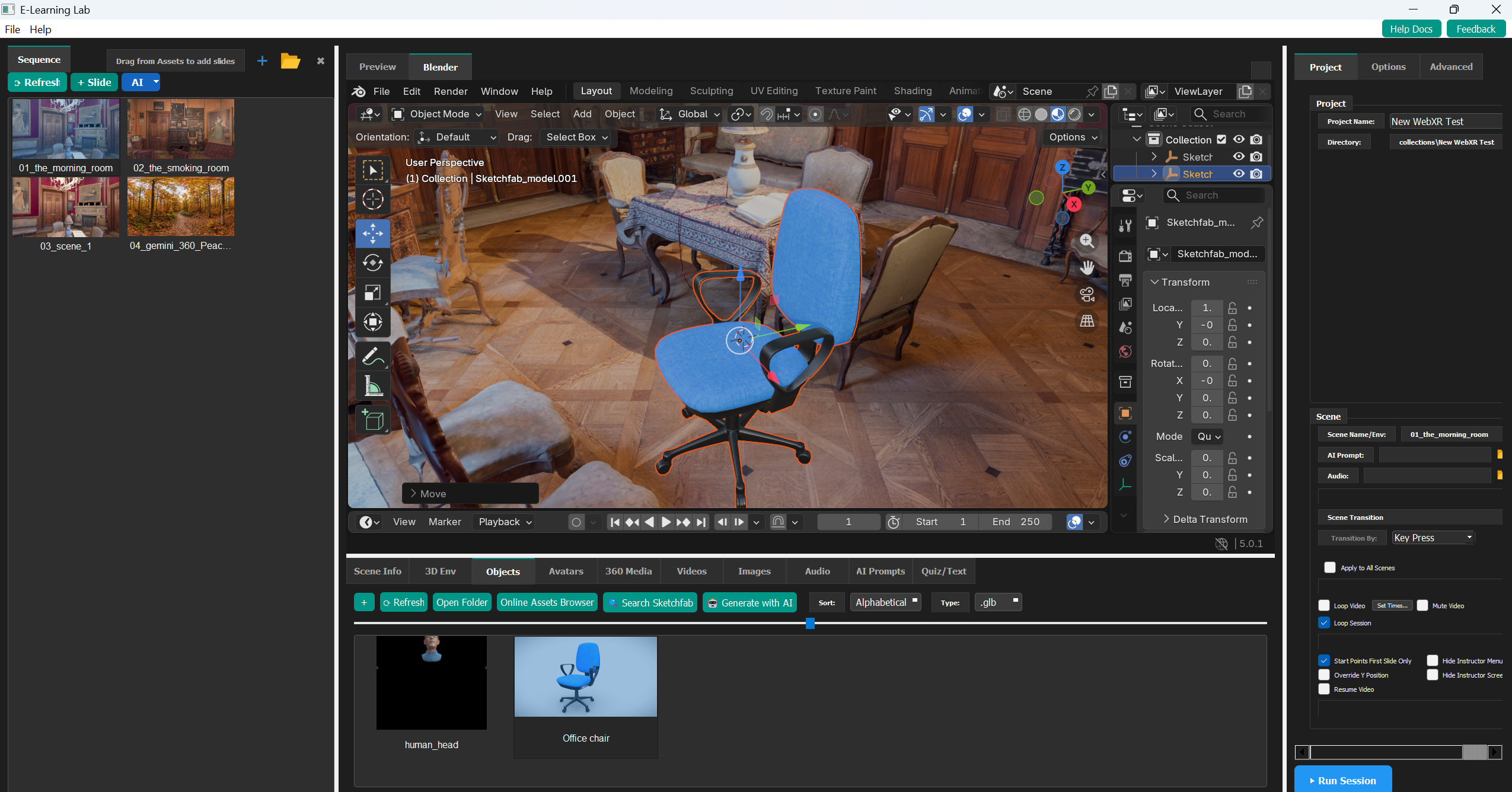
For material edits, mesh changes, custom rigging, or anything beyond simple placement, edit the model directly in Blender — it opens embedded inside the E-Learning Lab, so you don't need prior Blender experience to get started.
- Click "Edit" to edit your model
-
Hold the middle mouse button and mouse to look around the scene or use the tools on the right of the Blender editor window.
-
Drag in additional objects directly to the embedded Blender window from the Objects bin and use Blender's translate, rotate and scale tools to place the object
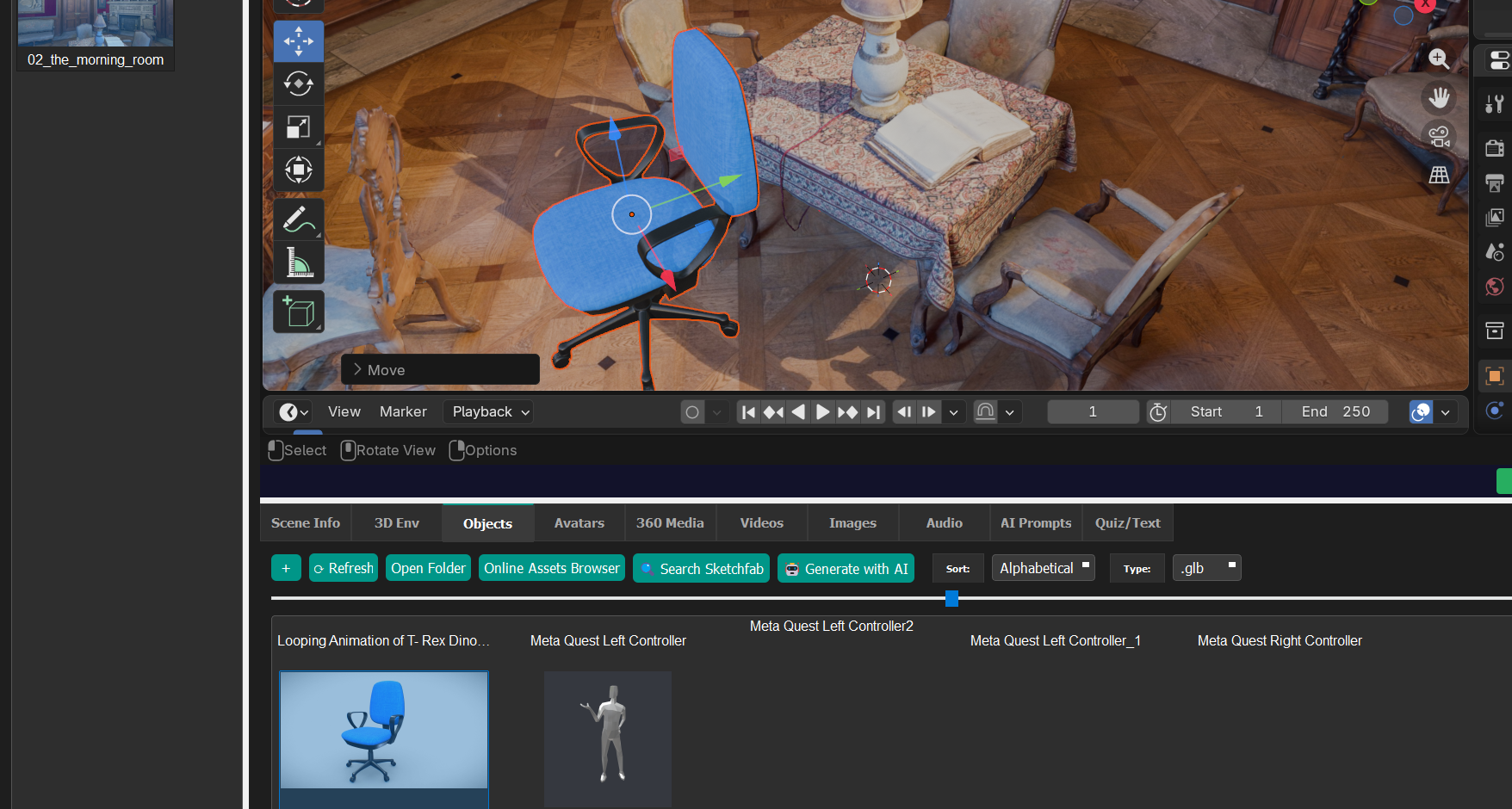
- Objects appear in the Scene Objects panel (see the Reference section at the end of this page for details).
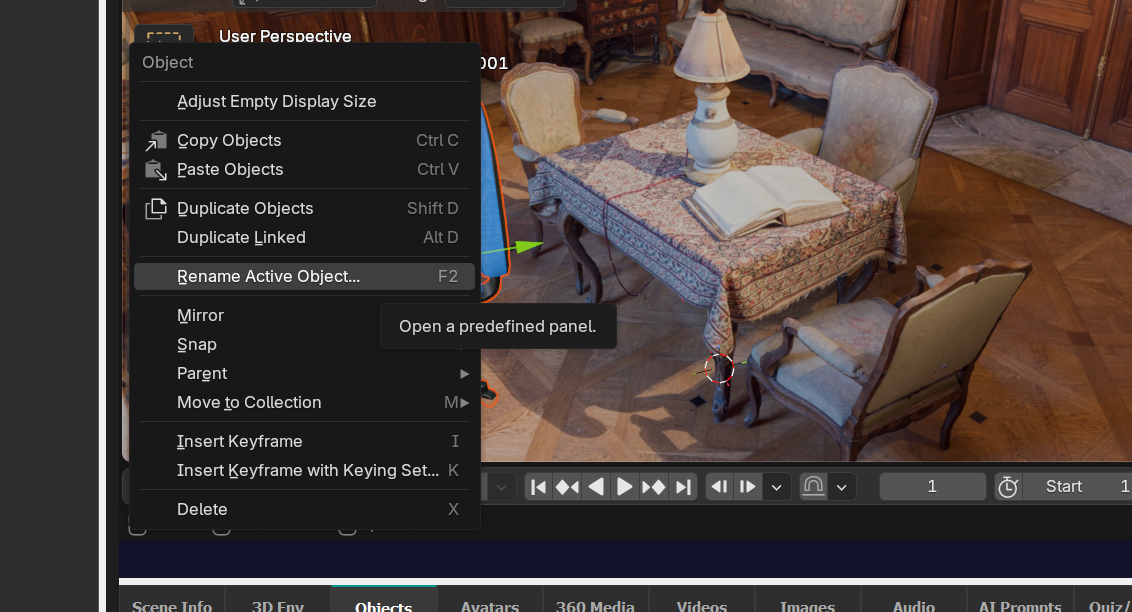
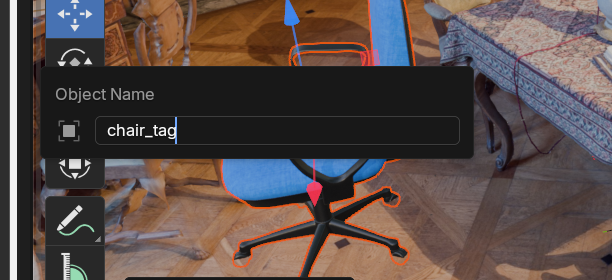
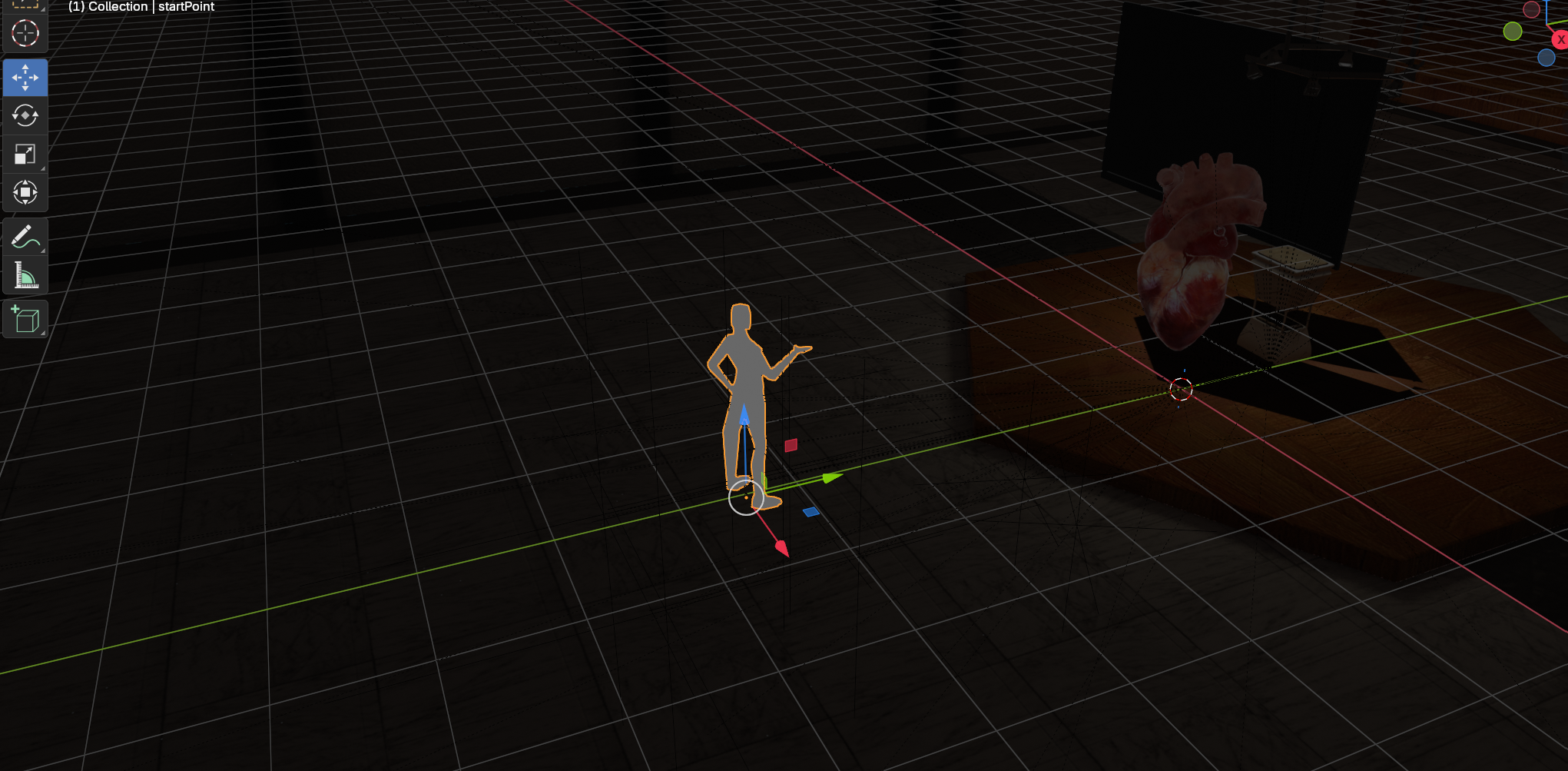
- Start points can also be placed here the same way — drag in the
START_POINT_SINGLE_start.glbobject from the Objects bin and use Blender's translate and rotate tools (see Step 2 above for the simpler, non-Blender way to do this).
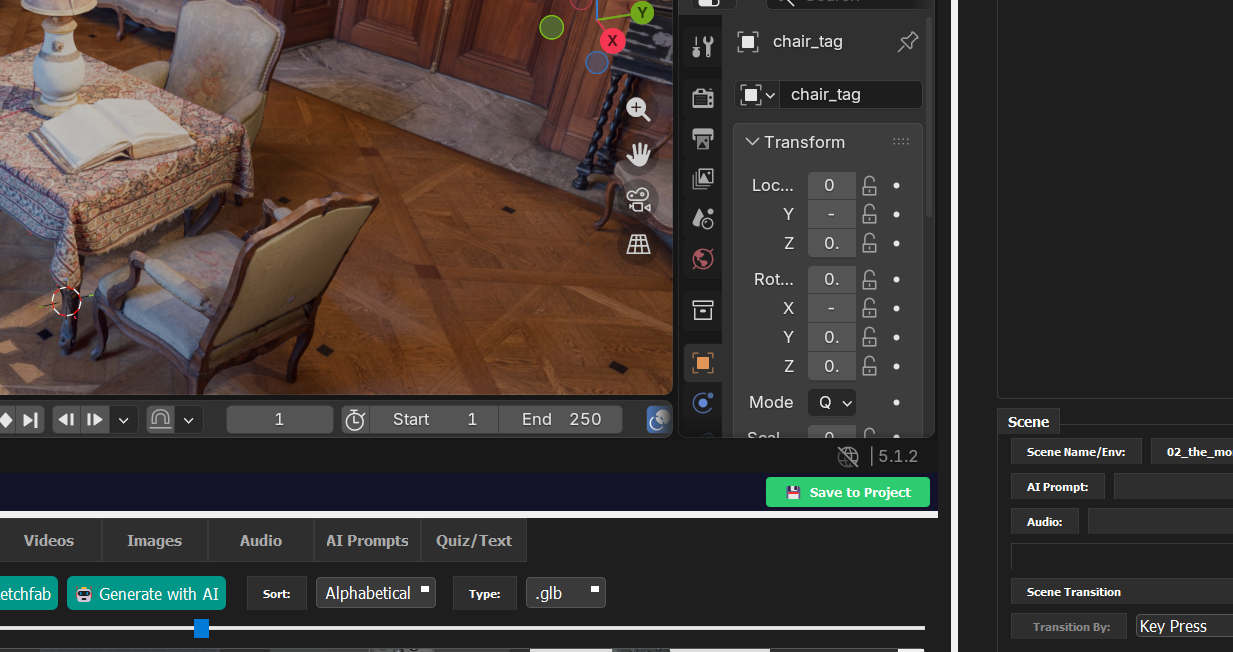
- Click "Save to Project" to save the Blender scene
Step 4 — Build your sequence
Drag environments from the Environments panel, 360 Media, Videos, or Images, slideshows onto either:
- The Scenes list (left panel) — adds as a new slide, or replaces the currently-selected blank slide.
- The Preview image (center area) — same behavior.
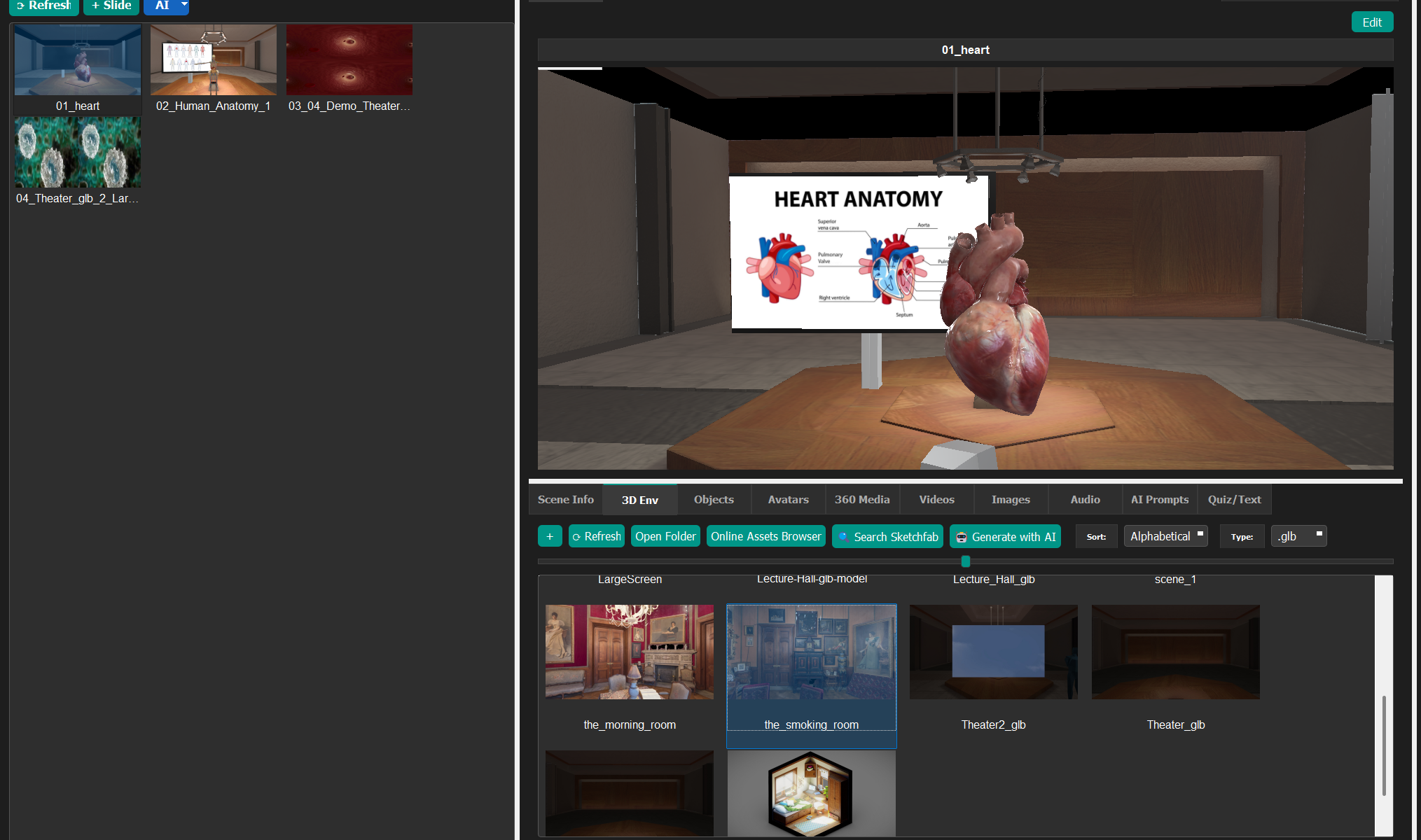
The scene appears in the list and loads in the Vizard preview window. You can then:
- Add Audio, Prompts, Images, Video, or 3d object files to the scene as normal.
- Right-click a scene → Edit in Blender to open the .glb for further editing.
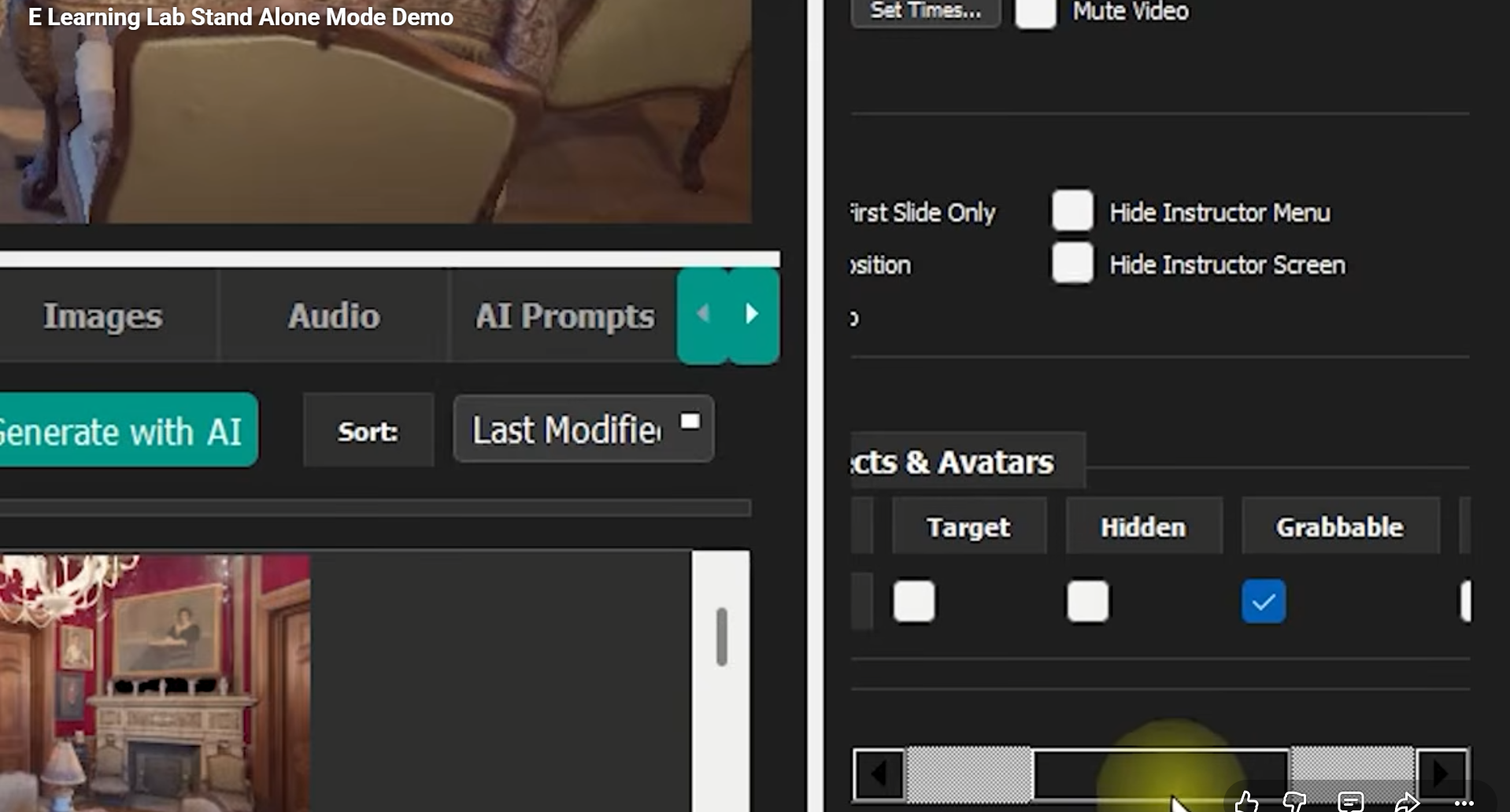
- Use the Scene Objects panel to mark nodes as Grabbable, Target, Hidden, or Animate.
- Note, if some models or objects appear too dark, you can also right click and in properties turn on "Dim Fill Light"
Step 5 — Run in WebXR
Click "Run Session" and Choose "WebXR"
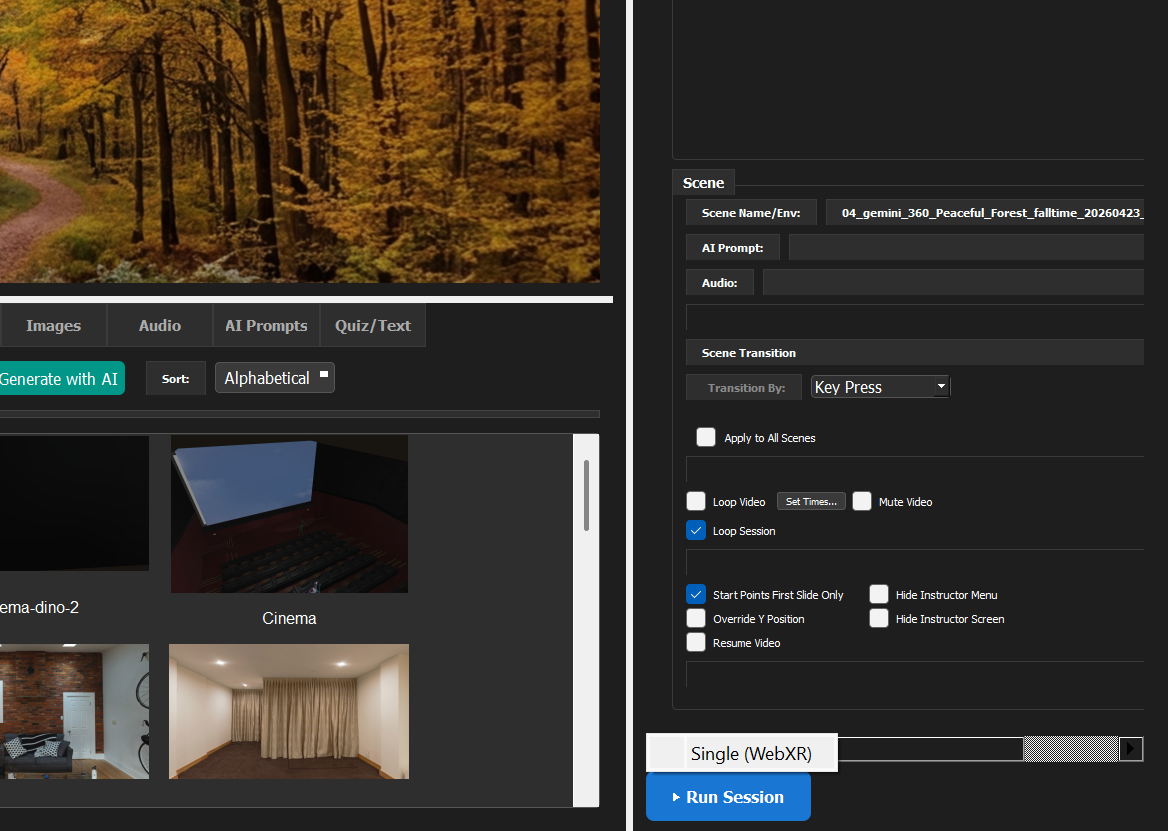
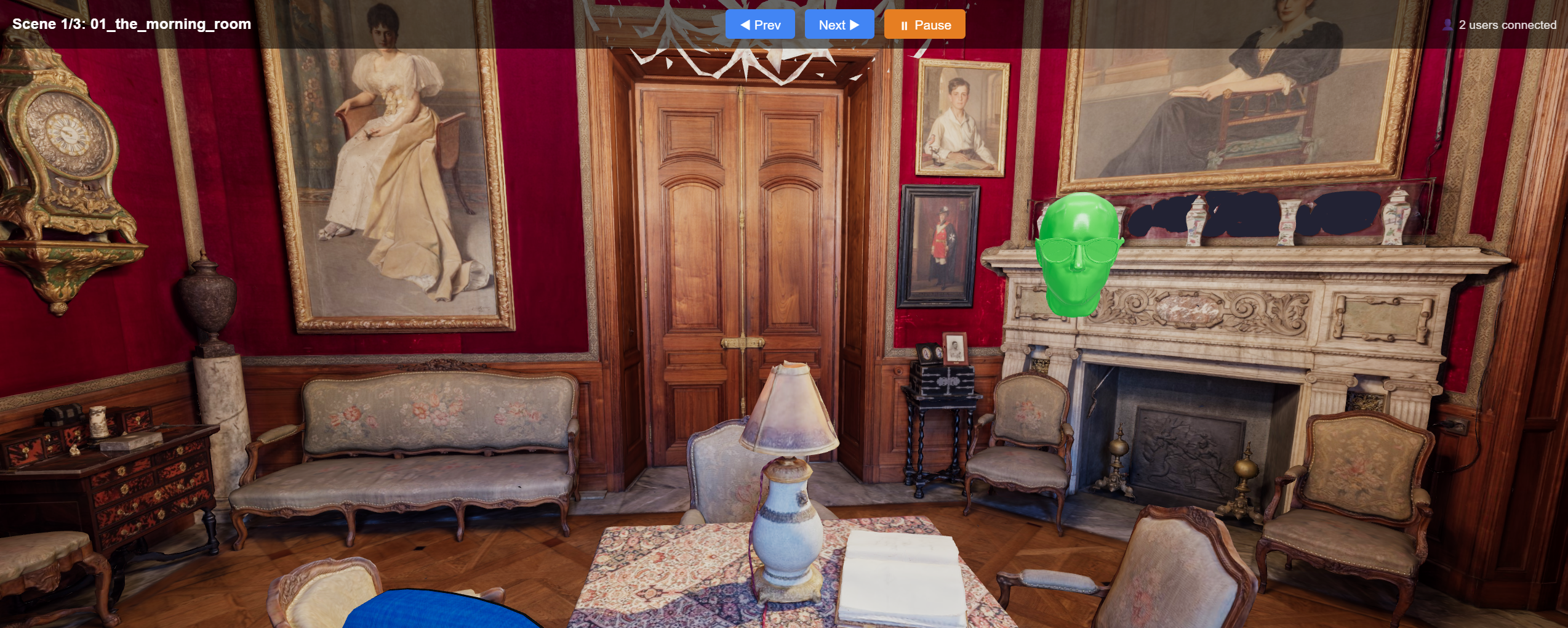
The server opens the PC browser automatically at https://localhost:8765. See Running in WebXR below for connecting headsets and other devices.
Running in WebXR
When you click Run Session → WebXR, a local web server starts, the PC browser opens automatically at https://localhost:8765, and the console prints the URLs that other devices can use to join. (Requirements not installed yet? See How to Install above.)
First run only: When the HTTPS certificate is generated, Windows will show a UAC
security dialog asking you to allowcertutilto add a trusted root certificate.
You must approve this for the PC browser to trust the connection without warnings.
This is a one-time step — the certificate is cached in%TEMP%\webxr_ssl\.
What the server prints at startup
[WebXR] Serving project 'MyProjectName'
  Local  : https://localhost:8765/
  Network: https://192.168.0.100:8765/  ← open on Quest 3 (accept the security warning once)
  WS sync: shares port 8765 (also on dedicated port 8766 for direct LAN clients)
           multi-user — add ?role=instructor to lead
  Tunnel : starting cloudflared… (HTTPS URL will appear below)

[WebXR] Tunnel (HTTPS): https://xxxxx-xxxxx-xxxxx-xxxxx.trycloudflare.com
The Network (LAN) URL is what a headset on the same Wi-Fi needs. The Tunnel URL (once it appears, a few seconds later) works for anyone on any network — share whichever one fits your situation. Both support multi-user.
Connecting devices
| Where you're accessing from | URL to use | VR works? | Multi-user sync? |
|---|---|---|---|
| Same PC | https://localhost:8765 |
Yes | Yes |
| Same Wi-Fi (headset, phone, tablet) | LAN URL, e.g. https://192.168.x.x:8765 |
Yes | Yes |
| Any network (Cloudflare tunnel) | https://xxxxx.trycloudflare.com |
Yes | Yes |
Same Wi-Fi (LAN) — supports multi-user
The headset must be on the same Wi-Fi network as the PC running the server.
- Put on the headset.
- Example for Meta Quest, open Meta Browser (the built-in browser, not a sideloaded one).
- Navigate to the LAN URL printed at server startup, e.g.:
https://192.168.0.100:8765
- Meta Browser will show a certificate warning:
"Your connection is not private" /
ERR_CERT_AUTHORITY_INVALID
This is expected — the certificate is self-signed. Tap Advanced and then
"Proceed to 192.168.0.100 (unsafe)" to bypass it. The bypass is remembered for
subsequent visits until the server IP changes.
- The E-Learning Lab page should load. Tap Enter VR (note: larger scenes can take a
few minutes to load in VR mode — around 1 1/2 minutes for a 1 GB scene on the test machine).
Note: The first time you connect, the page may not load immediately after tapping
"Proceed." If you see a blank page or it times out, do a full page reload (reload icon
in Meta Browser). Subsequent connections to the same server (same cert) should be faster.Apple Vision Pro: connects the same way, through Safari instead of Meta Browser —
navigate to the same LAN or tunnel URL, accept the certificate warning, and tap Enter VR.
Vision Pro has no physical controllers, so hand tracking (see Hand tracking under
Controls below) is the primary input method there.
Any network — Cloudflare tunnel (supports multi-user)
The server binds to all network interfaces and automatically launches a Cloudflare HTTPS tunnel if cloudflared is installed. The tunnel URL appears in the console a few seconds after startup — open it in the Meta Browser and tap Enter VR.
One-time install (Windows 11 — winget is built in):
winget install cloudflare.cloudflared --accept-package-agreements --accept-source-agreements
After that, just run the server as normal. No second terminal, no account, no sign-in. If cloudflared is not installed the server still works locally — it just prints the install hint instead.
Cloudflare's free quick tunnel only forwards a single port. The server automatically detects tunnel clients and multiplexes the WebSocket sync traffic (normally its own dedicated port, 8766) onto the same tunneled port over an HTTP Upgrade: websocket handshake — so any number of remote participants can join through one tunnel URL, the same as on the LAN.
The tunnel URL changes each session (free tier limitation) — share the freshly-printed URL with each participant every time you start the server.
Controls
In the headset
| Input | Action |
|---|---|
| Left controller Y button | Next scene |
| Left controller X button | Previous scene |
Trigger near a _tag object |
Grab / release object |
| Left thumbstick | Move forward / back / strafe (relative to head direction). Unless disable client transports is checked. |
| Right thumbstick left / right | Snap-turn 45° left / right (turns in place) |
| Right controller B button (held) + left thumbstick forward / back | Move up / down |
| Timer transition | Auto-advances after configured duration |
Hand tracking (no controllers) — Quest 3, Apple Vision Pro
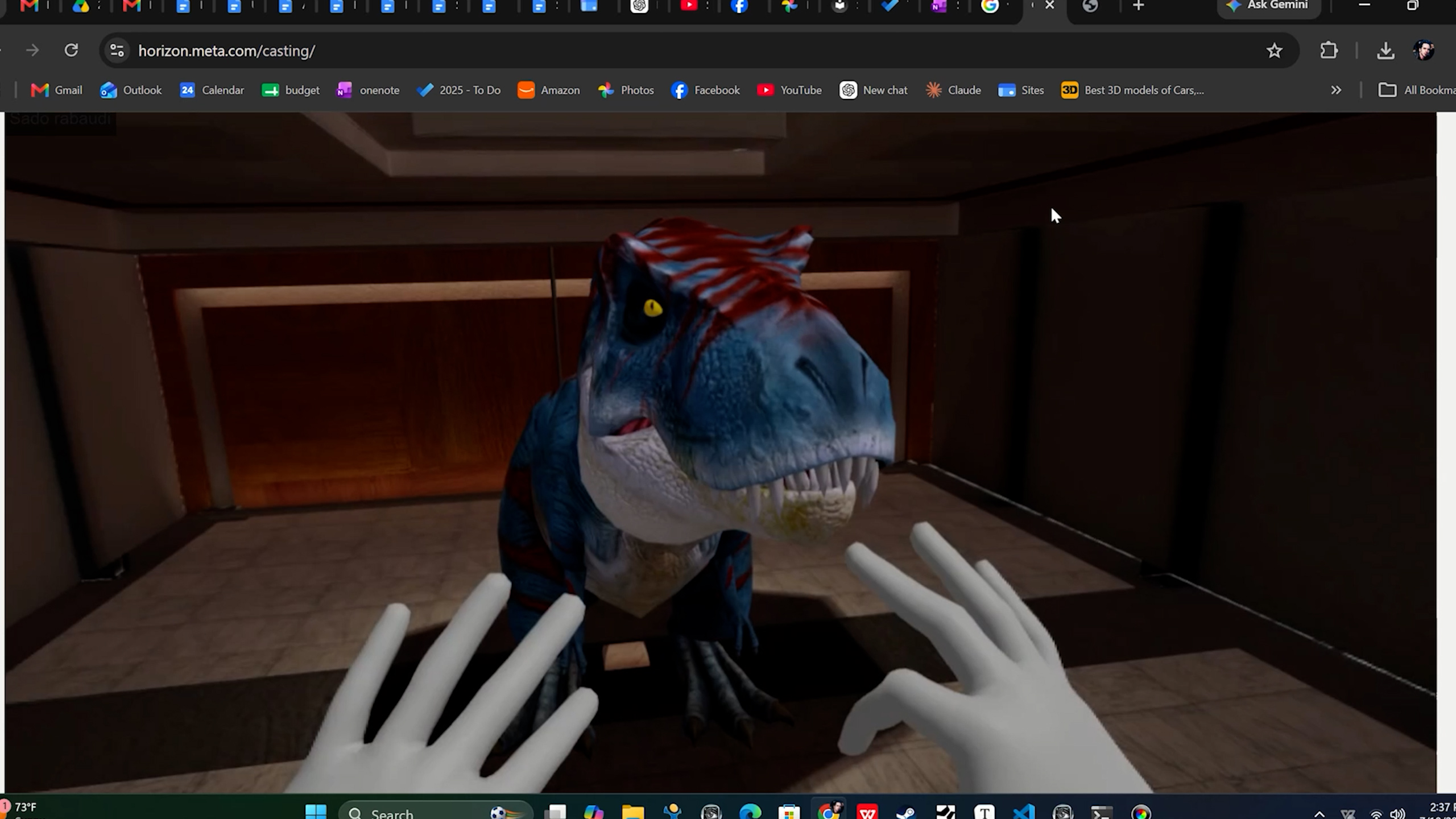
Hand tracking works as an alternative to physical controllers — put the controllers down (Quest 3) or simply use your hands (Apple Vision Pro, which has no controllers at all) and your tracked hands appear in the scene in place of the controller models. Nothing needs to be configured in the E-Learning Lab; the browser reports whether it's seeing a hand or a controller for each session automatically.
| Gesture | Action |
|---|---|
Pinch (thumb and index finger together) near a _tag object |
Grab / release object — same as the controller trigger |
| Right hand: make a fist, point, then tap your thumb against your curled index finger | Teleport to where you're pointing — a ray and a landing reticle show while your fist is closed; tapping moves you there and turns you to face the direction you pointed; opening your hand again without tapping cancels |
| Left hand: make a fist, then rock your thumb side-to-side across your curled index finger | Snap-turn left/right, in place of the right thumbstick (not sliding lengthwise along the finger — that's a different motion and won't register) |
| Point at a quiz choice and pinch | Select and confirm that choice directly — the highlighted choice follows your point in real time, so you can see what you're about to pick before pinching |
| Hold thumb + middle finger together | Next scene — same as the left controller's Y button. Requires holding briefly (not an instant touch) so it doesn't fire by accident; release before doing it again |
| Hold thumb + ring finger together | Previous scene — same as the left controller's X button. Same hold requirement as above |
| Hold thumb + pinky finger together | Reset to the scene's spawn point — useful if free teleporting has left you lost. Held a bit longer than the slide gestures, since it's more disruptive if triggered by accident |
Note: hand tracking must be turned on in the headset's system settings (Quest 3: Settings → Movement Tracking → Hand Tracking; on Apple Vision Pro, hands are tracked by default). Grabbing uses your index fingertip as the contact point — bring it within about half a meter of a
_tagobject before pinching. Teleport uses a completely different gesture (fist) from grab (pinch), so there's no ambiguity between reaching for an object and teleporting — a missed grab attempt can't accidentally move you. The thumb+middle / thumb+ring / thumb+pinky gestures are only recognized while the hand is not in a full fist, so they don't compete with the teleport/turn gesture. Making a fist also requires holding it briefly before it engages, so a quick incidental fist-like pose (e.g. adjusting your grip) doesn't trigger it. Teleport and turn are also split by hand (right = teleport only, left = turn only) — tap and swipe were interfering with each other on the same hand, so each hand now does exactly one deliberate thing.
Teleporting respects the same DISABLE_SINGLE_TRANSPORTS / DISABLE_CLIENT_TRANSPORTS settings in globalConfig.py that disable controller thumbstick locomotion — if movement is disabled for a session, hand-tracking teleport and reset-to-origin are disabled too (same for the thumb+middle/thumb+ring slide gestures). The teleport ray only lands on reasonably upward-facing surfaces (floors, platforms) — it won't let you land on a wall.
Note: the fist/tap/swipe/slide/reset gestures are all detected from raw hand-joint distances (WebXR doesn't provide a built-in "fist", "tap", "swipe", or finger-pinch signal beyond thumb+index, the one it recognizes natively), using starting-point thresholds that haven't been tuned against real hardware yet — if a gesture feels too sensitive or not sensitive enough on your headset, this is the first thing to adjust (
FIST_CURL_DIST/THUMB_TAP_DIST/FIST_HOLD_MS/SWIPE_FIRE_DIST/SWIPE_RESET_DIST/SLIDE_PINCH_DIST/SLIDE_HOLD_MS/RESET_HOLD_MSinE_Learning_Lab_WebXR.py). Left-hand swipe-turn direction has been corrected based on real testing (the left hand mirrors the right, so it needed the opposite sign). Tap and swipe are also only evaluated while the hand currently reads as a full fist — briefly opening your hand no longer risks an extra, unintended teleport or turn firing off the tracked motion of your fingers uncurling.
Desktop / phone / tablet (no headset required)
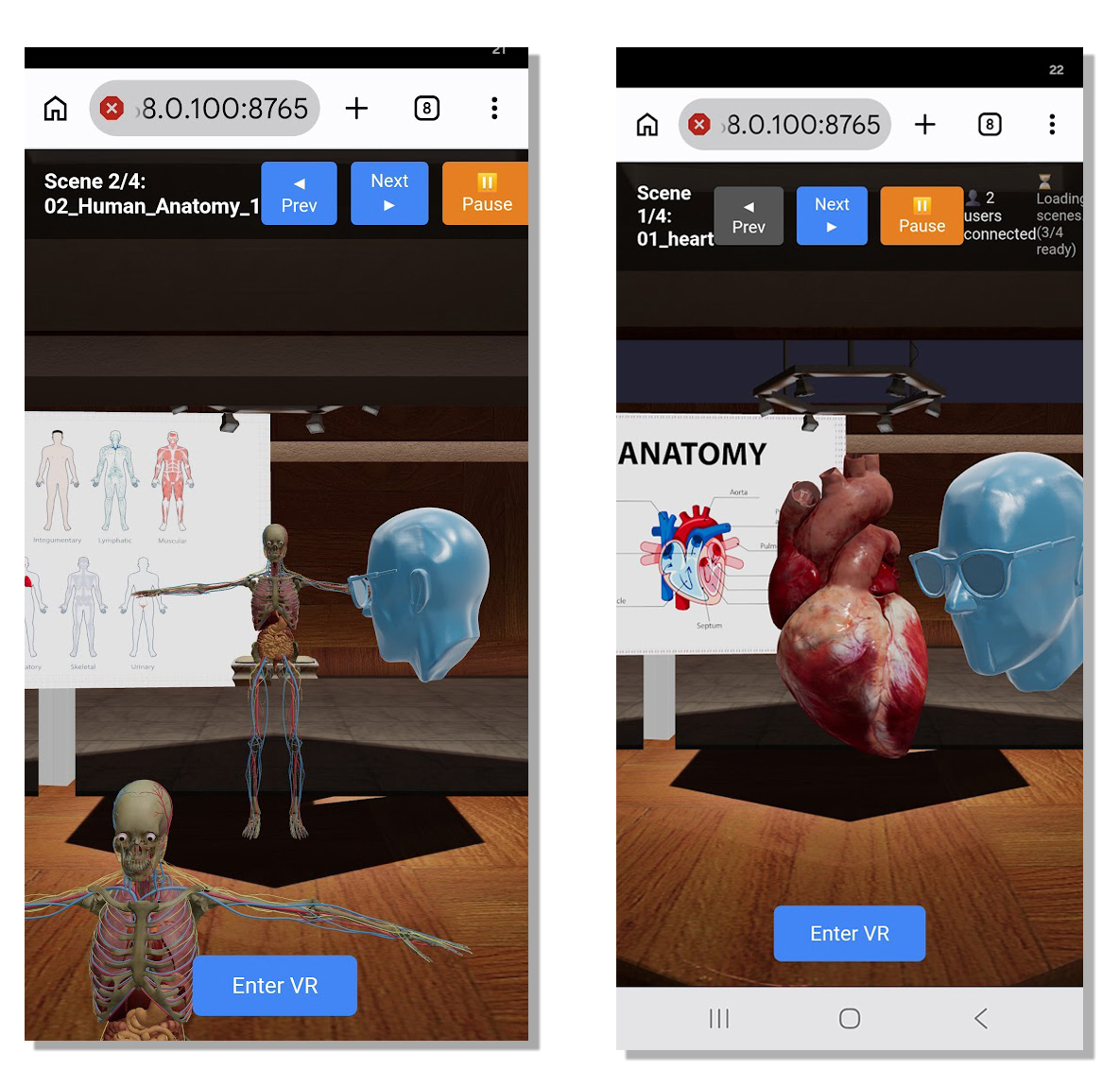
| Input | Action |
|---|---|
W / A / S / D |
Fly camera |
X |
Move up |
Z |
Move down |
| Mouse drag | Look around |
| Touch drag on the right half of the screen | Look around (phones and tablets) |
| Touch and drag on the left half of the screen | Move — a virtual joystick appears wherever you touch down; drag to walk in that direction, release to stop |
V or Next ▶ button |
Next scene |
C or ◀ Prev button |
Previous scene |
The joystick and look-around drag work independently and at the same time (e.g. two thumbs), each tracked by its own touch — one for movement on the left, one for looking around on the right.
360 Media Scenes
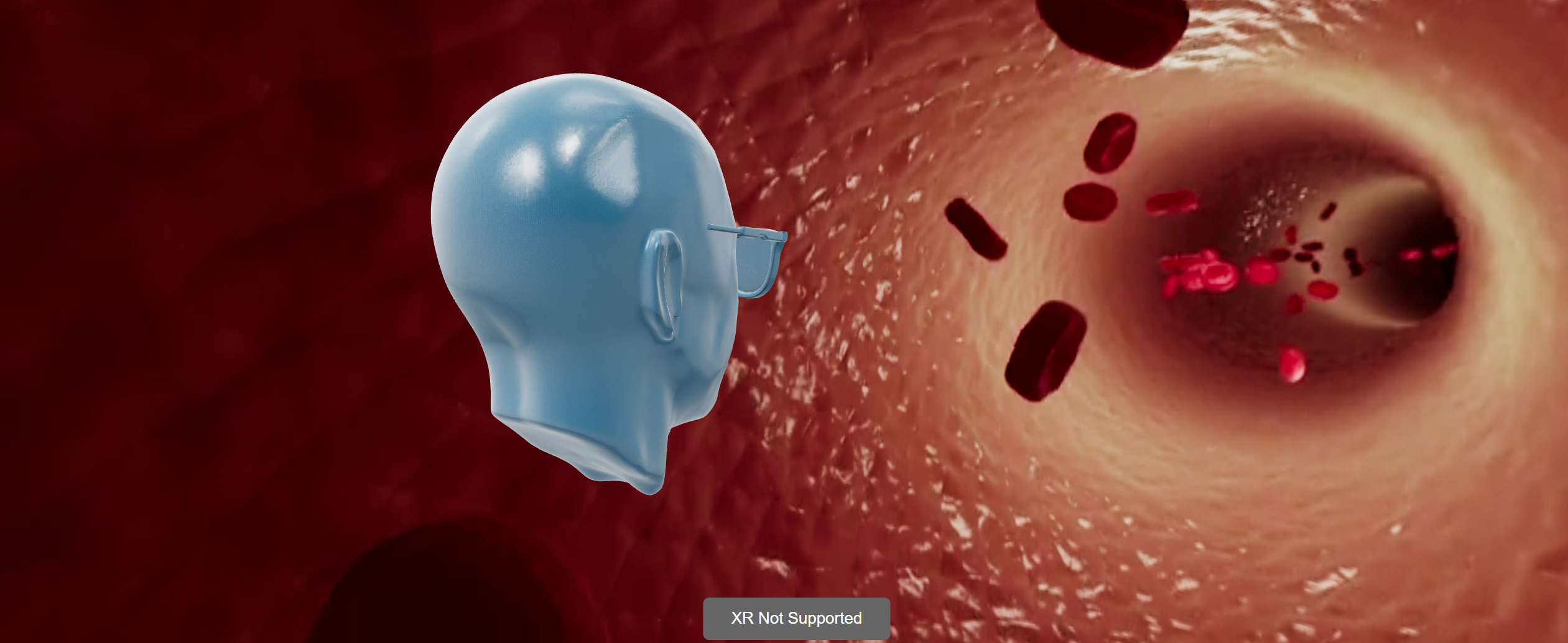
Scenes whose names end with a recognized suffix are rendered as immersive 360 spheres instead of (or alongside) a .glb model. The media file is looked up in the Videos/ subfolder first, then the project root as a fallback.
| Scene name suffix | Format | Description |
|---|---|---|
_360_stereo |
Top-Bottom stereo | Top half → left eye, bottom half → right eye |
_180_stereo |
Side-by-Side stereo | Left half → left eye, right half → right eye |
_360 |
Mono equirectangular | Single sphere, both eyes |
Supported file formats:
| Type | Extensions | Notes |
|---|---|---|
| Video | .mp4, .webm |
Browser-native only — .avi, .mkv, .mov are not supported and will be skipped |
| Image | .jpg, .jpeg, .png, .webp |
Always supported |
A 360 scene does not require a .glb file — the .osgb placeholder that Vizard creates is ignored by the WebXR runner. Scenes with no .glb and no recognised 360 media are skipped with a SKIP message in the console.
On desktop, stereo scenes show the left-eye view. In the headset, each eye receives the correct half of the image automatically via WebXR layer masking.
Augmented Reality / Passthrough Mode
Right click on a scene to set in AR Mode
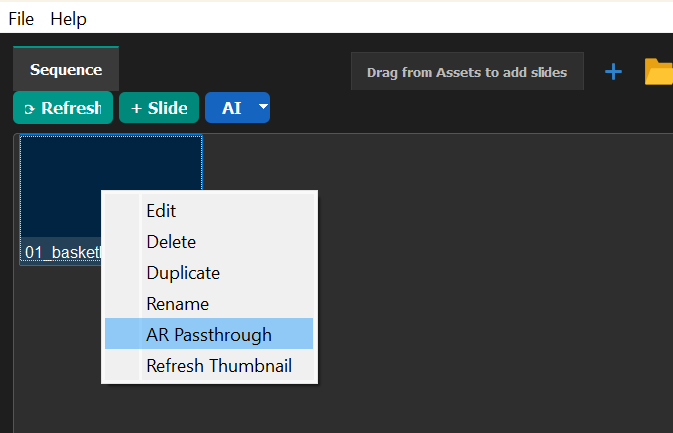
This will then use the passthrough camera on any stand alone headset, or a phone or tablet to use augmented reality
Quiz
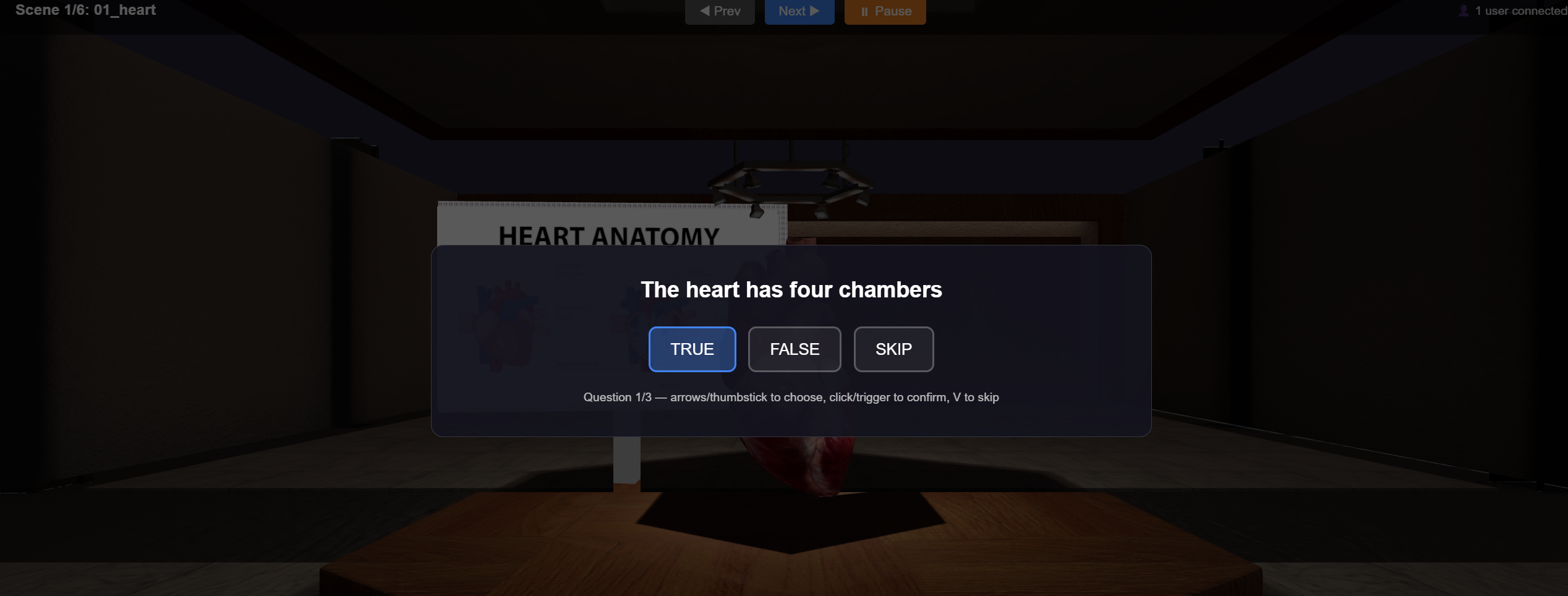
Add a multiple-choice or informational quiz to any scene. This uses the same file convention as the Vizard-only build's quiz screens (e_learning_common.py), so quiz files travel with a project regardless of which mode you run it in.
File format — Questions/<scene name>.csv or .txt:
| Type | Format | Behavior |
|---|---|---|
.csv with a Correct column |
Question, Choice1, Choice2, Choice3, Correct |
Feedback mode — a wrong answer flashes red and resets for a retry; a correct answer flashes green and advances. |
.csv without a Correct column |
Question, Choice1, Choice2, Choice3… |
Plain mode — any confirmed choice is accepted and immediately advances (no right/wrong feedback). |
.txt |
Free text, blank line between pages | Each page is shown as a single "Continue" prompt — use for instructions or informational text rather than a graded question. |
CSV columns are read by position, not by header name — every column between the question (column 1) and the Correct column (if present) is treated as a choice. In either file type, <br> inserts a line break within a question or page.
Adding a quiz to a project:
- Presentation Generator Wizard — checking Include Quiz auto-generates a quiz CSV from the lesson content and adds it as its own slide at the end of the sequence.
- Drag a quiz file onto empty space in the Scenes list (from the Quiz/Text tab) — creates a new, dedicated quiz slide (a blank scene whose only content is the quiz).
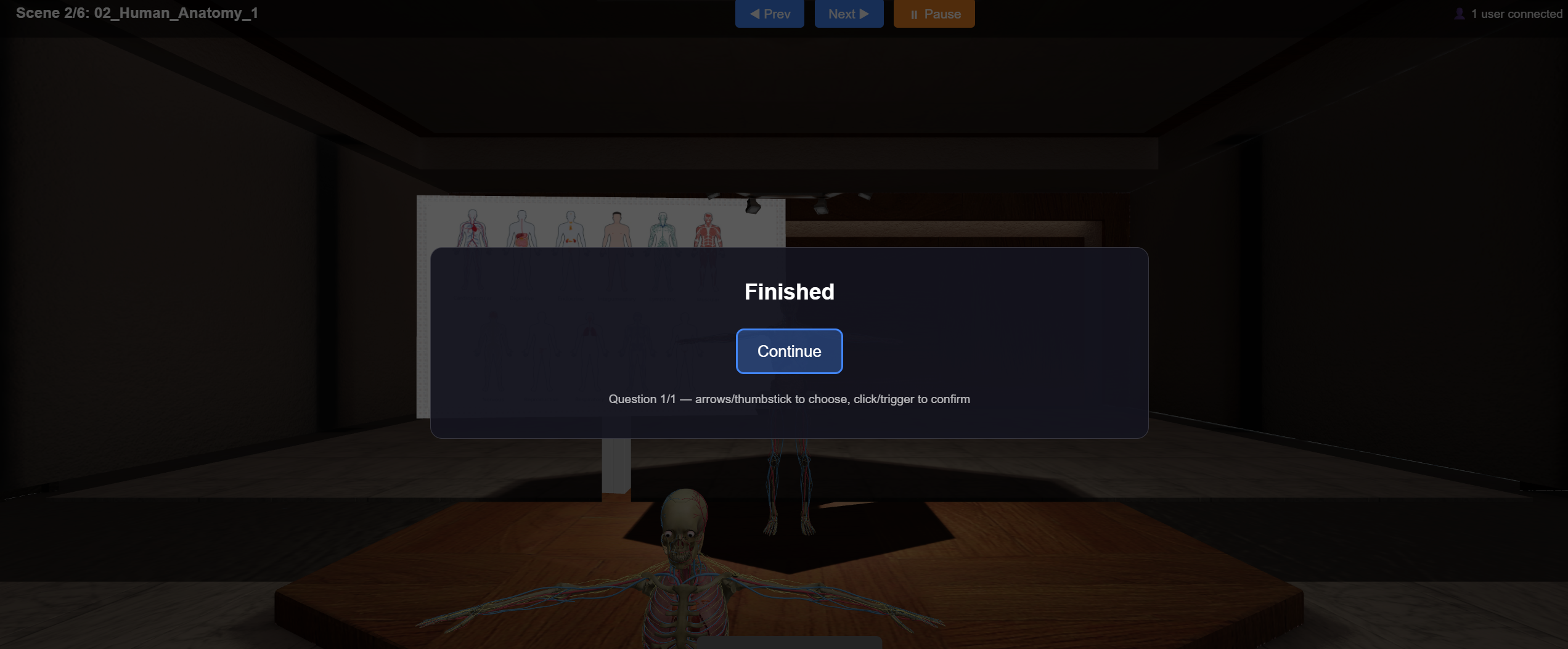
- Attach a quiz to an existing scene (Stand Alone Mode only) — drag a quiz file directly onto an existing scene's thumbnail, or right-click a scene → Attach Quiz… and pick a file. The quiz overlays on top of that scene instead of creating a separate slide, so a 3D model, 360 photo/video, or AR scene can have its own quiz layered on at the end. If the scene already has a quiz, you'll be asked to confirm before it's replaced.
Attach Quiz is Stand Alone Mode only for now — the Vizard-only quiz renders as a full-screen takeover rather than an overlay on the live scene, so "on top of an already-populated scene" doesn't apply there the same way.
Controls during a quiz:
| Input | Desktop / phone / tablet | VR headset |
|---|---|---|
| Change selected choice | ← / → arrow keys |
Right thumbstick left / right |
| Confirm selected choice | Left mouse click | Right controller trigger |
| Skip the current question | V or Next ▶ button |
Left controller Y button |
Skipping only advances the current question — it does not skip the whole scene. Normal scene navigation (Prev/Next, thumbstick movement, snap-turn) is disabled while a quiz is on screen and resumes automatically once the quiz finishes.
Notes:
- A quiz-only slide works even without a
.glb/.gltfmodel (e.g. one created before quiz slides were built as.glb) — it renders the quiz over a blank background rather than being skipped. See the.osgbscenes limitation below. - In a multi-user session, quiz progress is not synchronized — each participant answers independently on their own screen.
- Quiz answers are not yet saved/recorded by the WebXR runner (the Vizard-only build logs results to
data/*_quiz.csv); see Planned next steps below.
Quizzes can also be used as instruction slides (can take .txt or .csv formats)
Avatars
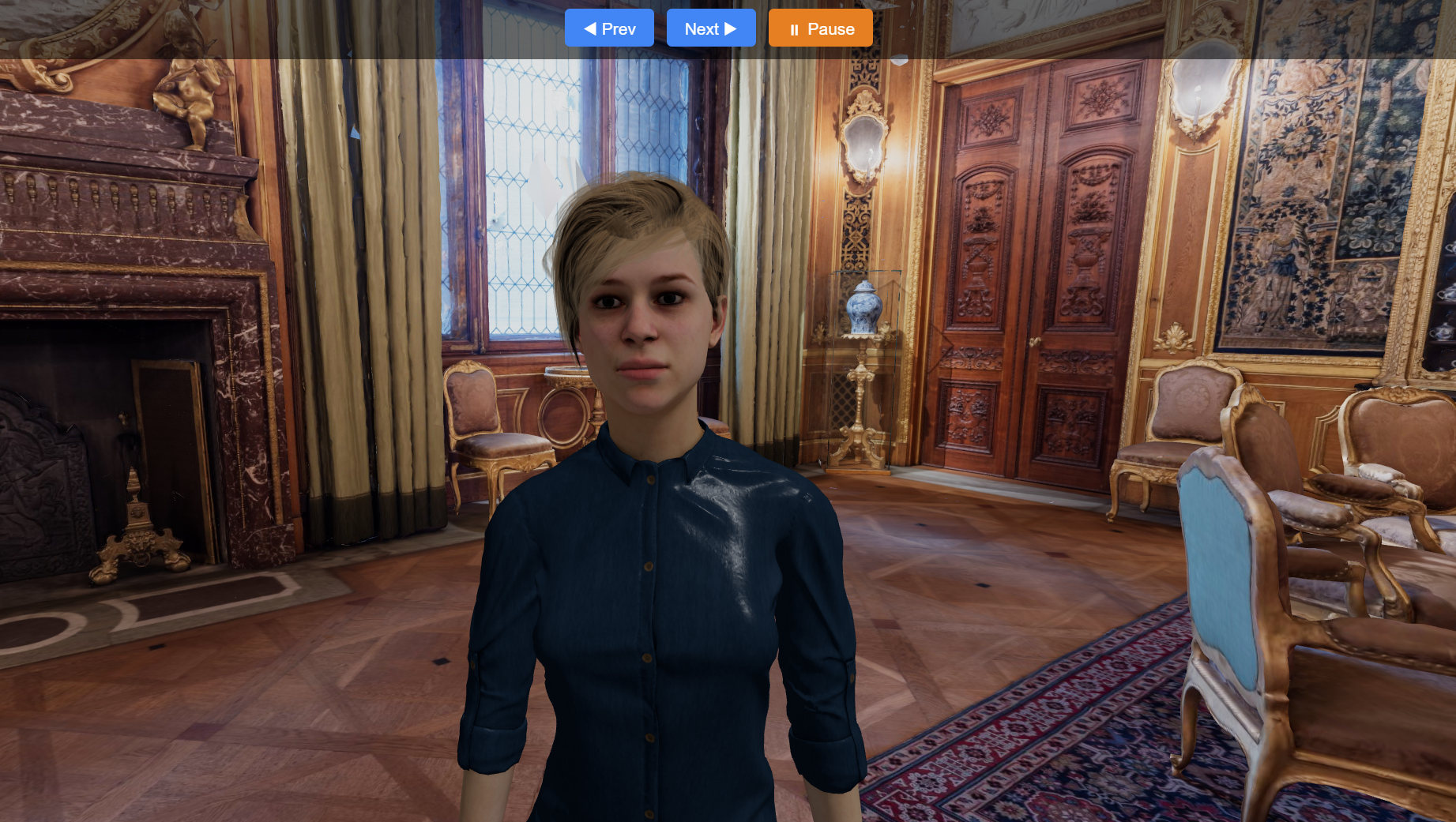
You can drag a rigged (armature-based) character directly into the Preview window (Step 2 in Authoring Workflow — the simpler path for a character that's already a self-contained .glb/.cfg) or into the embedded Blender window (Step 3) and have it detected and animated in WebXR — no manual configuration needed beyond picking which animation should play. This section covers the details that apply either way; the numbered steps below are specifically the Blender path, needed when a character requires re-exporting (e.g. attaching an armature that isn't already baked into the source file).
Adding an avatar to a scene
- Open a scene and click Edit to open it in the embedded Blender editor (see Step 3 in Authoring Workflow above).
- Drag in a rigged character — e.g. a Mixamo or Character Creator (CC)
.fbx/.glbwith an armature/skeleton — directly onto the Blender viewport. - Click Save to Project. Any armature found in the scene is automatically detected, and its top-level object is renamed with a
_tagsuffix (e.g.Armature_tag) so it flows through the same pipeline as any other interactive object — see_tagnode convention below. - Reopen the scene's Objects/Avatars panel — the detected avatar appears automatically with a 🧑 icon and a State spinbox, defaulting to
1.
Choosing which animation plays — the State number
The State number picks which animation clip plays, by position: State 1 is the first animation clip Blender exported for that avatar, State 2 is the second, and so on.
- Hover the State spinbox to see the actual clip names found in the exported
.glb. The spinbox is also capped to however many clips genuinely exist, so you can't set it past what's actually available. - If the tooltip instead says "No animation clips found in the exported .glb", the armature had no animation Action assigned to it at export time — go back into Blender, make sure the intended animation is assigned/active on the armature, then click Save to Project again.
- Clip names come straight from the source asset and aren't always descriptive — a very common one from Mixamo downloads is a clip literally named
mixamo.com(that's Mixamo's own export naming, not an error). If there's only one clip, State 1 is your only choice regardless of what it's named.
Note: Clip order is determined by Blender's own export order (roughly action/NLA-track order in the
.blendscene), not by anything in the original source file. Reordering actions in Blender can shift the State numbers — re-check the spinbox tooltip after a change like that.
How this differs from non-Stand Alone (.cfg) avatars
The Vizard-only build uses .cfg avatars with their own built-in animation numbering, driven by the avatar's own rig data — unrelated to Blender/glTF clips. If you inspect a source .fbx in Vizard's Inspector and see an animation list there, that numbering does not carry over to the Stand Alone/WebXR State number — they're two independent systems. Always use the State spinbox's own tooltip in the E-Learning Lab as the source of truth for Stand Alone Mode avatars.
Diagnostics
Two files are (re)written next to the scene's .glb, in collections/<project>/, each time you click Save to Project — useful if an avatar isn't behaving as expected:
| File | What it contains |
|---|---|
<scene>_avatars.json |
The detected avatar tag(s) and the real clip names/count found in the exported .glb — the same data the State spinbox tooltip reads from. |
<scene>_blender.log |
Blender's own console output for that session (overwritten on each Edit click) — confirms the avatar sidecar was written and surfaces any import/export errors. |
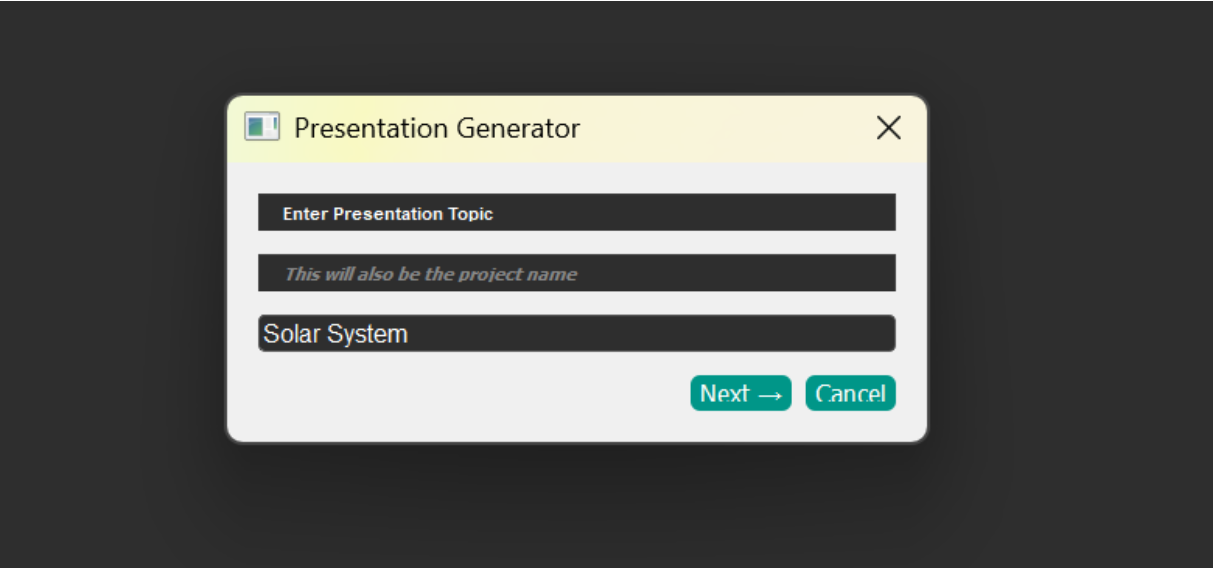
Presentation Generator
The Presentation Generator Wizard builds a complete multi-scene lesson from a topic and a set of options — no manual scene creation needed.
When stand alone mode is active it will save the slides as .glb files instead of .osgb
Multi-User
One or more VR headsets (or browsers) can view the same E-Learning presentation simultaneously — with live scene sync, shared object grabbing, and (optionally) seeing each other as avatars in the space.
Works over the same Wi-Fi network using the LAN URL, or over any network through the Cloudflare tunnel — see Connecting devices above. Both now support any number of participants.
What syncs
- Scene index — every client jumps to the same scene in real time
- Release Object transitions — server-authoritative; whichever client releases the
object, all clients advance together (no double-advancing) - Session state — waiting / started / stopped overlay shown on all clients
- Video play/pause
- Audio state
- Grabbing — a grabbed
_tagobject is locked against being grabbed by anyone else; if Collaborative Avatars is enabled (below), everyone in VR sees it move with the holder's hand in real time - Avatars & VR controllers (optional — see Collaborative Avatars below) — each connected user's head position/orientation and VR controller positions, broadcast about 10 times per second
Connection flow
- Client opens the page → WebSocket connects (a dedicated port, 8766, for LAN/direct clients; automatically shared over port 8765 for clients connecting through a Cloudflare tunnel — see Any network — Cloudflare tunnel above)
- Server immediately sends a
state_snapshot— client jumps to the current scene, and (if enabled) learns its assigned avatar color and spawn position - From then on, any scene change from any client broadcasts to all others in ~50–100 ms
- If the WS drops, the client auto-reconnects within 3 seconds and re-syncs
- If running with INSTRUCTOR_LED then only the Instructor can initiate scene changes
Session control modes
Set in the GUI under advanced or in globalConfig.py:
INSTRUCTOR_LED— only the instructor tab can navigate; student headsets followALL_CLIENT_CONTROL— any headset can navigate (current behavior)
Add ?role=instructor to the network address to make a client the instructor.
Collaborative Avatars
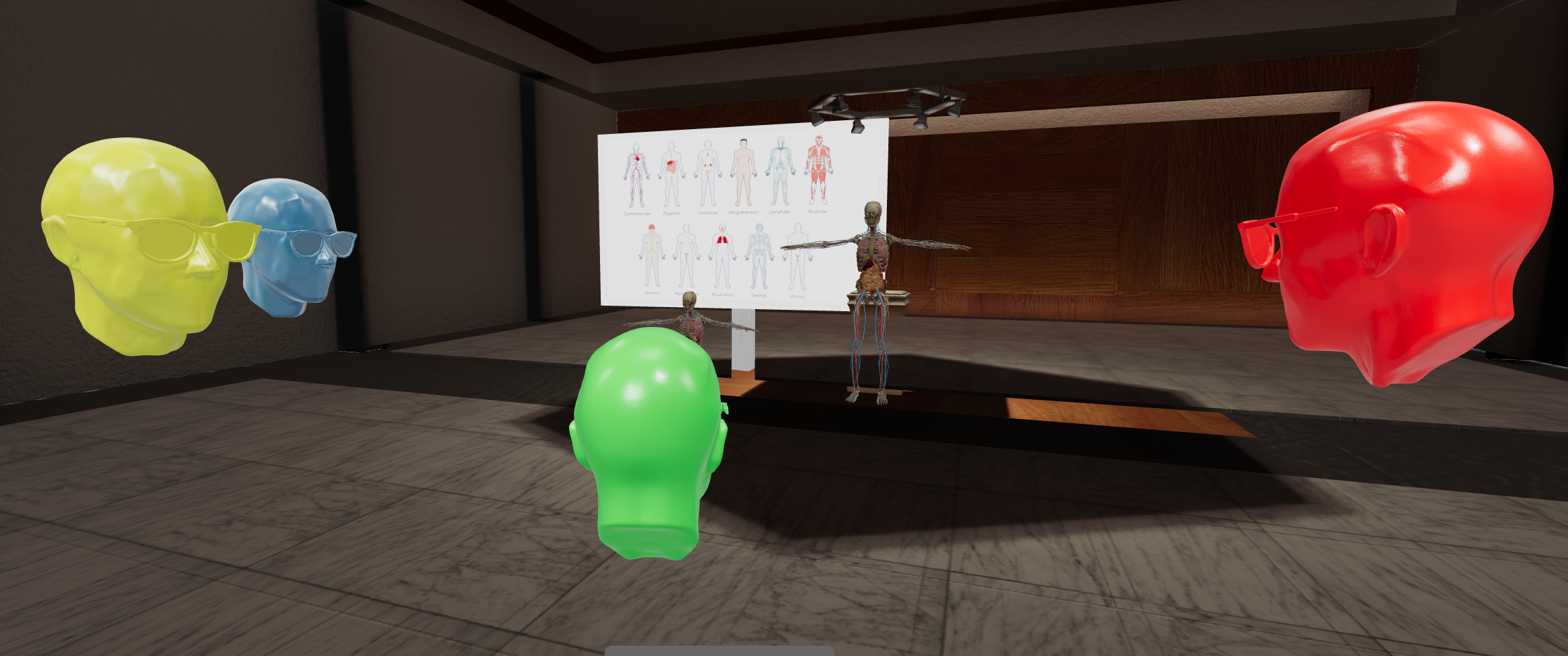
Set in globalConfig.py (requires STAND_ALONE_MODE = True):
COLLABORATIVE_SESSION = True # default
When enabled:
- The HUD shows a live "N users connected" count.
- Each connected client is rendered for everyone else as a simple stylized head avatar, tracking their real head position and orientation (yaw and look-up/down pitch).
- Each newly-connecting client is assigned a color from a fixed rotation — blue → green → red → yellow → blue… — so up to four simultaneous users are easy to tell apart at a glance. Colors are handed out in join order and aren't reused when someone leaves mid-session.
- If a user is in VR, their tracked left/right controllers are also shown to everyone else as placeholder controller models, moving in real time — so other participants (whether they're in VR or on desktop/phone) can see exactly what someone is pointing at or reaching for.
- If a user is using hand tracking instead of physical controllers (see Hand tracking under Controls above), everyone else sees a simple hand-shaped marker in their place that opens and closes with their pinch gesture, rather than the controller placeholder.
- Grabbing a
_tagobject attaches it, for every viewer, to the holder's tracked controller or hand — it visibly moves with them for the whole room, not just for the person holding it.
Set COLLABORATIVE_SESSION = False to turn off avatar/controller rendering and the HUD count. Scene sync, grab exclusivity, and everything else above still works — it's just not visualized.
Hand-tracking display (per viewer): set in globalConfig.py:
SHOW_HANDS_WEBXR = True # default
When True, a peer using hand tracking is shown to you as the hand-shaped marker described above. Set to False to always show the controller placeholder model instead, positioned by that peer's wrist — useful if you'd rather keep every participant's on-screen representation consistent regardless of which input method they're actually using. This only changes how hand-tracking peers are displayed to you, not what they broadcast — but like any globalConfig.py change, it needs a server restart to take effect (see Troubleshooting below).
Spawn Offset
Set in globalConfig.py:
SPAWN_OFFSET_WEBXR = True # default
Without this, every connecting client starts at the exact same point in the scene (world origin, or the scene's _start node) — with several people joining together, everyone spawns stacked on top of each other. When enabled, each connecting client is placed a small distance apart on an expanding spiral around that same point, so any number of users land next to each other instead of overlapping. The first person to connect still spawns at the scene's exact original point, so a solo session looks unchanged.
Set SPAWN_OFFSET_WEBXR = False to restore the old behavior (everyone spawns at the identical point).
Biopac
The E-Learning Lab can connect to a Biopac AcqKnowledge system to record physiological data (heart rate, GSR, EEG, etc.) in sync with WebXR sessions.
Check "Biopac" under the "Advanced Settings"
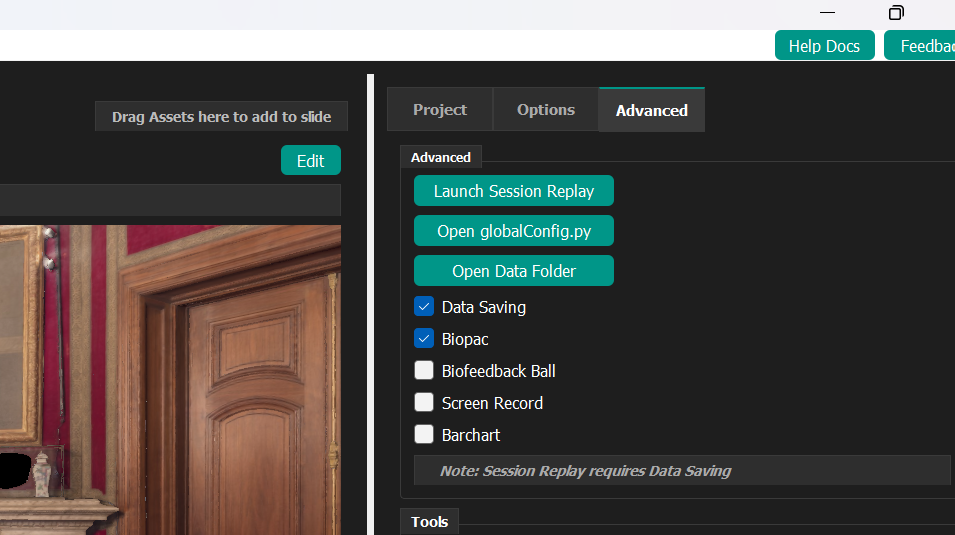
When a WebXR session is started with Biopac enabled, a companion script launches automatically in a separate window. See Session Synchronization below for how the companion controls session timing. E-Learning Lab will also automatically send events with the scene name on every scene swap.
Note: Biopac recording works alongside Data Saving (see below). Both can be active at the same time.
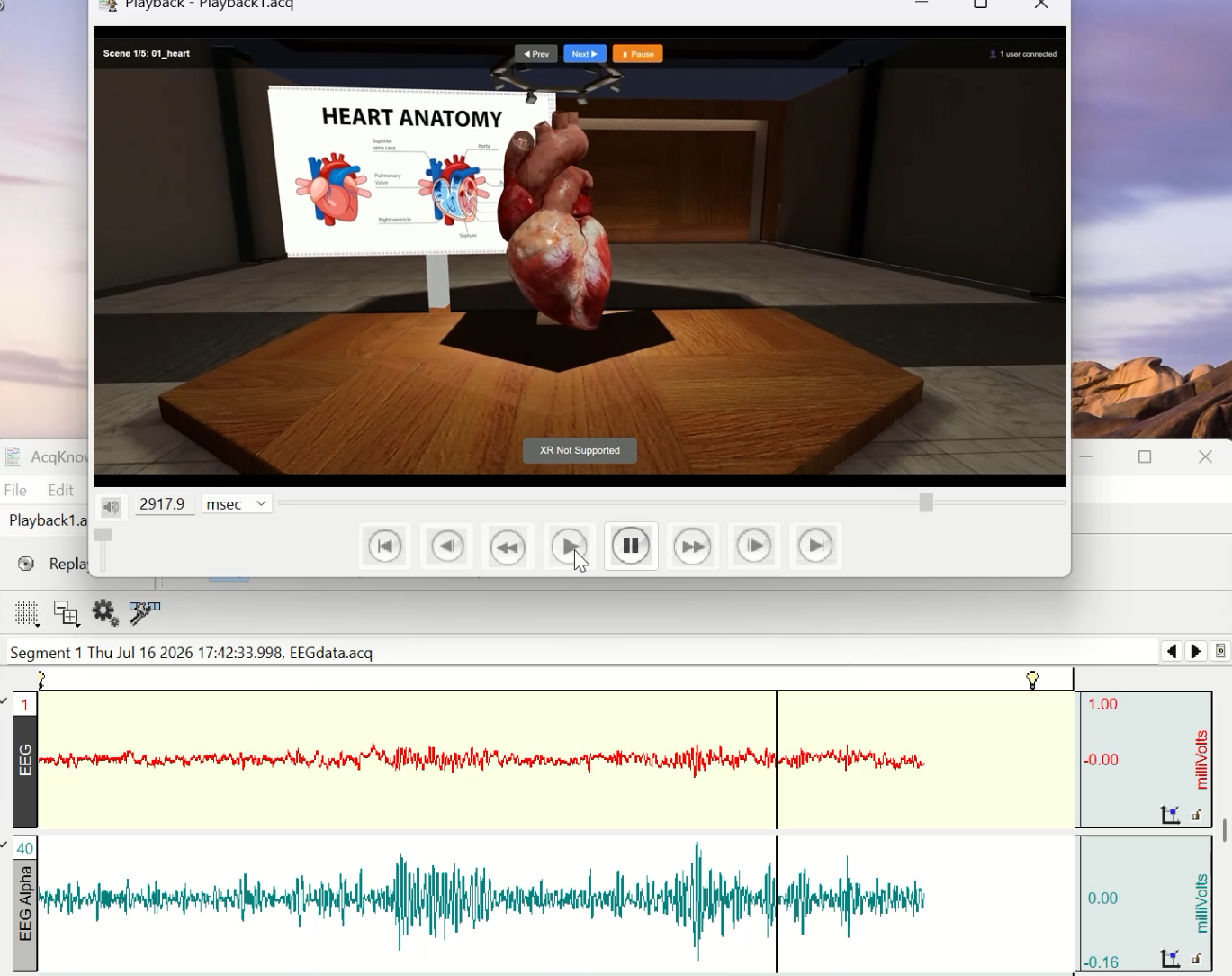
Since the stand alone version of E-Learning Lab doesn't yet support session replay, you can use the "Screen Record" option to save a video and bring it into Acqknowledge and view alongside the playback (see this page to see how that works).
Saving Data
The E-Learning Lab can save a timestamped CSV log for every WebXR session without requiring Biopac hardware.
Check "Data Saving" under the "Advanced Settings"
When a WebXR session starts with Data Saving, a companion script launches automatically. It creates a CSV file with the session date, start time, trial label, scene changes along with the same name, and any flag events recorded during the session. The CSV is saved to the project's data folder and can be opened in Excel or any data analysis tool.
There is also the option to set a label that will go into the data in the biopac_webxr_companion.py script on line 59
yield sightlab.startTrial(trialLabel="A")
See Session Synchronization below for how the companion controls session timing.
Session Synchronization
When Data Saving or Biopac is enabled, a companion script launches in a separate window on the instructor machine. It controls when the session starts and ends so that all participants and the data recording are synchronized.
Flow
- Waiting screen — As soon as the companion launches, all connected browser clients (Quest headsets, phones, tablets) show a black "Loading session…" screen. Users should click Enter VR from this screen so the headset enters VR mode while scenes download in the background.
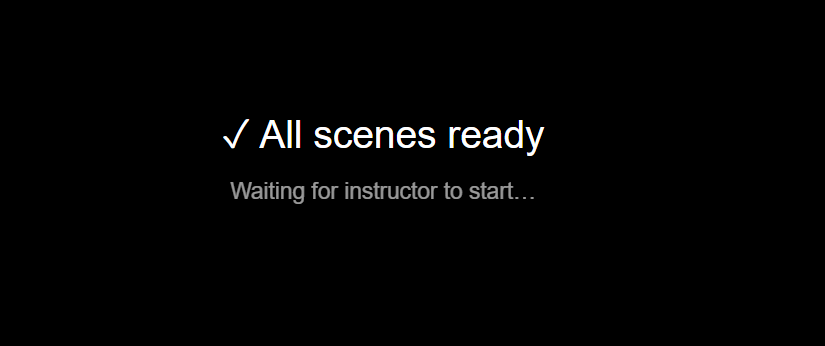
- Ready — Once scenes have finished downloading, the screen updates to "✓ All scenes ready — Waiting for instructor to start". The instructor can now press Space.
- Start — The instructor presses Spacebar in the companion window (that window must be in focus). All clients simultaneously clear the waiting screen, the recording trial begins, and AcqKnowledge starts capturing (if Biopac is enabled).
- End — The instructor presses Spacebar again. All clients fade to a black "Session ended" screen, the trial ends, and the data file is saved.
Important: The companion window must be in focus (clicked/active) on the instructor machine for spacebar keypresses to register. If the E-Learning Lab or another window is in front, the keypress will be ignored.
T key — Sync flag / custom event
While a session is running, pressing T in the companion window inserts a synchronization marker:
- Writes a
"T key pressed"event to the CSV data file - If Biopac is active, sends a Sync Event marker to AcqKnowledge at that exact moment
This is useful as a secondary synchronization method. For example, if a participant takes noticeably longer than others to load into a scene (VR scenes can take 1–2 minutes to become fully interactive after the session starts), the instructor can press T at the moment that participant is visibly ready — giving a precise timestamp to align against in post-processing.
Scene load times in VR
Even after the session starts and the waiting screen clears, VR users may experience a short delay (typically 1–2 minutes on large sessions) before scenes are fully interactive. This is normal — the 3D assets are large files and continue streaming in the background. The T key flag can be used to mark the exact moment a participant is ready if precise per-user alignment is needed.
Converting Projects to WebXR
An existing Vizard-based project can be converted for WebXR in one step. Right-click the project in the Projects panel and choose Convert to WebXR.
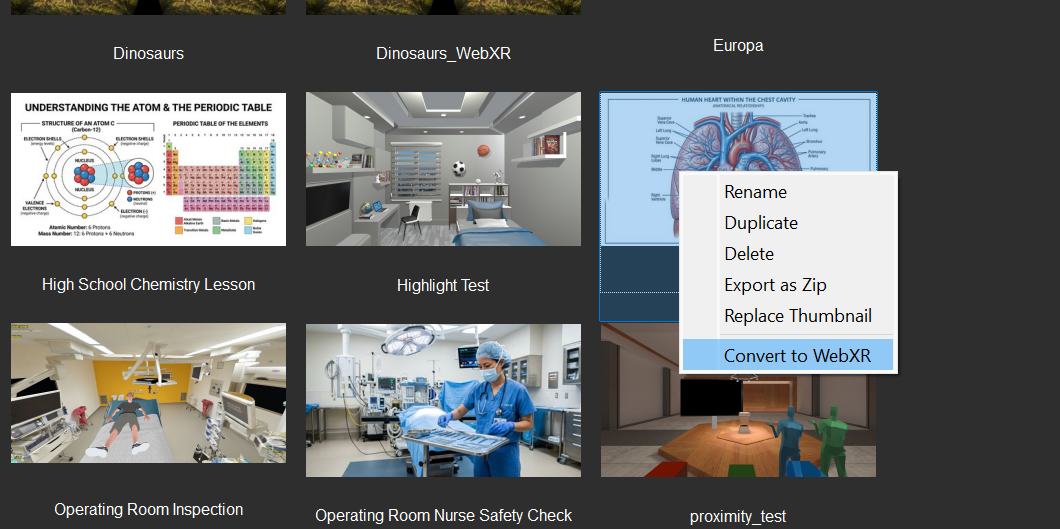
This will:
- Duplicate the project as
<name>_WebXR— the original is left completely untouched - Convert every
.osgbscene file to.glbin the copy - Convert any browser-incompatible videos (
.avi,.mkv,.mov) to.mp4if FFmpeg is available - Remove the original
.osgband old video files from the copy to save space
A progress bar shows each file as it converts. When done, the _WebXR project appears in the Projects panel and is ready to run with WebXR.
Note: Scenes that contain 3D text labels (
osgText::Text3D) cannot be converted automatically — remove the text labels in Vizard first, then re-export.
Converting Models and Videos
Convert to glb (individual assets)
Right-click any environment or object in the asset gallery and choose Convert to glb. This converts the asset to .glb using the built-in converter and saves it alongside the original as <name>_glb. The thumbnail is copied automatically. Supported source formats: .osgb, .fbx, .obj, .dae (and .glb/.gltf are simply copied).
This is useful when you want to make a single asset available in Stand Alone / WebXR mode without converting the whole project.
Video conversion
Browser playback requires .mp4 or .webm. If FFmpeg is installed (or placed in the utils/ folder), the Convert to WebXR project action converts incompatible videos automatically. For manual conversion:
ffmpeg -i input.avi -c:v libx264 -crf 23 -preset fast -movflags +faststart output.mp4
Filtering Assets
The Objects and Avatars galleries have a Type filter dropdown in the top bar. It automatically populates with the file extensions present in the gallery (e.g. .glb, .osgb, .fbx) and lets you show only one type at a time.
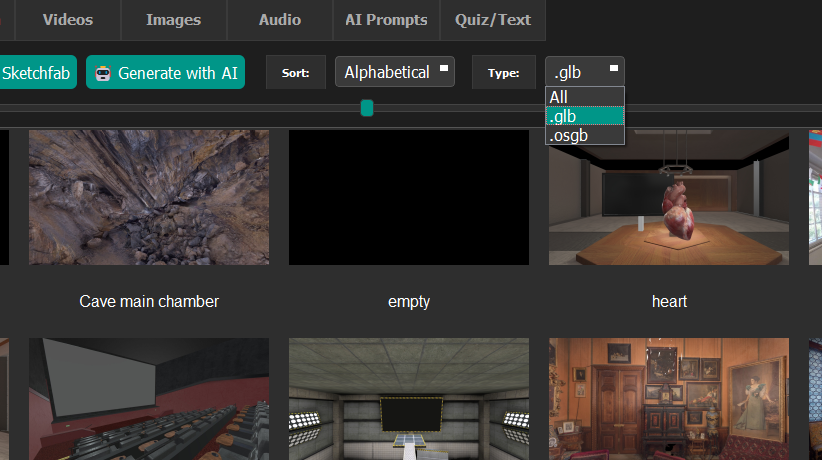
In Stand Alone mode this is particularly handy if you have both .osgb and .glb versions of assets in the gallery — select .glb from the filter to see only the WebXR-ready files.
Reference
Technical details for reference — you don't need these to get started.
What changes when Stand Alone Mode is enabled
Any action that would normally open Vizard Inspector now opens Blender instead (note: with BLENDER_EMBEDDED = True (the default) Blender will open embedded in E-Learning Lab next to the main Preview window):
| Action | Normal mode | Stand Alone mode |
|---|---|---|
| Double-click environment | Opens Inspector | Opens in Blender |
| Double-click scene object | Opens Inspector | Opens in Blender |
| Double-click avatar | Opens Inspector | Opens in Blender |
| Right-click → Edit Model | Opens Inspector | Opens in Blender |
| Preview window Edit button | Opens Inspector | Opens in Blender |
_tag node convention for interactive objects
The Scene Objects panel (the checkboxes for Grabbable, Animate, Visible, etc.) normally scans all group nodes in the loaded Vizard scene. In Stand Alone mode it filters to only nodes whose name ends with _tag. This will also now carry over to non-stand alone mode, so scenes edited in Blender will work in the non-stand alone workflow as well.
When authoring a model in Blender, name any object you want to be interactive with a _tag suffix: Note that objects dragged in will automatically be renamed with "_tag"
Chair_tag        ← will appear in the panel as "Chair_tag", can be marked Grabbable
Lever_tag        ← will appear as "Lever_tag", can be marked Animate
BackgroundWall   ← will NOT appear (no _tag suffix)
Can then check "Grabbable", "Hidden" or "Animate" in the E-Learning Lab GUI
Avatars are tagged automatically rather than by hand — any armature found in the Blender scene has its top-level object renamed with
_tagon Save to Project. See Avatars above for the full workflow and how the animation State number works.
What the WebXR runner reads from your project
- 3D environment for each scene
- 360 video for scenes named with a 360 suffix (see 360 Media Scenes above)
- 360 image for scenes named with a 360 suffix
- Standard videos and images (mono or stereo)
- Powerpoint slideshows
- Scene order and transition type (Key Press / Timer / Release Object)
- Grabbable, animate, visible object lists per scene
- Avatar animation State (which exported clip plays) per scene — see Avatars above
- Objects dropped+placed via the Preview gizmo (see Step 2 in Authoring Workflow above) — position, rotation, scale, Grabbable, Hidden, and Animate/Avatar State, plus a same-named
.glbconversion for anything not already.glb/.gltf(e.g. a dropped.fbxavatar). Target is read/saved but not acted on yet, and Highlight/Spin/MoveTo aren't read for any object yet, not just these (see Limitations below) - Per-scene audio (
.wav,.mp3,.ogg) - Whole-sequence background audio (set via right-click on an audio file in the Audio panel → Set as Whole Sequence Audio)
- Session audio loop setting
- Immersive-augmented reality
- Quiz questions (
Questions/<scene>.csvor.txt) — see Quiz above - Loop Session setting (project-level checkbox) — with it checked, reaching the last scene wraps back to the first instead of stopping, and going back from the first scene wraps to the last (applies to Prev/Next, Timer, On Media End, and Release Object transitions). Uncheck it to have the sequence simply stop at the last scene. Same setting and same behavior as the Vizard build.
Troubleshooting
| Symptom | Likely cause | Fix |
|---|---|---|
PC browser shows ERR_CONNECTION_RESET |
Server not running or still starting | Wait a moment (or a few minutes), refresh |
| PC browser shows cert warning | certutil step failed or was denied |
Run certutil -addstore -user Root <cert.pem> manually |
Quest 3 shows ERR_CERT_AUTHORITY_INVALID |
Expected on first connect | Tap Advanced → Proceed, then reload the page |
| Quest 3 shows "WebXR Unavailable" | HTTP (not HTTPS) URL used | Use the https:// LAN URL — plain HTTP can't use WebXR |
| Quest 3 controller changes slides locally but PC doesn't follow | WS connection dropped | Check WS port 8766 is open in Windows Firewall; wait for auto-reconnect |
ImportError: No module named 'websockets' |
Package not installed | pip install websockets |
ImportError: No module named 'cryptography' |
Package not installed | pip install cryptography |
| Firewall prompt appeared but rules weren't added | netsh needs admin rights |
Approve the UAC dialog for firewall rule creation |
| No avatars/controllers appear for other users | COLLABORATIVE_SESSION is False, or STAND_ALONE_MODE is False |
Set both to True in globalConfig.py and restart the server |
| Everyone spawns on top of each other | SPAWN_OFFSET_WEBXR is False |
Set it to True in globalConfig.py and restart the server |
Changed a globalConfig.py flag but nothing changed in the browser |
The server process is a long-running Python process — editing the file doesn't hot-reload it | Fully stop the server (close its terminal, or Ctrl+C) and relaunch it |
| A character avatar's animation doesn't play in WebXR (unrelated to the multi-user "No avatars/controllers" row above) | No animation clip exists at that State number, or the avatar wasn't re-saved after being dragged in | Hover the State spinbox in the Objects/Avatars panel to see what clips actually exist; if it says no clips were found, assign/activate the animation Action on the armature in Blender and click Save to Project again — see Avatars above |
Limitations & Planned Next Steps
Current limitations
- Self-signed certificate on the headset — Meta Browser requires a manual bypass each time the server IP changes (different network or new DHCP address). Once bypassed, it is remembered for subsequent visits to the same address. The PC trusts the certificate automatically (via
certutil). - 360 video formats — Only
.mp4and.webmplay in browsers. Existing.aviand.mkvfiles (e.g. from older Vizard projects) must be converted to.mp4(e.g. with ffmpeg) for WebXR playback. The Vizard runtime is unaffected and continues to use the original formats. .osgbscenes — Standard (non-Stand Alone) scenes in.osgbformat are not loadable by Three.js and will be skipped by the WebXR runner. Only.glb/.gltfscenes and recognised 360 media are served — the one exception is a scene with an attached quiz (see Quiz above), which is still included and shown over a blank background even with no.glb.- Quiz answers aren't saved yet — the WebXR runner shows live quiz feedback (correct/incorrect, retry) but doesn't record results anywhere. The Vizard-only build writes results to
data/*_quiz.csv; WebXR result logging is planned but not implemented. - No "remove quiz" option in the GUI — detaching a quiz from a scene currently means deleting the file from that project's
Questions/folder by hand. - Avatar colors are fixed, not user-chosen — the blue/green/red/yellow rotation is assigned automatically in join order; there's no way for a participant to pick their own color or be labeled with a name.
- Avatar/controller models are simple placeholders — they're not matched to a participant's actual headset or controller hardware, and don't reflect a user's real appearance.
- AI Agents — Not yet implemented
- Screencasting — Not yet implemented
- Data Saving — Limited and currently can synchronize with biopac, add labels, time stamp and flags (no eye tracking or position data)
- Presentation Generation Scenes created in WebXR may have flipped texture images when viewed in non-stand alone
- Target (gaze) has no effect in WebXR yet — checking Target in the Scene Objects panel is read and saved, but the WebXR runner doesn't currently act on it for any object (Blender-placed or gizmo-dropped alike). Grabbable and Hidden both work correctly in WebXR; Target is the one that's still purely a Vizard-only behavior for now.
- Highlight, Spin, and MoveTo don't carry over to WebXR yet — same as Target, this applies to every object regardless of how it was placed, not just ones dropped via the Preview gizmo.
Planned next steps
- AR mode multi-user — Passthrough works for single-user; multi-user AR hasn't been tested and may need additional anchor sync.
- mDNS/Bonjour discovery — Auto-discover the server on the LAN so users never have to type an IP address (removes the "note down the LAN URL" step).
- Custom/uploadable avatars — Let each participant pick a name or avatar appearance instead of the fixed color rotation.
- WebXR quiz result logging — Record quiz answers the same way the Vizard build does (
data/*_quiz.csv), likely via a new server endpoint the browser posts results to. - Target (gaze) support in WebXR — decide what a gazed-at Target object should actually do in a WebXR session (data logging, a dwell-triggered behavior, or something else) and build it.
- Highlight/Spin/MoveTo in WebXR — carry these over from the Vizard-only build the same way Grabbable/Hidden/Animate now do.
- Remove/detach quiz from the GUI — A right-click action to clear a scene's attached quiz without deleting the file manually.