Adding Avatar Agents (NPCs)
Avatars in SightLab can represent non-player characters (NPCs), animated agents, conversational AI characters, or tracked representations of participants. This page focuses on adding NPC-style avatars to a scene, positioning them, animating them, and ensuring they appear correctly in data collection and replay.
Avatars can be imported in .osgb, .fbx, .glTF, or .cfg formats and work with most common avatar pipelines.
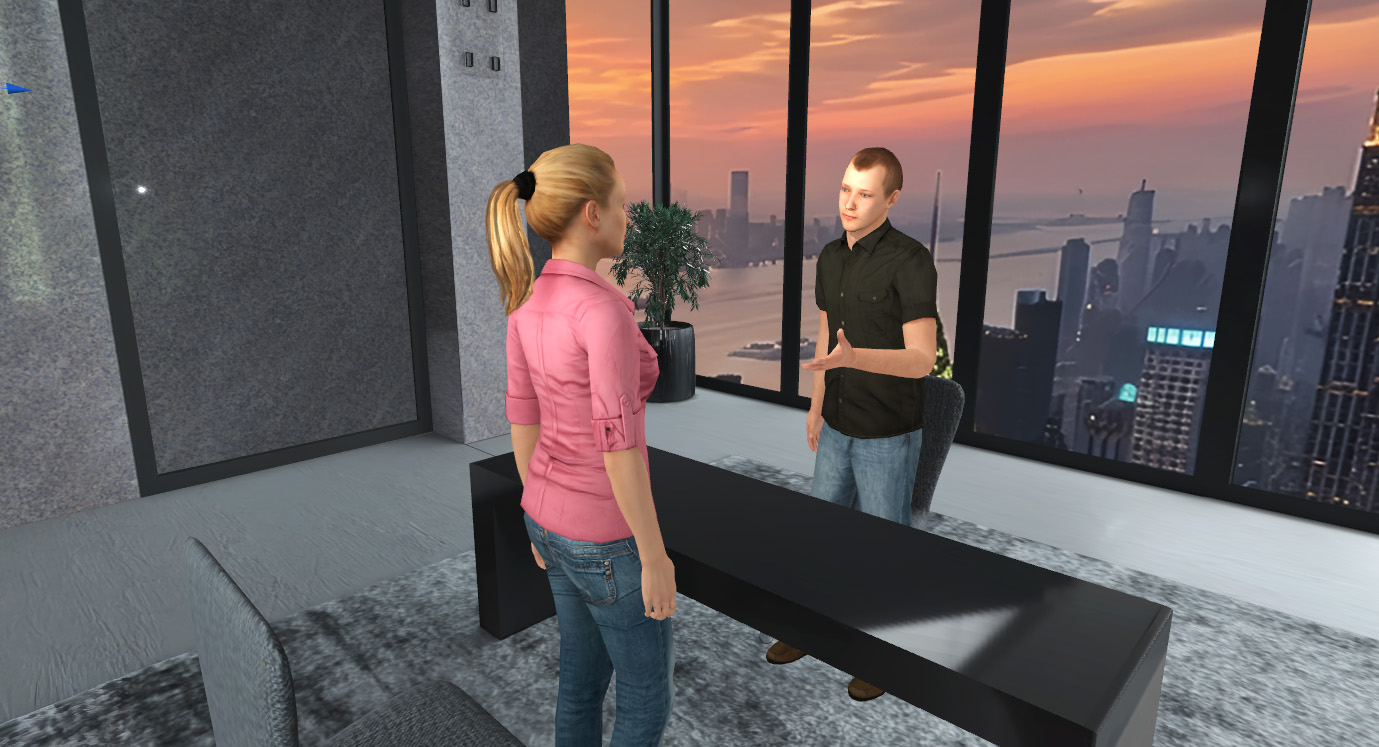
What Are You Trying to Do?
Use this table to jump to only what you need:
| Goal | Read These Sections |
|---|---|
| Show a person in the scene | Adding Avatars to Your Scene |
| Play animations on an NPC | Animating the Avatar |
| Add facial morphs | Animating the Avatar |
| Collect gaze or interaction data on an avatar | Data Collection & Replay |
| Load an avatar entirely in code | Loading Avatars in Code |
| Add a conversational AI character | AI-Enabled Avatars |
| Represent the participant's body | Tracked / Full-Body Avatars |
Adding Avatars to Your Scene
The recommended workflow is to place avatars directly in your scene using Inspector, then either use the GUI to set their animation state or reference them by name in code. No hard-coded positions or extra placement utilities needed.
Step 1 – Add the Avatar in Inspector
- Open your environment/scene in Inspector (click "Edit" in the GUI, or use the shortcut to the Inspector app)
- Use File → Add or drag and drop an avatar file into the scene
- Use avatars from the Avatars tab in the SightLab Dashboard asset browser, or any
.osgb,.fbx,.glTF, or.cfgfile - The avatar will appear in the scene graph
💡 Tip: Built-in avatars are available in the Avatars tab of the SightLab Dashboard asset browser, or you can drag and drop your own avatar files directly into Inspector.
For E-Learning Lab, you can drag and drop avatars and choose the animation state and morphs using the built-in E-Learning Lab GUI.
Step 2 – Position the Avatar
- Select the avatar's transform node in the scene graph
- Use the translate and rotate tools to place the avatar where you want it
- Save the scene
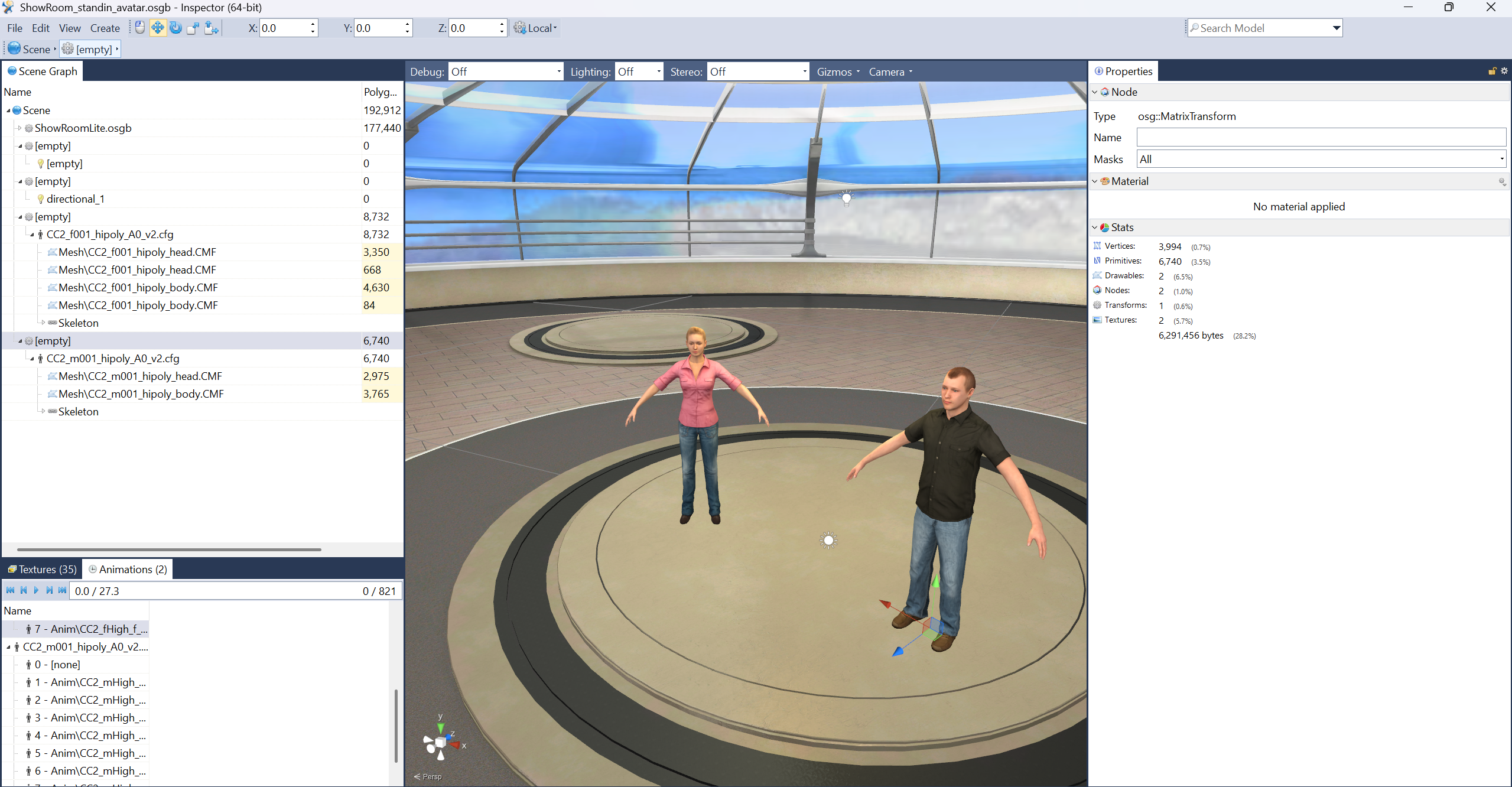
Step 3 – Set Animation State and Morphs
Option A: Using the GUI (simplest) (as of SightLab 2.8.4)
Avatars ending in .cfg will automatically appear in the SightLab GUI (can add.cfg to the end of the name for Mixamo (see below) This is the easiest way to set animation states — no code required. Simply enter the animation state number in the GUI interface in the field after the Grabbable checkbox. The avatars will dynamically update to show the animation.
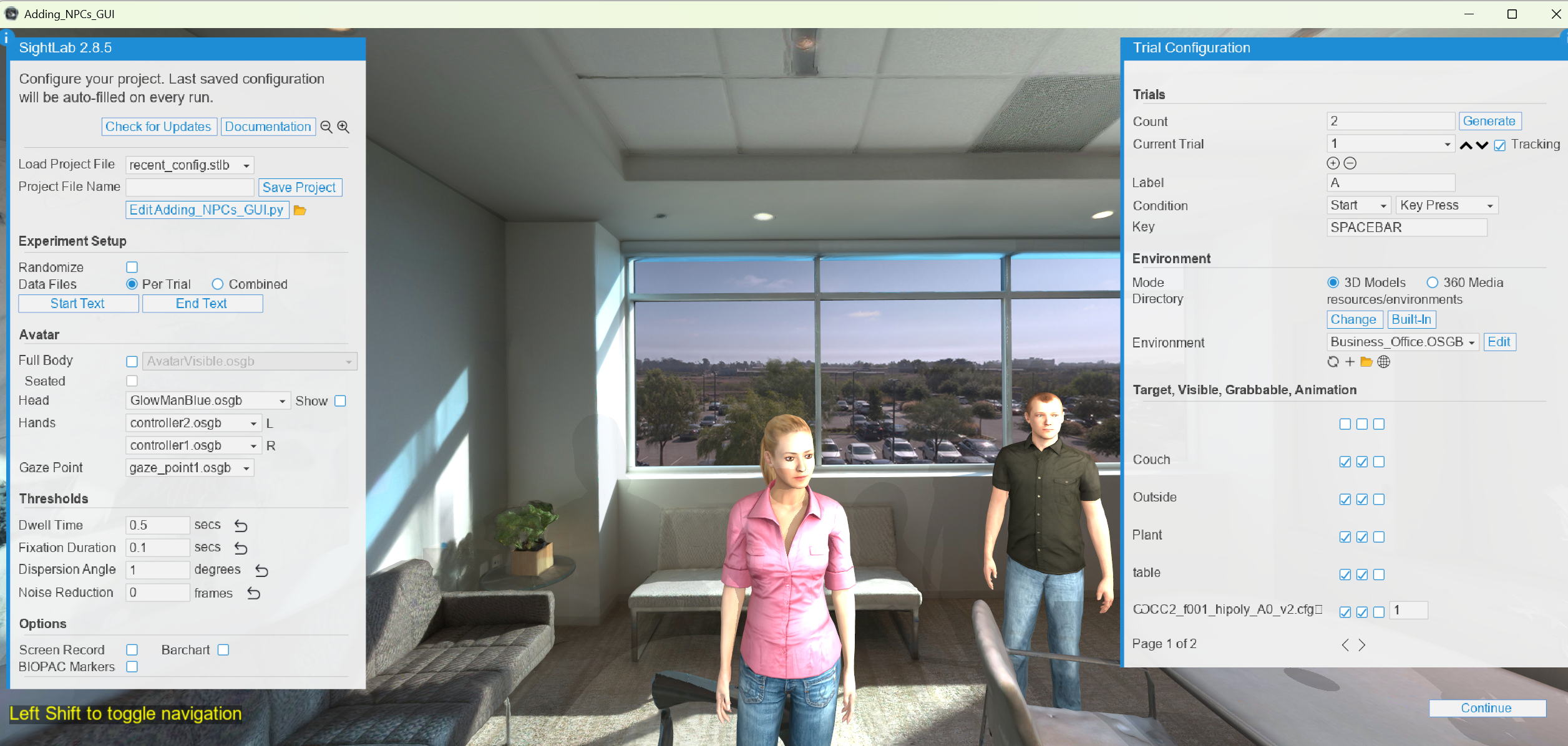
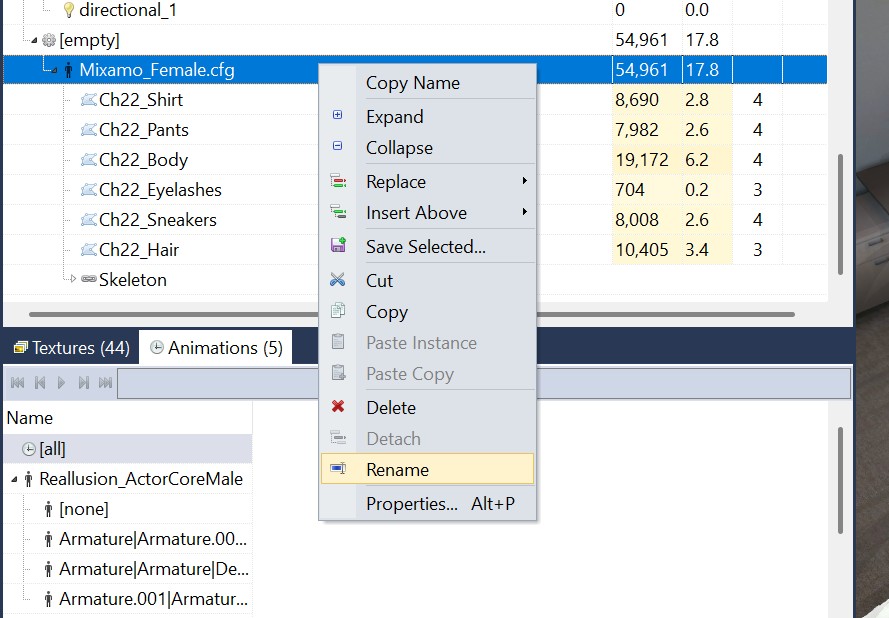
Note: The avatar's name must end in
.cfgin Inspector for the GUI to find it. If you rename the avatar, keep.cfgat the end. This works for RocketBox, Mixamo, as well as other.cfgavatars. For libraries such as Reallusion, see Loading Avatars in Code below. For Mixamo, you may need to add.cfgto the end of the avatar name in Inspector.
Option B: Referencing in code
Use env.getChild() with the avatar's file name to access it at runtime. You can find the name by right-clicking the avatar in Inspector and copying it.
env = sightlab.getEnvironment()
avatarObject = env.getChild('MyAvatar.cfg')
avatarObject.state(1)
sightlab.addSceneObject('avatarObject', avatarObject, gaze=True, avatar=True)
The state(1) call plays the avatar's first animation. See the section below for more animation options including morphs, blending, and keypress triggers.
Or, to reference in code if added via the GUI:
with just the name:
avatarObject = sightlab.sceneObjects[AVATAR_OBJECTS]['guy2.cfg']
or to access automatically
audience_avatars = list(sightlab.sceneObjects[AVATAR_OBJECTS].values())
Animating the Avatar
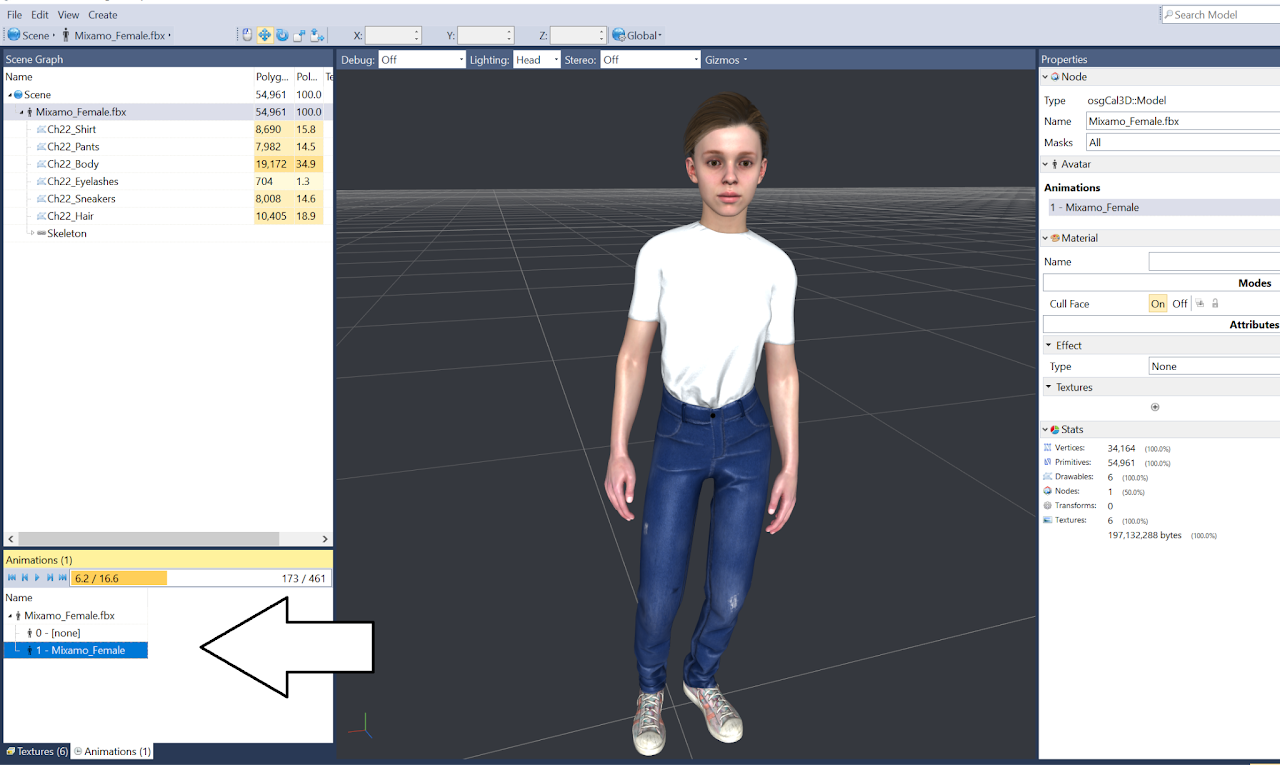
Animation indices depend on the avatar and can be previewed in Inspector's Animations tab.
Animation Examples
# Loop an animation
avatarObject.state(1)

# Play animation once
avatarObject.execute(1)

# Blend between animations
avatarObject.blend(1, 2, 0.5)  # 50% blend between state 1 and 2

# Set animation speed
avatarObject.speed(1.5)  # 1.5x speed

# Add facial morph - first number is morph to use, second is strength
avatarObject.setMorph(0, 1)
Changing Animation with a Keypress
def setStateAvatar():
    avatarObject.state(2)
vizact.onkeydown('v', setStateAvatar)
Animation Triggers
You can trigger animations based on:
- Events – Gaze enter/exit, proximity, button press
- Time – After a delay or at specific trial moments
- AI Logic – Dynamic responses from intelligent agents
Verifying an Avatar in Inspector
Before adding an avatar to your scene, you can verify it standalone:
- Right-click the avatar file → Open with Inspector, or open Inspector and use File → Open
- Select the top root node and confirm height is reasonable (≈1.6–1.8 m)
- Preview available animations in the Animations tab
- Check for facial morphs if applicable
If scaling is needed:
- Right-click the root node
- Choose Insert Above → Transform (if there is not already a transform)
- Adjust scale using the transform gizmo
Supported Avatar Sources
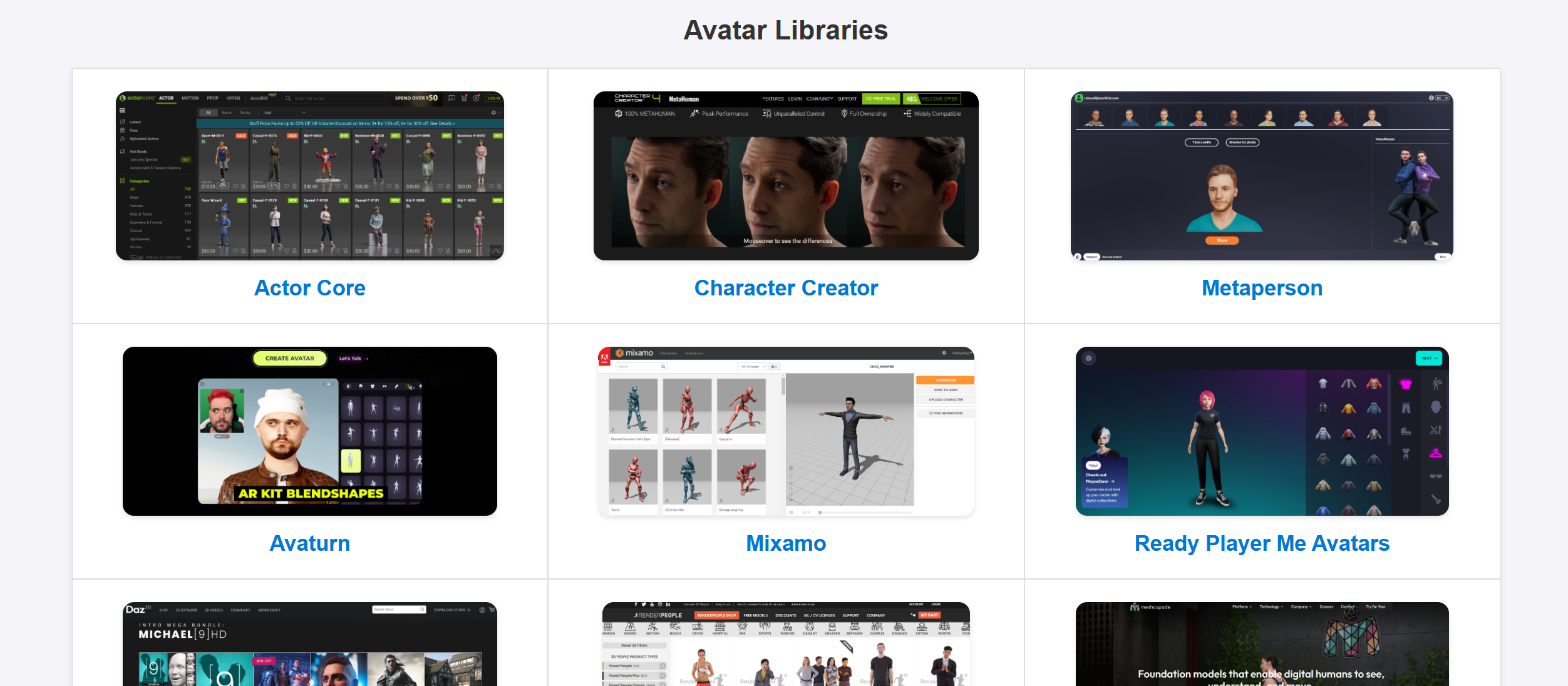
SightLab works with avatars from many common libraries:
| Source | Description | Link |
|---|---|---|
| Mixamo | Free rigged characters and animations | mixamo.com |
| Ready Player Me | Discontinued as of January 2026, but still supported | Workflow Guide |
| Reallusion | Character Creator & ActorCore library | reallusion.com |
| RocketBox | Microsoft's research avatar library | GitHub |
| Avaturn / MetaPerson | AI-generated avatars | Avaturn / MetaPerson |
📦 Browse more resources at the WorldViz Asset Browser
Included Avatars
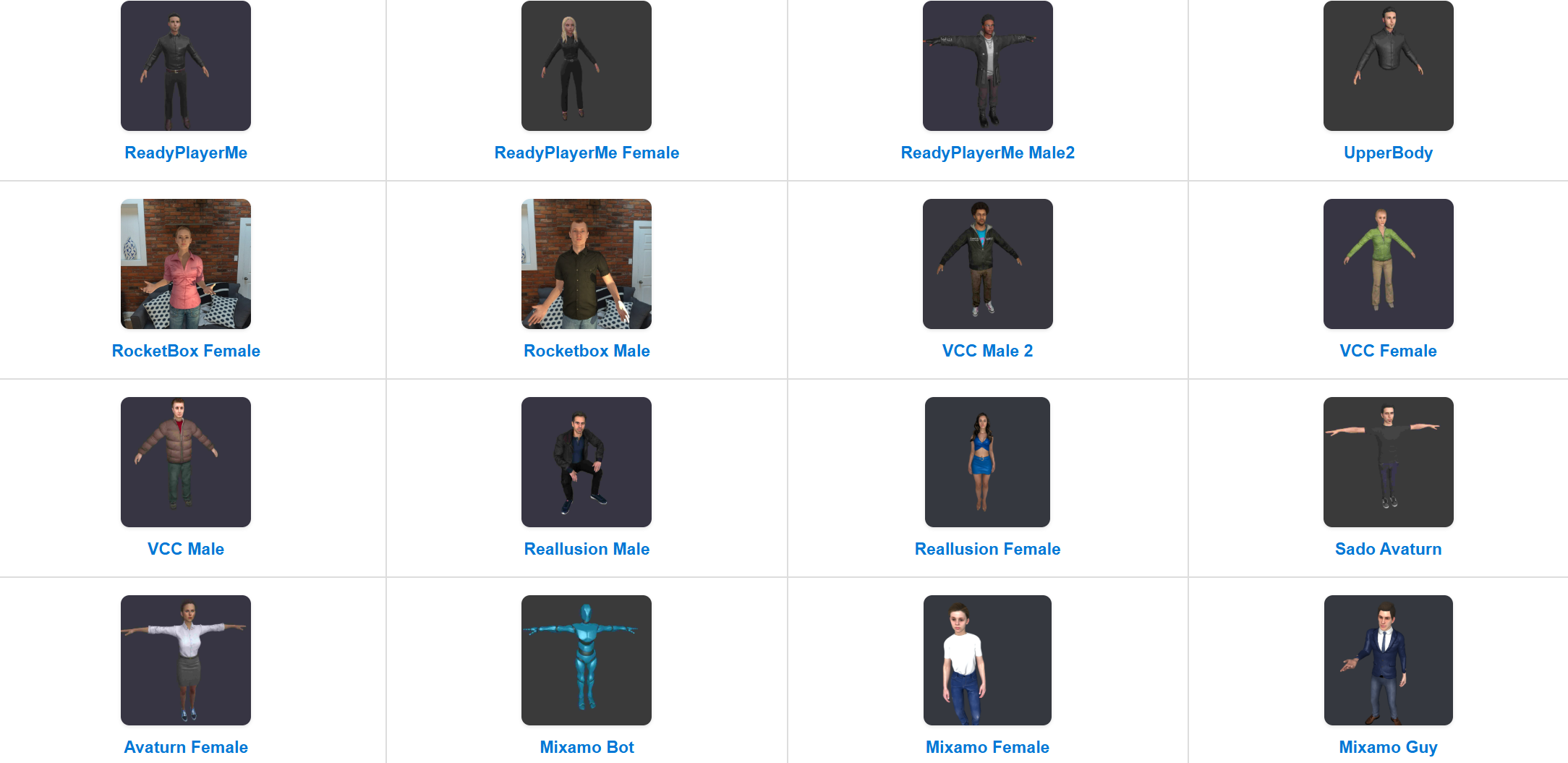
Built-in avatars can be found in the Avatars tab of the SightLab Dashboard asset browser. From there you can drag and drop them directly into your scene in Inspector.
Sample avatars also ship with SightLab in these locations:
| Path | Contents |
|---|---|
sightlab_resources/avatar/full_body |
Full-body rigged avatars |
sightlab_resources/avatar/Complete Character |
Complete character models |
sightlab_utils/resources/avatar |
Utility avatars |
Generating avatars with AI Tools
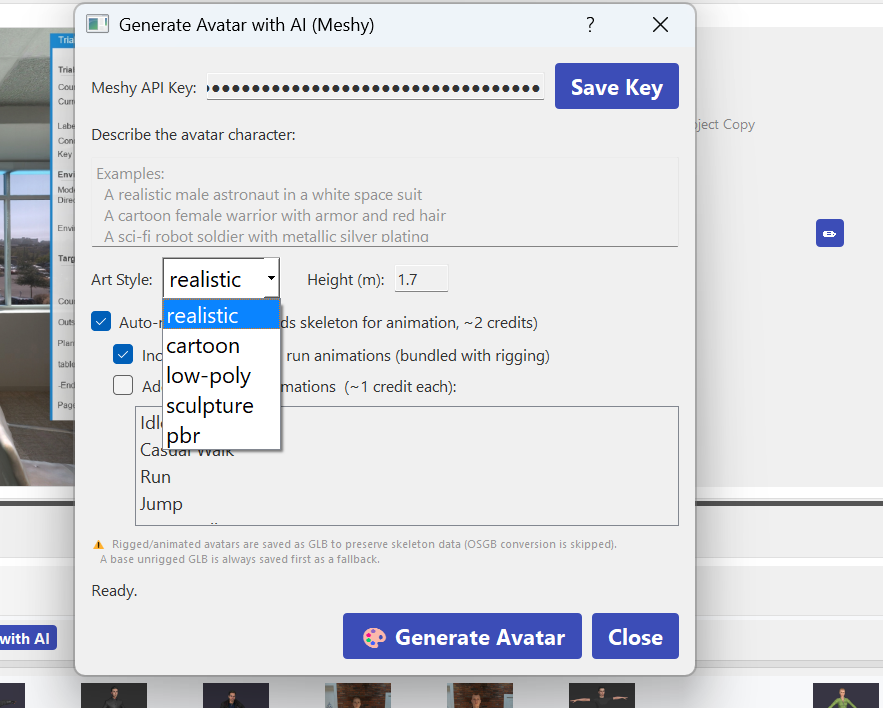
As of SightLab 2.8.9 you can now directly generate new avatars from the Dashboard using Meshy. This requires a Meshy API key to be stored.
In addition you can use online AI tools such as Meshy, Tripo 3d and 3d AI studio
Data Collection & Replay
Collecting Data on Avatars
Avatars can be treated like any other SightLab scene object for data collection:
| Metric | Description |
|---|---|
| Gaze | Where participant is looking on the avatar |
| View counts | How many times avatar was viewed |
| Dwell time | Total time spent looking at avatar |
| Interaction events | Grabs, clicks, proximity triggers |
To add an avatar to the tracked SightLab replay and track gaze data, register it with addSceneObject:
avatarObject = env.getChild('CC2_f001_hipoly_A0_v2.cfg')
avatarObject.state(1)
sightlab.addSceneObject('avatarObject', avatarObject, gaze=True, avatar=True)
⚠️ Important: Setting
avatar=Trueensures the avatar appears correctly in replay. Without this flag, the avatar may not be visible during session playback.
No additional gaze-event code is required.
Creating or Capturing Animations
Animation Tools
| Tool | Best For |
|---|---|
| Kinetix | AI-powered animation from video |
| DeepMotion | Motion capture from video |
| Rokoko | Affordable mocap suits & gloves |
| Motionbuilder | Professional animation editing |
| Mocopi | Sony's portable mocap sensors |
High-End Motion Capture
| System | Description |
|---|---|
| Xsens | Inertial mocap suits |
| OptiTrack | Optical tracking systems |
| Vicon | Industry-standard optical mocap |
Helpful References
Troubleshooting
Common Issues & Fixes
| Issue | Cause | Fix |
|---|---|---|
| Avatar too large/small | Incorrect export scale | Add transform above root in Inspector and use scale tool |
| Avatar missing in replay | Missing flag | Ensure avatar=True in addSceneObject() or check it in the GUI |
| Animation not playing | Wrong index or incompatible skeleton | Verify animation index in Inspector; check skeleton compatibility |
| Avatar in T-pose | Animation not applied | Call avatarObject.state(n) after getting the child reference |
| Avatar facing wrong direction | Rotation offset | Rotate the avatar in Inspector, or use avatarObject.setEuler(180, 0, 0) |
| Avatar floating/underground | Y-position offset | Adjust position in Inspector, or fix root transform |
| Animations jittery | Frame rate or blending issue | Check animation FPS matches; avoid rapid state changes |
| Avatar not receiving gaze data | Not registered | Ensure gaze=True in addSceneObject() or check it in the GUI |
Complete Example Script
Here is a full working example with multiple avatars, animations, facial morphs, data collection, and a keypress-triggered animation change:
import sightlab_utils.sightlab as sl
from sightlab_utils.settings import *

sightlab = sl.SightLab()

def sightLabExperiment():
    yield viztask.waitEvent(EXPERIMENT_START)
    viz.callback(viz.getEventID('ResetPosition'), sightlab.resetViewPoint)

    for trial in range(sightlab.getTrialCount()):
        yield viztask.waitEvent(TRIAL_START)

        env = sightlab.getEnvironment()

        # Add Avatar - get name from Inspector by right clicking and copying
        avatarObject = env.getChild('CC2_f001_hipoly_A0_v2.cfg')

        # Set animation state - change number to animation you want
        avatarObject.state(1)

        # Add facial morph - first number is morph to use, second is strength
        avatarObject.setMorph(0, 1)

        # To add to the tracked SightLab Replay and track gaze data
        sightlab.addSceneObject('avatarObject', avatarObject, gaze=True, avatar=True)

        avatarObject2 = env.getChild('CC2_m001_hipoly_A0_v2.cfg')
        avatarObject2.state(1)
        sightlab.addSceneObject('avatarObject2', avatarObject2, gaze=True, avatar=True)

        # Change animation state with a keypress
        def setStateAvatar():
            avatarObject2.state(2)
        vizact.onkeydown('v', setStateAvatar)

        yield viztask.waitEvent(TRIAL_END)

viztask.schedule(sightlab.runExperiment)
viztask.schedule(sightLabExperiment)
An additional example is included at:
ExampleScripts/Adding_NPCs.py
Loading Avatars in Code
If you prefer to load avatars programmatically instead of placing them in Inspector, you can do so with vizfx.addAvatar():
avatar = vizfx.addAvatar('sightlab_resources/avatar/full_body/RocketBox_Male1.osgb')
avatar.setPosition(0, 0, 2)
avatar.state(1)
sightlab.addSceneObject("avatar", avatar, gaze=True, avatar=True)
Stand-In Avatar Method (Legacy)
For code-loaded avatars that need visual placement, you can use the stand-in method with avatarPlacer:
- Add
standInAvatar.osgb(fromsightlab_resources/objects) to your scene in Inspector - Position the stand-in where you want the avatar
- In code, use
avatarPlacerto place the real avatar at the stand-in's location:
from sightlab_utils import avatarPlacer

env = sightlab.getEnvironment()
avatarPlacer.place(env, avatar, 'avatarStandin')
To hide the stand-in during replay:
def onTrialChanged():
    env = replay.getEnvironmentObject()
    env.getChild('avatarStandin').alpha(0)

viz.callback(TRIAL_LOADED_EVENT, onTrialChanged)
onTrialChanged()
Adding Face View
See this example for how to automatically have avatars look at the user:
NECK_BONE = 'Bip01 Neck'

# Discover avatars (GUI-added ones live in sightlab.sceneObjects[AVATAR_OBJECTS])

audience_avatars = list(sightlab.sceneObjects[AVATAR_OBJECTS].values())

# Lock necks so the idle animation doesn't fight the lookAt call

for av in audience_avatars:

  neck = av.getBone(NECK_BONE)

  if neck:

    neck.lock()

# Make each avatar's neck track the participant's head position

def faceView_all():

  view_pos = viz.MainView.getPosition()

  for av in audience_avatars:

    neck = av.getBone(NECK_BONE)

    if neck:

      neck.lookAt(view_pos, mode=viz.AVATAR_WORLD)

faceview_timer = vizact.ontimer(0.05, faceView_all)

# ...later, to stop:

vizact.removeEvent(faceview_timer)
Related Pages
- AI-Enabled Avatars — Conversational / AI characters
- Tracked / Full-Body Avatars — Participant-tracked bodies
More information on the Vizard documentation for Avatars