Running on a Projection Wall - Observer or Single User
Display Options for Projection Systems
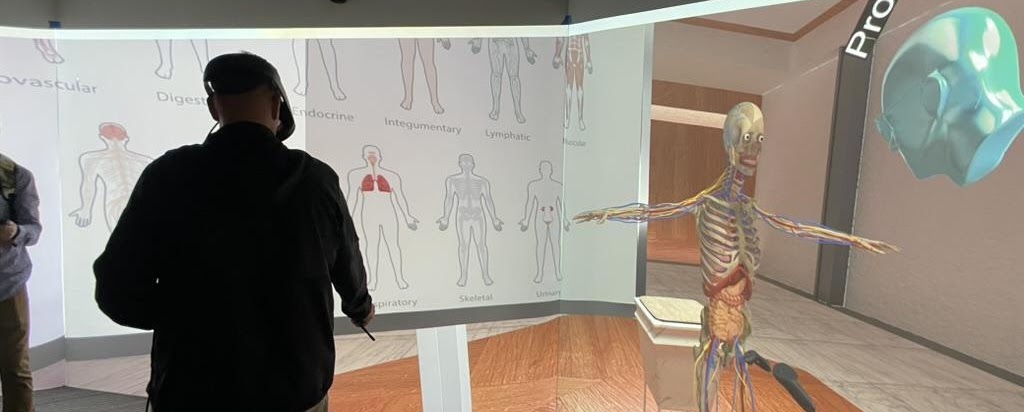
When running a VR session on PRISM or a projection wall, there are two primary display approaches:
- Observer (Bird's-Eye) View — A free-flying camera that observes one or more users from an external perspective.
- First-Person View — Displays exactly what a participant sees (single user or a selected client).
Both options work on standard desktop systems connected to projection or PRISM displays.
Running a Bird's-Eye / Observer View (Multi-User)
The observer view works well for classroom demonstrations, research observation, public presentations, and multi-user experiment monitoring.
E-Learning Lab Configuration
- Open the
globalConfigfile. - Set
LOCAL_VIZCONNECT = True. - Navigate to
local_vizconnects/vizconnect_config_projection.py. - Modify the displays section to match your projector layout and resolution.
Projection options include Projection 2D, Projection 3D, or Projection 6 Wall 2D for CAVE systems (requires Vizard Enterprise and the Cluster Master Tool).
Step-by-Step Setup
- Start the server — Launch the E-Learning Lab Instructor.
- Start participant clients — Run the appropriate client scripts for VR users.
- Launch an additional client for PRISM/projection — On the computer driving the display system, run one additional client connecting to the same server.
- Select client environment — Choose Empty (no visible avatar) or Security Camera (visible camera object).
- Choose hardware type — Select Projection 2D, Projection 3D, or Projection 6 Wall 2D.
Navigating the Observer View
Movement & rotation:
- W / A / S / D — Move forward, left, backward, right
- Z / X — Move down / up
- Q / E — Rotate left / right
Utility controls:
- R — Reset viewpoint
- Shift — Lock/unlock movement
- / — Take a screenshot
- . (period) — Toggle overlays (timers, view counts, trial info)
- F2 — Toggle fullscreen mode
Fullscreen may apply to only one monitor. For PRISM systems, manually stretch the window across displays.
Running a First-Person or Single-User Projection View
For single-user scenarios without a server/client architecture:
- Run E-Learning Lab in Single or Instructor Mode (or as an additional Client).
- Choose Desktop as the hardware type.
- Connect the output to PRISM or the projection system.
This mode mirrors the participant's first-person view directly onto the projection display.
Running a 3D Projection Wall (Advanced Setup)
For stereo or multi-display projection systems, use a custom vizconnect configuration. See Custom Hardware Configurations.
Best Practices & Tips
- Use Observer Mode for teaching, demos, and research monitoring.
- Use First-Person Mode for immersive presentations.
- Disable overlays for clean public displays.
- Test fullscreen behavior before live demos.
- For large PRISM systems, ensure GPU output alignment matches projector mapping.