AI Intelligent Agent
Overview
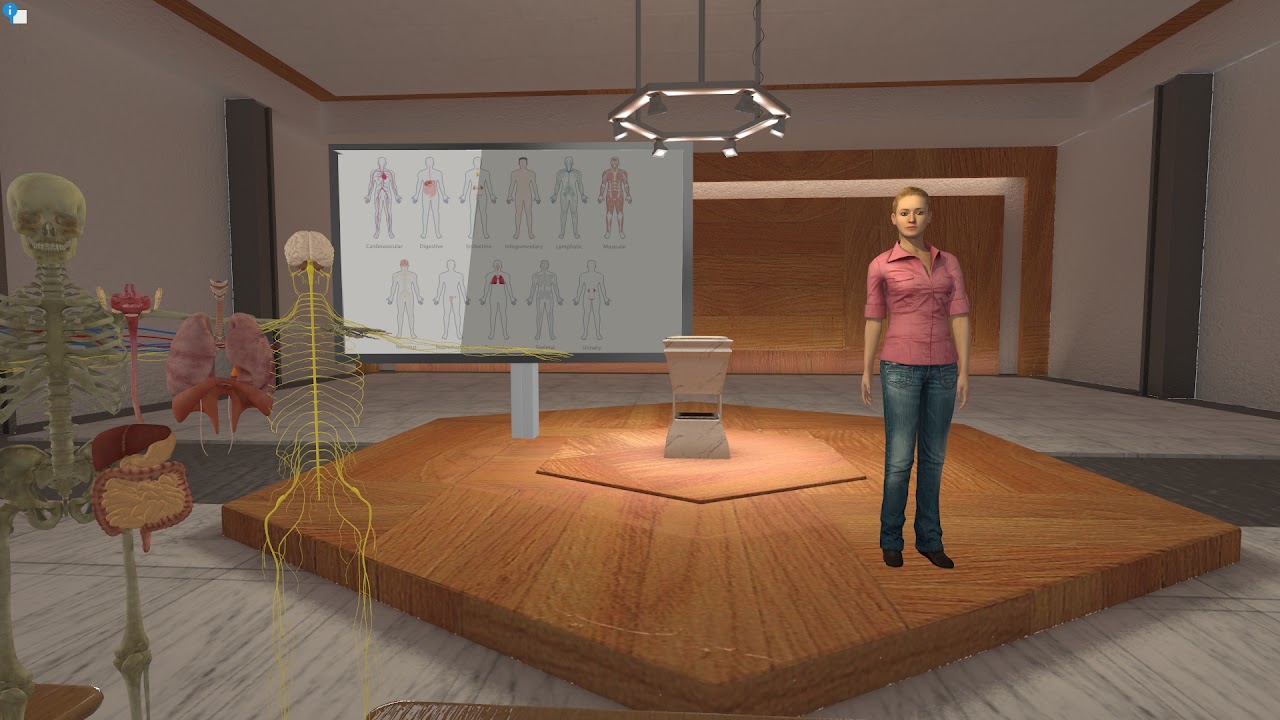
The AI Intelligent Agent is an interactive tool within E-Learning Lab that enables real-time conversation with large language models like ChatGPT, Claude, Gemini, and offline Ollama models. You can customize the agent's personality, leverage speech recognition, and use high-quality text-to-speech.
How to Run
Basic Interaction
- Toggle AI Agent Assistance and Speech Recognition in the Options tab.
- Hold the 2 key (desktop) or RH B button (VR) to speak; release to stop.
- If
INTERRUPT_AIis enabled, press 2 or RH B to interrupt and speak again. - Without speech recognition, press 2 to open a text chat window.
- Type
qand click OK to end conversations. - Use the laser pointer to click objects for information.
Placing in Scene
There are three ways to position the AI Agent in a scene, in order of simplicity:
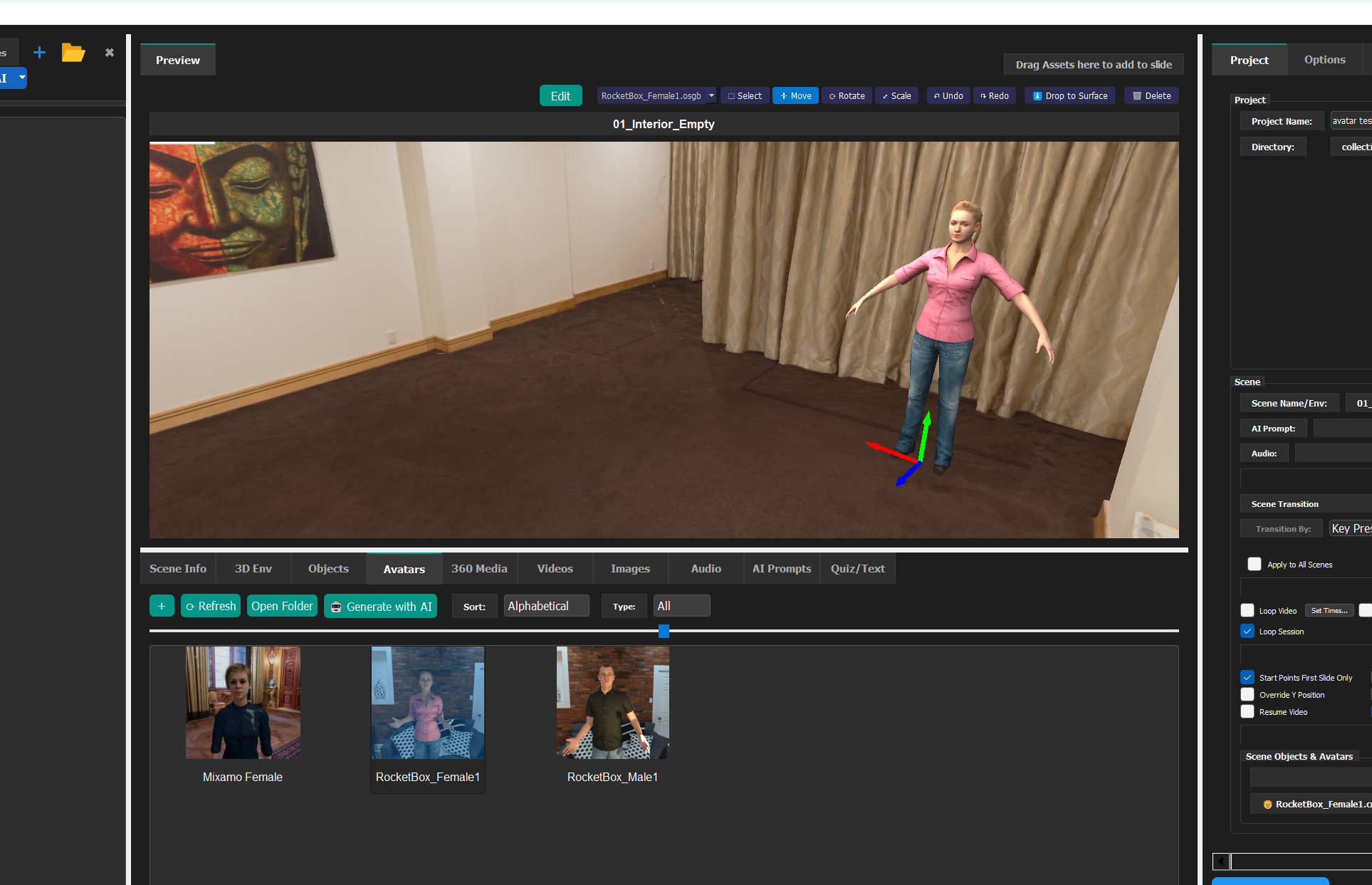
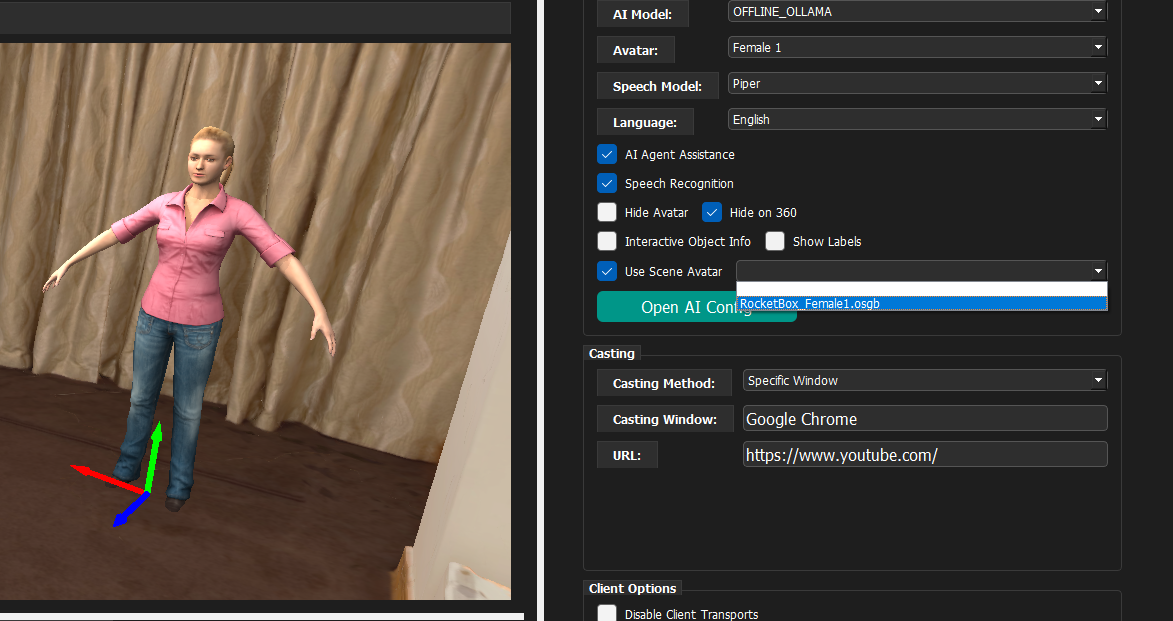
- Drag a custom avatar into the Scene Editor — Drag any avatar into the Scene Editor preview and position it with the Move / Rotate gizmo. Then in Options > AI Agent, check Use Scene Avatar and choose that avatar from the dropdown. This sets the AI Agent's position, rotation, and appearance in one step; AVATAR_MODEL (Male/Female) still determines the voice/TTS.
- Drag the start point into the Scene Editor — Drag the
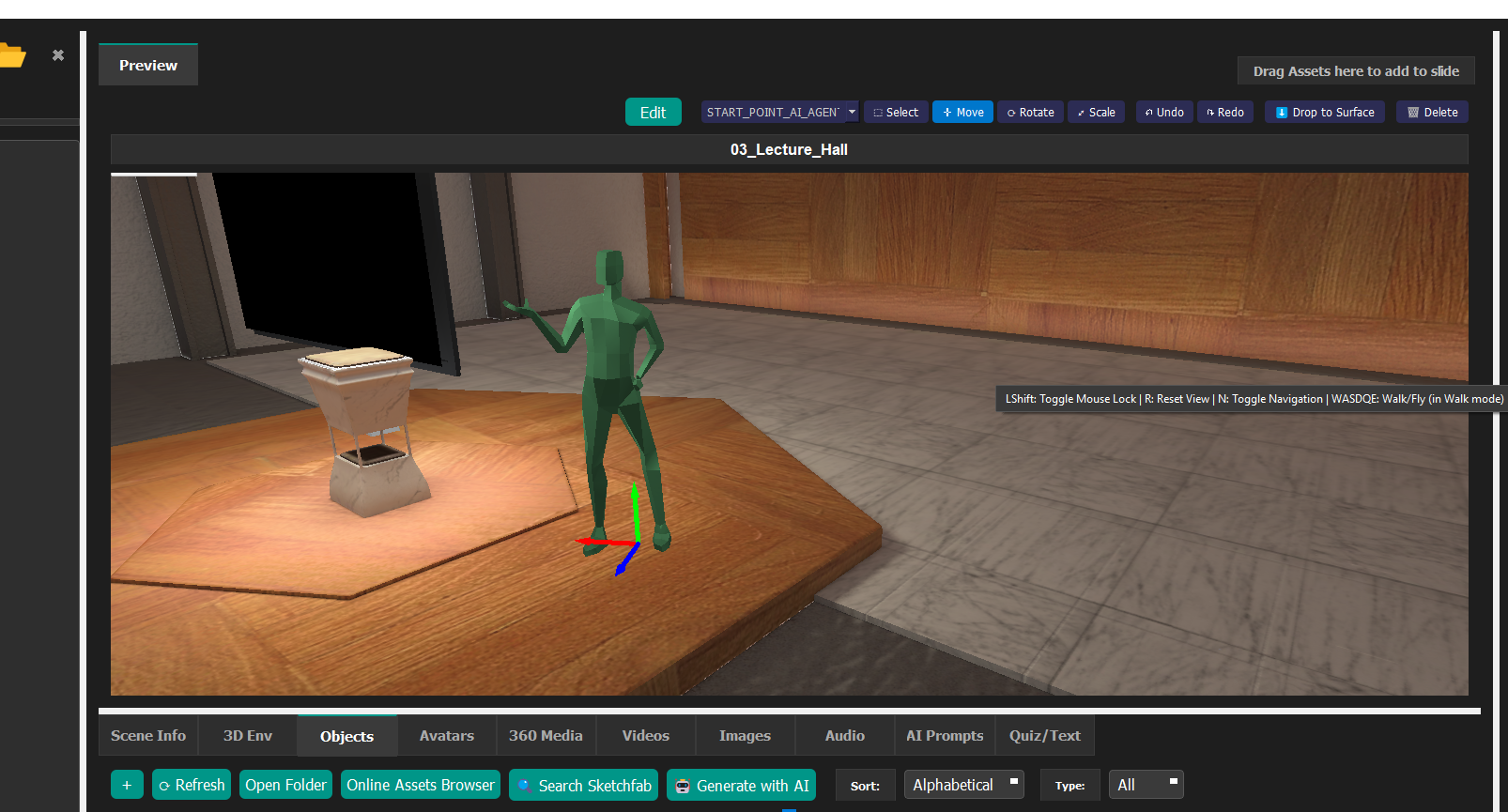
START_POINT_AI_AGENTmarker into the Scene Editor preview and position it with the Move / Rotate gizmo. This only sets where the built-in avatar (chosen via AVATAR_MODEL) spawns, without changing its appearance. - Use Inspector — Open a slide in Inspector, use File > Add to place
START_POINT_AI_AGENT, then position it with the move and rotate tools. This is the least simple option, but bakes the start point permanently into the scene file.
Key Features
- Real-time conversation with custom AI models in VR/XR simulations
- Support for OpenAI, Anthropic, Gemini, and offline Ollama models
- Customizable avatar appearance, animations, and environment
- Personality and contextual awareness customization
- Speech recognition for voice interaction, or text-based input
- High-quality voices from OpenAI TTS, Eleven Labs, or offline Piper
- Adaptive learning through conversation history
- Multi-language support via Piper language packs (see Setting the Language)
Configuration
Access configuration under the Options Tab > AI Agent section:
- AI_MODEL — Choose CHAT_GPT, CLAUDE, GEMINI, or Offline Ollama
- AVATAR_MODEL — Select Male or Female; also sets the voice/TTS used even when Use Scene Avatar is enabled
- Use Scene Avatar — Use an avatar dragged into the scene instead of the built-in model; pick which one from the dropdown (see Placing in Scene)
- SPEECH_MODEL — OpenAI TTS, Eleven Labs, Piper, or Pyttsx3
- AI Agent Assistance — Toggle agent availability
- Speech Recognition — Toggle between voice or text input
Adding Custom Knowledge Sources
From Windows Explorer
Name files with _knowledge in the filename:
my_notes_knowledge.txtHeart_anatomy_knowledge.pdflesson_knowledge.md
Drag files onto the preview panel; they save to collections/<project>/Knowledge/<scene_name>_knowledge.<ext>.
From Within the App
Drag .txt files with _knowledge in the Prompts tab onto the preview panel to route them to the Knowledge folder.
Adding Custom Prompts
- Select the Prompts tab.
- Add new text files or select existing prompts.
- Right-click and select Add to Scene, or drag into the preview window.
Prompts appear on the Scene tab in the Projects panel.
API Key Setup
Obtaining API Keys
OpenAI (ChatGPT and Text-to-Speech)
- Visit openai.com.
- Sign up or log in.
- Navigate to the API section.
- Click Create a new secret key and copy it.
- Purchase credits (roughly $5 minimum recommended).
- Adjust usage limits in the Usage section.
Eleven Labs (Text-to-Speech)
- Log in to elevenlabs.io.
- Click the profile icon (top-right).
- Click the eye icon next to the API Key field.
- Copy the API key.
- Save it to
elevenlabs_key.txtin the root SightLab folder.
Anthropic
- Visit console.anthropic.com/login.
- Sign up or log in.
- Complete the sign-up form with email and use-case details.
- Verify your account via the confirmation email.
- Log in and navigate to the API section.
Gemini and Gemini Ultra
- Visit aistudio.google.com/app/apikey.
- Install
google-generativeai:install -q -U google-generativeai - Reference the Google AI Python Quickstart for setup details.
Setting API Keys in Windows
Open Command Prompt and enter:
setx OPENAI_API_KEY "your-api-key"
setx GEMINI_API_KEY "your-api-key"
setx ELEVENLABS_API_KEY "your-api-key"
setx ANTHROPIC_API_KEY "your-api-key"
Troubleshooting
- Microphone/audio issues — Ensure microphone and sound output device settings are consistent (both headset or both computer).
- Eleven Labs character limit — Free accounts have a 10,000 character limit; paid accounts offer higher quotas.
- ffplay error — Install ffmpeg and add it to the Vizard environment path (gyan.dev/ffmpeg/builds).
- mpv player error — Install mpv and add it to the Vizard environment path (mpv.io/installation).
- Gemini quota error — Switch to
gemini-1.5-flash-latestor enable billing for higher limits.
Tips
Environment awareness — You can ask "What are we looking at" or press h to capture a screenshot and send it to the AI agent for environmental context.