Connecting Over Separate Networks
Overview
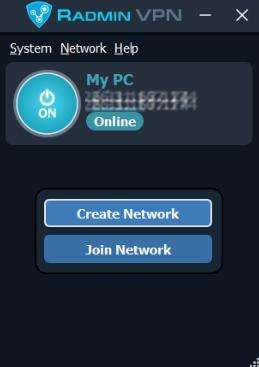
Users can establish remote connections within Vizard sessions using virtual private network tools like Radmin VPN, enabling remote object interactions and multi-user eye tracking capabilities.
Setup Instructions
Prerequisites
- Both computers must be online
- Download and install Radmin VPN from radmin-vpn.com
Network Creation Steps
- Create Network: Establish a new network by providing a name and password through Radmin VPN
- Join Network: Additional clients install Radmin VPN and select "Join Network," then enter the network credentials
- Start Server: Launch SightLabVR_server from the computer that created the network
- Launch Clients: Start the Client script on other machines and input the server machine's name
Connection Best Practices
"If you are running some of the clients on the same local network and others on the virtual network, it may be best to connect the local ones first."
Audio Communication
For voice functionality, configure your HMD's microphone and audio output in Radmin VPN settings using the guide at radmin-club.com
Alternatively, Discord can serve as an audio solution for multi-user sessions.
Note
As of E-Learning Lab version 1.1.11, Radmin can be launched directly from the Advanced Tools section.