Setting the Language
Overview
E-Learning Lab lets you customize the language for AI Agent interactions and presentation generation. This affects both the language the AI Agent speaks and responds in, and the language used for presentations and narrations.
How to Change the Language
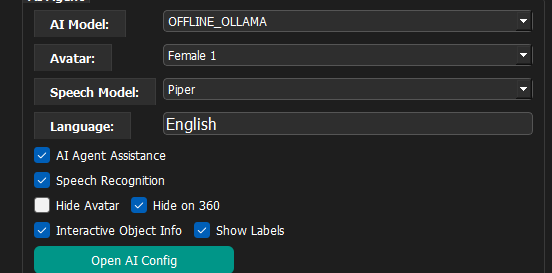
Starting with version 1.2.7, navigate to the Options Tab and locate the AI Agent section. There you'll find a dropdown menu to select your desired language.
Available Languages
Arabic, Bulgarian, Catalan, Czech, Welsh, Danish, German, Greek, English, Spanish, Farsi, Finnish, French, Hebrew, Hindi, Hungarian, Indonesian, Icelandic, Italian, Georgian, Kazakh, Luxembourgish, Latvian, Malayalam, Nepali, Dutch, Norwegian, Polish, Portuguese, Romanian, Russian, Slovak, Slovenian, Serbian, Swedish, Swahili, Telugu, Turkish, Ukrainian, Vietnamese, and Chinese.
PiperTTS Voice Configuration
As of version 1.3.9, when Piper is used, the system automatically switches to Edge-TTS for non-English and non-Greek languages. This behavior can be adjusted in the settings.
For proper pronunciation and accent with PiperTTS:

- Download the appropriate voice pack (
.onnxand.onnx.jsonfiles) from the Piper samples repository. - Place these files in the
voicesfolder within E-Learning Lab. - Open the AI Config settings.
- Update either
ALT_PIPER_VOICE_MALEorALT_PIPER_VOICE_FEMALEto reference your newly downloaded voice pack. - Non-English languages automatically use the ALT voice configuration.

To support multiple languages simultaneously, download all required voice packs and manually swap the ALT configuration as needed.