Interactive Object Info
Overview
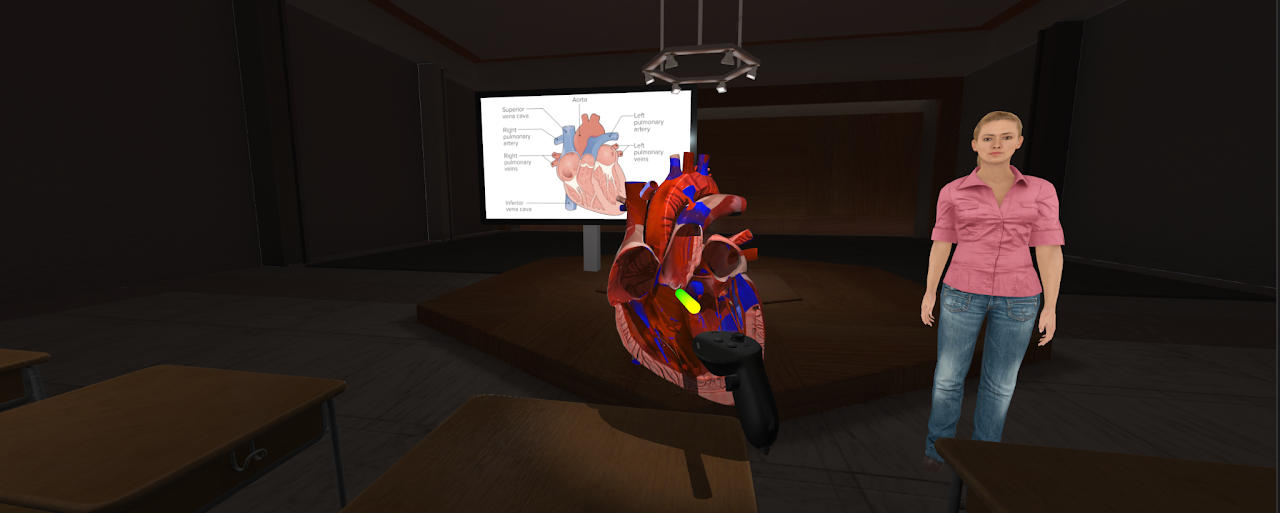
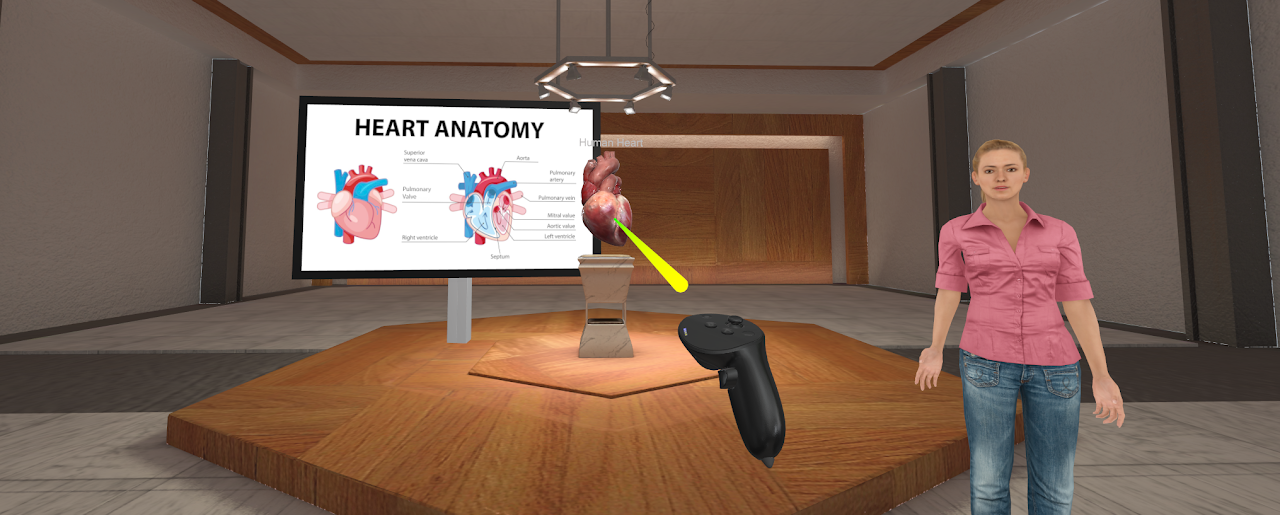
Interactive Object Info lets the AI Agent automatically provide information about targeted objects within a scene. Users can ask follow-up questions after receiving initial information. As of version 1.2.4, text labels can display automatically.
Setup Instructions
Step 1: Enable the Feature
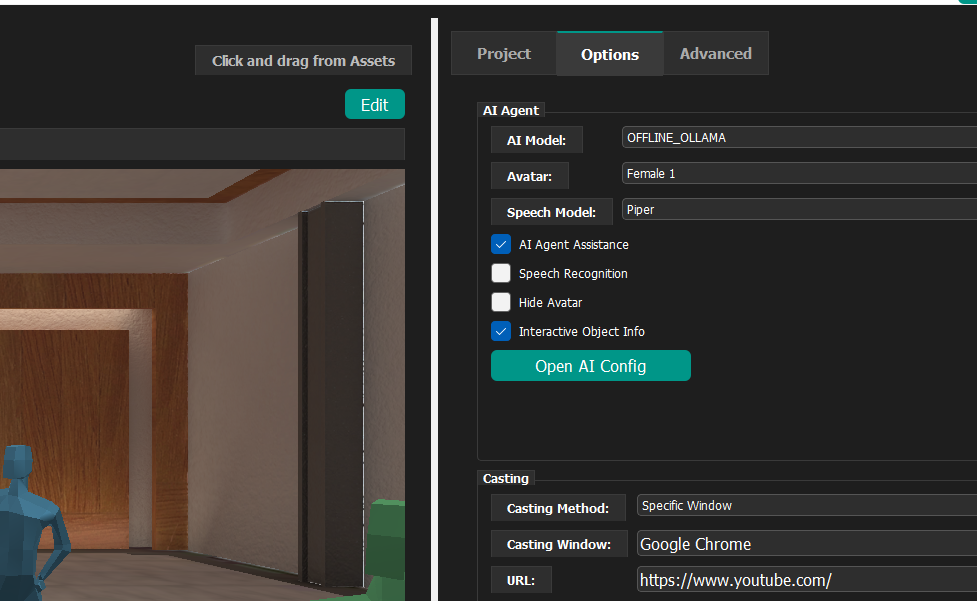
Check the Interactive Object Info checkbox and make sure AI Agent Assistance is also enabled.
Step 2: Configure Object Names
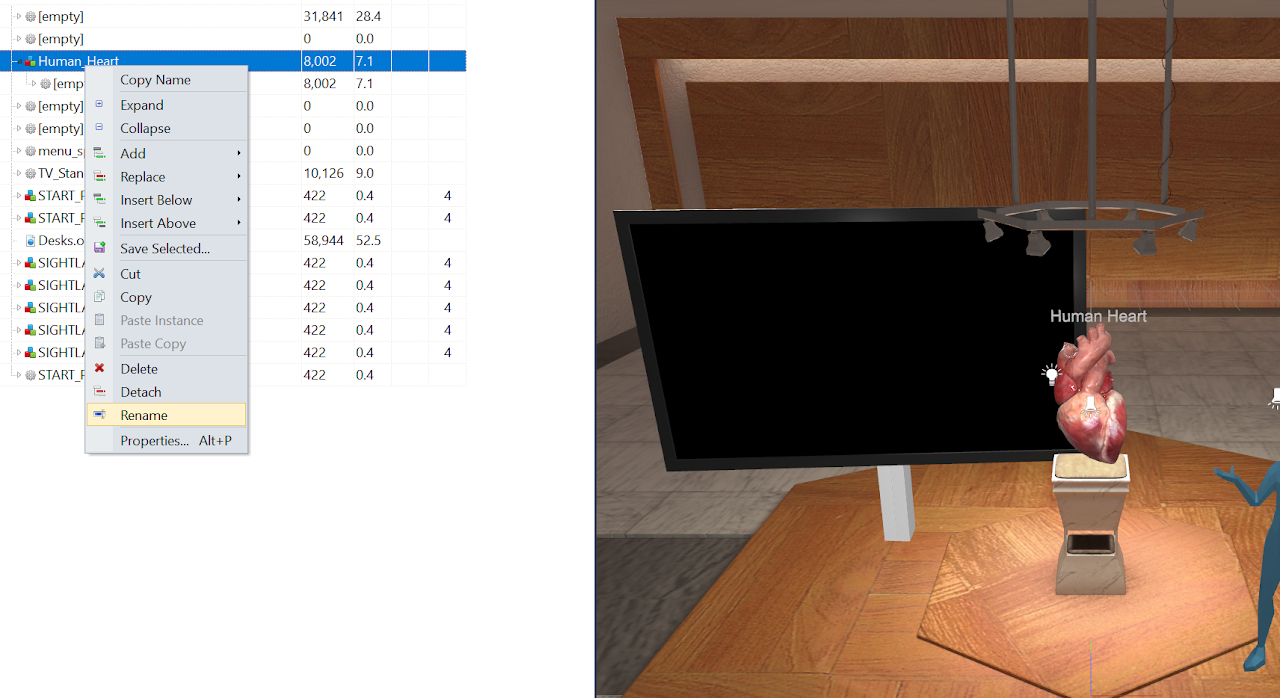
Click Edit to open your model. Make sure child objects have descriptive names relevant to their function (for example, Human_Heart on a heart model). Right-click objects to rename them. The AI uses these names to generate information requests like "Please tell me about the human heart."
Step 3: Mark Target Objects
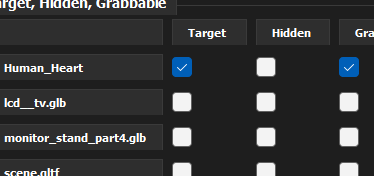
In the Projects tab, check the Target checkbox for each object you want to make interactive.
Runtime Controls
Desktop mode:
- Highlight tool — Right Mouse Button toggle
- Trigger AI information —
tkey - Ask follow-up questions —
2key
VR headset mode:
- Highlighter toggle — RH Grip button
- Trigger information — RH A button (changed from trigger in version 1.2.6)
- Follow-up questions — RH B button
See also AI Intelligent Agent.