Getting/Importing 3D Models and Assets

Model types and media that can be imported into Vizard and SightLab VR Pro
3D Models: .glTF/.glb (recommended), .fbx, .obj, .dae, .wrl, .ive, .osgb, plus scanned and point cloud data (.dp, .ply)
360 Videos: (2D and Spherical [mono and stereo]) .avi, .mpg, .mpeg, .mp4, .mov (note: may need to use a codec pack, like K-Lite Codec Pack if the videos won't display)
360 Images: .bmp, .jpg, .jpeg, .png, .tiff, .tif, .gif
Audio: (ambient and spatialized) .wav, .mp3
See also "Creating a Scene" for how to build a scene with these assets in SightLab
Note: For managing, acquiring and creating assets within SightLab there is now a convenient asset browser built directly into the SightLab Dashboard, see this page and the section on the Asset Browser.
Recommended Format: .glb / .glTF
Use .glb or .glTF whenever possible
Most content libraries and 3D tools offer several download or export formats. Whenever you have the choice, pick .glb or .glTF (glTF 2.0). Compared with formats like .fbx or .obj, glTF comes into Vizard and SightLab much more consistently:
- Textures come along reliably. A .glb packs the model and all of its textures into a single file, so there are no missing texture paths. (A .glTF keeps its textures as separate files, so keep them in the same folder as the .glTF.)
- PBR materials are preserved. glTF stores physically based (metallic/roughness) materials, so models render with PBR shaders instead of falling back to basic materials.
- Predictable scale. glTF always uses meters, so models are less likely to come in at the wrong size (a common issue with .fbx files exported in centimeters).
If a model is only available in another format (.fbx, .obj, .dae, .usd, etc.), you can usually import it into Blender and re-export it as .glb. For OpenSceneGraph models (.osgb, .osg, .ive), use the Model Converter.
Creating and Modifying Your Own Models with Blender
If you want to create your own 3D models or modify existing ones (fix materials, change scale, combine or simplify objects, add rigging, etc.), Blender is a free, open-source and widely used 3D creation tool. Download it from blender.org/download.
- Import most common formats (File > Import: FBX, OBJ, glTF, USD, STL, PLY and more), which also makes Blender a handy converter.
- Export with File > Export > glTF 2.0 (.glb/.gltf) and choose glTF Binary (.glb) as the format.
- Use the Principled BSDF shader for materials. It maps directly to glTF's PBR materials. Procedural (node-generated) textures don't carry over to glTF, so bake them to image textures before exporting.
- The E-Learning Lab can run an embedded version of Blender. See Blender + E-Learning Lab to edit models and save them straight into a project.
Content Libraries

- Sketchfab (Note: Sketchfab is also directly integrated into SightLab's Dashboard and the E-Learning Lab application, which can directly import into any SightLab application). Sketchfab's paid store has moved to Fab, but free downloadable models are still available on Sketchfab.
- 3D Models.org
- Fab - Epic Games' marketplace, which replaced the Sketchfab Store and Unreal Marketplace
- TurboSquid
- CG Trader
- RenderHub
- 3DExport
- WorldViz Asset Browser
- NIH 3D - Online repository of bioscientific and medical 3d models
- Poly Haven - Free (CC0) models, textures and HDRIs
- Smithsonian 3D - 3D scans of museum objects and specimens, many free to download
- NASA 3D Resources - Free models of spacecraft, planets and more
- Poly Pizza - Free low-poly models
Most of these libraries offer several download formats (typically .glTF/.glb, .fbx and .obj). Choose the .glb or .glTF download when available. See Bringing Models from Sketchfab into Vizard and SightLab for an example.
Export Options from Third Party Software

Unity
-
Export options:
-
FBX exporter
-
glTF exporters
-
Suggested workflow: FBX exporter
Note: To convert to .glb after export, import the .fbx into Blender and export as glTF 2.0, or use an online tool - For a more comprehensive documentation on converting from Unity, see this tutorial
Unreal
- Export using glTF exporter (get from Marketplace and add to project). See this tutorial
Polygon Modeling Software

Blender (Extension - .blend) - free and open source, see Creating and Modifying Your Own Models with Blender
- Export options: Built-in glTF 2.0 exporter, FBX, OBJ
- Suggested workflow: Built-in glTF exporter (File > Export > glTF 2.0, format: glTF Binary .glb)
3DSMax (Extension - .max)
- Export options: Babylon.js, Sketchfab exporter, export as .fbx then convert to .glTF/.glb via Blender
- Suggested workflow: GLTF via Babylon.js
Maya (Extension - .ma)
- Export options: Babylon.js, Sketchfab exporter, Ziriax, export as .fbx then convert to .glTF/.glb via Blender
- Suggested workflow: GLTF via Babylon.js
Modo (Extension - .lxo)
- Export options: Native
- Suggested workflow: Native GLTF exporter
Note: You must set up your materials for glTF in Modo first
Substance Painter (Extension - .spp)
- Export options: Native GLTF exporter
- Suggested workflow: Native GLTF exporter
ZBrush
- Export options: FBX exporter
- Suggested workflow: Best used in a “high poly to low poly” workflow by an expert user
NVIDIA Omniverse and OpenUSD
- Convert USD to glTF using an online converter, or import the USD file into Blender (File > Import > Universal Scene Description) and export as .glb
CAD / Architecture Modeling Software

Revit (Extension - .rvt)
- Export options: Simlabs, Sketchfab Exporter, native FBX export, PIXYZ
- Suggested workflow: GLTF via PIXYZ
Note: Sketchfab exporter requires Revit 2018.1 and above
SketchUp (Extension - .skp)
- Export options: KhronosGroup exporter
- Suggested workflow: GLTF via KhronosGroup Exporter
Rhino
- Export options: FBX, .glTF exporter
- Suggested workflow: ShapeDiver .glTF export
SOLIDWORKS
- Export options: Built-in Extended Reality Plugin, SimLab
- Suggested workflow: glTF via Extended Reality Plugin
Photogrammetry

Apps to scan and create 3d Models and Environments:
Desktop Photogrammetry Applications
AI Tools (Text and Image to 3D)

Built into SightLab: You can generate 3D models, environments and fully rigged avatars with Meshy or Tripo (text or photo to 3D) directly from the SightLab Dashboard and the E-Learning Lab, along with 360 media using Gemini and OpenAI. Click Generate with AI in any supported asset tab. This requires a Meshy or Tripo API key. The Dashboard and the E-Learning Lab also offer Stability AI (fastest) and AI-written Blender scripts (experimental) for 3D models and avatars, with a Speed / Quality choice for Meshy and Tripo.
Tip
When downloading from any of these tools, choose .glb (see Recommended Format). AI-generated models are often very dense (100,000+ triangles), so check Optimization of 3d Models before using them in VR.
3D Model Generators
 |
Meshy: Text and image to 3D with PBR textures, plus auto-rigging and animation for characters. Built into SightLab for models and avatars. |
 |
Tripo AI: Fast text and image to 3D, with auto-rigging for characters. Built into SightLab for models and avatars. |
 |
Rodin (Hyper3D): High-fidelity, production-quality models with PBR materials. |
 |
Hunyuan3D (Tencent): Free daily generations online. The model is also open source and can be run locally. |
 |
TRELLIS.2 (Microsoft): Open-source image to 3D that outputs .glb files with PBR materials. Try the free online demo, or run it locally from GitHub. |
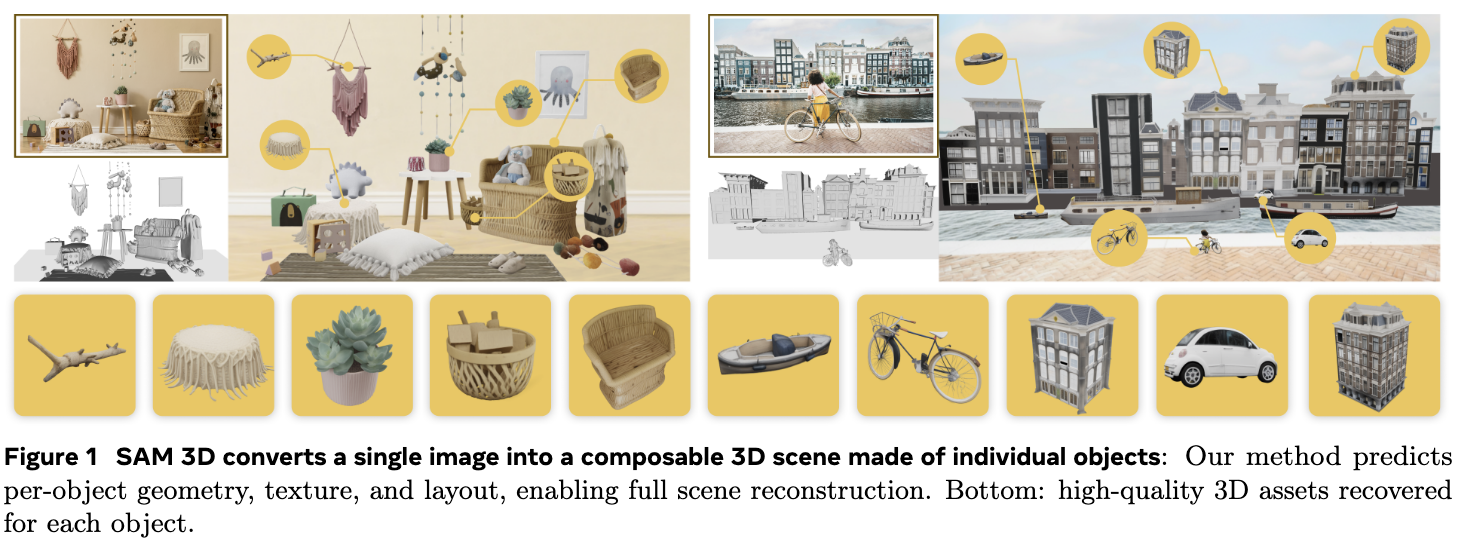 |
SAM 3D Objects (Meta): Free browser demo. Upload a photo, click an object in it, and get a textured 3D model of that object. Useful for turning real-world objects into props. |
 |
Copilot 3D (Microsoft): Free image to .glb with a Microsoft account. This is an experimental Copilot Labs feature. |
 |
3D AI Studio: Several generation models in one place, plus texturing and AI rigging tools. |
 |
Sloyd: Customizable, game-ready models built from parametric templates. Good for clean, low-poly props. |
Also worth a look: Spline, which has AI generation built into a browser-based 3D design tool.
3D Worlds and 360 Environments
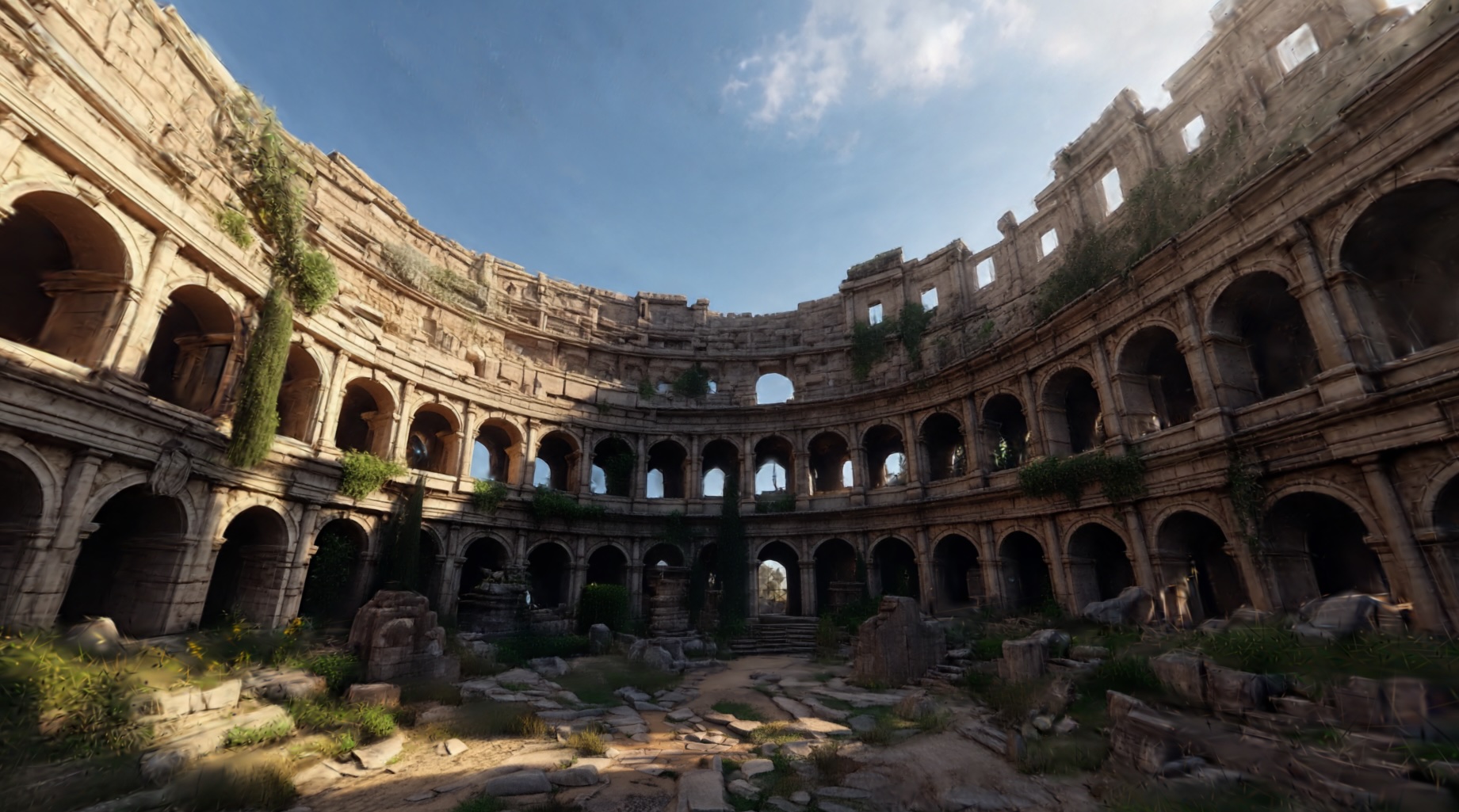 |
Marble (World Labs): Generates complete, explorable 3D environments from a text prompt, image, video or panorama. Worlds can be exported as Gaussian splats or as a .glb mesh (mesh export requires a paid plan). |
 |
Skybox AI (Blockade Labs): Text to 360° panoramas for use as 360 media. Tutorial |
See also the WorldViz Asset Browser for more AI creation tools, and Generating avatars with AI Tools for AI-generated avatars.
Point Clouds
For information on how to bring point cloud data into Vizard, please see this knowledge base article.
Point clouds of the format .dp, .ply, .3dc and .asc are supported

Miscellaneous

Other content from additional sources will work as well if the format is one of the supported file types, preferably .glTF/.glb or .fbx.
There are also included assets in the sightlab_resources folder (environments, objects, media and avatars)
See this link to access the WorldViz Online Asset Browser
Download additional environments, avatars and assets pack here (can unzip into C:\Program Files\WorldViz\Sightlab2 if you want to access them from anywhere)
Avatars

Avatar models can be brought in if they are in either the .fbx, .glTF or .cfg (cal3D) format. See this page for more details.
Supported Avatar Sources
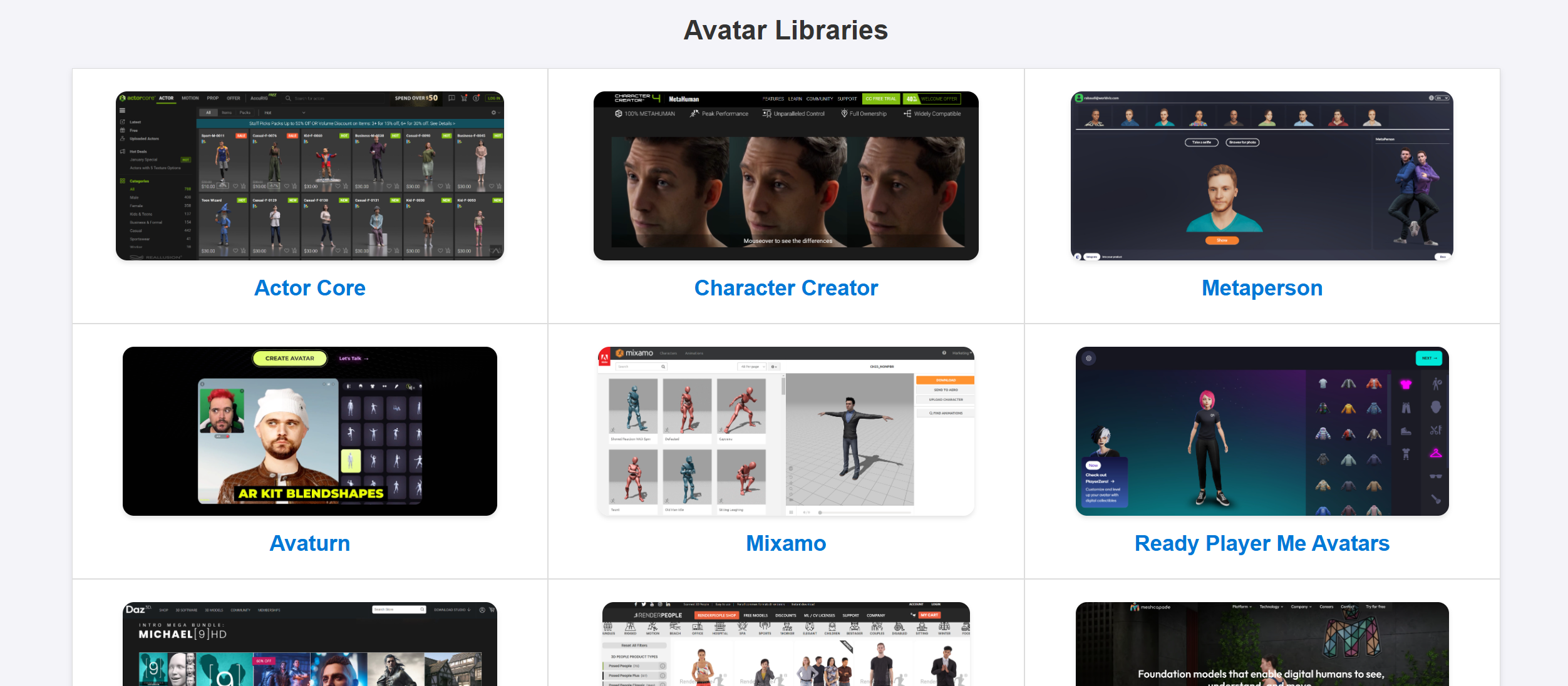
SightLab works with avatars from many common libraries:
| Source | Description | Link |
|---|---|---|
| Mixamo | Free rigged characters, auto-rigging and a large animation library (requires a free Adobe account) | mixamo.com |
| Reallusion | Character Creator & ActorCore library | Character Creator / ActorCore |
| Avaturn / MetaPerson | Realistic avatars created from a selfie | Avaturn / MetaPerson |
| RocketBox | Microsoft's free research avatar library | GitHub |
| Daz 3D | Large library of characters, clothing and hair | daz3d.com |
| RenderPeople | Photoreal scanned people, including free samples | renderpeople.com |
| Meshy / Tripo | AI-generated, fully rigged avatars, built into SightLab | Generating avatars with AI |
Ready Player Me shut down in January 2026, so new avatars can no longer be created with it. Ready Player Me avatars you already exported, and the ones included with SightLab, still work (see Adding Your Own Custom Avatars).
📦 Browse more resources at the WorldViz Asset Browser
Included Avatars
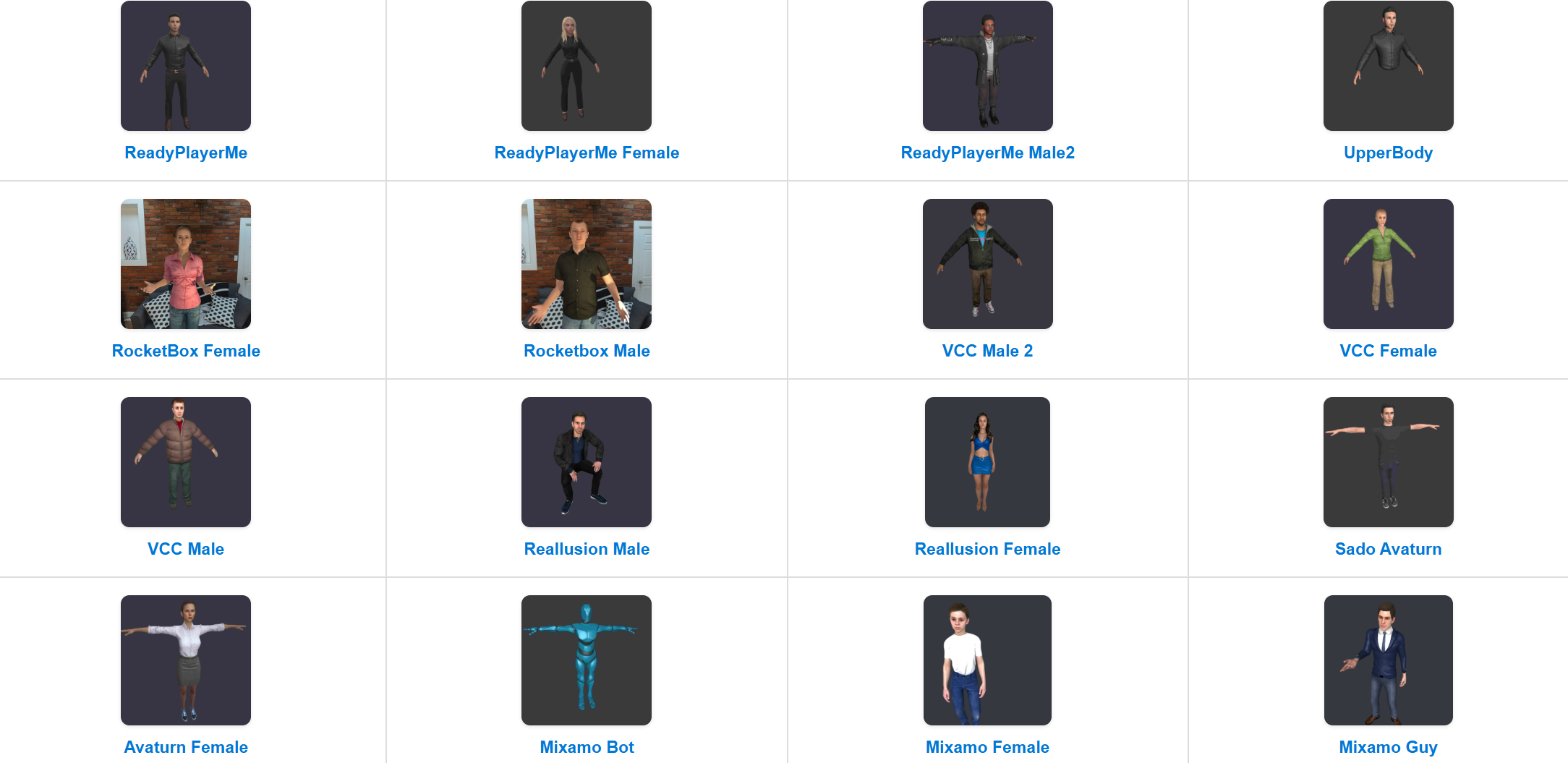
Built-in avatars can be found in the Avatars tab of the SightLab Dashboard asset browser. From there you can drag and drop them directly into your scene in Inspector. See Included Avatars for the full list.
Sample avatars also ship with SightLab in these locations:
| Path | Contents |
|---|---|
sightlab_resources/avatar/full_body |
Full-body rigged avatars |
sightlab_resources/avatar/Complete Character |
Complete character models |
sightlab_utils/resources/avatar |
Utility avatars |
Generating avatars with AI Tools
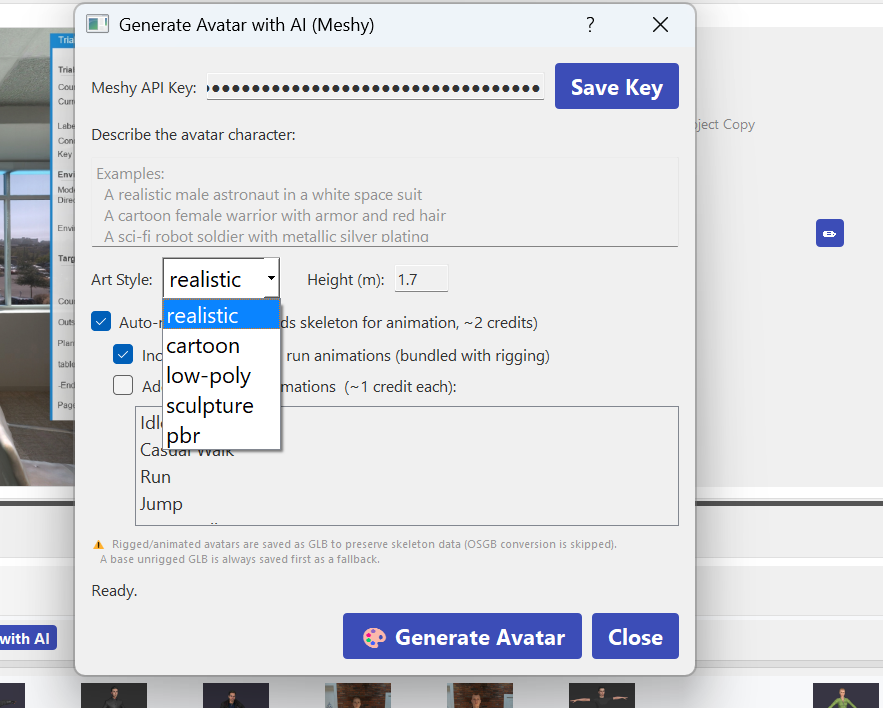
You can generate fully rigged, animated avatars directly from the SightLab Dashboard (Avatars tab > Generate with AI) or the E-Learning Lab using Meshy (SightLab 2.8.9 and higher) or Tripo (SightLab 2.8.11 and higher). This requires a Meshy or Tripo API key to be stored.
In addition you can use the online versions of Meshy and Tripo, or other AI tools such as 3D AI Studio
Avatar Rigging
- Auto rigging with Mixamo
- Auto rigging with Accurig from Reallusion
- Facial morph rigging with Face-It Blender add-on
Avatar Animations
There are many options for motion capture to create animations. Here are just a few examples. Refer to the Vizard documentation for more supported devices for motion capture.
- Using a standard video captured with a phone or camera (AI algorithm for converting to animation):
- DeepMotion - AI-based animation creation
- Kinetix Tech - Animation and motion capture
-
Rokoko - Motion capture suits and software
-
High-end motion capture:
- Xsens
- Optitrack
- Vicon
- AR51 Markerless

360 Videos and Images
 |
360 Video Content: You can bring in content such as 360 videos (stereoscopic and monoscopic), 2D videos, images, audio (3D and stereo), and more. |
 |
360 Media in your Project: To use them in SightLab, simply drag them into the 360 bin in the SightLab Dashboard asset browser then drag them directly into the SightLab GUI interface, or place them in your project folder (default location is resources/media) and choose "360 Media" in the GUI. Alternatively, you can use this code: video1 = viz.addVideo('sightlab_resources/media/name.avi') sightlab.setEnvironment(video1, mode=MEDIA_360, mediaType="video", mediaFormat="Stereoscopic T/B") |
 |
360 Media Options: For creating 360 videos and pictures, use any 360 video camera (stereo or monoscopic) or a phone app like "360 Photosphere." Other resources include Skybox AI for AI-generated images, Gemini, Leonardo.ai or ChatGPT with prompts like "360 Equirectangular...", and Pexels for free downloads. Newer AI video generation models such as Sora 2 can create 360 videos as well. |
| Downloading 360 Videos: To download 360 videos off YouTube, use the 4K Video Downloader. If videos are in a strange format, see this tutorial on adjusting formats using FFMPEG. RunwayML can also help in converting or modifying 360 video content |
Note: There is direct AI to 360 Images and Videos directly integrated into SightLab's Dashboard and E-Learning Lab Application using Gemini and OpenAI
For supported formats, 8K video, regions of interest and other 360 options, see 360 Media.
2D or Virtual Screen Video

See the example script for displaying a virtual screen. SightLab can also support playback of any video type that you have a codec for.
Video can be sourced from many locations. Here's one good stock footage source:
Free video editing software:
Additionally, there are built in connections in the E-Learning Lab to generate video with Gemini's Veo 3
Audio Creation and Libraries
Audio: (ambient and spatialized) .wav, .mp3
Good Sources for Audio
Free Audio Editing and Recording Software
Tools for Creating Audio Narrations
A good tool for creating audio narrations is ElevenLabs. You can also use a large language model such as ChatGPT or Claude to help with creating the narration text, or you can automatically create audio narrations from text files with the E-Learning Lab or the SightLab Scripted Avatar Example.
Optimization of 3d Models
Optimizing 3D scenes for real-time performance involves balancing visual quality with the capabilities of the target hardware. Key considerations include reducing draw calls, minimizing unnecessary polygons and hidden geometry, and optimizing texture resolution and memory usage. Focus detail on objects users will see up close, while simplifying distant objects and using textures instead of geometry where possible.
Practical Optimization Techniques
- Reduce Draw Calls: Combine objects that share materials when they don't need individual transformations.
- Optimize Geometry: Remove hidden or unnecessary polygons and use lower-detail models for distant objects (LOD). In Blender, the Decimate modifier is a quick way to reduce polygon count.
- Optimize Textures: Reduce texture resolutions where appropriate, reuse materials, and use texture compression to conserve GPU memory.
- Use Efficient Lighting: Limit expensive real-time lights and shadows, and use baked lighting where practical.
- Manage Scene Complexity: Use culling techniques to avoid rendering objects outside the user's view and simplify background environments.
- Monitor Performance: Use Vizard or Inspector's rendering statistics to identify bottlenecks and maintain smooth frame rates, especially in VR.