Custom Hardware Configurations
Overview
E-Learning Lab supports these default hardware options: Desktop, Meta Quest Pro, Meta Quest 3, SteamVR, Quest 3 Client, Meta No Eyetracker, Vive Focus Vision, and Varjo. See also Supported Devices.
Setting Up Custom Hardware
To configure custom hardware, such as a Projection VR setup:
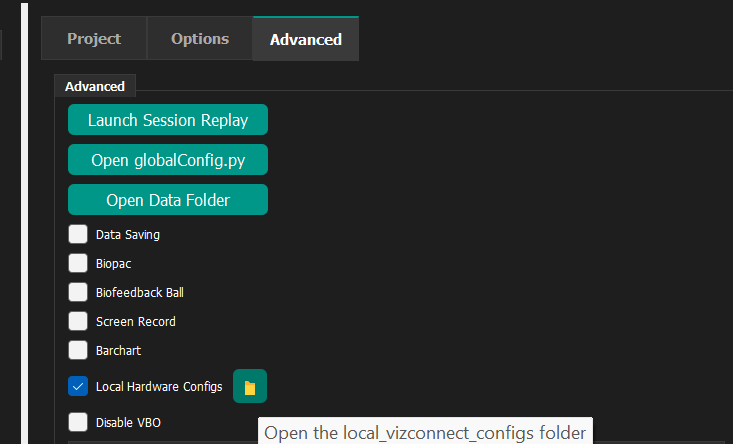
- Open E-Learning Lab and navigate to the Advanced Tab
- Check
Local Hardware Configs - Click the folder button to open the folder for the local vizconnect hardware configs and either modify one of the included ones or add your own
Once enabled, any vizconnect file placed in the E-Learning Lab\local_vizconnect_configs directory will be recognized. This folder includes a modifiable Projection VR configuration file called vizconnect_config_projection.py.
Additional Resources
For comprehensive information on vizconnect, consult the Vizconnect Events page and the Vizconnect section of the Vizard documentation.