How to Setup VIVE Ultimate Trackers in Vizard & SightLab (Updated for 2025)
1. Overview & Requirements
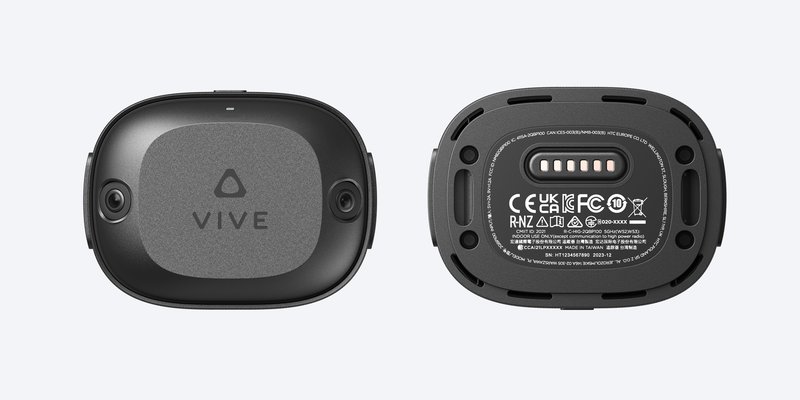
Device Summary
- VIVE Ultimate Tracker
- True 6-DoF inside-out tracking
- Two wide-FOV cameras (no base stations required)
- Designed for body tracking (feet, waist, hands) or object tracking
Specs
- Dimensions: 77 × 58.6 × 27.3 mm
- Weight: 94 g
- Battery: Up to ~7 hours
- Mounts: Quick-release + ¼-20 UNC screw
- Connectivity: 5 GHz Wi-Fi, requires VIVE Wireless Dongle
Supported Headsets
- VIVE XR Elite
- VIVE Focus 3 / Focus Vision
- Other SteamVR PCVR headsets (Quest 3, Quest Pro, Varjo, HP Reverb, Pico, etc.) via:
- SteamVR
- VIVE Business Streaming (VBS) on the PC
- VBS streaming client on headset (for VIVE standalone headsets only)
Tracker Limit
- Up to 5 trackers per dongle
- No official support for >5 in PCVR (2025)
Environment Requirements
- Even, moderate ambient light
- Avoid glare, reflective walls/floors, very dark rooms
- Avoid large blank walls with no visual features
- Recommended play area: 2.5 m × 2.5 m or larger
2. Setup Steps (PCVR / SteamVR + VIVE Business Streaming)
This workflow applies to:
VIVE XR Elite, Focus 3, Focus Vision, AND non-VIVE PCVR headsets (Quest 3, Quest Pro, etc.).
🎥 Recommended Video Guide
“Setting up VIVE Ultimate Tracker With Your SteamVR-Compatible Headset”
https://www.youtube.com/watch?v=D53DEBVqvUY
Step-by-Step Setup
A. Install Required Software
1. Install SteamVR
https://store.steampowered.com/app/250820/SteamVR/
2. Install VIVE Business Streaming (VBS) – PC application
https://business.vive.com/us/solutions/streaming/
3. Install VBS on the headset
(For VIVE Focus 3 / Vision / XR Elite only)
This is found in the headset's App Library under VIVE Business Streaming.
Not required for Meta/Quest headsets, which only need Link/AirLink/SteamVR.
B. Connect Your Headset to SteamVR
VIVE Focus 3 / Focus Vision / XR Elite
Use one:
- USB-C cable (lowest latency)
- Wi-Fi through VIVE Business Streaming
Follow VBS instructions here:
https://business.vive.com/us/support/focus3/category_howto/vbs-overview.html
Meta Quest / Other PCVR
Use:
- Link cable
- AirLink
- Or Virtual Desktop → SteamVR
C. Plug in the VIVE Wireless Dongle
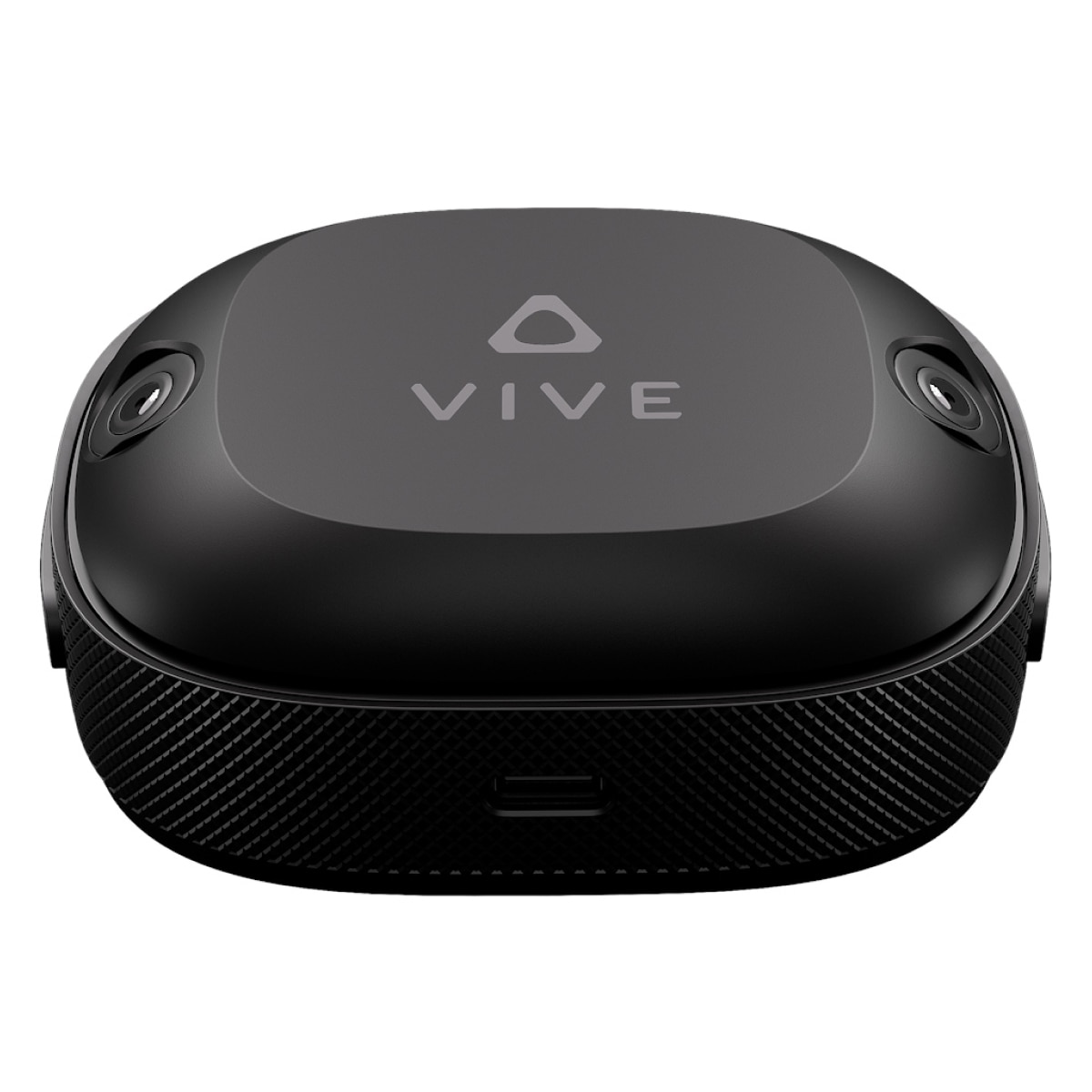
- Plug dongle → cradle → USB-C → PC USB 3.0 port
- Keep at least 45 cm (18 in) away from computer tower & metal surfaces
- 1 dongle = up to 5 trackers
Using VIVE Headsets
On Focus Vision, you may plug the dongle directly into the headset’s USB-C port.
D. Pair the VIVE Ultimate Trackers
- Turn on trackers → LED indicator lights up
- On-screen instructions for connecting to the Vive Ultimate Trackers should automatically pop-up in the headset when the dongle is connected
- Follow instructions to pair and connect in the headset
- Next you will go through the scanning process, where you will look at the little creature as it appears in various places around the room
- Once that is complete you can verify the trackers are working
E. Attach Trackers to Body or Objects
Use:
- HTC TrackStraps
- Third-party straps (e.g., Rebuff Reality)
- Screw mounts on props (¼-20)
Common body-tracking setup
- Tracker 1: Waist / hips
- Tracker 2: Left foot
- Tracker 3: Right foot
- (Optional) Add hand trackers if using data gloves
3. Using Ultimate Trackers in Vizard & SightLab
3.1 Choose the Correct Full Body Dropdown in SightLab
On the SightLab start screen (or relevant config area), for full body tracking with VIVE Trackers / Ultimate Trackers choose:
'Vive Trackers Full Body'-
For SteamVR headsets with Vive Trackers (original or Ultimate), e.g.:
- VIVE Pro 2
- VIVE Pro Eye
- Other SteamVR PCVR headsets using SteamVR + VIVE Business Streaming or SteamVR only
-
'Vive Trackers Full Body Focus Vision' - For VIVE Focus 3 / Focus Vision using VIVE Business Streaming and VIVE Ultimate Trackers
These presets:
- Configure the tracker roles (hips, feet, etc.)
- Connect them to the full body IK avatar system in SightLab
Additionally, there are vivetracker vizconnects you can select in any SightLab script, but those need to have the avatar added manually if wanting to change which one is used
'Vive Trackers SteamVR': 'vizconnect_config_viveTrackers.py',
'Vive Trackers CC': 'vizconnect_config_viveTrackers_CC.py',
'Vive Trackers CC Female':'vizconnect_config_CC2.py',
3.2 Enabling Full Body Avatars in SightLab GUI
For full body avatars to be visible and driven by VIVE Trackers, follow the core steps from the SightLab full body avatars guide:
Link:
https://help.worldviz.com/sightlab/full-body-avatars/
Steps:
- Open your SightLab project.
- Go to Avatar Settings in the GUI or Multi-User Client.
- Enable ✔ Full Body.
- Choose an avatar from the list.
By default, compatible tracked avatars are stored in:
C:\Program Files\WorldViz\Sightlab2\sightlab_resources\avatar\TrackedAvatars
In the Multi-User Client, avatar preview appears automatically.
In the single-user GUI, click Show to display the avatar in the scene.
3.3 Avatar Compatibility (Minimum You Need to Know)
When using VIVE Ultimate Trackers for full body tracking (single or multi-user), you should choose avatars from the Complete Characters library.
Other avatar types (ReadyPlayerMe, Mixamo, Reallusion, etc.) may currently be limited to OpenXR single-user setups and are not fully supported for full body VIVE Tracker rigs yet.
5. Using VIVE Trackers with Vizard (Vizconnect + Scripts)
4.1 Using the Built-in Vive Tracker Vizconnect Presets
Vizard & SightLab include a ViveTracker full body preset that works with both original Vive Trackers and VIVE Ultimate Trackers.
Open from Vizard:
- Go to Tools → Vizconnect.
- Choose “Select from some common presets”.
- Select “ViveTracker Full Body”.
This preset:
- Uses controllers for the hands.
- Uses Vive Trackers (original or Ultimate) for the pelvis and feet.
If you want to track hands with trackers (for data gloves, etc.), remove the hand controllers in the preset and add additional tracker roles for the hands.
6. Tracking Objects Instead of Body Parts
Attach tracker to the object → then:
Vizconnect Method
Add:
Advanced → Trackers → Add Tracker → Valve SteamVR Tracker
Set index:
- First tracker = 0
- Second = 1
- Etc.
Script Example
import viz
import vizfx
import vizconnect

vizconnect.go('vizconnect_config_trackers.py')

tracker = vizconnect.getTracker('steamvr_tracker').getNode3d()
ball = vizfx.addChild('basketball.osgb')

trackerLink = viz.link(tracker, ball)
SightLab (no Vizconnect)
import steamvr

tracker = steamvr.getTrackerList()[0]  # first tracker

# Optional: attach to 3D model
ball = vizfx.addChild('basketball.osgb')
trackerLink = viz.link(tracker, ball)
7. Tips & Troubleshooting
Tracking Issues
- Ensure good room lighting
- No occlusion of tracker cameras during calibration
- Avoid blank walls → add posters, objects
- Re-scan tracking map if room changes
Driver Not Detected (SteamVR)
SteamVR → Settings → Startup/Shutdown → Manage Add-ons → “Unblock All”
Cannot Connect to VBS
- Restart PC
- Reconnect dongle
- Re-enable VBS streaming
Meta Quest OpenXR Offset
- Use SteamVR mode
- Avoid Meta OpenXR for trackers (known positional offset)
8. Code Example Without Vizconnect (Legacy)
import steamvr

# Setup SteamVR HMD
hmd = steamvr.HMD()
if not hmd.getSensor():
    sys.exit('SteamVR HMD not detected')

# Setup navigation node
navigationNode = viz.addGroup()
viewLink = viz.link(navigationNode, viz.MainView)
viewLink.preMultLinkable(hmd.getSensor())

# Trackers
tracker  = steamvr.getTrackerList()[0]
tracker2 = steamvr.getTrackerList()[1]