Steam Link
Steam Link is Valve's app for streaming SteamVR from a PC to a standalone headset. The Steamlink hardware configuration runs SightLab on a headset connected over Steam Link, and records eye tracking on headsets that have it. One configuration covers several headsets, because SightLab works out at startup where the gaze comes from.
For Meta Quest headsets, Steam Link is an alternative to Meta Horizon Link. You don't need the Meta Horizon Link app on the PC.
Compatible Headsets
| Headset | Gaze | Eye openness |
|---|---|---|
| Meta Quest Pro | Eye tracking | Yes |
| Vive Focus Vision | Eye tracking | Yes |
| Steam Frame | Eye tracking | No, Steam Link always reports the eyes as open |
| Meta Quest 3 and 3S | Head direction (no eye tracking) | No |
| Pico 4 Pro and Pico 4 Enterprise (untested) | Eye tracking, if Steam Link shares it | Unconfirmed |
Pupil size isn't available over Steam Link. To record pupil size on the Vive Focus Vision, use the Vive Focus Vision configuration with VIVE Hub instead (see OpenXR).
Setup
-
Install Steam and SteamVR on the PC.
-
Install the Steam Link app on the headset: from the Meta Horizon Store on Meta Quest headsets, or the VIVE Store on the Vive Focus Vision. The Steam Frame doesn't need it.
-
Connect the PC and the headset to the same network.
-
On headsets with eye tracking, turn on eye tracking in the headset's settings. On the Meta Quest Pro, also calibrate it there.
-
Connect the headset to the PC with Steam Link: launch the Steam Link app on the headset and choose your PC.
-
On the PC, open SteamVR's settings, and at the bottom left, set Advanced Settings to Show.
-
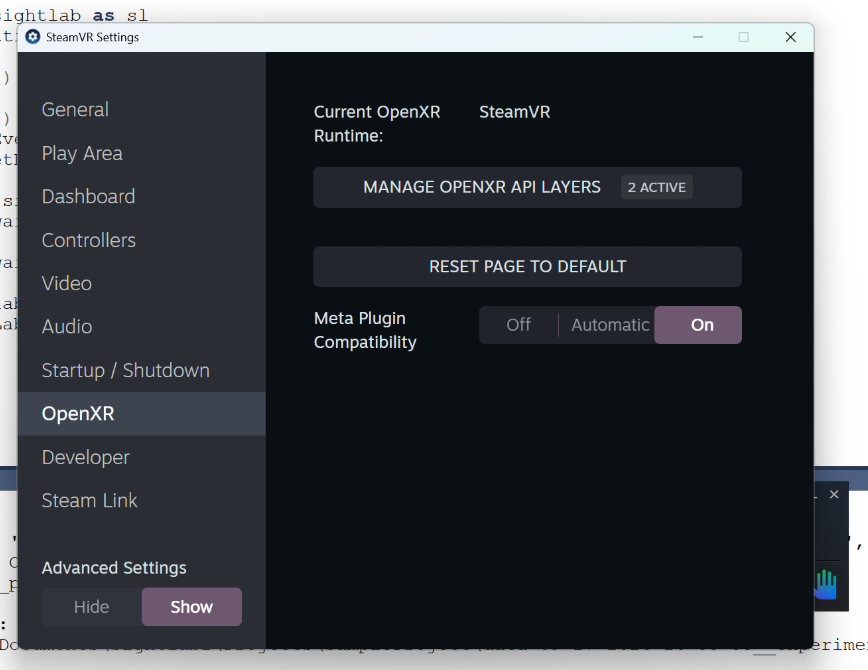
In the OpenXR tab, make sure Current OpenXR Runtime is SteamVR. If it shows another runtime, such as Meta's or VIVE's, SightLab won't appear in the headset.
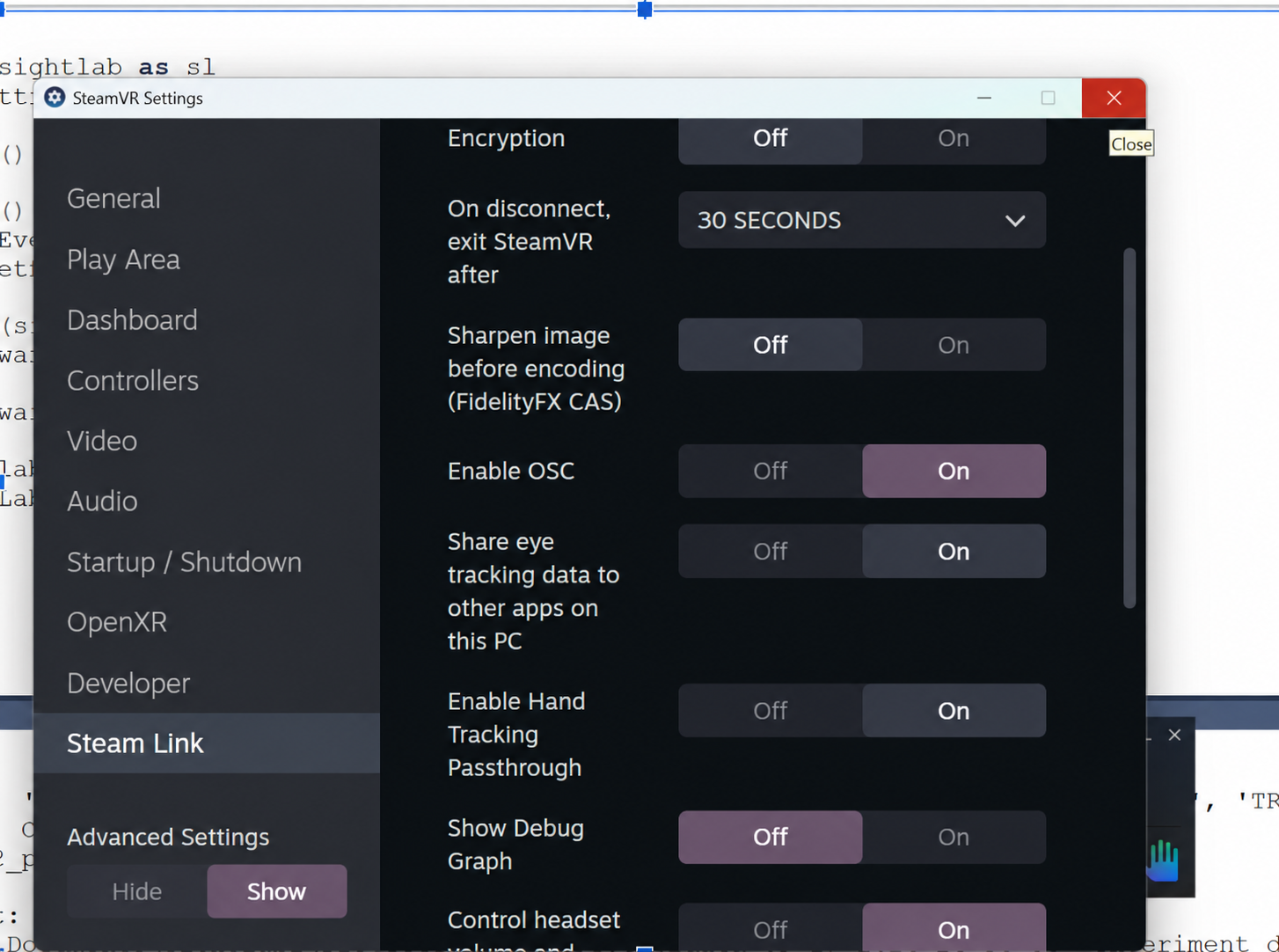
- For headsets with eye tracking, in the Steam Link tab, turn on Enable OSC and Share eye tracking data to other apps on this PC. SightLab needs both, because eye tracking reaches it as OSC messages. Also check that the tab's OSC Output Port is 9000, or whatever port you set in
STEAMLINK_OSC_PORT(see Settings).
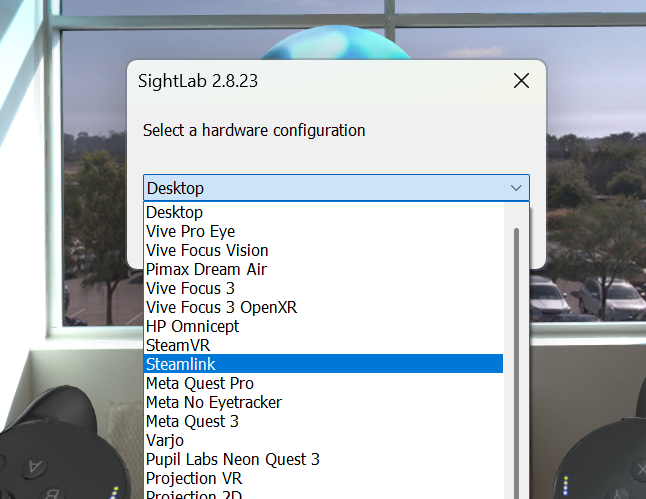
- Start SightLab and choose Steamlink as the hardware configuration (You can choose any of OpenXR or SteamVR based configurations, but choosing Steamlink will give you the controllers and eye tracking working properly)
- Check the console message that says where the gaze comes from (see How It Works).
How It Works
- Display, head tracking, and controllers go through OpenXR, so SteamVR has to be the current OpenXR runtime.
- Eye tracking comes from SteamVR's Steam Link driver, which shares the headset's eye tracking with other programs on the PC as OSC (Open Sound Control) messages. SightLab listens for them on a UDP port, 9000 by default.
When a session starts, SightLab picks where the gaze comes from:
- Steam Link eye tracking, if it arrives within 2 seconds.
- Otherwise, the OpenXR runtime's own eye tracking, if it has any.
- Otherwise, the direction the head is facing. SightLab keeps listening for Steam Link, and switches to eye tracking if it starts arriving later.
The SightLab console says which one was picked, for example:
** Eye tracking: Steam Link OSC on UDP 9000, openness from EyesClosedAmount shared (OpenXR runtime: SteamVR/OpenXR)
Check this message before you start a session. If it's a warning about no Steam Link gaze, the recording will use head direction until eye tracking arrives.
The port you use decides how eye openness is recorded:
| Port | Gaze | Eye openness | Also turn on in SteamVR |
|---|---|---|---|
| 9000 (default) | Yes | One value for both eyes | Nothing else |
| 9015 | Yes | A separate value for each eye | Share face tracking data to other apps on this PC |
Only one program can listen on the port at a time. Close VRChat (which uses port 9000), VRCFaceTracking (which uses port 9015), and the External Data Recorder before you start SightLab.
Checking That Gaze Is Arriving
To see what Steam Link is sending, close SightLab, put on the headset, and run this from a command prompt:
"C:\Program Files\WorldViz\Vizard8\bin\python.exe" -m sightlab_utils.steamlink_gaze
It prints your gaze direction as you look around, and every OSC message it receives. Looking straight ahead should read close to dir=(0, 0, 1), looking right should make x positive, and looking up should make y positive. If nothing arrives, it says so every few seconds.
It also prints eye openness as open L/R= followed by the left and right values and where they came from. Blink to check that the values drop toward 0. On port 9000, the source should read EyesClosedAmount shared.
It listens on port 9000 unless you add another port after the command, for example -m sightlab_utils.steamlink_gaze 9015. Press Ctrl+C to stop it.
Settings
Two settings are at the top of the post-initialization section in sightlab_utils/vizconnect_configs/vizconnect_config_steamlink.py, just above postInit():
| Setting | Default | What it does |
|---|---|---|
EYE_TRACKING_SOURCE |
'auto' |
Where gaze comes from. See below. |
STEAMLINK_OSC_PORT |
9000 |
The port SightLab listens on. It must match OSC Output Port in SteamVR's Steam Link tab. |
EYE_TRACKING_SOURCE can be:
| Value | Gaze source |
|---|---|
'auto' |
Steam Link, then the OpenXR runtime, then head direction, as described in How It Works. |
'steamlink' |
Steam Link only. If nothing arrives, head direction until it does. |
'openxr' |
The OpenXR runtime's eye tracking only, as in SightLab's other OpenXR configurations. |
'head' |
No eye tracking: gaze is the direction the head is facing. |
Per-Eye Openness on the Meta Quest Pro
On port 9000, Steam Link sends one eye openness value for both eyes, so eye open L and eye open R are always the same. Blinks are recorded, but a wink can't be told apart from both eyes half closing. To record each eye separately, switch to port 9015, which also carries the headset's face tracking. Change the port in both places:
- Turn on face tracking in the headset's settings, as well as eye tracking.
- In SteamVR's settings, in the Steam Link tab, set OSC Output Port to 9015 (Custom), and turn on Share face tracking data to other apps on this PC. Keep Enable OSC and Share eye tracking data to other apps on this PC on.
- In
vizconnect_config_steamlink.py, setSTEAMLINK_OSC_PORT = 9015. - Run the gaze check with port 9015 and blink one eye at a time. The source should read
face weights per eye, and the two values should change separately.
If the two ports don't match, SightLab receives no gaze at all, not just no openness.
What's Recorded
- Gaze: Steam Link sends one combined gaze direction, not one per eye, so the combined, left, and right eye columns in the trial data are identical. When the gaze source is head direction, such as on the Meta Quest 3, they record where the head is pointing, and fixations are worked out from that.
- Eye openness:
eye open,eye open L, andeye open Rin the trial data record how open the eyes are, from 0 (closed) to 1 (open). On port 9000 all three have the same value. On port 9015 the left and right eyes have separate values, andeye openis their average. The columns are empty when no openness data arrives, for example on the Meta Quest 3. - Pupil size: the
pupil diametercolumns are empty, because Steam Link doesn't send pupil size.
See Data Logging for the other trial data columns.
Using the External Data Recorder
To record eye tracking while another VR application runs over Steam Link, see External Data Recorder - Steam Link. The recorder has its own Steamlink configuration and its own port setting. Don't run SightLab and the recorder at the same time, because only one of them can listen on the port.
Troubleshooting
- "No Steam Link gaze on UDP 9000" in the console: check that Enable OSC and Share eye tracking data to other apps on this PC are on, that the OSC Output Port matches
STEAMLINK_OSC_PORT, and that eye tracking is on in the headset. Then run the gaze check to see whether anything arrives. On the Meta Quest 3 and 3S this warning is expected, because they have no eye tracking. - "Could not listen on UDP" in the console: another program is using the port. Close VRChat, VRCFaceTracking, the External Data Recorder, or a gaze check that's still running.
- SightLab doesn't appear in the headset: check that SteamVR is the current OpenXR runtime, and that the headset is connected with Steam Link before you start SightLab.
- The gaze point stays in the center of the view: SightLab is using head direction. Check the console message from startup, and see the first item above.
- The eye openness columns are empty: no openness data arrived. Run the gaze check and blink to see whether any arrives. On port 9015, also check that face tracking is on in the headset and that Share face tracking data to other apps on this PC is on.
eye open Landeye open Rare always the same: on port 9000 this is expected. For separate values, see Per-Eye Openness on the Meta Quest Pro.