Anam AI Agent
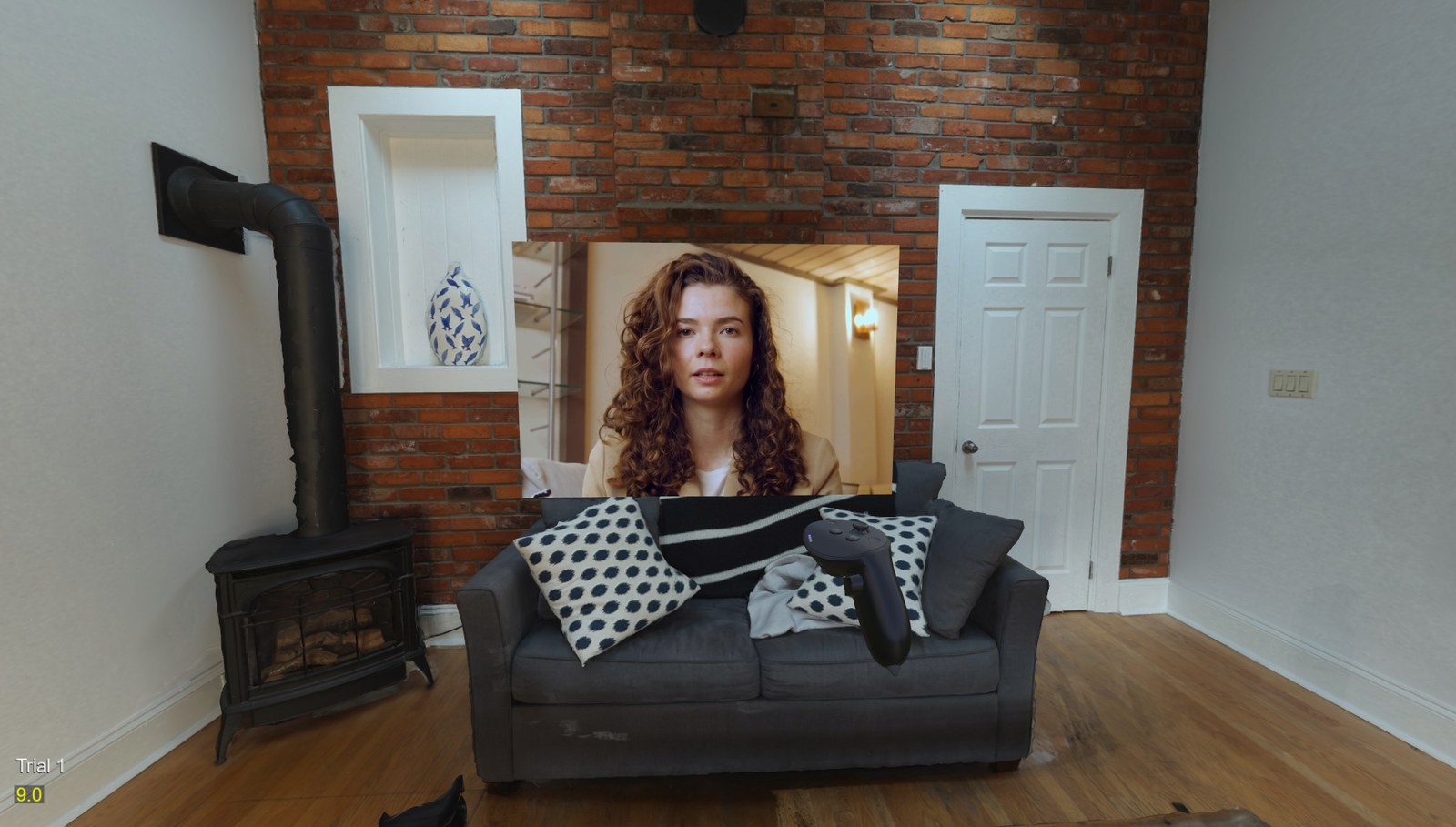
This example puts an Anam avatar (a photorealistic, real-time streaming avatar) into a SightLab scene as the face and voice of the AI Agent.
Overview
- The avatar is streamed from Anam and shown on a video screen in the scene, or full screen on a desktop.
- The replies come from the AI model you choose (ChatGPT, Claude, Gemini, or an offline Ollama model such as gemma3) using the prompt files in
prompts/. Anam speaks each reply word for word; its own AI is not used. - Your own avatar and voice: make an avatar from a photo and a voice from a short recording, or import a voice from ElevenLabs, Cartesia or Fish Audio.
- 24 languages: one dropdown sets the language the avatar speaks, the AI replies in and speech recognition listens for.
- Eye tracking and other SightLab data are recorded as usual, and the avatar's video and voice are saved per trial so the session can be replayed with the avatar playing on its screen (
Anam_Replay.py).
Setup
1. Download the example
Click the download button at the top of this page and unzip the folder into your SightLab ExampleScripts folder.
2. Install the Python packages
Anam needs Vizard 8. In the example's folder, right-click Install_Anam_Requirements.bat and choose Run as administrator. It installs the two packages the SightLab installation does not already include (anam and Pillow) into Vizard's Python and checks the result.
To install by hand instead, open a command prompt as administrator and run this with Vizard's Python:
pip install anam Pillow
3. Add your Anam API key
- Sign up at lab.anam.ai (there is a free plan).
- Create an API key under API Keys.
- Paste the key (just the key, on one line) into
keys/anam_api_key.txtnext to the script. Create the file if it is not there.
The key is looked for in this order:
keys/anam_api_key.txt(next to the script, then../_dashboard/keys/, thenDocuments/Sightlab2/ExampleScripts/_dashboard/keys/), the same folders the OpenAI, Anthropic and Gemini key files useANAM_API_KEYinConfig_Global.py- The
ANAM_API_KEYenvironment variable
The AI model that writes the replies needs its own key, set up the same way as for the AI Agent. An offline Ollama model needs no key.
Running the example
Run AI_Agent_Anam.py. At startup you answer "Use Speech Recognition?" and choose the prompt file, the AI model, the language, the avatar display (on a desktop), the avatar and the voice. Each dropdown remembers your last choice; the first time, the avatar and voice start on "Liv".
Answer No to "Use Speech Recognition?" to type to the avatar instead of speaking: the microphone is not used, and c opens the text box, as t does.
| Key | Action |
|---|---|
c |
Hold and speak to the avatar (opens the text box when speech recognition is off) |
t |
Open a text chat window |
m / n |
Scale the video screen up / down |
h |
Take a screenshot |
Space |
Start / end the trial |
Pressing c while the avatar is talking cuts it off (INTERRUPT_AI).
Configuration
The settings are in Config_Global.py.
| Setting | Purpose |
|---|---|
AI_MODEL, OPEN_AI_MODEL, ANTHROPIC_MODEL, GEMINI_MODEL, OFFLINE_MODEL |
Which AI writes the replies |
USE_DROPDOWN_OPTIONS |
The "Use Speech Recognition?" question and the prompt file and AI model dropdowns at startup |
USE_SPEECH_RECOGNITION |
Speak (True) or type (False) to the avatar, when USE_DROPDOWN_OPTIONS is off |
USE_LANGUAGE_DROPDOWN, LANGUAGES_IN_DROPDOWN |
Language dropdown at startup and the languages it lists (the 24 that Anam has voices for) |
DEFAULT_LANGUAGE |
Language used when the dropdown is off (and its first-run default), e.g. 'English' or 'Greek' |
USE_AVATAR_CHOOSER, USE_VOICE_CHOOSER |
Avatar and voice dropdowns at startup |
CONDENSED_VOICE_LIST, CONDENSED_VOICES_PER_GENDER |
True (the default) shortens the voice dropdown to 10 female and 10 male voices for the language, plus the default voice, your last choice, and your own and favourite voices from Anam Lab. False lists every voice (850 for English) |
ANAM_MATCH_VOICE_TO_AVATAR |
True (the default): when you pick a different avatar, the voice dropdown starts on the voice with the same name. See Matching the voice to the avatar |
ANAM_VOICES_ALL_LANGUAGES |
True lists Anam's voices for every language instead of only the selected one. See A voice with an accent |
ANAM_AVATAR_ID, ANAM_VOICE_ID |
Avatar and voice used when the dropdowns are off (and their first-run default). The IDs are listed in Anam Lab under Avatars and Voices |
GOOGLE_STT_LANGUAGE |
English accent for speech recognition, e.g. "en-US" or "en-GB". Other languages set this themselves |
ANAM_KNOWLEDGE_FOLDER |
Name of a knowledge folder whose documents the AI looks things up in. See Knowledge. '' = off |
ANAM_MAX_SESSION_SECONDS |
Optional cap on the length of one session |
ANAM_VIDEO_SCREEN_POSITION, _SCALE, _EULER |
Where the screen is and how tall it is. Its width follows the shape of the video |
USE_FULL_SCREEN_DROPDOWN, FULL_SCREEN_DESKTOP_VIDEO_AVATAR |
"Avatar Display" dropdown at startup (Full Screen / In the 3D Scene), and the setting used when it is off. Desktop only. See Full-screen desktop mode |
ANAM_BACKGROUND_KEY_COLOR, ANAM_BACKGROUND_KEY_TOLERANCE |
Make the video's background colour see-through, so the scene shows behind the avatar. See See-through background |
RECORD_AVATAR_VIDEO |
Save the avatar's video and voice each trial |
Changing the language
Pick the language in the language dropdown (or set DEFAULT_LANGUAGE). The one choice sets the language the avatar speaks, the language the AI replies in and the language speech recognition listens for. The voice dropdown then lists that language's voices and remembers a separate choice for each language. Some languages have few voices (Greek has three, all male).
Full-screen desktop mode
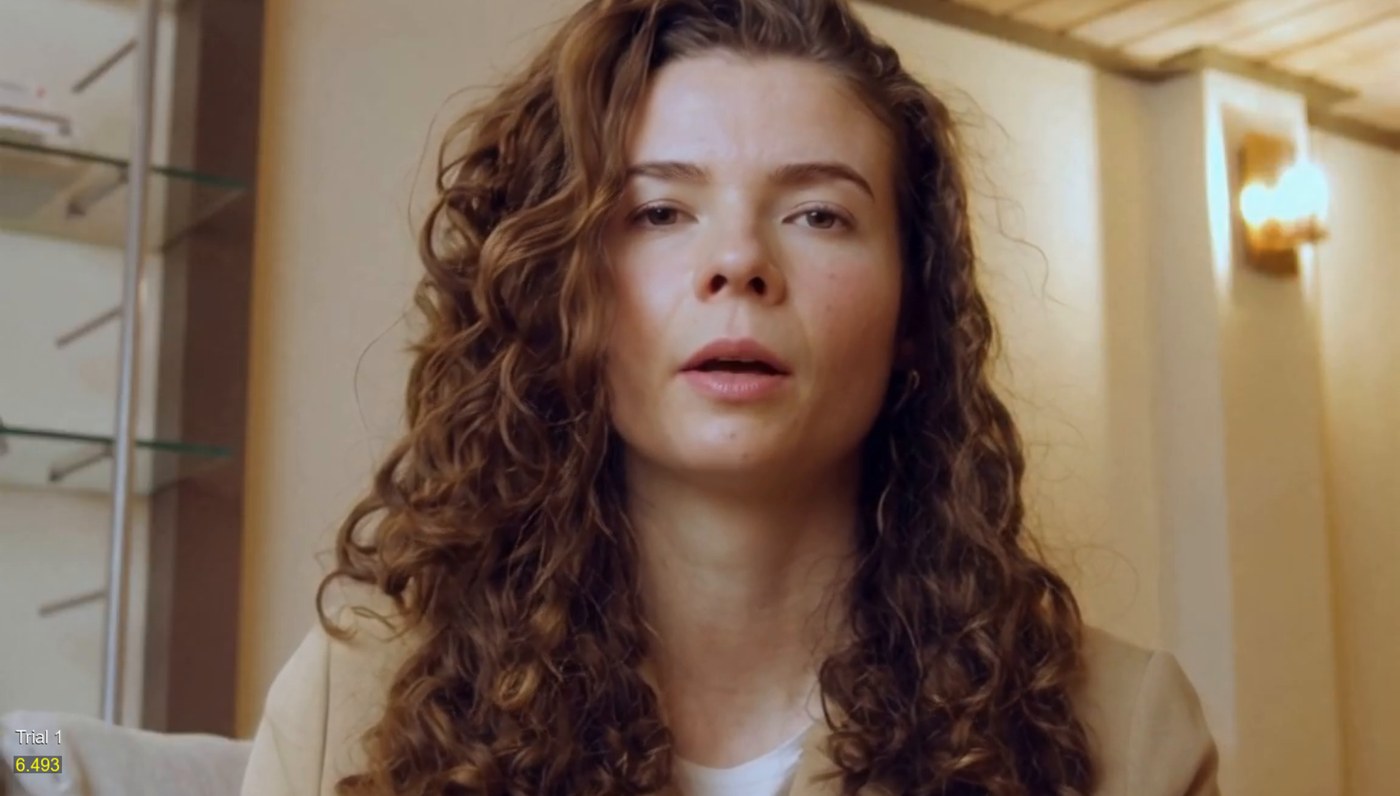
Choose "Full Screen" in the "Avatar Display" dropdown at startup to have the avatar fill the Vizard window, like a video call. "In the 3D Scene" shows it on a screen in the environment. The dropdown remembers your last choice. With USE_FULL_SCREEN_DROPDOWN = False there is no dropdown and FULL_SCREEN_DESKTOP_VIDEO_AVATAR decides.
Full screen only applies with the 'Desktop' hardware configuration. With a headset the dropdown is not shown, because VR and AR need a 3D scene around the screen. When the trial starts, the view is locked (the left shift key unlocks it, as usual in SightLab), the controller model is hidden and the screen is placed straight in front of the view. The video is scaled to cover the window, so a video of a different shape from the window is cropped slightly at the edges.
Matching the voice to the avatar
With ANAM_MATCH_VOICE_TO_AVATAR = True (the default), picking a different avatar pre-selects the voice whose name starts with the same word: the avatar "Liv (home)" gets the voice "Liv", and your own avatar "Alex (office)" gets your own voice "Alex". A voice of your own wins over a stock voice of the same name. You can still pick another voice in the dropdown; it is kept until you change the avatar again.
If no voice has that name (about a third of Anam's stock avatars, and any avatar you name differently from your voice), the voice stays as it was and the console says so. To pair your own avatar and voice, give them names that start with the same word.
See-through background
Set ANAM_BACKGROUND_KEY_COLOR = 'auto' to remove the video's background, like a green screen, so the 3D scene shows behind the avatar.
The avatar's background must be one plain colour. Anam's stock avatars sit in rooms, so make your own avatar from a photo taken against a plain, evenly lit background. Green works best, because it is far from skin and hair colours; anything the person is wearing in that colour disappears too.
'auto' takes the colour from the top corners of the video when the avatar appears, and the console prints the colour it found. If the corners are not one plain colour, the video is shown unchanged and the console says so. If some background still shows, raise ANAM_BACKGROUND_KEY_TOLERANCE (e.g. 0.25); if parts of the avatar disappear, lower it (e.g. 0.08). Recordings in recordings/ and Anam_Replay.py keep the original background.
A voice with an accent
To have, for example, a Spanish voice speak English with its accent, set ANAM_VOICES_ALL_LANGUAGES = True and CONDENSED_VOICE_LIST = False, select English as the language, and pick the Spanish voice in the voice dropdown (each entry shows the voice's country and languages). How strong the accent is depends on the voice.
Your own avatar, voice and knowledge
Run Anam_Create_Avatar.py. Its window has three tabs. Each lists what you have made in your Anam account and can rename and delete it (deleted items cannot be restored). Use in AI_Agent_Anam.py selects the item for the next run. Nothing in this window uses session minutes.
Avatar: an avatar from a photo
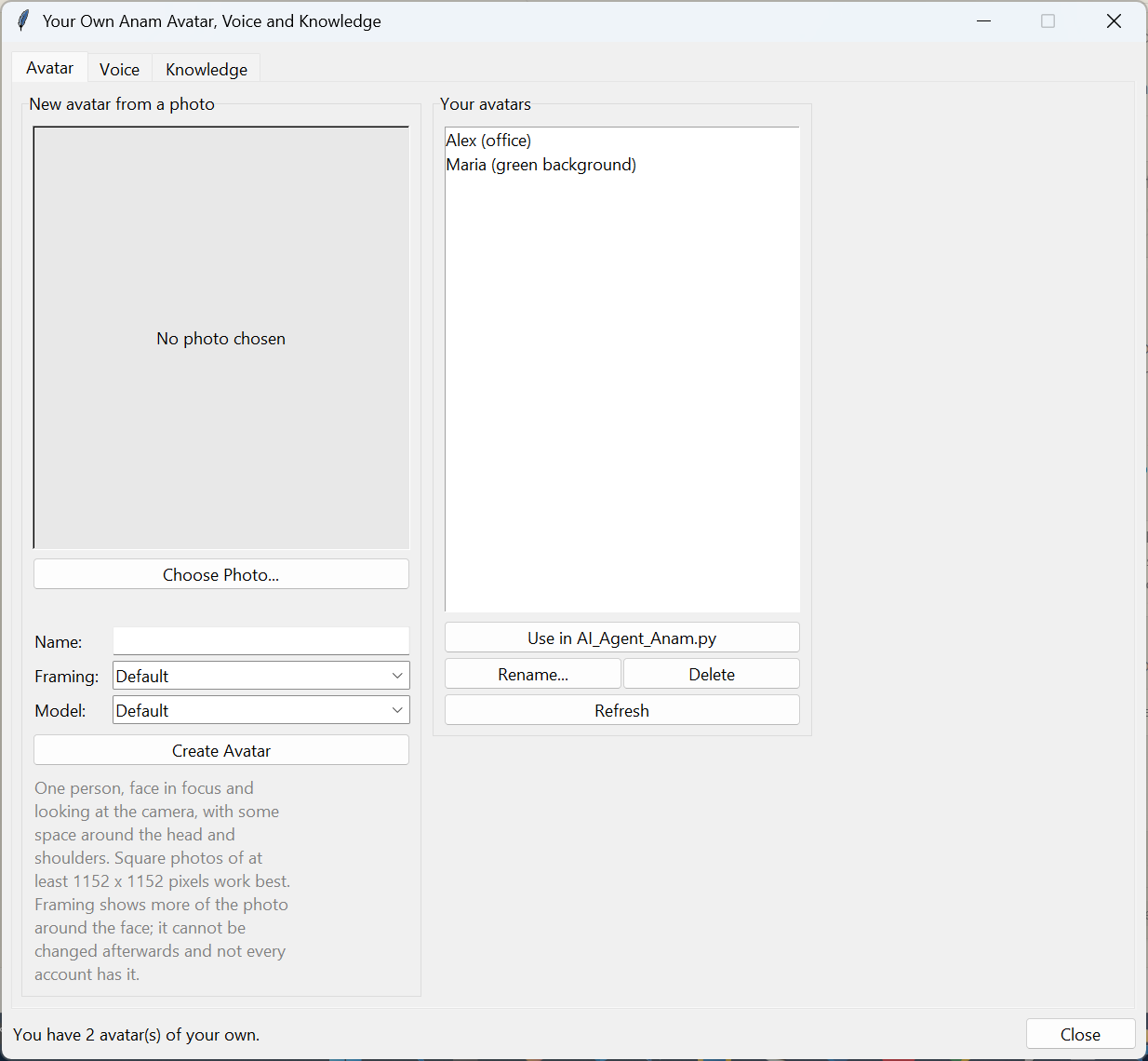
- Click Choose Photo... and pick a photo. A preview is shown.
- Give the avatar a name (3 to 50 characters).
- Optionally set Framing (how much of the photo shows around the face; it cannot be changed afterwards, and Anam switches it on per account) and Model. Leave both on Default unless you need something specific.
- Click Create Avatar and keep the window open. Anam builds the avatar in about a minute, and the bar at the bottom shows that it is working.
The avatar then appears at the top of the avatar dropdown in AI_Agent_Anam.py, marked [your avatar], and is pre-selected the next time you run it.
The photo:
- One person, face in focus and looking at the camera, hands out of view.
- Some space around the head, shoulders and upper chest.
- Best square and at least 1152 x 1152 pixels.
.jpg,.pngand.webpfiles up to 4.5 MB are sent as they are; larger photos and other formats are converted to a smaller JPEG first (the file on disk is not changed). - Anam checks every photo and refuses ones without a clear human face.
Voice: a voice of your own
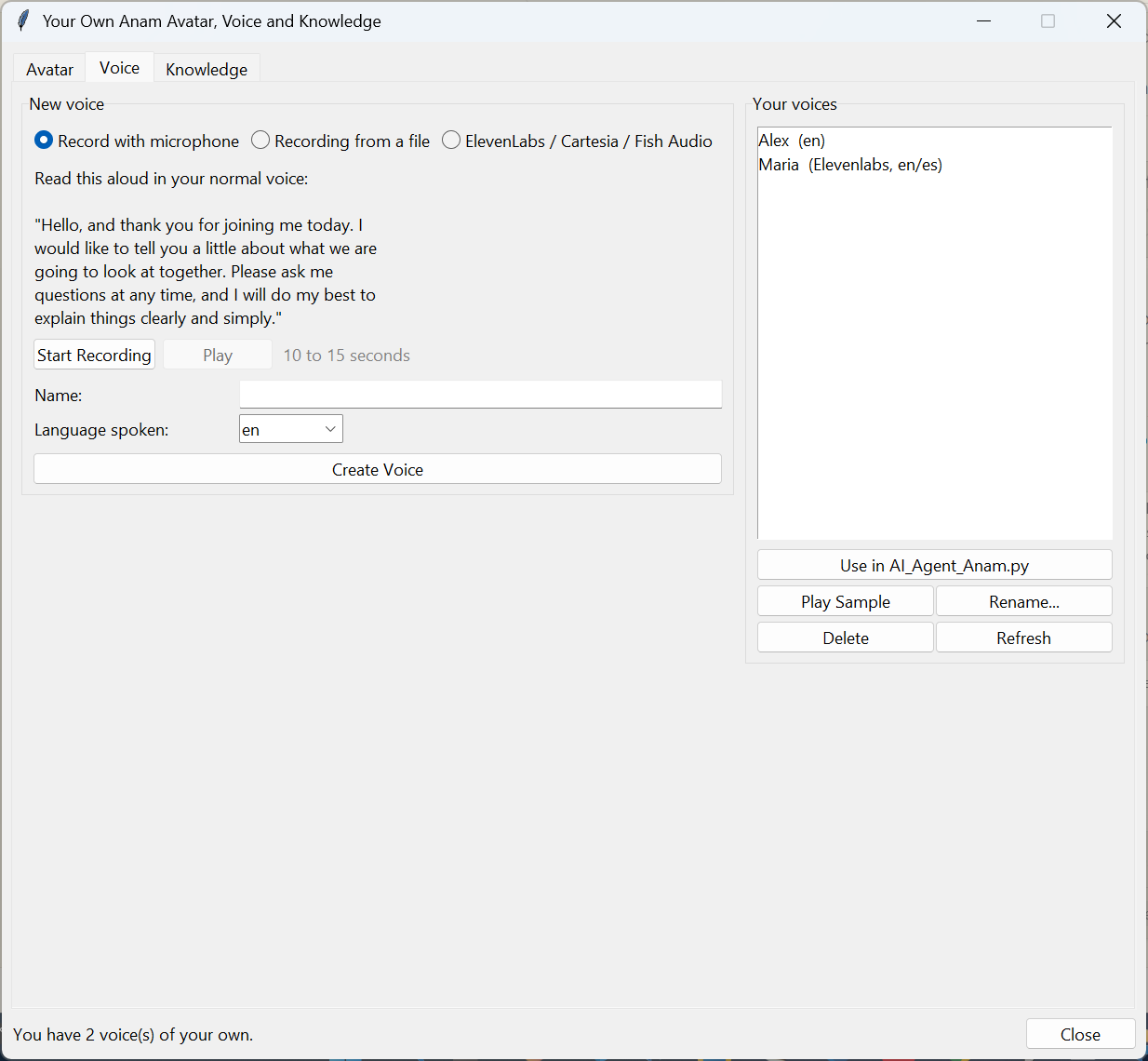
An avatar and a voice are separate in Anam: any voice can be used with any avatar. There are three ways to add a voice:
- Record with microphone: click Start Recording, read the text shown for 10 to 15 seconds, check it with Play, then Create Voice.
- Recording from a file: choose a recording of one person speaking clearly (10 to 15 seconds is enough;
.wav,.mp3,.m4a,.mp4,.ogg,.webmup to 50 MB). - ElevenLabs / Cartesia / Fish Audio: paste the voice ID (or a link that contains it) of an ElevenLabs Voice Library or default voice, a Cartesia library or shared voice, or a Fish Audio public voice. For an ElevenLabs Professional Voice Clone, paste its share link instead (in ElevenLabs: My Voices, Share Voice, Anyone with the link). ElevenLabs instant clones and Voice Design voices cannot leave the ElevenLabs account that made them: record or upload that voice here instead, or connect your ElevenLabs key in Anam Lab.
For a recording, set Language spoken to the language of the recording. A new voice is selected for the next run of AI_Agent_Anam.py, where it appears in the voice dropdown marked [your voice]. A voice of your own is offered for every language. Play Sample plays Anam's sample of a voice.
Knowledge: documents the AI can look things up in
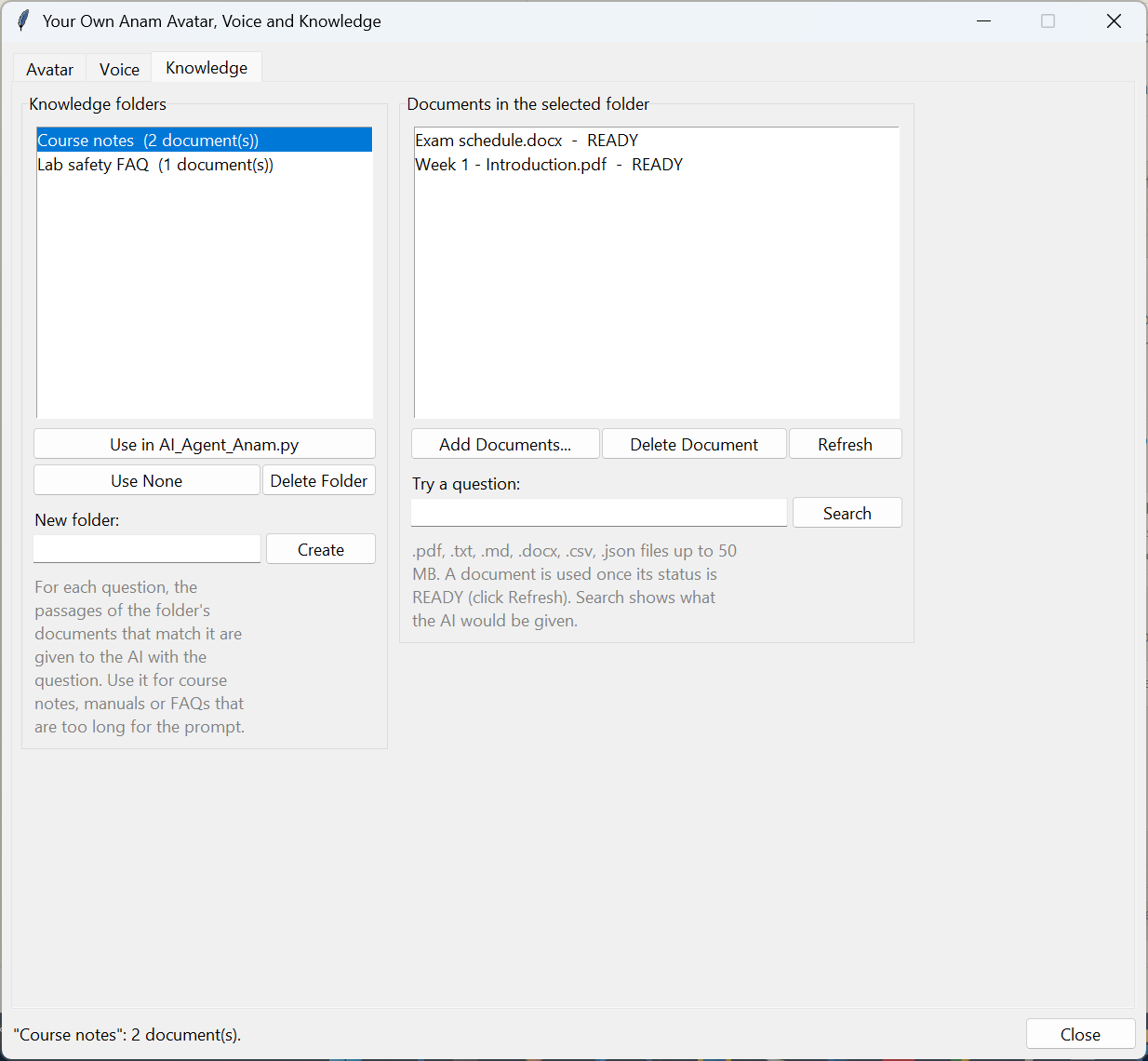
Knowledge is off by default. Use it for material that is too long for the prompt file, such as course notes, manuals or FAQs.
- Type a name under New folder and click Create.
- Select the folder, click Add Documents... and choose PDF, TXT, MD, DOCX, CSV or JSON files (up to 50 MB each).
- Click Refresh until the documents show
READY(usually under a minute). - Type a question under Try a question and click Search to see which passages the AI would be given.
- Click Use in AI_Agent_Anam.py. This sets
ANAM_KNOWLEDGE_FOLDERinConfig_Global.pyto the folder's name. Use None switches it off.
While the script runs, each question is first sent to Anam, which returns the passages of the folder's documents that match it. They are given to the AI with the question. This adds about 2 seconds to each reply. If Anam cannot be reached, the AI answers without them.
Note
Only use photos and voices of people who have agreed to it. You can also do all of this at Anam Lab; what you make there appears here too.
Usage and session limits
Anam counts usage for as long as the script is open after the avatar has started, including while the avatar is silent. Close the script when you are done.
Each Anam plan also limits how long one session can last (3 minutes on the free plan at the time of writing; see Anam's pricing). When Anam ends a session, the avatar's picture freezes and the console says so. A new session starts automatically the next time the avatar has something to say, after a pause of a few seconds. A reply that was being spoken at that moment is cut off.
Recording and replay
Each trial is saved in recordings/ when RECORD_AVATAR_VIDEO = True (the default):
| File | Contents |
|---|---|
<date>_<participant>_trial_<n>_avatar.mp4 |
The avatar's video, starting at trial start |
<date>_<participant>_trial_<n>_avatar.wav |
The avatar's voice, on the same timeline |
<date>_<participant>_trial_<n>_avatar.json |
Where the avatar screen was placed |
To replay, run Anam_Replay.py, pick the session, then pick the avatar video (the selected session's videos are listed first). The avatar plays on its screen and follows play, pause, restart and scrubbing.
SCREEN_RECORD = True additionally saves SightLab's own recording of the participant's view (.avi). With USE_GUI = True, SightLab's screen-record option does the same.
Recorded avatar video is Anam output and is subject to Anam's Terms of Service.
Using the module in your own script
import Anam_Avatar

session = Anam_Avatar.initialize(avatar_id="...", voice_id="...", language="en")
display = Anam_Avatar.setup_display(viz, vizfx, position=[0, 1.5, 2])

session.speak_text("Hello, how can I help you?")   # the avatar says it
session.interrupt()                                # stop talking

session.on_event("avatar.speak_started", lambda msg: print("Speaking..."))
session.on_event("avatar.speak_ended", lambda msg: print("Done"))
session.on_event("session.stopped", lambda msg: print("Session ended"))

Anam_Avatar.reconnect()   # new session after the old one ended (call from a thread)
Anam_Avatar.cleanup()

Anam_Avatar.list_avatars()              # [{"id", "name", "own", ...}]
Anam_Avatar.list_voices(language="en")  # [{"id", "name", "gender", "country", ...}]
Anam_Avatar.create_avatar("photo.jpg", "My avatar")                 # your own avatar from a photo
Anam_Avatar.clone_voice("me.wav", "My voice", language="en")        # your own voice from a recording
Anam_Avatar.import_voice("21m00Tcm4TlvDq8ikWAM", "ELEVENLABS")      # a voice from ElevenLabs, by its ID
Anam_Avatar.knowledge_context("Course notes", "When is the exam?")  # matching passages, to add to a question
Anam does not report when the avatar starts and stops speaking, so the two avatar.speak_* events are worked out from the avatar's voice: "ended" arrives about 0.6 seconds after it goes quiet. Event callbacks run on the avatar's thread, not Vizard's main thread.
Troubleshooting
"Missing Python packages": run Install_Anam_Requirements.bat as administrator (see Setup).
"Anam could not start the avatar": the message includes Anam's reason. The usual causes are a wrong API key, no minutes left on the plan this month, or no internet connection.
The avatar never answers after "User said: ..."
- The console should show
[AI] Asking <model>..., then[AI] Reply (Ns): ..., then[Anam] Speak: .... Whichever line is missing shows where it stopped. - With
AI_MODEL = 'OFFLINE_OLLAMA', the Ollama app must be running and the model pulled (ollama pull gemma3). The startup line[AI] gemma3 readyconfirms this. Requests time out after 60 s instead of hanging.
No sound: the avatar's voice plays on the Windows default output device. The startup line [Anam] Audio output: ... shows which one.
The video is not visible: adjust ANAM_VIDEO_SCREEN_POSITION and ANAM_VIDEO_SCREEN_EULER.
Resources
- Anam documentation
- Anam Lab (API keys, avatars, voices, usage)
- Anam Python SDK
- HeyGen AI Agent, the same example with HeyGen LiveAvatar
- AI Agent, SightLab's 3D-avatar AI Agent
Anam is a separate service with its own subscription and terms.