Avatar Playback
Overview
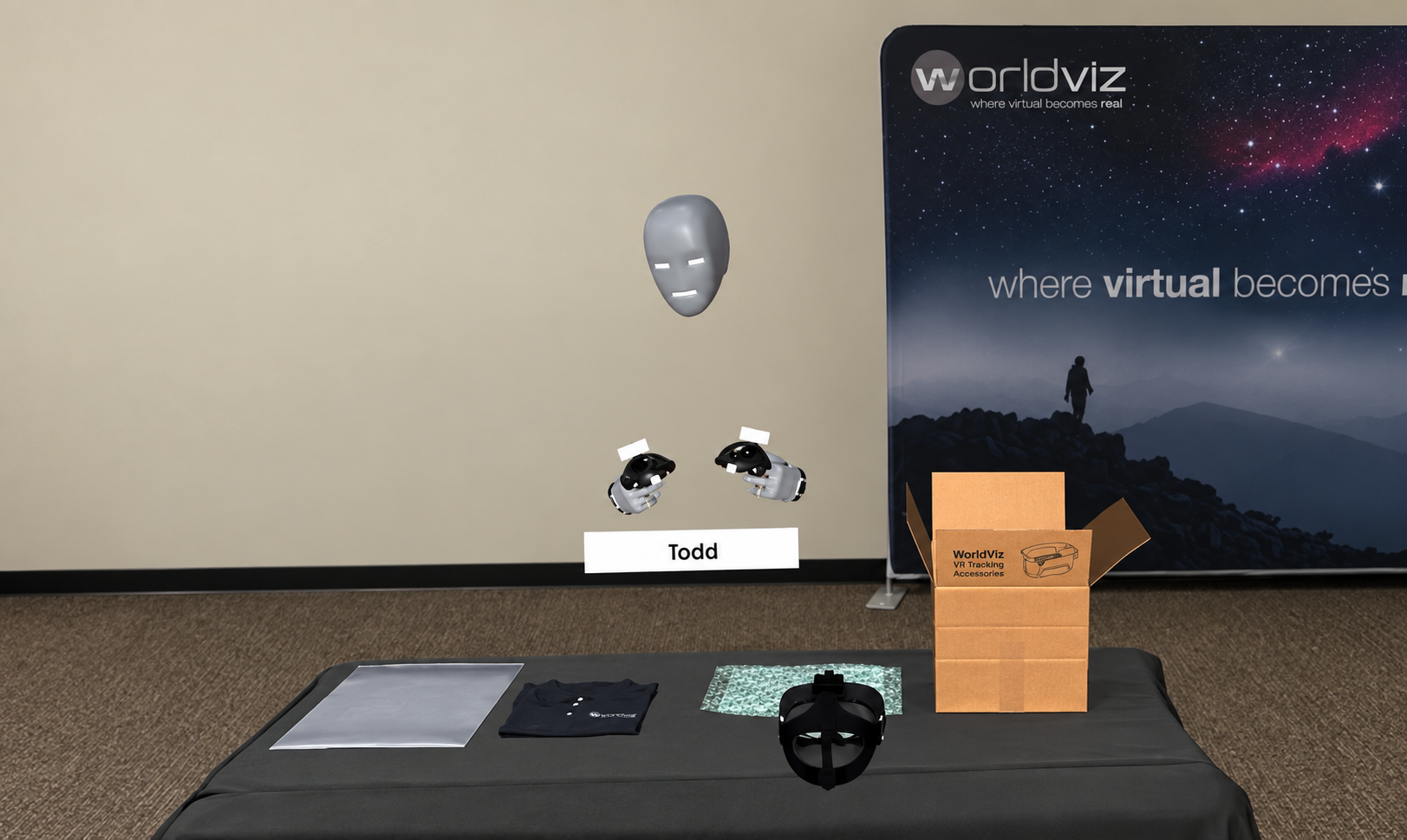
Avatar Playback plays a participant's recorded head and hands, along with any objects they picked up and, optionally, their voice, as an avatar inside a new, live SightLab session. Run one session as usual to record it, then in a later session load that recording and call start() whenever you want the recorded avatar to appear and repeat what was done.
Some ways to use it:
- A pre-recorded confederate or demonstrator that participants watch or react to
- Showing a participant an expert's movements (or their own earlier ones) to follow or compare against
- Replaying how an object was handled, such as picking up and moving an item, in front of a new participant
Playback reads the same .rply replay file that Session Replay uses, so any session you have already recorded can be played back. Nothing extra needs to be recorded.
The example is located in ExampleScripts - Avatar_Playback. Avatar Playback requires SightLab 2.9.0 or higher.
Running the Example
- Run
SightLabVR_AvatarPlayback.pyand complete a trial: press Spacebar to start the trial and Spacebar again to end it. Move around, pick up the plant if you like, and talk. On this first run there is nothing to play back yet, so the session is recorded as an avatar: your head, hands, and the plant's movement are saved to a.rplyfile in theavatar_recordingsfolder, and, if a microphone is connected, your voice is saved beside it as a.wavfile. - Run
SightLabVR_AvatarPlayback.pyagain. A dialog lists Record a new avatar first, then your recordings, newest first, marking the ones with audio. Choose the one from step 1. -
Press Spacebar to start the trial, then use these keys. The recorded voice plays along with the avatar:
Action Key Start / stop the playback avatar tPause / resume (avatar and voice) gToggle looping hStart / end the trial Spacebar -
Run
SightLabVR_Replay.pyand open the second session. The playback avatar, and the plant it moved, appear in the replay while the playback was running.
Sessions that play a recording back are saved to the data folder like any other session, so they don't add to the list: it only grows when you choose Record a new avatar. To always play the same recording without the dialog, set RPLY_PATH at the top of the script to its .rply file. To record every session and choose from everything in data instead, set USE_RECORDINGS_FOLDER = False.
To use the SightLab GUI instead, run SightLabVR_AvatarPlayback-GUI.py. Set up the scene in the GUI as usual and check Grabbable for the Plant; the playback steps and keys are the same.
Tip
The playback keys are set at the top of the script (START_STOP_KEY, PAUSE_KEY, LOOP_KEY) if you want to change them. Avoid r, which is commonly used for reset, and the function keys: Vizard uses F2 for fullscreen and F4 to show the frame rate. Set RECORD_AUDIO = False to stop recording your voice, or MIC_DEVICE to choose a microphone (see Recording and Playing Back Audio).
Adding Avatar Playback to Your Own Script
Import AvatarPlayback, create it during setup, and call start() and stop() from your experiment. This example plays the recording once per trial and ends the trial when the playback finishes:
import sightlab_utils.sightlab as sl
from sightlab_utils.settings import *
from sightlab_utils.avatar_playback import AvatarPlayback, AVATAR_PLAYBACK_END

sightlab = sl.SightLab(gui = False)

env = vizfx.addChild("sightlab_resources/environments/Business_Office.osgb")
sightlab.setEnvironment(env)

# Grab objects are played back too
Plant = env.getChild('Plant')
sightlab.addSceneObject('Plant', Plant, gaze = True, grab = True)

# Load the recording (no path = choose one from a dialog)
playback = AvatarPlayback(sightlab = sightlab)

def sightLabExperiment():
    yield viztask.waitEvent(EXPERIMENT_START)
    for trial in range(sightlab.getTrialCount()):
        yield viztask.waitKeyDown(' ')
        yield sightlab.startTrial()

        playback.start()
        yield viztask.waitEvent(AVATAR_PLAYBACK_END)
        playback.stop()

        yield sightlab.endTrial()

viztask.schedule(sightlab.runExperiment)
viztask.schedule(sightLabExperiment)
To always play the same recording instead of choosing from a dialog, pass the path to its .rply file:
playback = AvatarPlayback(r'data\10-01-2026-13-40-14__experiment_data\replay_data\10-01-2026-13-40-14__replay_data_1.rply', sightlab = sightlab)
Note
Create the AvatarPlayback during setup, not in the middle of a trial. It reads the whole .rply file when it is created, which can take a few seconds for long recordings. In scripts without the GUI, create it after sightlab.setEnvironment().
Recording and Playing Back from the Same Script
Every session that saves data writes a .rply file, including sessions that play a recording back. If your script both records avatars and plays them back, keep the recordings in their own folder so the playback sessions don't fill up the list. chooseRecording() asks whether to record a new avatar or play back one from that folder (default avatar_recordings), and returns None to record. It returns None without asking when there are no recordings yet:
from sightlab_utils.avatar_playback import AvatarPlayback, chooseRecording

rplyPath = chooseRecording()            # None = record a new avatar
if rplyPath is None:
    # Save this session in avatar_recordings/ instead of data/, so it becomes a recording
    sightlab.setDataDirectory('avatar_recordings')
    playback = None
else:
    playback = AvatarPlayback(rplyPath, sightlab = sightlab)
Call setDataDirectory() during setup, before the first trial starts. If the dialog is closed without a choice, chooseRecording() raises ValueError. The example scripts use this approach, with USE_RECORDINGS_FOLDER to turn it off.
Options
AvatarPlayback(rplyPath = None, sightlab = None, register = True, gaze = False,
               name = 'PlaybackAvatar', client = None, loop = False, grabObjects = True,
               audio = True)
- rplyPath (str): Path to the
.rplyfile to play. If omitted, a dialog lists the.rplyfiles in the project'sdatafolder, newest first. To choose from a recordings folder instead, see Recording and Playing Back from the Same Script. - sightlab: Your SightLab instance. Needed for
register,gaze, and automatic grab-object playback. - register (bool): Save the playback avatar in this session's data so it appears in Session Replay (default
True). - gaze (bool): Make the playback avatar's head a gaze object, so looking at it is tracked like any other object of interest (default
False). Requiressightlabandregister = True. - name (str): Name used for the playback avatar in the data:
<name>_Head,<name>_RHand,<name>_LHand(default'PlaybackAvatar'). Give each one a different name if you play more than one recording at the same time. - client (str): For multi-user recordings, the client ID of the participant to play (default: the lowest client ID).
- loop (bool): Start over from the beginning instead of stopping at the end (default
False). Can also be changed while playing withplayback.loop = True. - grabObjects: Play back the objects the recorded participant grabbed (default
True). See Playing Back Grabbed Objects. - audio: Sound to play with the avatar.
True(default) plays the audio recorded with the replay, if there is one; a path to a.wavfile plays that file;Falseplays none. See Recording and Playing Back Audio.
Methods
| Method | Description |
|---|---|
start() |
Show the avatar and play from the beginning, with its audio. Calling it again restarts. |
stop() |
Hide the avatar, stop its audio, rewind, and put grabbed objects back where they were |
pause() / resume() |
Freeze the avatar, objects, and audio, then continue from the same point |
isPlaying() |
True while the avatar is moving (False when paused, stopped, or finished) |
getDuration() |
Length of the recording in seconds |
getRoot() |
Parent node of the avatar; move or rotate it to reposition the whole playback |
getHead(), getRightHand(), getLeftHand() |
The avatar's head and hand nodes (getLeftHand() returns None for Desktop recordings) |
getGrabObjects() |
The objects being played back since the last start(), as {name: node} |
getAudio() |
The audio playing with the avatar (for example, to change its volume()), or None |
remove() |
Stop and delete the playback avatar |
Knowing When Playback Ends
When a recording reaches its end (with loop off), the avatar holds its final pose and the AVATAR_PLAYBACK_END event is sent. Wait for it in your experiment, as in the example above, or register a callback. e.playback tells you which playback finished:
def onPlaybackEnd(e):
    print('Finished playing', e.playback.rplyPath)

viz.callback(AVATAR_PLAYBACK_END, onPlaybackEnd)
Playing Back Grabbed Objects
If the recorded participant picked up objects, those objects move again during playback. Each grabbed object in the recording is matched by name to a grab object in the current session. In the example, the recorded Plant moves the current session's Plant. This works for objects marked Grabbable in the GUI and for objects added in code with sightlab.addSceneObject(..., grab = True) (see Grab Events). Objects are matched each time start() is called, so they only need to be set up by the time playback starts.
start()remembers where each object is, andstop()puts it back there. When the recording ends, objects stay where the recorded participant left them until you callstop().- Position and rotation are played back, but not scale, color, or visibility.
- If the current participant grabs an object while it is being played back, their grab takes over until they let go. Then playback takes the object back.
- Objects in the recording that don't exist in the current session are skipped, with a message in the console.
To match objects yourself, for example when they have different names in the two scenes, pass a dictionary of recorded name to object. To play back only the avatar, pass grabObjects = False:
# Recorded 'Plant' moves this scene's 'Fern'
playback = AvatarPlayback(sightlab = sightlab, grabObjects = {'Plant': env.getChild('Fern')})

# Avatar only
playback = AvatarPlayback(sightlab = sightlab, grabObjects = False)
Positioning the Playback
By default the avatar appears exactly where the recorded participant was. If the current scene is laid out differently, move or rotate the whole playback with getRoot(). Grabbed objects move with it, so they stay in the avatar's hand:
playback.getRoot().setPosition([1, 0, 2])
playback.getRoot().setEuler([90, 0, 0])
Recording and Playing Back Audio
To record the participant's voice in the session you're going to play back, create a ReplayAudioRecorder during setup. It records the microphone during every trial and saves the audio beside that trial's replay file:
from sightlab_utils.audio_recorder import ReplayAudioRecorder

recorder = ReplayAudioRecorder(sightlab)                       # system default microphone
recorder = ReplayAudioRecorder(sightlab, device = 'Headset')   # or part of a device's name
For example, 10-01-2026-13-40-14__replay_data_1.rply gets 10-01-2026-13-40-14__audio_data_1.wav in the same replay_data folder. When that .rply is played back, AvatarPlayback finds the .wav and plays it in step with the avatar: the audio starts, stops, pauses, and resumes with the avatar, and starts over each time a looping playback repeats. Use getAudio() to adjust it, for example playback.getAudio().volume(0.5).
- Audio is only recorded for trials that save replay data, so turn on data saving. Multi-user clients don't record audio, because the server writes their replay files.
- While SightLab pauses replay recording (for example, during
showRatings()), the microphone isn't recorded either, so the audio stays in step with the avatar. devicetakes a device index or part of its name. To list the microphones on a computer, runimport sounddevice; print(sounddevice.query_devices()).- Recording uses the
sounddevicePython package, like the Audio Recording example. If the package isn't installed or no microphone can be opened,ReplayAudioRecorderraises an error, so wrap it intry/except(as the example script does) if recording is optional. - If you record a new session while an earlier one plays back, use headphones so the microphone doesn't pick up the playback.
To find a recording's audio, AvatarPlayback checks for these, in order:
- The
.rplyfile's name withreplay_datachanged toaudio_data, as a.wavfile in the same folder (whatReplayAudioRecordersaves) - A
.wavfile with the same name as the.rplyfile - A
.wavfile whose name starts with the same session date and time, in the replay's folder or the session folder above it, such as one saved by the Audio Recording example. If there are several, the one ending in the same trial number is used.
To play a different file, or no audio, pass audio:
playback = AvatarPlayback(sightlab = sightlab, audio = r'narration\intro.wav')
playback = AvatarPlayback(sightlab = sightlab, audio = False)
Data and Session Replay
- With
register = True(the default), the playback avatar is saved in the new session's replay file asPlaybackAvatar_Head,PlaybackAvatar_RHand, and (if the recording has one)PlaybackAvatar_LHand. It is only visible in Session Replay while the playback was running. Grabbed objects are saved as usual. - Audio recorded with
ReplayAudioRecorderis saved in thereplay_datafolder beside the.rplyfile. Session Replay doesn't play it; the Audio Recording example shows how to play audio alongside a session replay. - With
gaze = True,PlaybackAvatar_Headis tracked as an object of interest, so you can see when and how long the participant looked at the playback avatar.
Notes
- The avatar uses the head and hand models saved in the recording. If the recording used an invisible head or hands, the default GlowMan head and controller models are used so the avatar can be seen.
- Recordings made in Desktop mode have no left hand.
- For multi-user recordings, use
clientto choose whose avatar to play. - To play several recordings at once, create several
AvatarPlaybackobjects, each with its ownname. - If you call
remove()during a trial, callstop()at least one frame earlier so the replay shows the avatar being hidden.