Lab Streaming Layer
Overview
Lab Streaming Layer (LSL) is an open-source networked middleware ecosystem to stream, receive, synchronize, and record neural, physiological, and behavioral data streams acquired from diverse sensor hardware.
See here for a list of supported devices
Can also search for supported devices and apps here
With LSL, SightLab can both receive data from and send data to third party EEG and physiological devices and software. The example scripts are in ExampleScripts/LSL_Sample, which also has a README.md with the same steps as this page.
Note: To use LSL you need the pylsl Python library. If it isn't installed, install it via Tools - Package Manager in the Vizard IDE.
Example Scripts
| File | What it does |
|---|---|
lsl_sample_receive.py |
Receives one or more LSL streams, summarises each channel per trial and saves the results to the experiment summary. Can also send trial markers and save the raw data. |
lsl_list_streams.py |
Lists the LSL streams on the network and prints a line to paste into lsl_sample_receive.py. |
lsl_sample_stream.py |
Dummy 8-channel EEG stream for testing without a device. |
LSLpupil_diameter.py |
Sends pupil diameter (combined, left and right) at 100 Hz, e.g. into Biopac AcqKnowledge. |
LSLmousecoordinates.py |
Sends the mouse position at 100 Hz, e.g. into Biopac AcqKnowledge. |
LSL_Biopac_Stream.py |
Template for sending your own values. Sends head position and the trial number by default. |
lsl_receiver.py, lsl_sender.py |
Helper modules used by the scripts above. Keep them in the same folder as your script. |
Streaming Into SightLab (Stream Inlet)
SightLab can receive data from devices such as EEG (Muse, BrainVision, BioSemi, etc.), GSR, ECG and other physiological recorders, and save it with your session. Any device or software that sends an LSL stream works the same way.
- Start the device streaming to LSL from its own software.
- Run
lsl_list_streams.py. For each stream on the network it prints the stream's details and a line to copy. - Paste that line into
STREAMSat the top oflsl_sample_receive.py, one line per stream you want to record. - Run
lsl_sample_receive.py.
For example, lsl_list_streams.py prints this for the dummy EEG stream:
[1] DummyEEG
    type       : 'EEG'
    channels   : 8
    rate       : 100 Hz
    format     : float32
    source_id  : 'dummy1234'
    host       : MY-PC
    labels     : ['Fp1', 'Fp2', 'C3', 'C4', 'P3', 'P4', 'O1', 'O2']

# --- paste into STREAMS in lsl_sample_receive.py ---
dict(name='DummyEEG', type='EEG', source_id=None, labels=None, channels=None, prefix='DummyEEG'),
The settings at the top of lsl_sample_receive.py:
STREAMS = [
    dict(name='DummyEEG', type='EEG', source_id=None, labels=None, channels=['C3', 'O2'], prefix='EEG'),
]
STATS = ['mean']            # saved per channel - any of 'mean', 'std', 'rms', 'min', 'max'
SAVE_RAW_CSV = False        # True = also save every sample to <prefix>_trial_<n>_lsl.csv in the data folder
SEND_MARKERS = True         # send trial_start_<n> / trial_end_<n> on an LSL 'Markers' stream
USE_MOCK_IF_MISSING = True  # False = stop with an error instead of using random data
TRIAL_DURATION = 5          # the demo ends each trial after this many seconds
In each STREAMS entry:
name,type,source_idchoose the stream.Nonematches anything.source_idis only needed if several streams share the same name and type.labelsnames the channels if the stream doesn't send its own names.Noneuses the stream's names, orCh0,Ch1, ... if it has none.channelschooses which channels to save, by name or number, e.g.['GSR']or[0, 2].Nonesaves all of them.prefixstarts the column names in the experiment summary.
The results are saved to the experiment summary file, which has one row per trial, in columns such as EEG_C3_mean. An EEG_Samples column gives the number of samples received in each trial, and an EEG_Source column records which stream was used.
To try it without a device, run lsl_sample_stream.py in a separate window first. The default STREAMS entry in lsl_sample_receive.py matches it.
Good to know:
- Data is collected for the whole trial, from
startTrialtoendTrial. The demo ends each trial afterTRIAL_DURATIONseconds; replace that line with however your trials end. - If no matching stream is found, random mock data is used so the script can still be tested, and a large warning is printed. The
<prefix>_Sourcecolumn then readsMOCK DATA. SetUSE_MOCK_IF_MISSING = Falseto stop with an error instead. - A warning is printed if a trial received less than 90% of the expected number of samples, for example if the device disconnected.
- Fast, high-channel devices are fine: everything that arrived is read every frame and only running totals are kept, so memory doesn't grow over long trials.
- Timestamps are converted to this PC's LSL clock, so data from a device running on another PC lines up too.
- Text or marker streams are skipped, because they have no values to average. Record them with LabRecorder instead.
Event Markers and LabRecorder
With SEND_MARKERS = True, lsl_sample_receive.py sends trial_start_<n> and trial_end_<n> on a stream called SightLab Markers. Record it with LabRecorder (or your device's own LSL recorder) together with the device stream to line up trials with the raw data afterwards.
To mark your own events, call markers.send() anywhere in the experiment:
markers.send('door_opened')
Use LSL's clock for LSL timestamps
Markers are timestamped with pylsl.local_clock(). Don't timestamp LSL data with viz.tick(). It's a different clock, so the data won't line up with other LSL streams.
Streaming Out of SightLab (Stream Outlet)
Need to visualise VR gaze paths in AcqKnowledge or MATLAB, or record SightLab data alongside your EEG? SightLab can send its own data as an LSL outlet. This could be things such as:
- Face tracking data
- Participant position data
- Participant head orientation data
- Pupil diameter
- Gaze coordinates
LSL_Biopac_Stream.py is a template for sending your own values. Copy it and edit CHANNELS and readValues(). readValues() returns one value per channel and is called once per frame:
import lsl_sender

CHANNELS = ['HeadX', 'HeadY', 'HeadZ']

def readValues():
    x, y, z = viz.MainView.getPosition()
    return [x, y, z]

outlet = lsl_sender.FixedRateOutlet('Head Position', 'Position', CHANNELS, read=readValues, srate=100)
vizact.onupdate(0, outlet.update)
FixedRateOutlet sends at exactly the rate you set, whatever the headset's frame rate. Every frame it sends the current values once for each sample that has come due, so the stream has no gaps and doesn't drift. Any value that is None is sent as the pad value (-1 by default). A vizact.ontimer(0.01, ...) timer can't do this, because Vizard timers run at most once per frame (60 to 120 times a second).
See also below for the detailed workflow with Biopac AcqKnowledge.
Streaming from SightLab to Biopac Acqknowledge
Acqknowledge supports LSL streaming natively, making SightLab ↔ Biopac setup painless. It needs Biopac's LSL license for AcqKnowledge (AcqKnowledge 5.0.10 or later).
See the examples in the ExampleScripts/LSL_Sample folder:
LSLpupil_diameter.pysends pupil diameter as 3 channels (combined, left and right). It uses the same pupil readings SightLab records for each supported eye tracker. Until the eye tracker is ready, or on hardware without pupil data, it sends -1.LSLmousecoordinates.pysends the mouse position (x and y, from 0 to 1 across the window).LSL_Biopac_Stream.pysends head position and aTrialchannel (the trial number, 0 between trials), so you can see in AcqKnowledge when each trial ran. Edit it to send any other data.
All three send at a steady 100 Hz with no gaps, and start streaming as soon as the script starts, so AcqKnowledge can connect before the experiment begins.
To set up AcqKnowledge:
In Acqknowledge go to Display - Preferences- Hardware- Data Acquisition and enable "LSL"
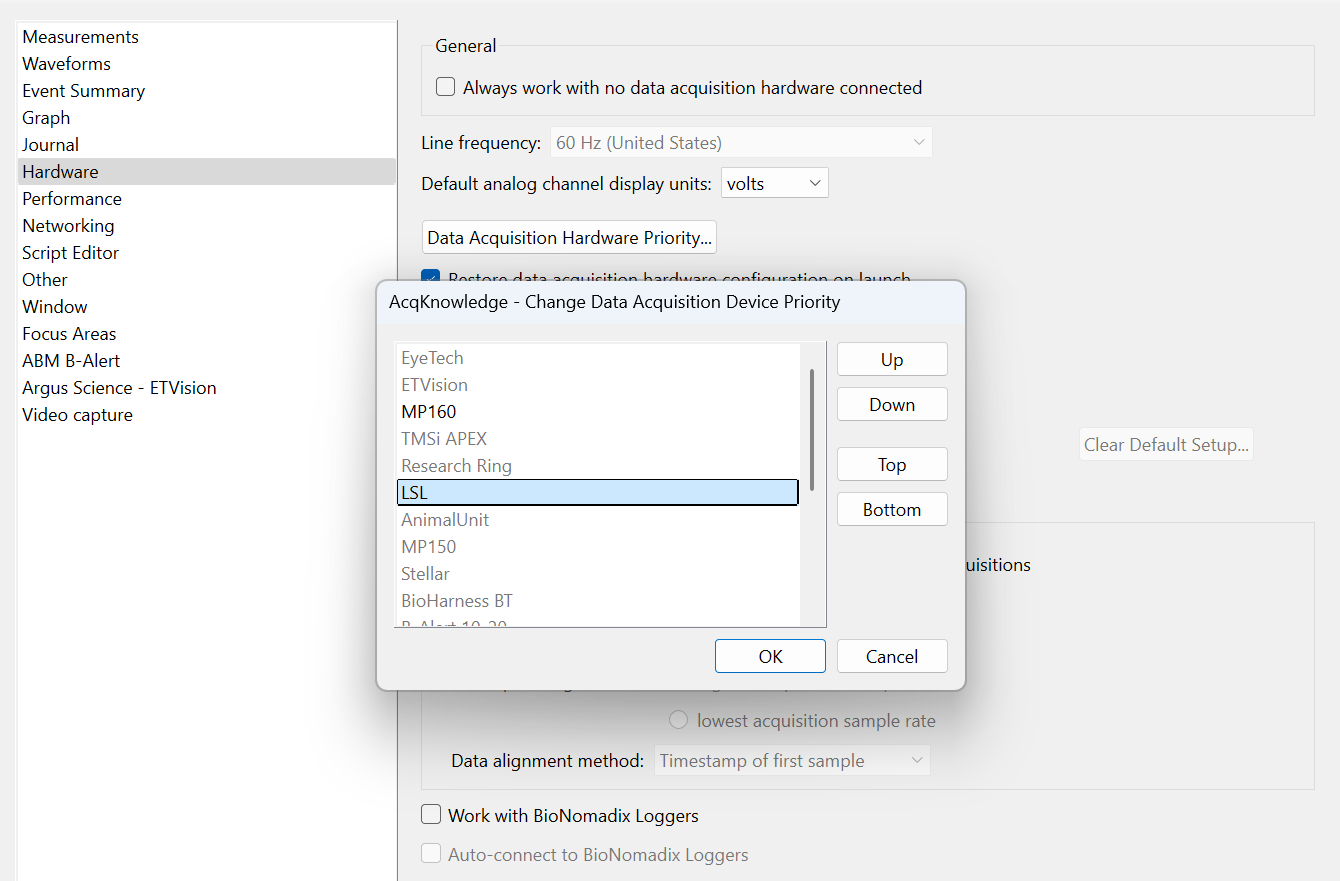
Click the “+” Button to add hardware to show
Restart Acqknowledge and create a new experiment
Needs to be a new graph (go to File- New)
Hardware dropdown and choose LSL stream
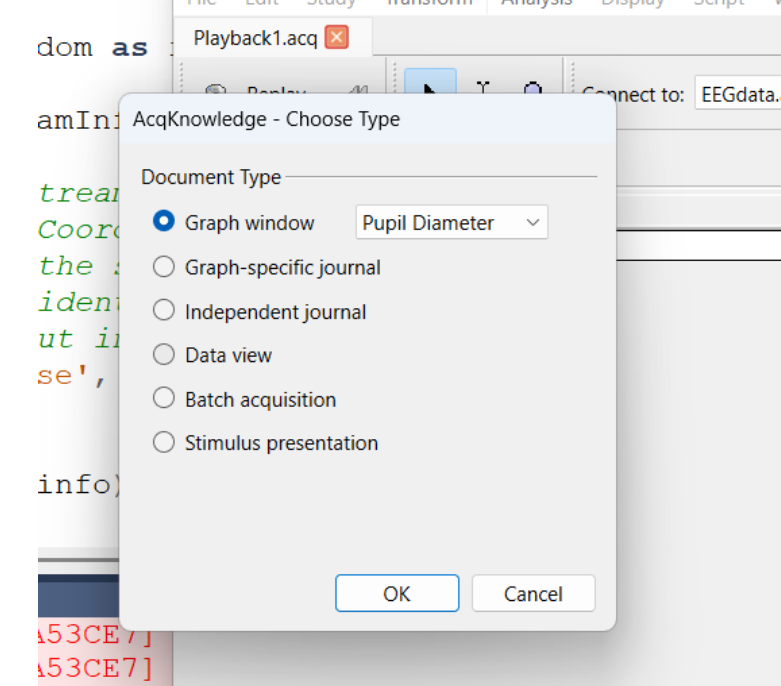
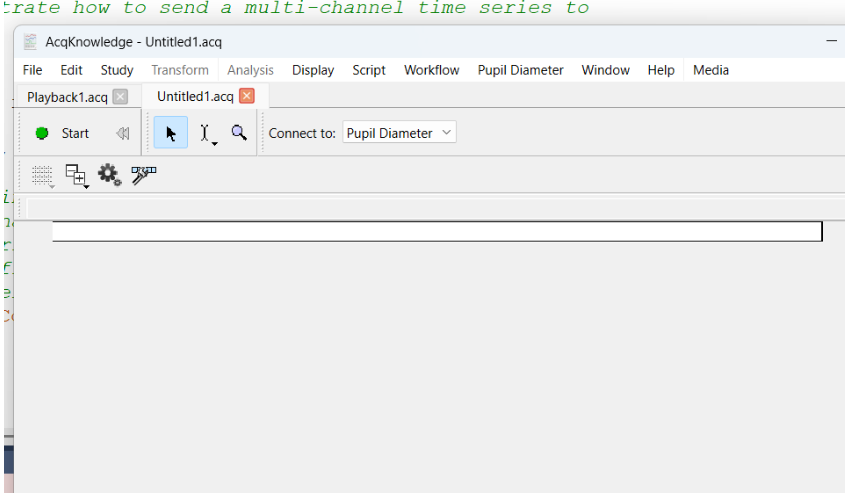
When you restart Acqknowledge you can refresh your stream (or just start the SightLab script using something like the Pupil Diameter streaming example)
You can then click "Refresh" at the start stream
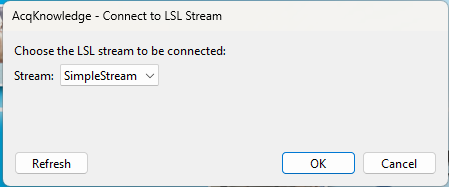
For event markers inside AcqKnowledge, see Sending Events to Biopac and Biopac Integration.
Earlier versions of these examples
The pupil diameter stream used to send 1 channel and now sends 3, so add the stream to your AcqKnowledge graph again. The summary columns written by lsl_sample_receive.py are now named <prefix>_<channel>_<stat> (for example EEG_C3_mean), with each trial's values on its own row, instead of Trial_<n>_LSL_Avg. The old per-trial column names only had a header for trial 1, so later trials' values had no column name.
Troubleshooting
Receiving streams in SightLab
- "NO MATCHING LSL STREAM FOUND - USING MOCK (RANDOM) DATA": run
lsl_list_streams.pyand compare the stream's name and type with yourSTREAMSentry. - No streams listed: check the device software is streaming. If it's on another PC, both PCs must be on the same network and the firewall must allow LSL.
- "2 streams match - using the first": set
source_idto the value shown bylsl_list_streams.py. - Device without LSL support (for example iWorx through its Python API): a small bridge script has to read the device and send the data to an LSL outlet.
lsl_sample_receive.pythen works as described above.
Acqknowledge
When you first launch Acqknowledge if you see "No Stream Available"
You should be able to start whatever stream you’re expecting to find, and press the Refresh button to find it. That will cause Acq to look for streams again.
If the outlet gets closed for any reason and Acq notices (e.g., here, I quit the program that was generating SimpleStream and then pressed the Start button in a graph window that was connected to SimpleStream)
You can go to “Manage Hardware Connections” to look for new streams to connect to. You can get there from the main hardware menu, which might be “MP160”, “MP200”, or in the case of a graph window receiving an LSL stream, it will have the name of the stream.