Reaction Time Tasks
Overview
This documentation covers four example scripts designed for reaction time and interaction experiments in virtual reality using the SightLab VR platform. These scripts demonstrate different ways to configure tasks, environments, and participant interactions.
1. Basic Reaction Time Task (reactionTime.py)
Purpose
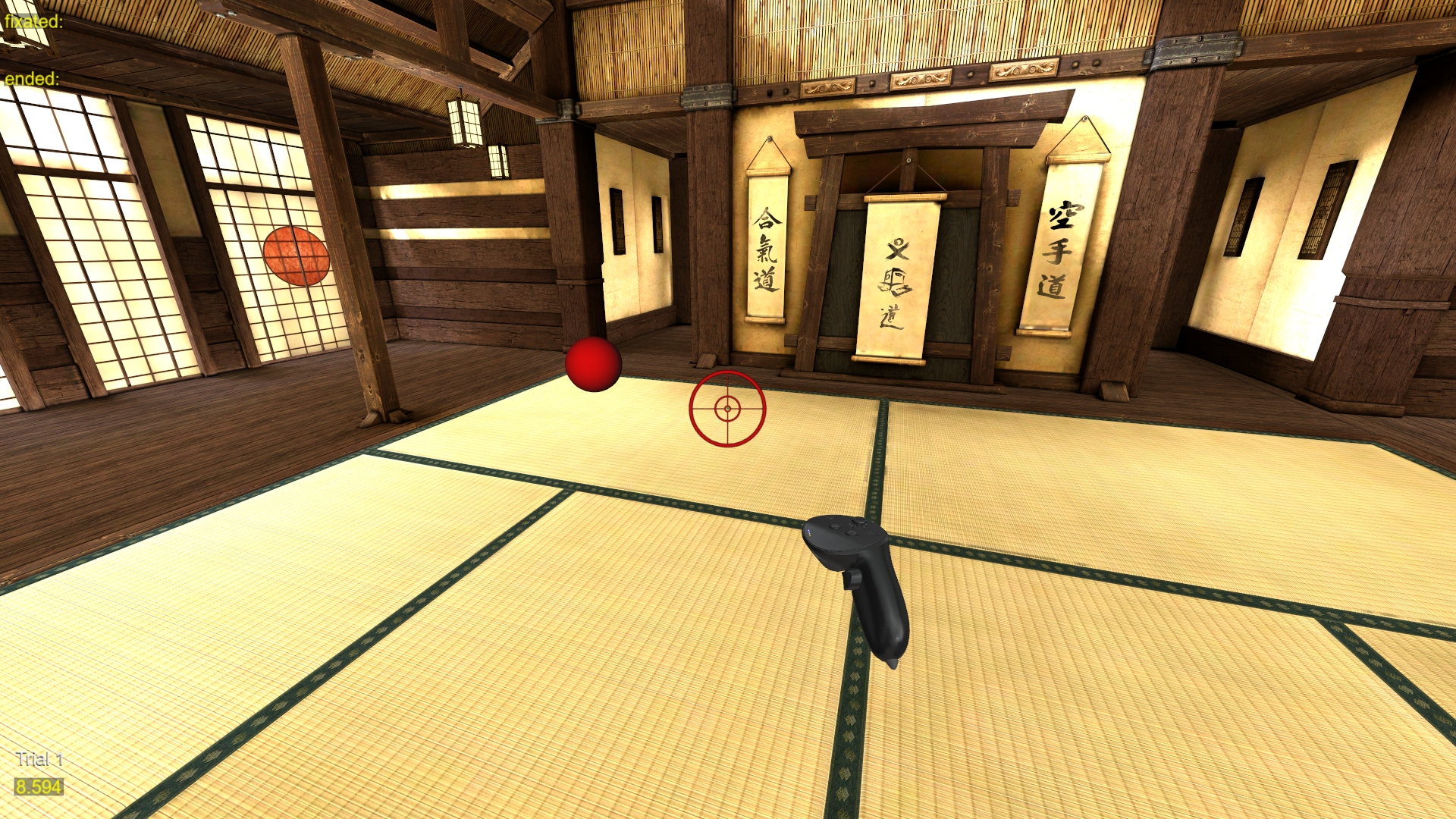
To measure how long it takes participants to find a red sphere with their eyes and look at it.
Script Breakdown
- Setup Environment:
- Loads the dojo environment and a red sphere, which stays hidden until its turn.
- Reaction Time Measurement:
- The sphere appears at each of the four
positionsin turn, after a random wait of 1.5 to 2.5 seconds. - A look counts once it has stayed on the sphere for the dwell time (0.5 seconds by default), so a glance that passes over it does not. The reaction time runs from the sphere's appearance to the start of the look that counted.
- The time is shown on screen and written to the trial data's
Reaction Timecolumn, and the sphere fades out. If it is not looked at, it fades out after 3 seconds and no time is recorded. - The sphere is hidden between appearances, so gaze can't land on it then, and each appearance records at most one time.
- All four positions run in one SightLab trial.
Customization
- Modify
positionsto change where the sphere appears, and in what order. FADE_IN_SPHEREis the time, in seconds, the sphere takes to fade out.- Modify environment and target object.
2. Reaction Time with Selector Tool (reactionTime_Selector_Tool.py)
Purpose
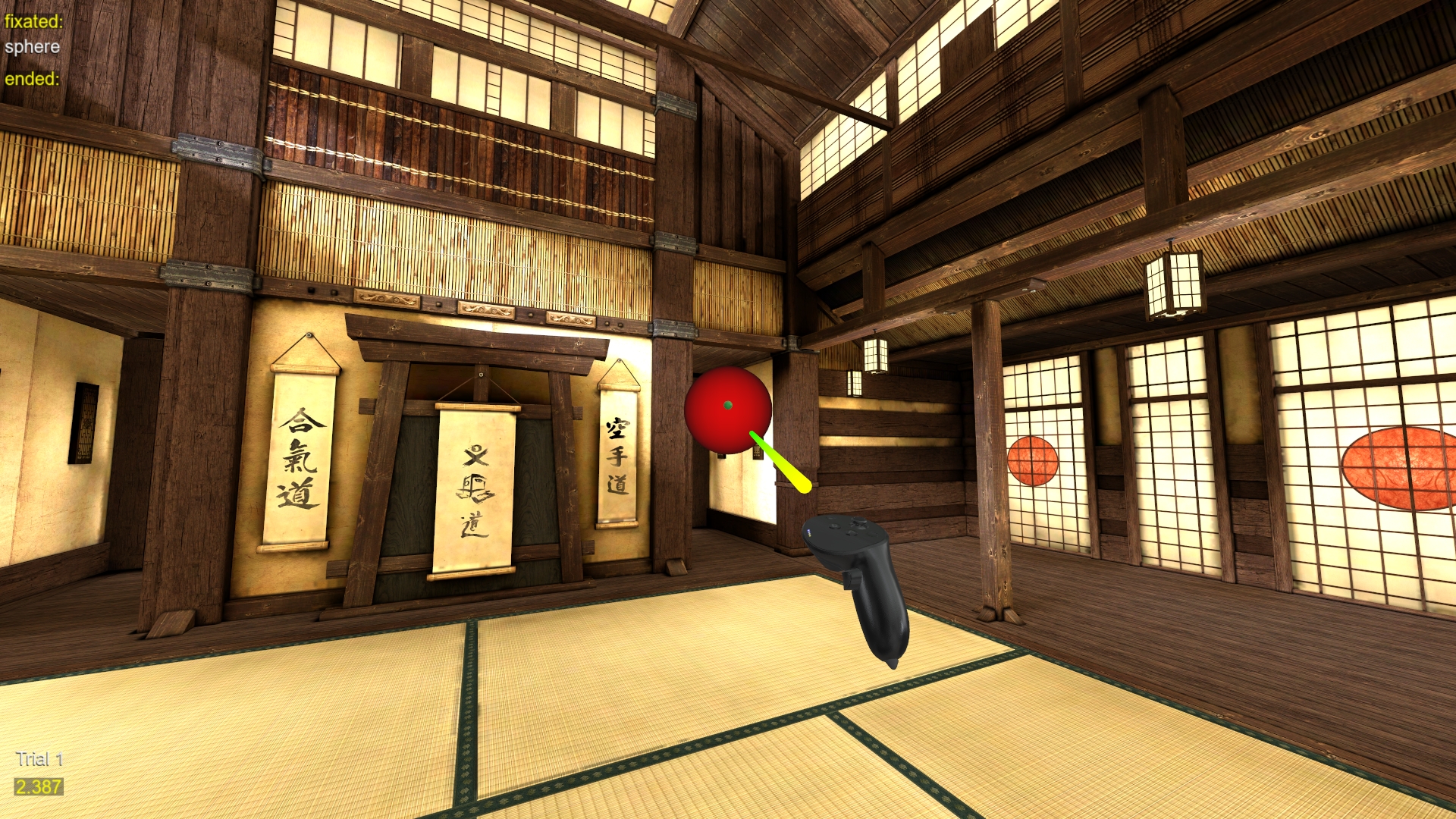
Measures how quickly a participant points at a red ball and clicks it once it appears, using SightLab's selector (highlighter) tool.
Script Breakdown
- Setup:
- Loads the dojo environment and the red ball (
Resources/objects/red_ball.osgb), and turns on the selector tool for the ball only. Nothing is highlighted when the pointer is on the ball, so the press is the only response. - Draws the order of the positions and the waits from one random seed (see Repeating a session).
- Interaction Flow:
- The instructions ask the participant to click the ball as quickly as possible. The trigger (or left mouse button) continues.
- Each ball is its own SightLab trial, labelled
Position 1toPosition 4. Every block of four trials shows each position once, in a random order. - Each trial starts with a random wait of 1 to 3 seconds, then the ball appears at that trial's position.
- The participant points at the ball and presses the trigger. In a headset, each controller has a ray, and a press counts only for the controller whose ray is on the ball. On Desktop, the pointer comes from the hand at the lower right of the view and points where you look: turn the view with the mouse to aim, then left-click.
- The reaction time runs from the moment the ball is first drawn to the press. The trial then ends and the next one begins.
- If the participant cannot find the ball, the operator can press Space to skip it; that trial's reaction time is left blank.
- "Done. Thank you!" shows after the last trial.
Data Recorded
Each trial's row for ENTIRE_SCENE in the experiment summary has these columns:
| Column | What it records |
|---|---|
Reaction Time |
Seconds from the ball appearing to the press that selected it. Blank for a skipped ball. |
Position |
Which of the four positions (1 to 4) |
Ball Position |
That position's coordinates |
Foreperiod (secs) |
The random wait before the ball appeared |
Misses |
Presses while the ball was showing that were not on it |
Anticipations |
Presses before the ball appeared |
Random Seed |
The seed that drew the session's order and waits |
The trial data also flags each moment: ball shown, miss, anticipation, and the reaction time on the frame of the hit. The ball is a gaze object (sphere), so the usual dwell and fixation measures cover it. The ball is hidden between trials, so gaze can't land on it then, and Session Replay shows it only while it was visible.
Customization
| Setting | Default | What it does |
|---|---|---|
POSITIONS |
Four positions | Where the ball appears, in meters. The ball's origin is at its base, so each position is where the ball rests; its center is 0.2 m higher. |
NUM_TRIALS |
4 |
Number of balls. Each block of len(POSITIONS) trials shows every position once. |
FOREPERIOD_RANGE |
(1.0, 3.0) |
The random wait before each ball, in seconds |
RANDOM_SEED |
None |
None draws a new seed every session; a number repeats a session (see below) |
INSTRUCTIONS, END_TEXT |
The text before the first trial and after the last | |
SKIP_KEY |
' ' (Space) |
The operator's key for skipping a ball |
Repeating a session
The script prints the random seed at the start of each session and saves it in the experiment summary's Random Seed column. To run the same order of positions and the same waits again, set RANDOM_SEED to that number.
3. Shoot/Don't Shoot Task (reactionTime_Shoot_Dont_Shoot.py)
Purpose
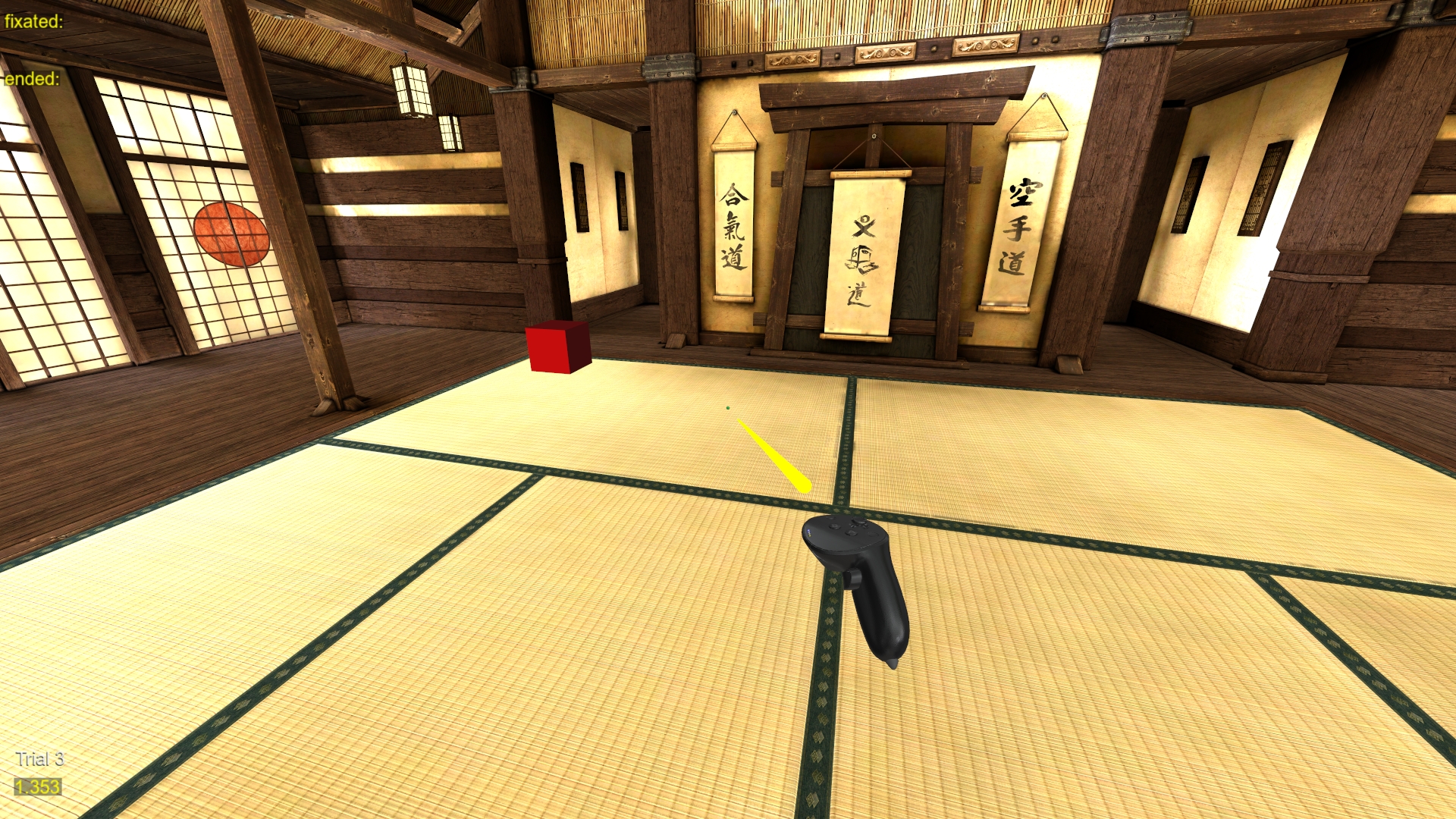
Tests decision-making under time pressure by requiring participants to "shoot" threat objects while ignoring neutral objects.
Script Breakdown
- Object Classification:
- Four objects: two threats (a red and a green box) and two neutrals (a white and a blue sphere). Each is a gaze object with its own name:
threat_red,threat_green,neutral_white,neutral_blue. - Four possible spawn positions. All objects stay hidden until their trial.
- Task Logic:
- An instruction image (
shoot_dont_shoot.jpg) explains the task; the trigger starts it. - Each of the
SET_TRIAL_COUNTtrials shows one object, drawn at random, at a random position. - The participant shoots by pointing at the object and pressing the trigger (Desktop: left-click), or holds fire. In a headset, a press counts only for the controller whose ray is on the object.
- The trial ends at the shot, or after
TRIAL_LENGTHseconds without one. - Shooting a threat or holding fire on a neutral object is correct.
Data Recorded
Each trial's row for ENTIRE_SCENE in the experiment summary has these columns:
| Column | What it records |
|---|---|
Reaction Time |
Seconds from the object appearing to the shot. Blank when the participant held fire. |
Object Category |
threat or neutral |
UserShot? |
True if the participant shot, False if they held fire |
Correct? |
True for a shot threat or a neutral left alone |
Every trial has a category, a shot, and a correctness value, including trials where the participant held fire. Objects are hidden between trials, so gaze can't land on them then, and Session Replay shows each object only while it was visible.
Customization
- Modify
SET_TRIAL_COUNTto change the number of trials, andTRIAL_LENGTHfor how long each object stays up (1.5 seconds by default). - Update
object_listto add or replace objects, with a matching name for each inobject_names. Each name must be unique: SightLab keeps one object per name for gaze data and replay. - Modify
positions, the environment, and the objects.
4. Shoot/Don't Shoot in a Maze (reactionTime_Shoot_Dont_Shoot_maze.py)
Purpose
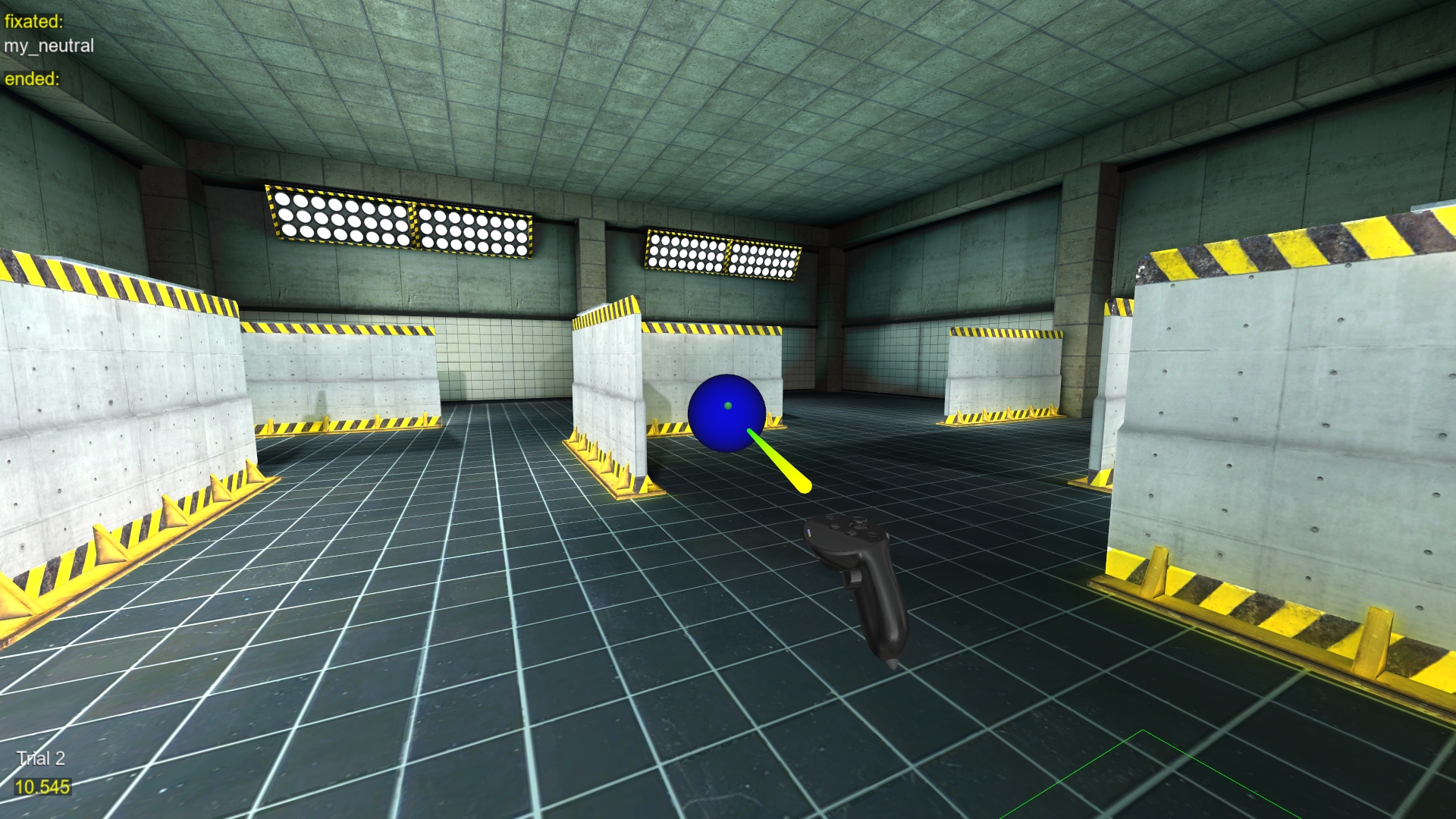
Adds complexity to the shoot/don't-shoot task by embedding it in a maze environment with proximity sensors.
Script Breakdown
- Environment Setup:
- Loads a maze model (
Resources/environment/maze.osgb; can be swapped with your own). - Places proximity sensors on the maze's
proximity_geode1andproximity_geode2areas. - Task Logic:
- Similar to the shoot/don't-shoot task but requires navigation. The same four objects are used, with the same names.
- Each trial's object stays hidden until the participant walks into a proximity area. It then appears about 2.5 m in front of them, at 1.5 m height and up to 1.5 m to either side, once per trial: walking into an area again does not move it.
- The participant shoots by pointing at the object and pressing the trigger (Desktop: left-click), or holds fire. The trial ends at the shot, or
TRIAL_LENGTHseconds after it started. - The reaction time runs from the moment the object appears, not from the start of the trial, so the time spent walking to the area is not included.
Data Recorded
The experiment summary has the same columns as the Shoot/Don't Shoot task (Reaction Time, Object Category, UserShot?, Correct?). If the participant never reached a proximity area, the object never appeared, so UserShot? and Correct? are left blank for that trial.
Customization
- Adjust
TRIAL_LENGTHfor how long each trial lasts, including the walk to a proximity area (180 seconds by default). - Use
proximityAreaPlacerto configure sensor areas. - As in the Shoot/Don't Shoot task, give each object in
object_lista unique name inobject_names.