Latest Updates
The latest highlights across SightLab 2.9, E-Learning Lab 1.6, and the External Data Recorder 2.0. See the Release Notes for the full list of changes.
SightLab VR Assistant Plugin
The SightLab VR Assistant is now a public plugin for supported ChatGPT and Codex experiences. It uses bundled SightLab documentation and reference materials to help you plan VR studies, learn SightLab workflows, write Python, and troubleshoot code.
- Plan a study: outline the scenes, trial flow, gaze measures, and a pilot checklist for your design
- Learn the GUI: step-by-step help setting up trials, participant instructions, and gaze tracking on objects
- Extend an experiment: draft Python, such as adding a grabbable object or a rating scale after each trial, with an explanation of where it fits in your script
- Troubleshoot code: share your script and error traceback to find the likely cause and the smallest fix for your SightLab version
- Understand your data: have the data file columns explained, and draft scripts to summarize results such as dwell time by trial and object
- Work with your own project: where your ChatGPT or Codex environment supports file access, share a script, config file, error log, or screenshot for help in context. In Codex, you can ask for proposed edits to a local project
- Advanced desktop workflows: combine it with separately enabled tools, such as a Blender MCP integration to create 3D assets, or Computer Use to help test a local SightLab project
To get started, open the plugin link, add SightLab VR Assistant, then type @ in a chat and select it from the plugin menu. Include your SightLab/Vizard version, headset, and whether you are using the GUI, Python, or both. You can also open it from the Assistant shortcut in the upper right of the SightLab Dashboard.
💬 Get the SightLab VR Assistant plugin
Learn more about the SightLab VR Assistant
E-Learning Lab Proximity Sensors
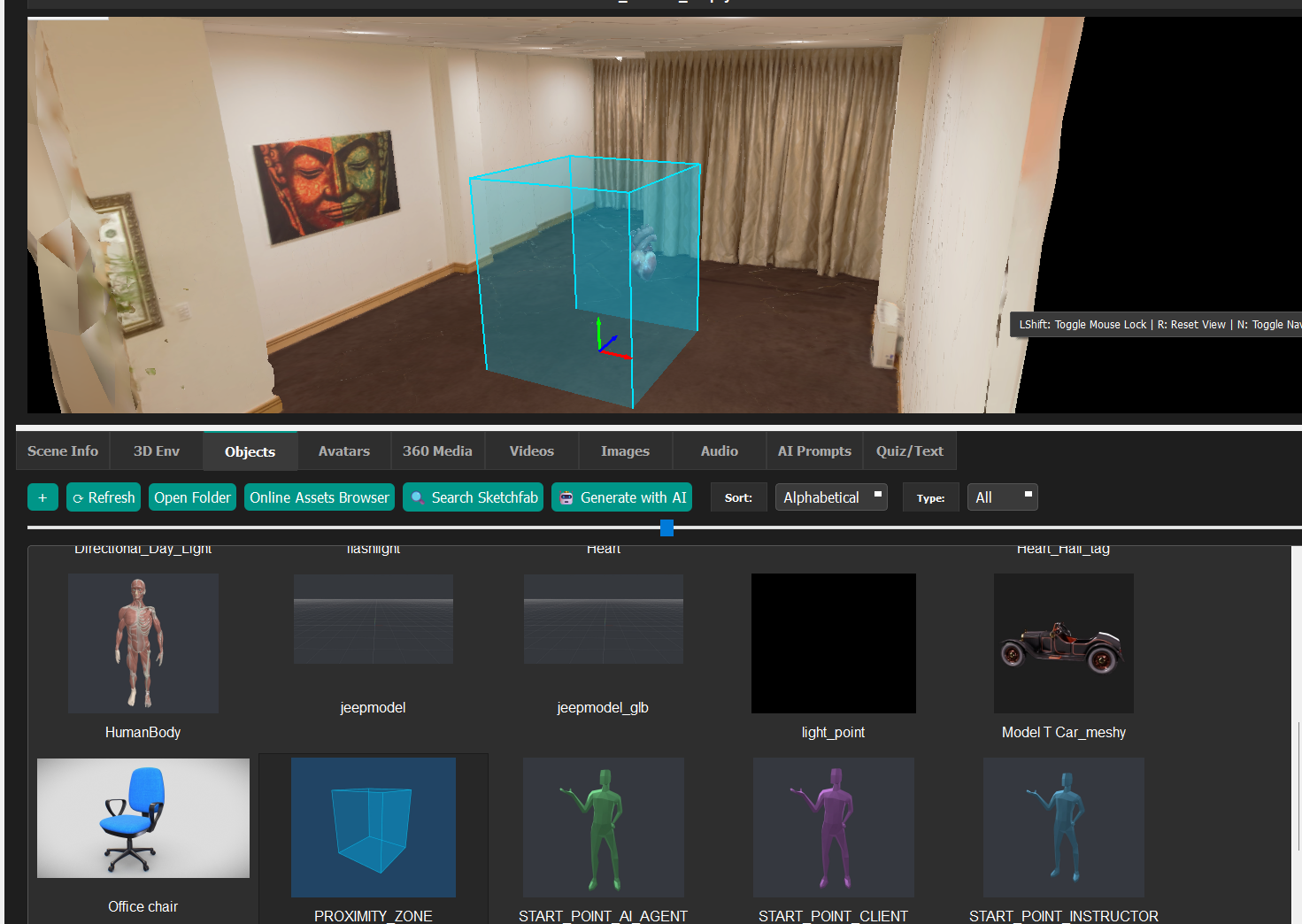
New in E-Learning Lab 1.6.1: proximity sensors make something happen when a learner reaches a spot in the scene. For example, walking to a station plays a chime, reaching into a box shows a label, or bringing a beaker to a tray moves on to the next slide. Sensors are set up in the Scene Editor, with no code needed.
- Branching logic: an Advance slide action can go to the next slide or jump to any slide you choose, so where a learner goes decides what they see next. It still points to the right slide after you reorder or rename slides
Learn more about Proximity Sensors in E-Learning Lab. To build proximity sensors in your own SightLab scripts, see Proximity Sensors.
360 Moving Regions of Interest
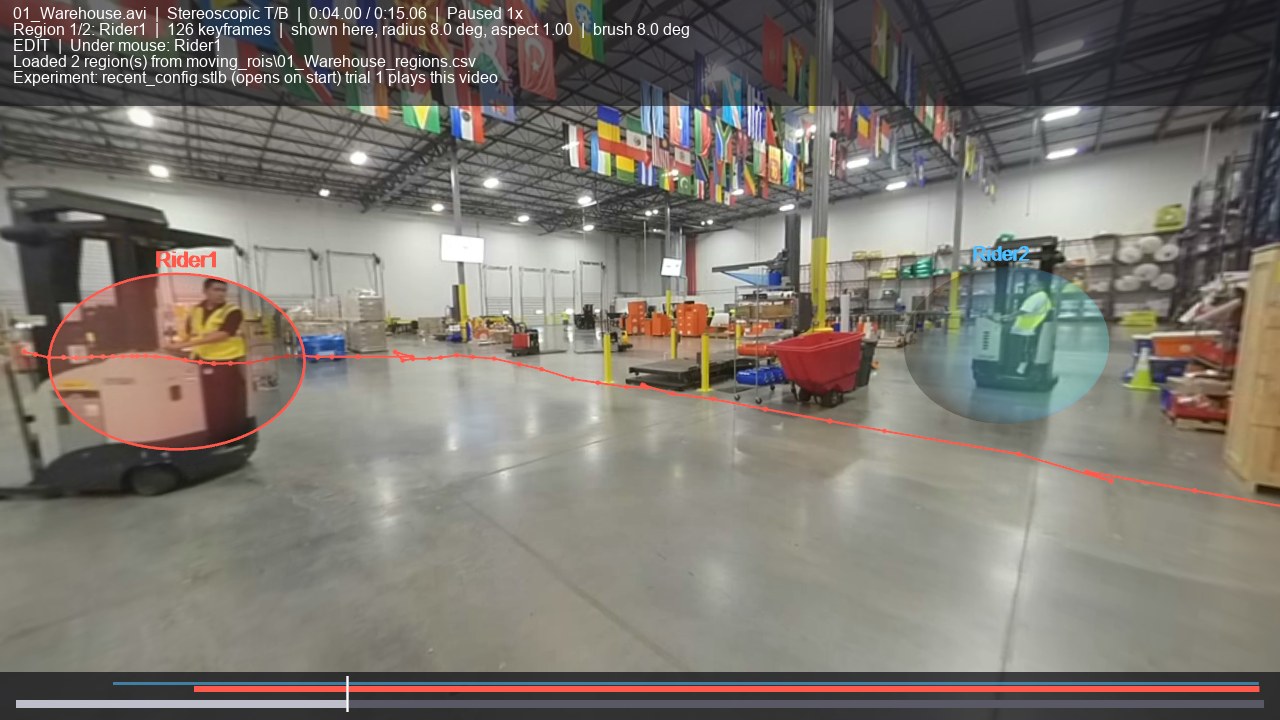
New in SightLab 2.9.1: regions of interest can now follow objects that move through a 360 video, such as people, vehicles, or a ball, so you can record gaze on them as they move.
- Trace with the mouse: play the video in the new 360 ROI Path Tracer, hold the mouse on each object, and scroll to match its size as it gets nearer or farther. Objects that stand still, or stop and start, stay covered too. No headset, eye tracker, or recorded session is needed
- Set up automatically: drag in a video and it's copied into your project, and the regions of interest are added to the trial with the names you give them
- See exactly what you'll get: preview the regions as the experiment will show them, with the mouse acting as the participant's gaze
- Data like any other ROI: dwell time, fixations, and time to first fixation for each moving region, under its own name
- Stays on target: regions follow the video's own clock, so they stay on their objects even if playback starts late or stalls
- Track any number of objects in each video, and watch the regions move in Session Replay
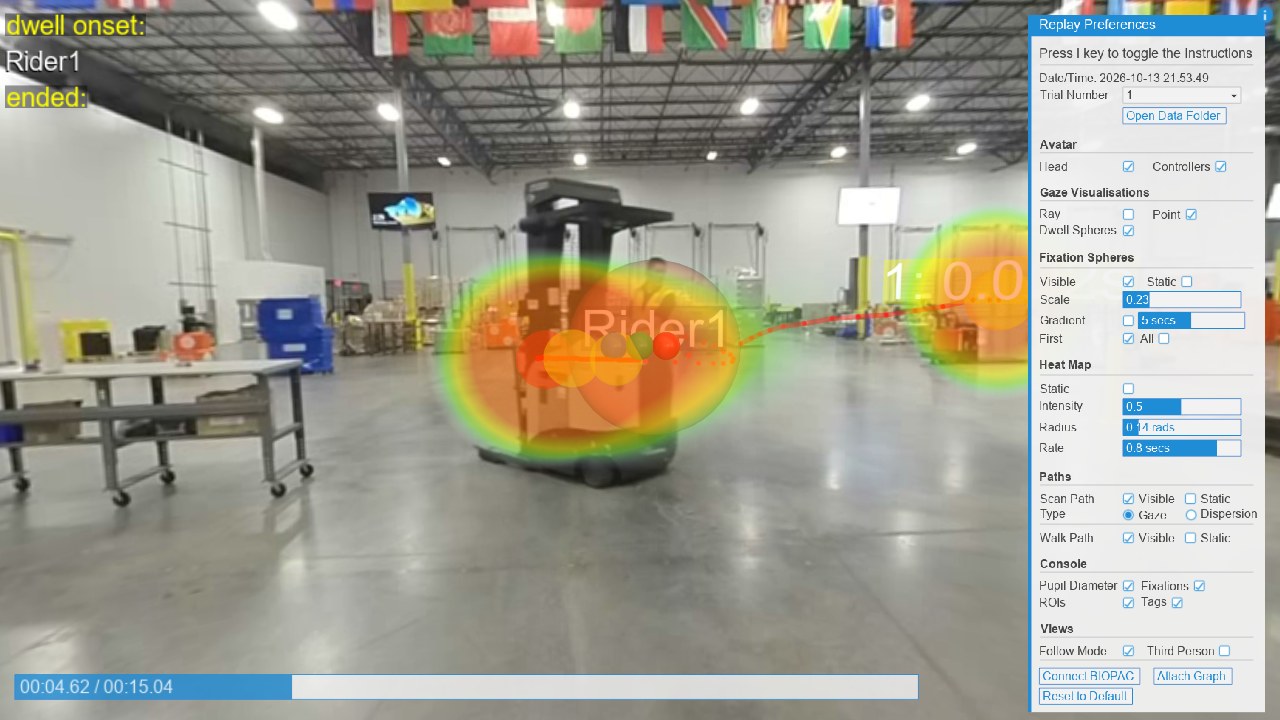
Run it from the SightLab Dashboard under Tools/Features, or find it in ExampleScripts\360 Moving Regions of Interest. The example follows two forklift riders in the built-in warehouse video.
Learn more about 360 Moving Regions of Interest
External Data Recorder 2.0
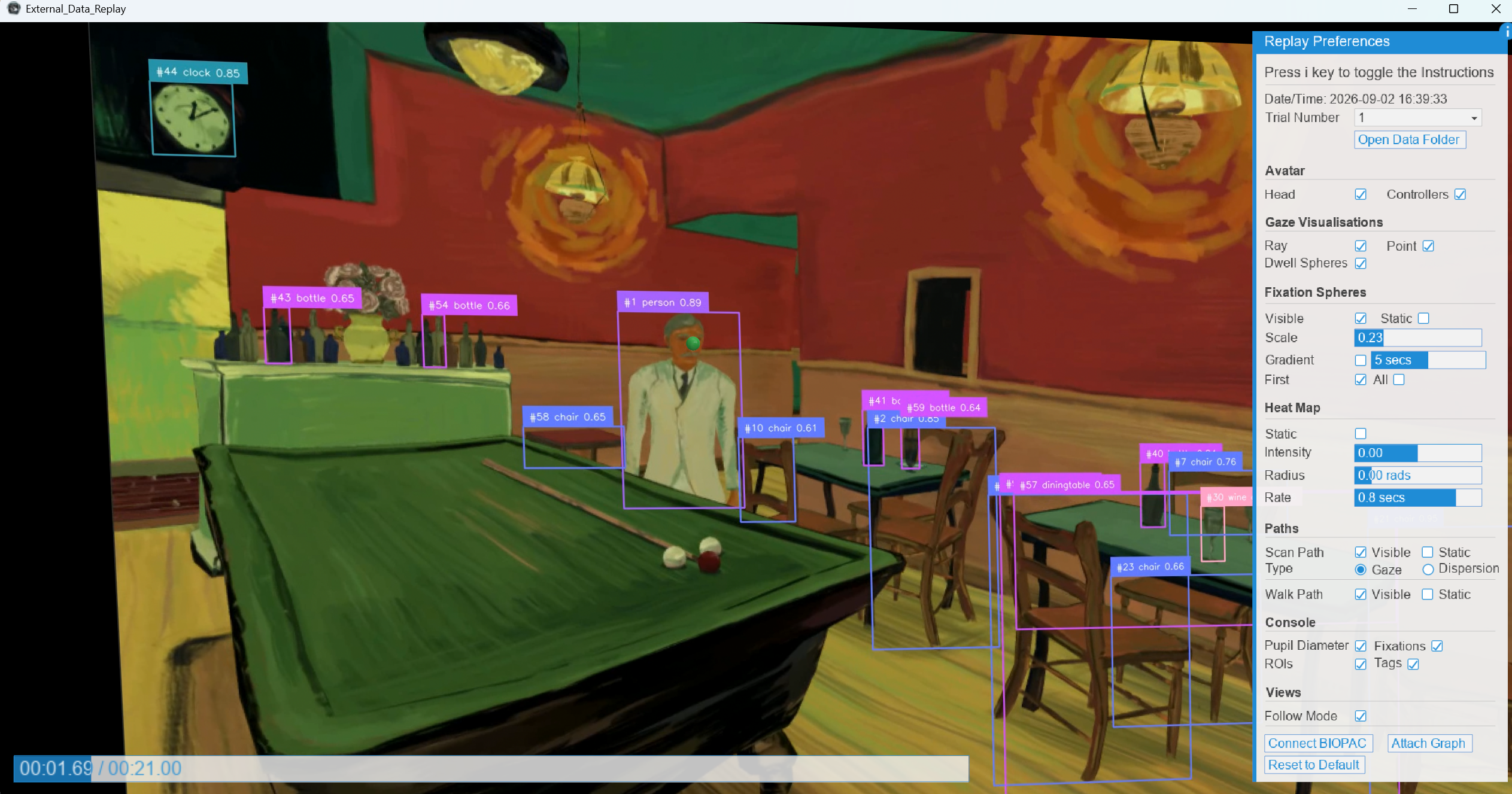
The External Data Recorder 2.0 is now available.
Record eye tracking and physiological data while participants use external applications, including SteamVR, Unity, and Unreal apps, web experiences, standalone headset apps, and desktop games. Version 2.0 rebuilds the recorder with:
- Add and manage objects of interest: detect everyday object classes (COCO), or use open-vocabulary detection to find exactly the objects you describe
- Gaze data on objects and areas of interest: dwell time, fixations, and dwell counts for each detected object and class, saved to the data files
- A real calibration stage: follow a short sequence of dots in the headset, with no need to manually move a virtual screen to line up the gaze
- Angular accuracy reported every session: a validation round measures accuracy in degrees and prompts you to recalibrate if it's too low
- An audit trail of gaze quality: each participant's calibration and validation results are saved with their data
- Headset slippage check: an optional validation at the end of the session measures how much accuracy drifted during the test
- Works out of the box with all supported hardware, with no manual adjustments. This includes Vive Focus Vision, Vive Focus 3, Vive Pro Eye, Meta Quest Pro, Varjo XR-3/XR-4, HP Omnicept, and screen-based EyeLogic trackers.
- Pimax Dream Air support, with a step-by-step setup guide
- Simpler, more stable recording: five video backends are replaced by OBS, recording over WebSockets, and the old "may crash after about 10 minutes" caveat is gone
- Cropped recordings: for setups without eye tracking, crop the recording to the region you care about, such as cutting out a browser's toolbar
Learn more about the External Data Recorder 2.0, including the Eye Calibration Guide and Postprocessing Guide
AI - Computer Vision Object Detection
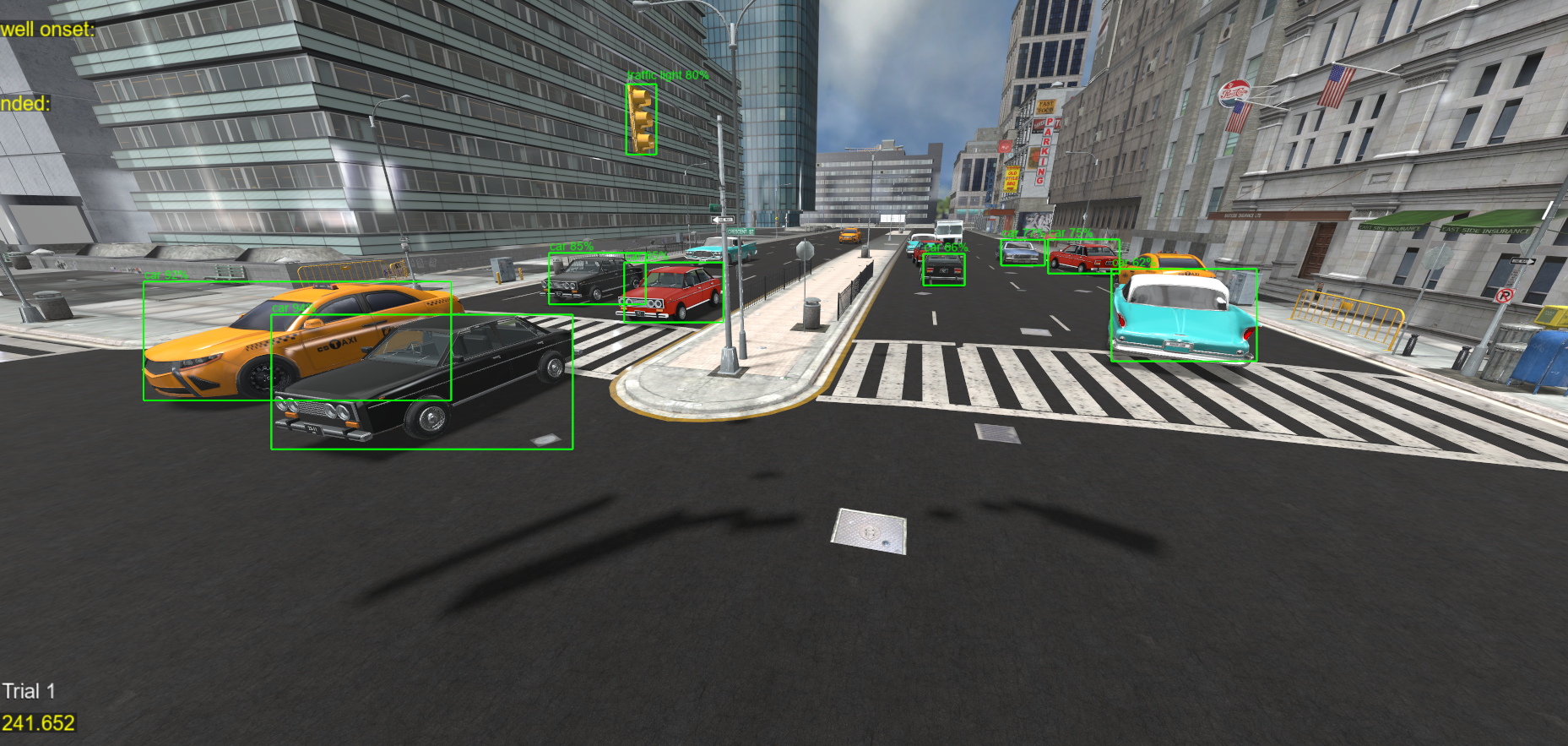
AI Object Detection identifies the objects in a scene automatically while the participant looks around, and records gaze on each one, without having to set up or label scene objects ahead of time. It runs YOLOX object detection on the rendered view at a set interval and registers every detected object with SightLab as a gaze object.
- Records dwell time, view count, average dwell time, and first view time for each detected object, saved to the data files with the rest of the session
- Tracks each object of the same class separately, such as
yolo_cup_1andyolo_cup_2 - Places a 3D collision volume at each detected object for gaze to hit, and shows bounding boxes and labels on the researcher's desktop view
- Adjust the confidence threshold, detection interval, and display options in
AI_ObjectDetection_Config.py - Works in Desktop mode, so you can test detection settings before running a VR session
- An AR version detects real objects in a headset's passthrough view
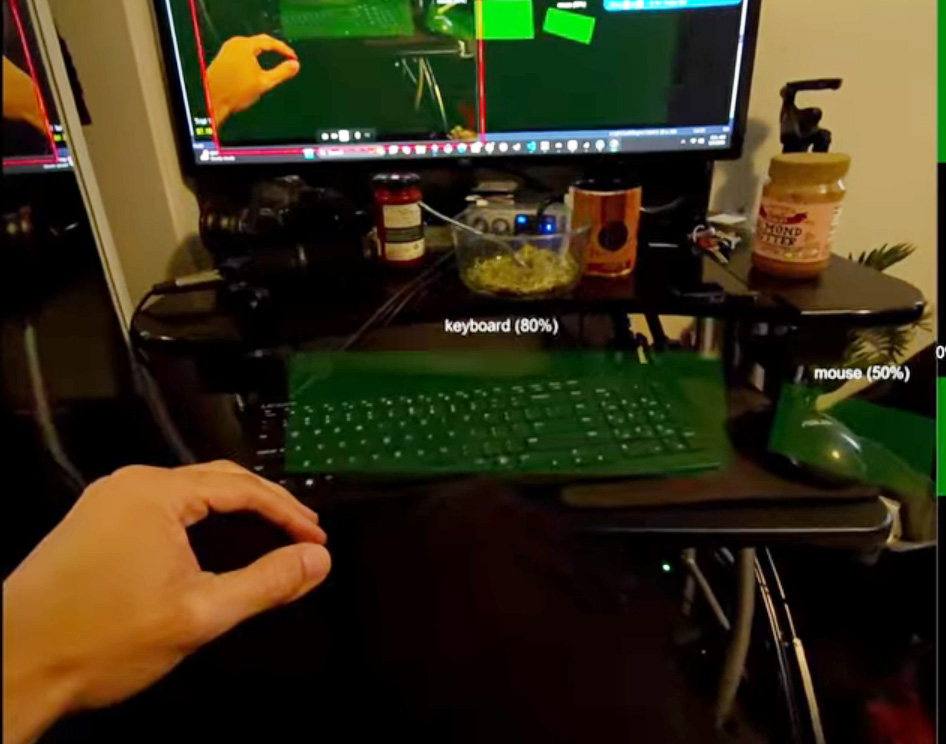
Object detection is part of sightlab_utils, so it can be added to any SightLab script. Create the detector before each trial, then start and end detection with the trial. All settings have defaults, so it only needs viz and your sightlab instance:
from sightlab_utils.yolox_object_detection import YOLOXObjectDetection

def sightLabExperiment():
    while True:
        detector = YOLOXObjectDetection(viz, sightlab)
        yield viztask.waitKeyDown(' ')
        yield sightlab.startTrial()
        detector.startDetection()
        # your experiment code here ...
        yield viztask.waitKeyDown(' ')
        detector.endDetection()
        yield sightlab.endTrial()
The example is located in ExampleScripts\AI_ObjectDetection.
Learn more about AI Object Detection, including installing its dependencies
Steam Link Integration
The new Steamlink hardware configuration runs SightLab on a standalone headset streamed from the PC with Valve's Steam Link app, and records eye tracking on headsets that have it. For Meta Quest headsets, it's an alternative to Meta Horizon Link.
- One configuration covers several headsets: Meta Quest Pro, Vive Focus Vision, Steam Frame, and Meta Quest 3 and 3S
- Eye tracking on the Meta Quest Pro, Vive Focus Vision, and Steam Frame; the Meta Quest 3 and 3S record head direction
- SightLab picks the gaze source automatically at startup: Steam Link eye tracking, then the OpenXR runtime's eye tracking, then head direction. If eye tracking starts arriving later, it switches to it
- Records eye openness for blinks, with a separate value for each eye on the Meta Quest Pro
- A gaze check tool shows what Steam Link is sending before you start a session
- The External Data Recorder has its own Steamlink configuration, for recording eye tracking in other VR applications over Steam Link (see External Data Recorder - Steam Link)
Avatar Playback
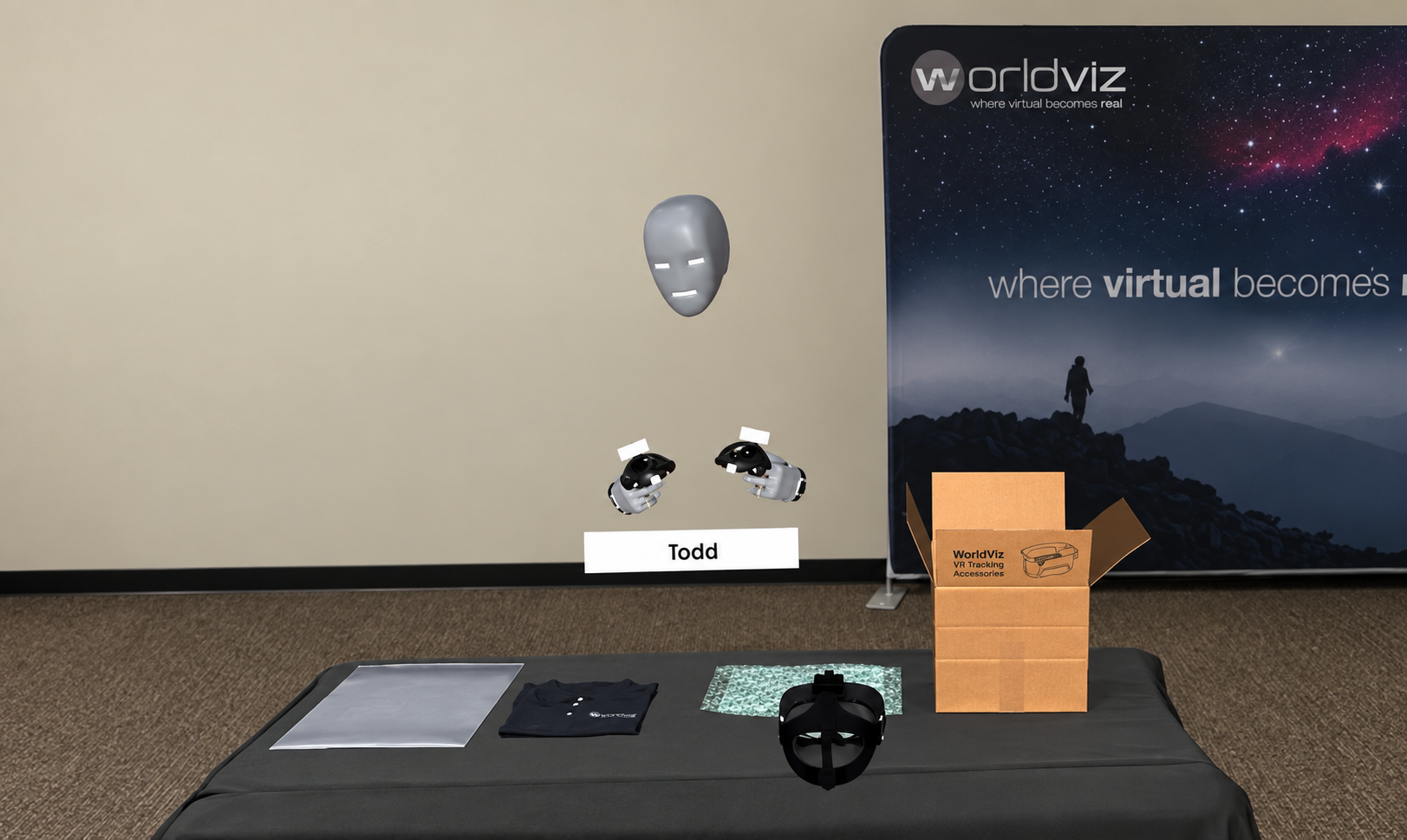
Play back a participant's recorded head and hands, any objects they picked up, and their voice as an avatar inside a new, live SightLab session. Record a session as usual, then load the recording in a later session and start the avatar whenever you want it to repeat what was done.
- Use it for a pre-recorded confederate or demonstrator, to show an expert's movements (or the participant's own earlier ones) to follow or compare against, or to replay how an object was handled in front of a new participant
- Works with any recorded session: it reads the same
.rplyfile that Session Replay uses, so nothing extra needs to be recorded - Objects the recorded participant picked up move again during playback, matched by name to the objects in the new scene
- Records the participant's voice and plays it in sync with the avatar, with keys to start, stop, pause, and loop the playback
- The playback avatar is saved in the new session's data, so it appears in Session Replay, and it can be tracked as a gaze object to see when and how long participants looked at it
- Add it to your own script in a few lines:
from sightlab_utils.avatar_playback import AvatarPlayback

playback = AvatarPlayback(sightlab = sightlab)   # choose a recording from a dialog
playback.start()
The example is located in ExampleScripts - Avatar_Playback, with GUI and non-GUI versions.
Learn more about Avatar Playback
Third Person Follow Mode in Session Replay
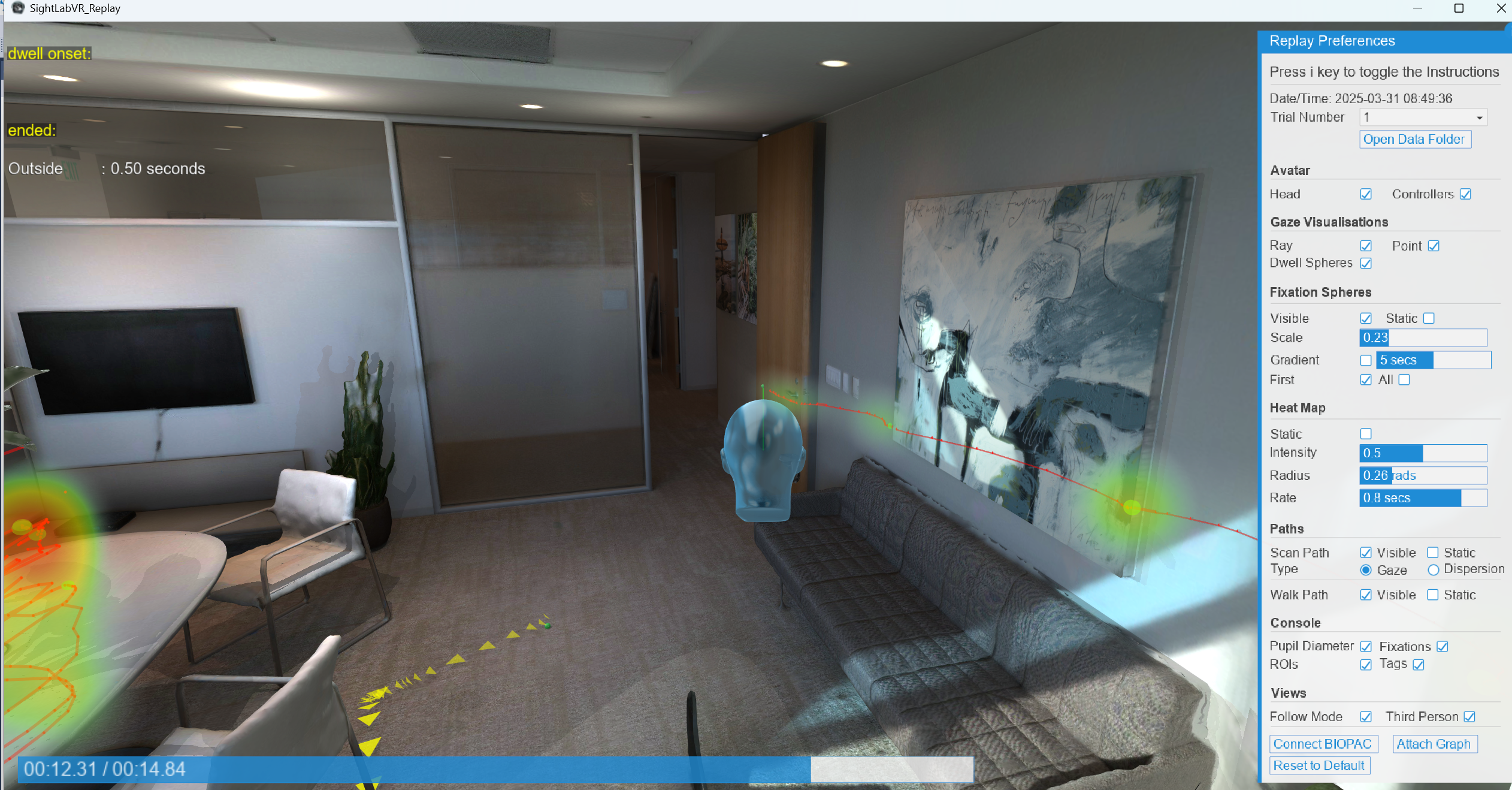
Session Replay can now follow the participant from just behind and above their head, so you can see their avatar along with what they were looking at, including the gaze ray, fixations, heat map, and walk path.
- Check Third Person under Views in the Replay Preferences panel
- Works with any recorded session in a 3D model scene, whether or not the experiment used a third-person view
- The camera turns with the direction the participant faces but ignores head tilt, so the view stays level
- Hold the right mouse button and drag to orbit around the participant; when you let go, the camera eases back behind them
- Set where the camera sits with
setThirdPersonOffset, for example further back to keep the whole car in view in the Driving Example
Learn more about Third Person in Session Replay
Third Person Desktop View
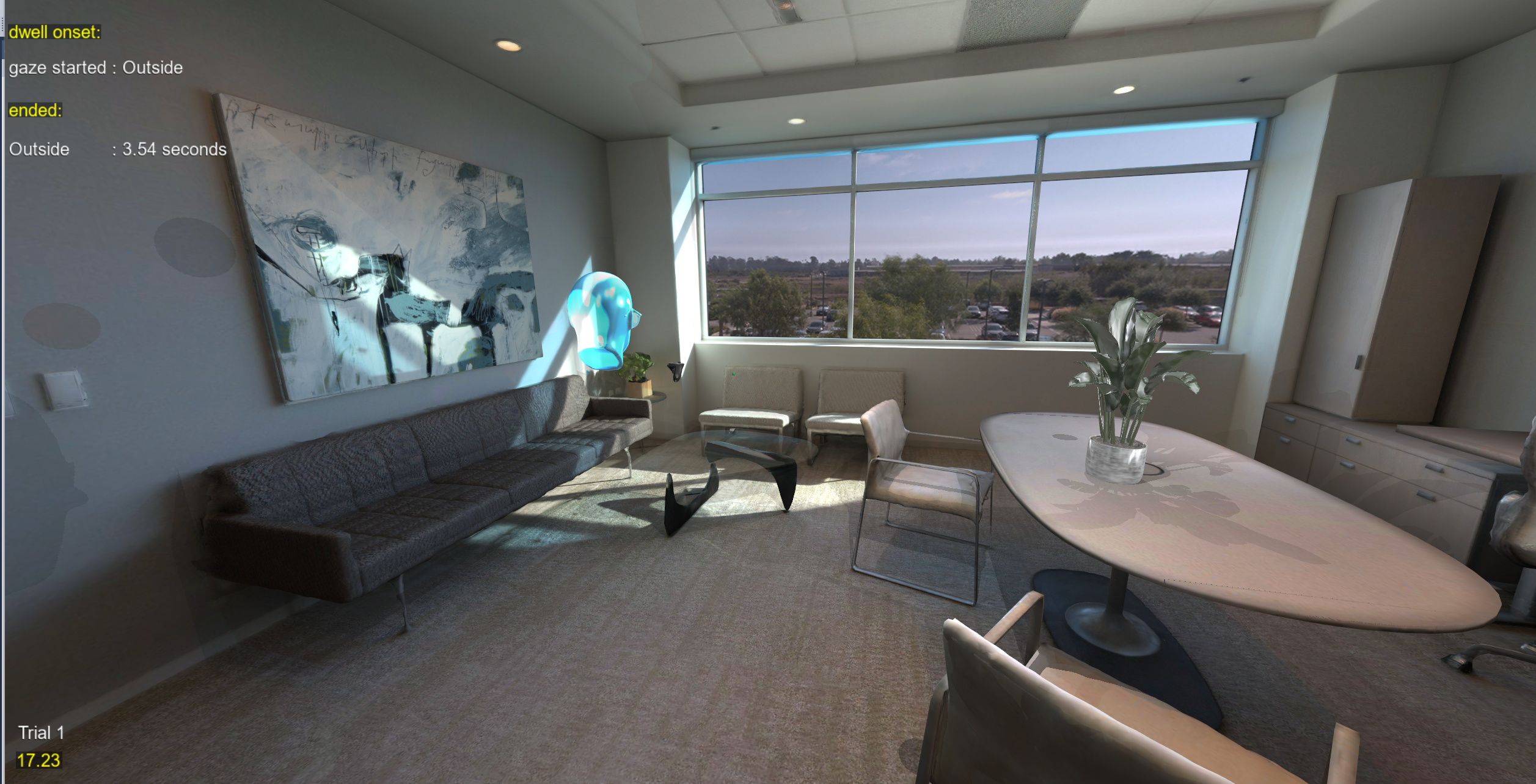
Watch a participant in third person while the experiment runs. On a Desktop configuration, press b to switch between first person and two third-person cameras.
- Cycles through first person, behind and above the participant, and over their right shoulder
- Turning with the mouse swings the camera around the participant, and the camera moves in front of walls and objects instead of showing the inside of them
- The participant's avatar head is shown in third person; with a full-body avatar, their body shows them instead
- Only the view changes: gaze, head position, and everything else are still recorded from the participant's own eyes, so the data and replays are the same as in first person
- Add it to any script with
ThirdPersonView(sightlab), and customize the camera positions, the key, and objects the camera can pass through
The example is located in ExampleScripts\Third Person View, and the Street Walking Example uses it too.
Learn more about the Third Person View
Driving Example
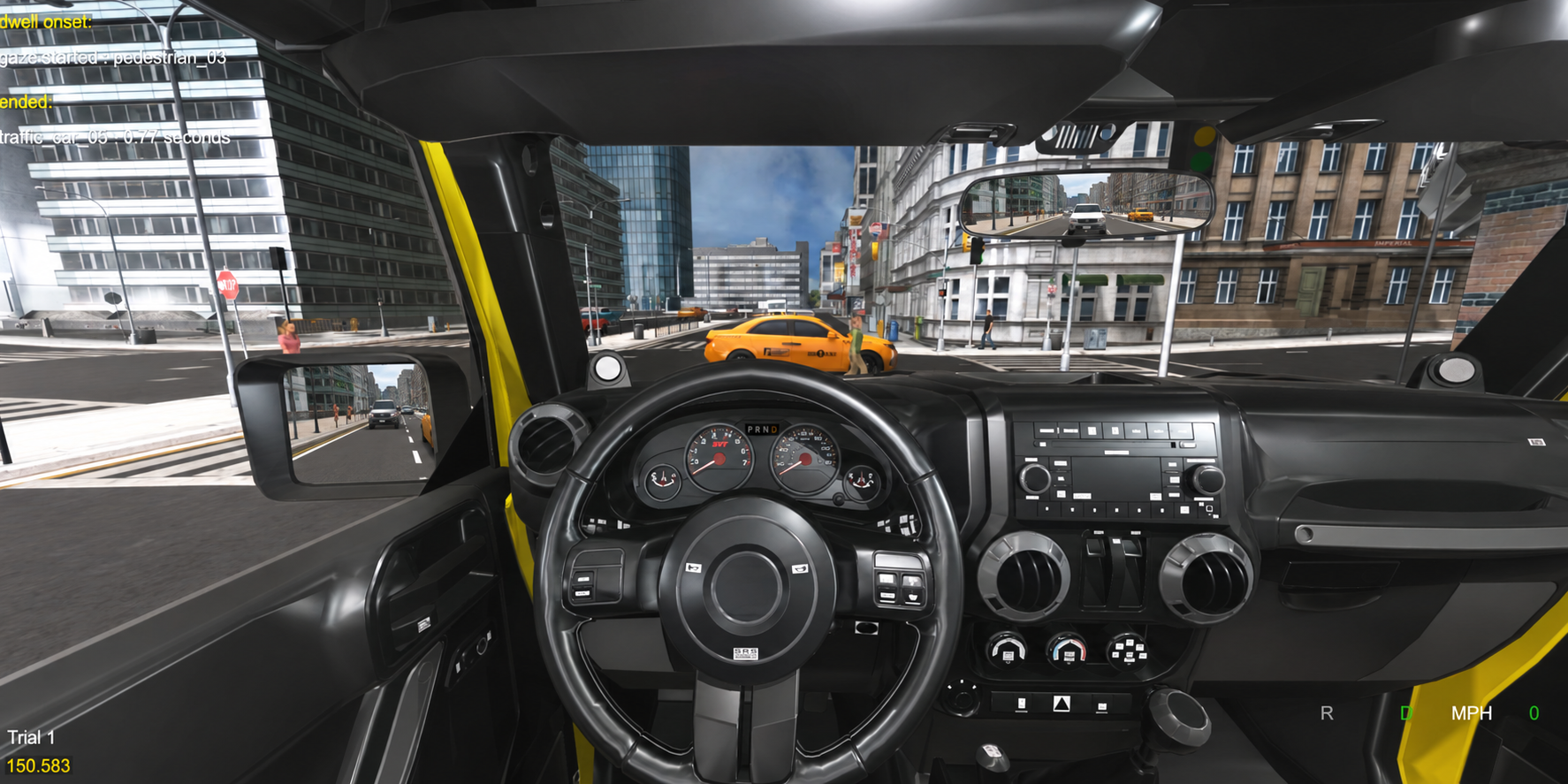
The Driving Example now has realistic traffic and pedestrians, solid-world collision, and multi-user driving, while SightLab records gaze, vehicle data, and collisions.
New Advanced Traffic Management System
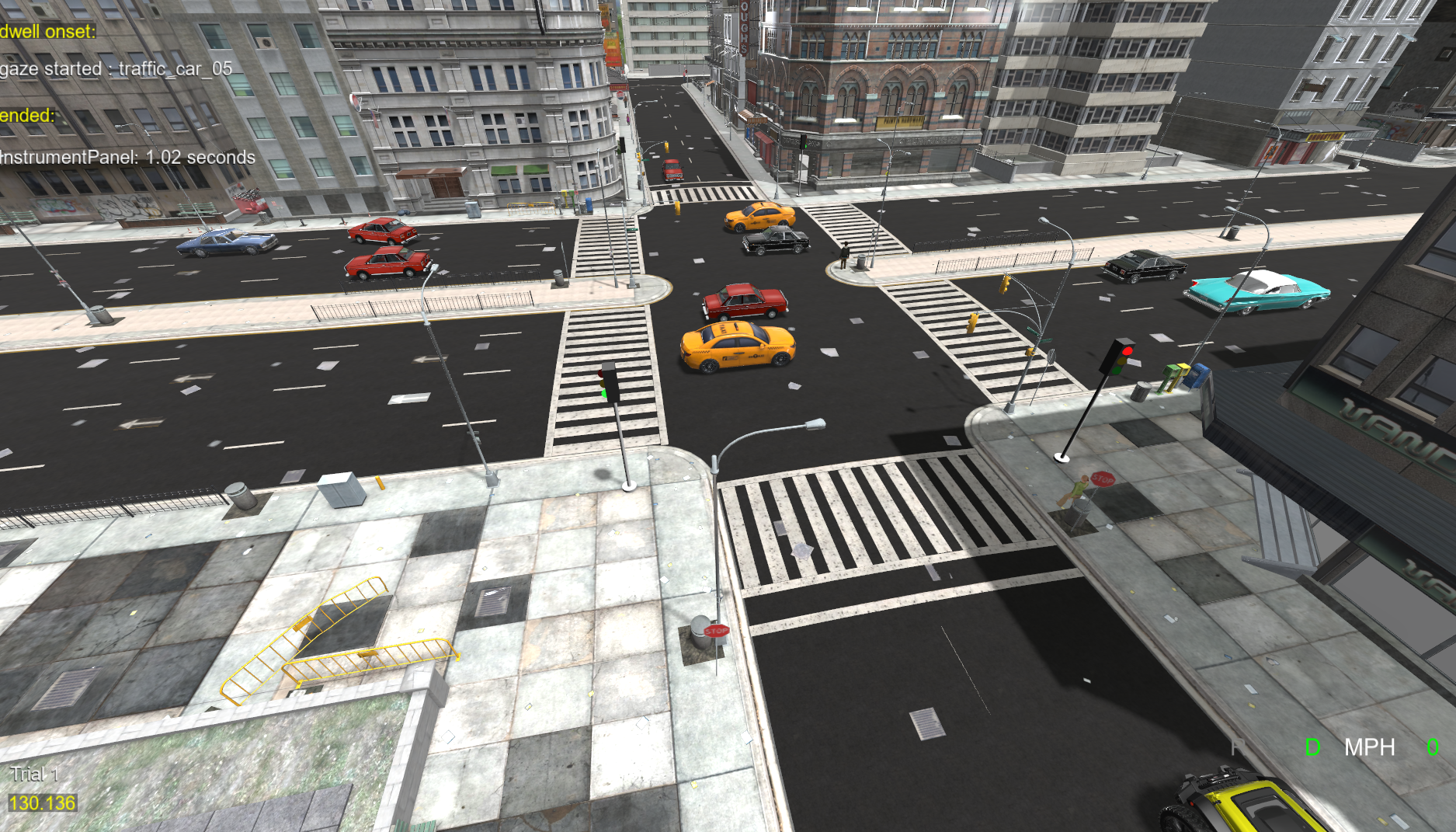
- Vehicles follow the road, keep a safe following distance, stop at traffic lights, and yield to your car
- Add traffic to any environment by driving the road with the in-app route recorder; no 3D modeling tool needed
- Signalized intersections with configurable timing, with traffic lights recorded as gaze objects
- Set the number of vehicles, their speed, traffic lights, and yielding for each trial from a spreadsheet
- Records nearest-vehicle distance, vehicle hits, and dwell time and fixations on each vehicle
Pedestrian Configuration and Management
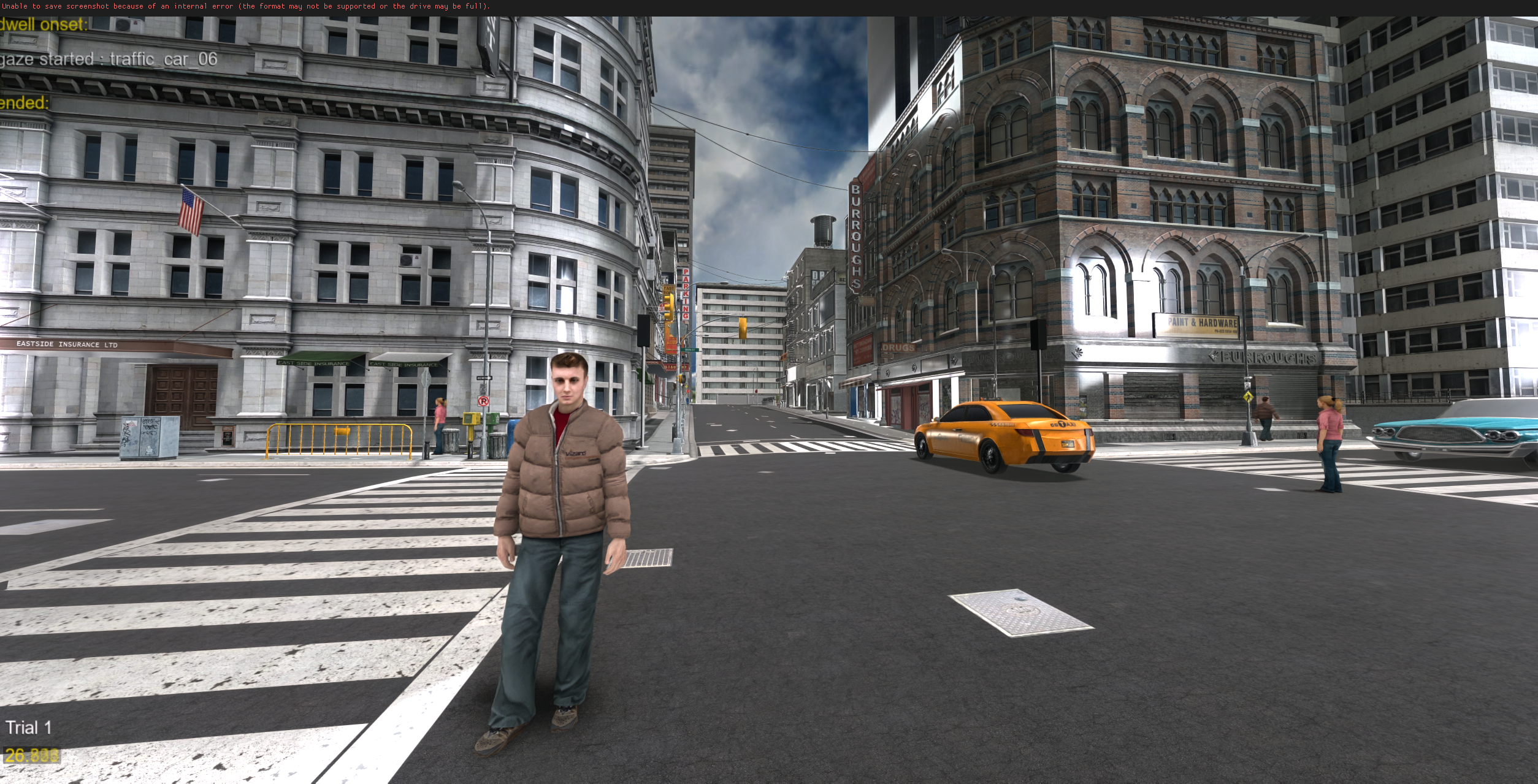
- Animated pedestrians walk the sidewalks, wait at signals, and pause when your car approaches their path
- Generate sidewalk routes automatically from an environment's geometry
- Set the number of pedestrians and their walking speed for each trial
- Pedestrian hits are saved to the data files, sent as events, and marked in Biopac recordings
New Vehicles and Pedestrians
- New traffic vehicle models, including a black sedan and a taxi, with wheels that spin with their speed
- Seven animated pedestrian avatars
- Add your own by dropping models into the vehicles or pedestrians folder
Collision System
- Solid-world collision: the car can no longer drive through buildings, props, or other vehicles
- Drive up hills, ramps, and curbs
- Uses lightweight raycasts instead of a physics engine, so frame rate stays high even in large city models
- Traffic can't drive through your car either, and impacts play a crash sound and vibrate the controller
Full Multi-User Support
- Several drivers share the same city from their own computers, each seeing the others' cars
- Each car is painted in its driver's assigned color, including in Session Replay
- Drivers line up at the start and can't drive through each other
- Every driver's data is saved on the server, and replay shows all of the cars together
Optimizations and Updates
- Realistic acceleration, braking, and coasting, set in real-world units, with the true speed shown on the HUD
- Steering that pivots around the rear axle and eases into and out of turns
- Controller vibration on impacts and when pulling away, on Xbox controllers and VR controllers
- Press
rto put the car back at the trial's starting point - Car velocity and average speed saved for every trial
- A non-GUI version where each trial's environment and traffic are set in a spreadsheet
Learn more about the Driving Example
Street Walking Example
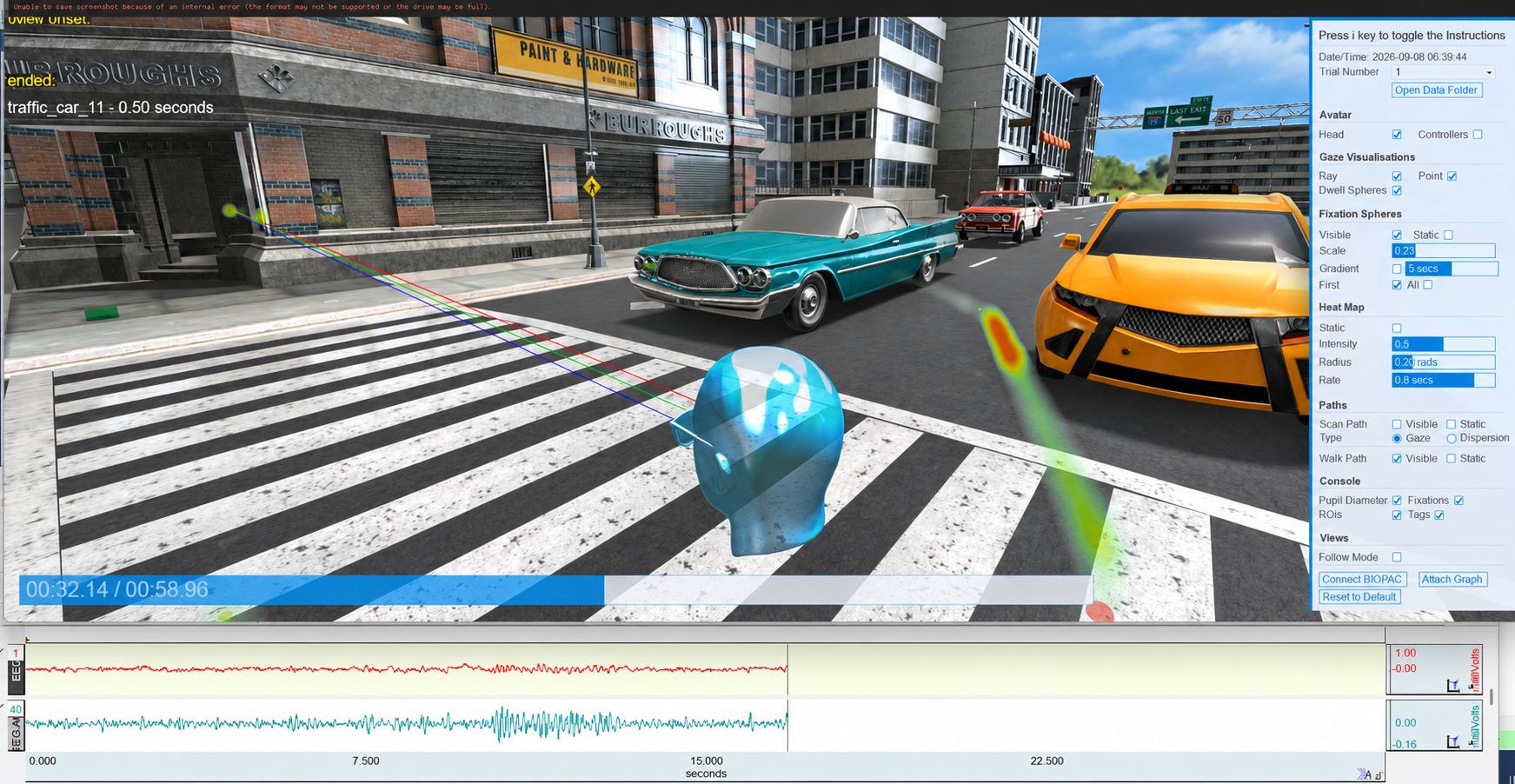
A new example for pedestrian research. Participants walk through a city street with live traffic while SightLab records their gaze, movement, and traffic events.
- Real traffic flow that stops at lights and brakes for the participant, with vehicle count, speed, and signals varied per trial
- Optional animated pedestrians on the sidewalks
- Measure attention to individual vehicles, signals, and hazards
- Walk path, walking speed, nearest-vehicle distance, and vehicle hits on the same timeline as gaze
- Replay walk paths, scan paths, fixations, and heatmaps inside the 3D street, alongside physiological data
- End trials on a proximity event, timer, key press, or gaze event
- Single-user, multi-user, and non-GUI versions included
Learn more about the Street Walking Example
AI Agent Updates
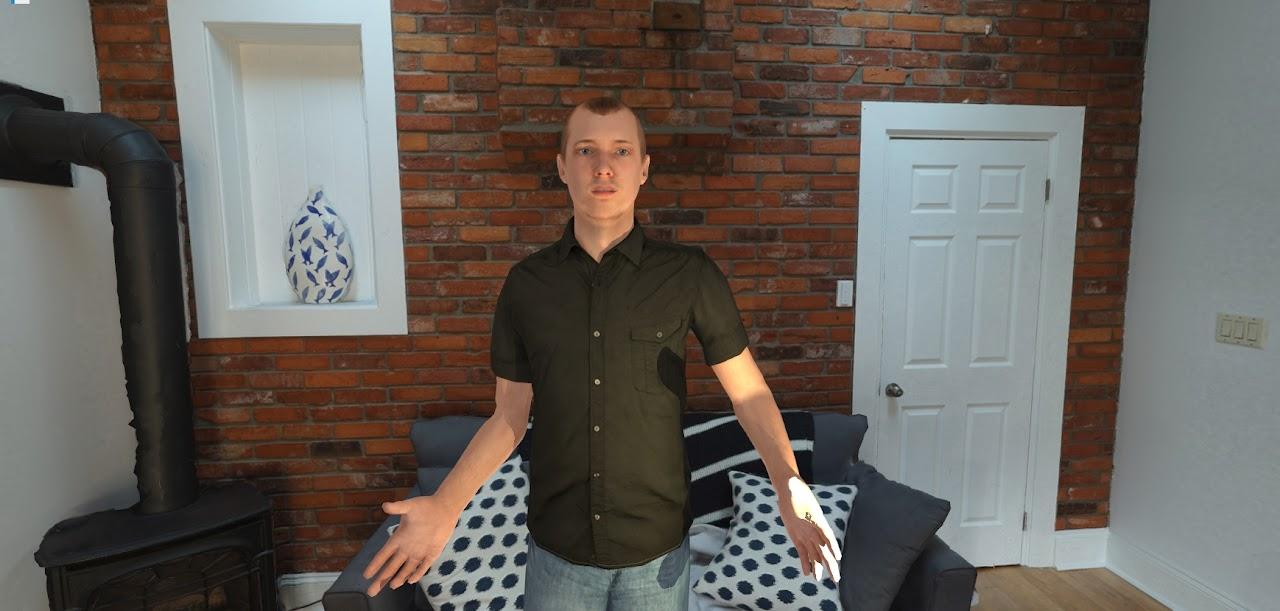
New tools make the AI Agent ready for structured research studies:
- Custom knowledge: add
.txtor.pdffiles, such as product information, a character backstory, or FAQs, and the agent draws on them naturally in conversation - Per-trial prompts and conditional prompting: give each trial its own prompt, or choose the prompt from a randomized condition, for studies with multiple conditions
- Scripted responses: have the agent speak pre-written lines instead of the live AI model, optionally branched by condition
- Interaction limits and a scripted closing line: end a trial after a set number of exchanges, with a fixed closing line from the agent
- Session transcripts: save a timestamped transcript of every conversation
Each of these is a setting in Config_Global.py:
USE_KNOWLEDGE = True
USE_PER_TRIAL_PROMPTS = True
TRIAL_PROMPTS = { 2: "prompts/Job_Interview.txt" }
SET_NUMBER_OF_INTERACTIONS = True
NUMBER_OF_INTERACTIONS = 3
SET_LAST_MESSAGE = True
LAST_MESSAGE = "Thank you for your time today, now I must end this conversation."
SAVE_TRANSCRIPT = True
E-Learning Lab Updates
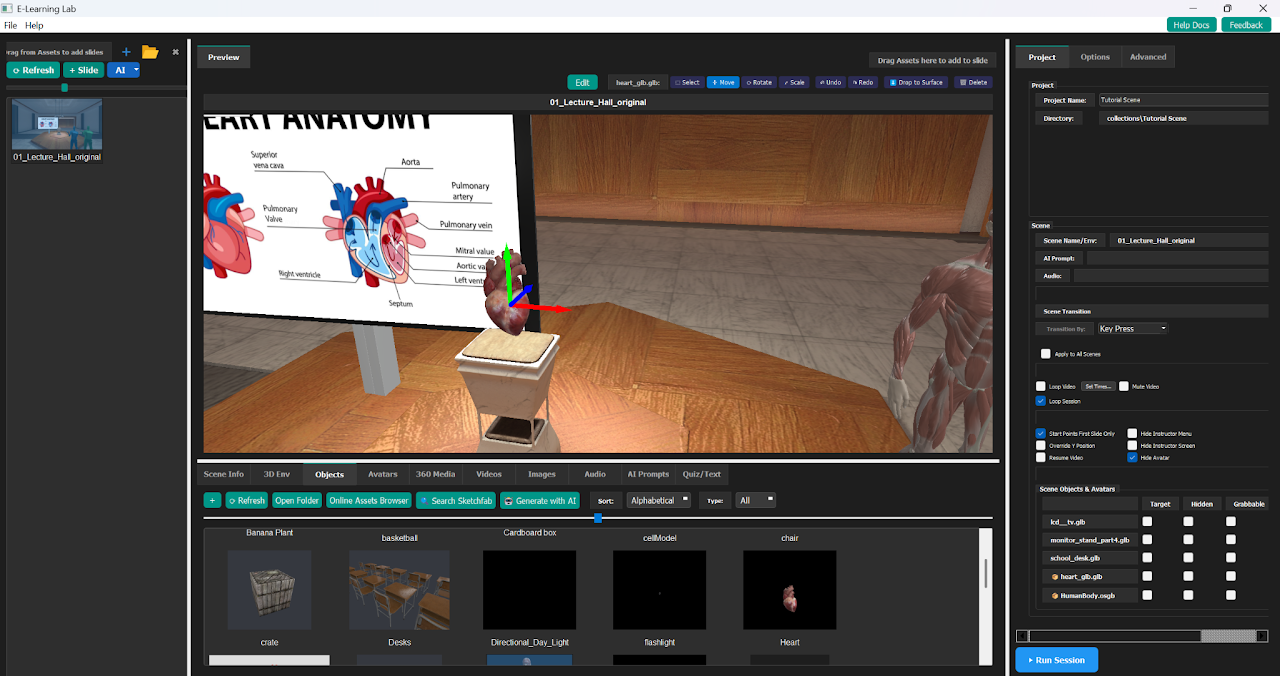
- Avatar Replay: record yourself presenting a slide, including your head and hand movements and your voice, and play it back as an avatar on any slide. Drag the recording onto the Preview window to attach it. Each time the slide starts, the avatar walks learners through the scene, points at objects, and talks them through the content, without an instructor in the session. See Avatar Replay.
- New Scene Editor: add objects, images, videos, and avatars directly in the Preview window, then move, rotate, scale, delete, or drop them to the nearest surface, without opening a separate Inspector window. See Scene Editor.
- Custom AI tutors: drag any avatar into the scene, check Use Scene Avatar, and choose it from the dropdown to make it the AI Agent tutor. See Placing the AI Agent in a Scene.
- Blender integration: open an object from the Scene Editor in Inspector or Blender. Embedded Blender launches from its tab, you can drag environments into it, and changes save back to the preview automatically.
- Shared projects: a new Shared tab for projects you want to share, which can sync automatically across computers with Syncthing
- Easier editing: reorder slides with right-click, adjust interface font sizes, and clean up unused media from the File menu
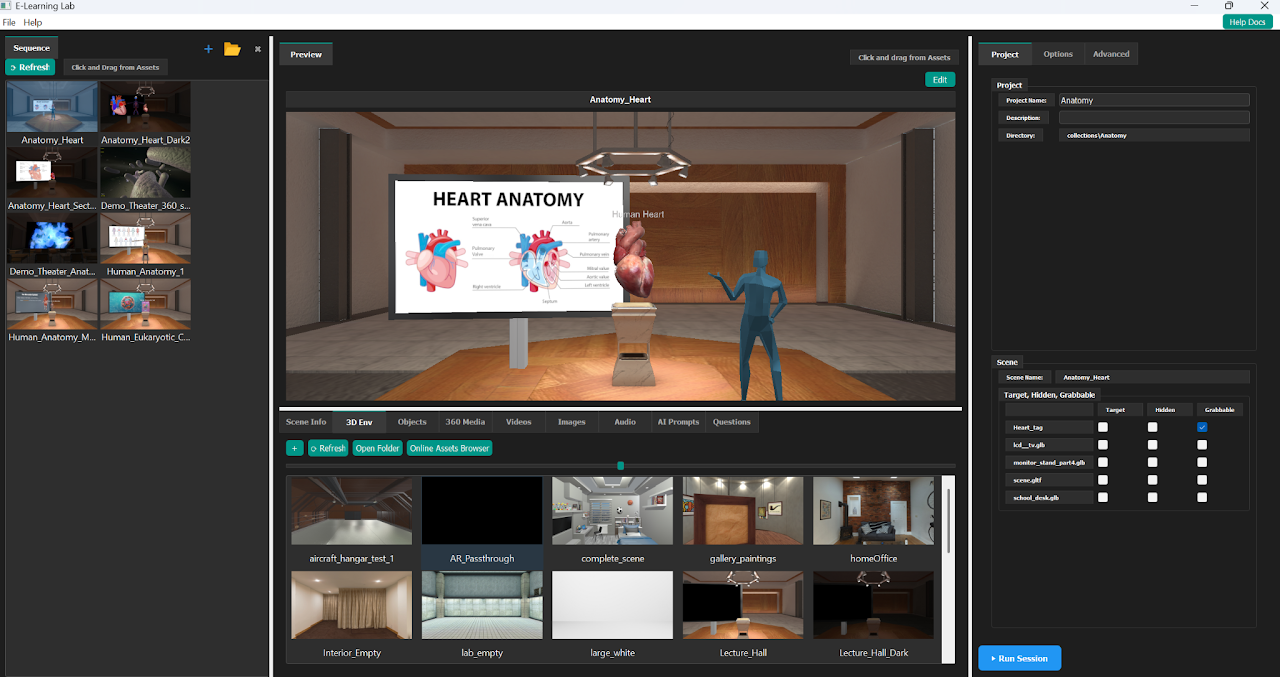
Learn more about E-Learning Lab, or see the E-Learning Lab Release Notes
SightLab Dashboard
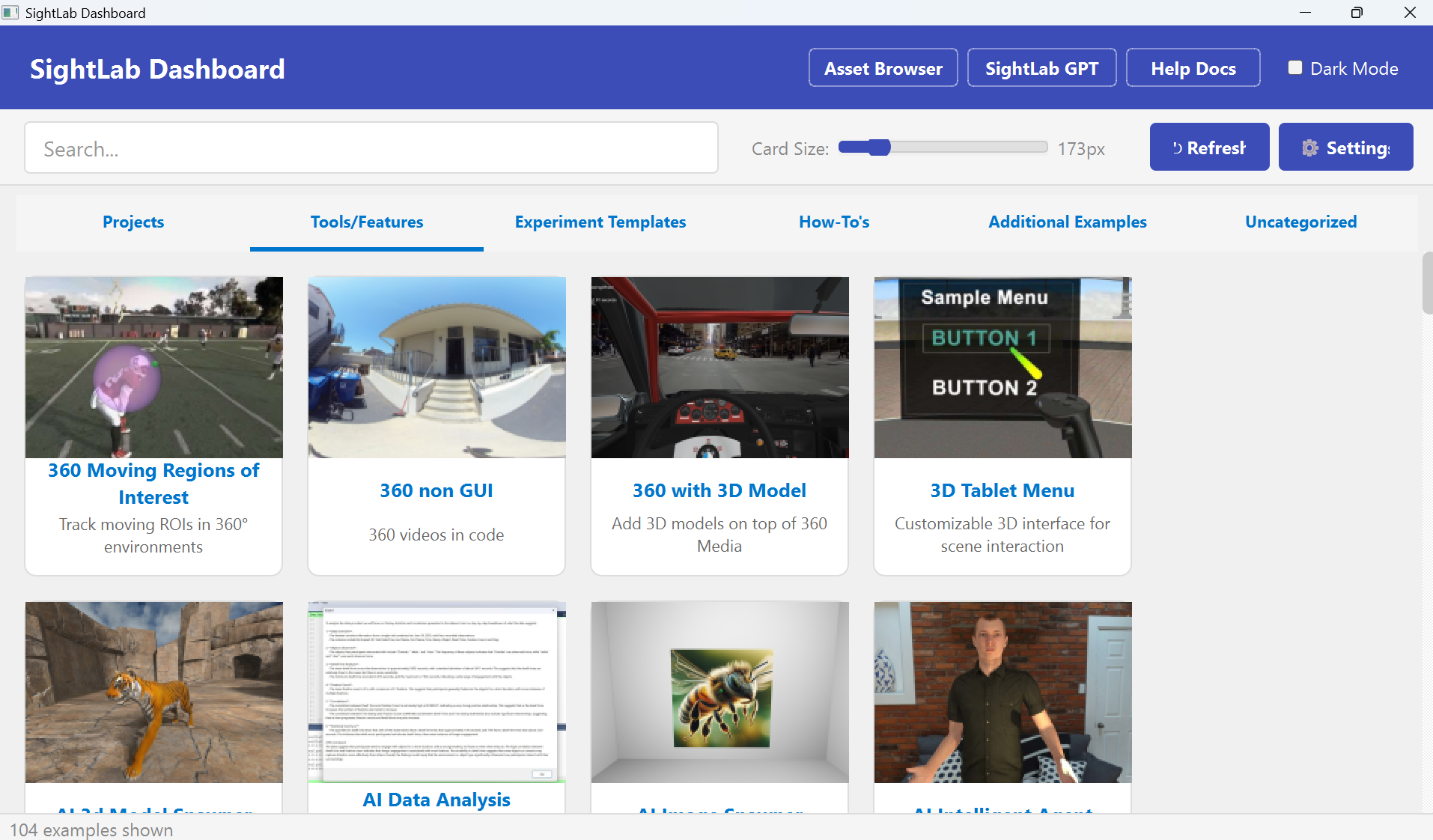
The SightLab Dashboard gives you a single window to browse, search, launch, and manage all your SightLab content. Create new projects from templates, discover example scripts organized by category, access and organize assets, mark favorites, and launch apps like Vizard and Inspector — all without navigating folders. Customize cards with thumbnails and descriptions, attach videos and documentation, manage multi-user scripts, and sort projects by name or date. Available as a standalone executable with light and dark theme support.
- New: a Shared directory under Projects, which can sync across computers with Syncthing
- New: an option to embed Inspector in the Dashboard (turn it on in settings; still being integrated)
See here for more details
New Projects Workflow and Management
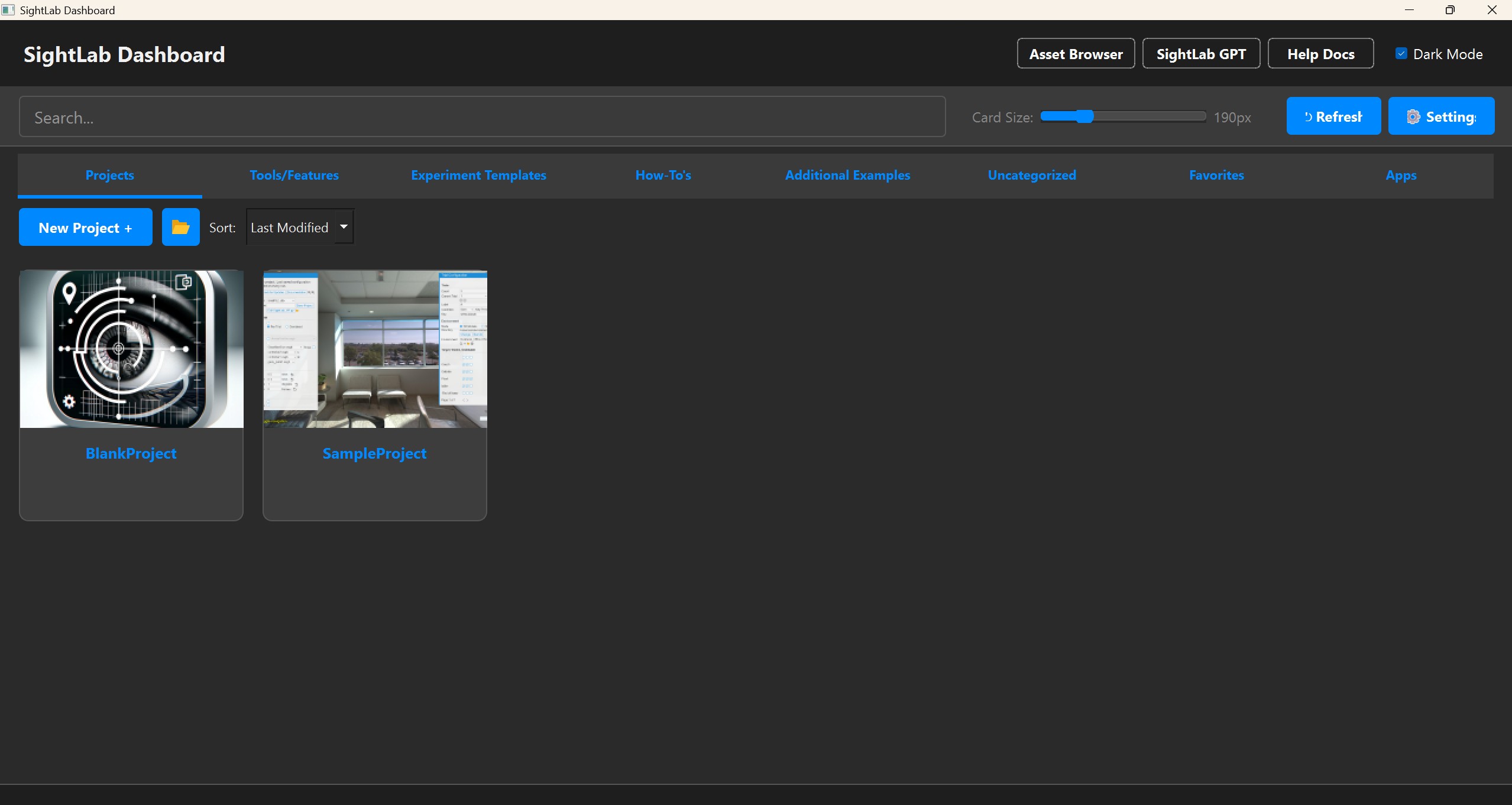
With the new dashboard you now have an easier way to create and manage projects across multiple folders, including the ability to easily edit code, view replays, and more
See the Release Notes for Full List